manuals.online logo
Brands
  1. Home
  2. •
  3. Brands
  4. •
  5. Jacob Jensen
  6. •
  7. IP Phone
  8. •
  9. Jacob Jensen IP20 User manual

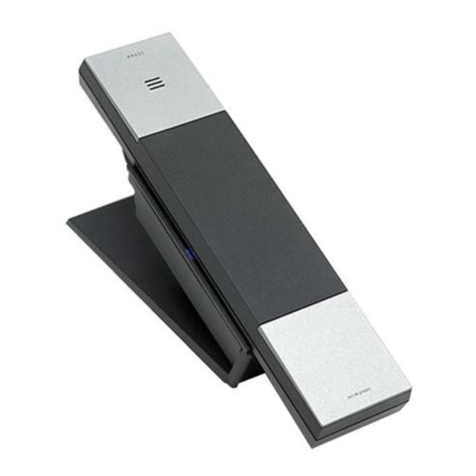
Jacob Jensen IP20 User manual

Other manuals for IP20

1

Other Jacob Jensen IP Phone manuals

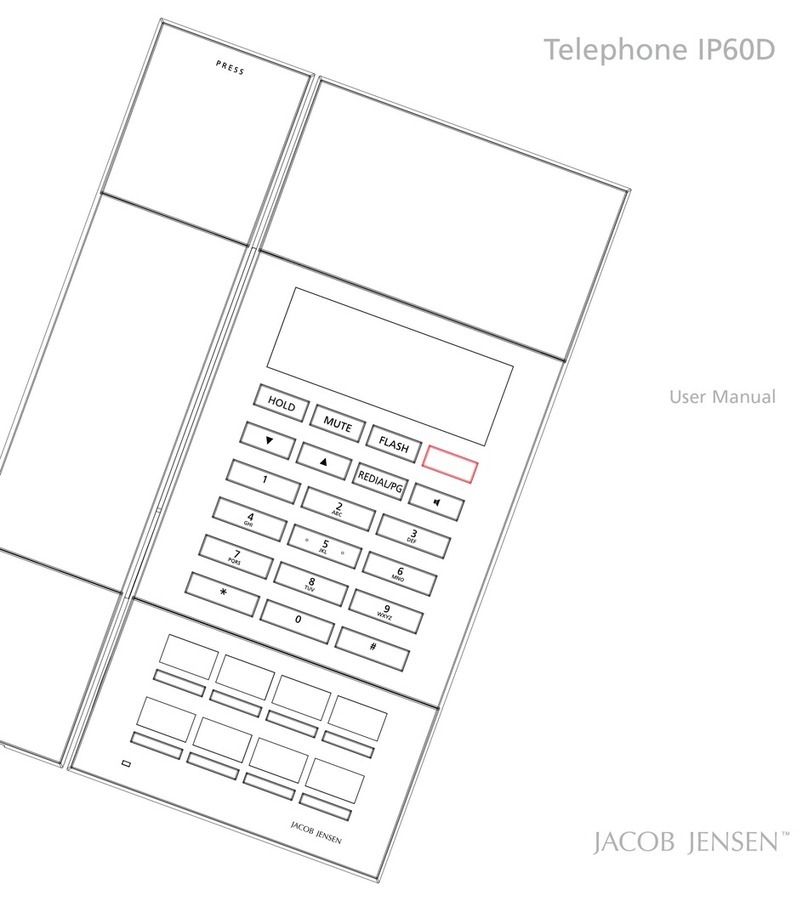
Jacob Jensen IP60D User manual

Jacob Jensen

Jacob Jensen IP60D User manual

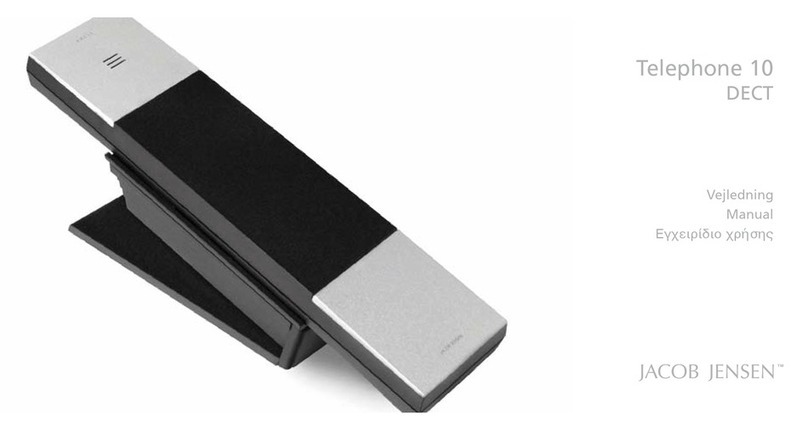
Jacob Jensen Telephone 10 User manual

Jacob Jensen

Jacob Jensen Telephone 10 User manual

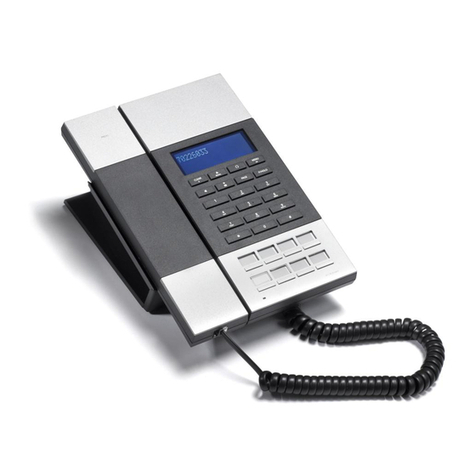
Jacob Jensen T10 User manual

Jacob Jensen

Jacob Jensen T10 User manual

Jacob Jensen IP60D User manual

Jacob Jensen

Jacob Jensen IP60D User manual

Jacob Jensen 50 User manual

Jacob Jensen

Jacob Jensen 50 User manual

Popular IP Phone manuals by other brands

Cortelco C62 VoIP Phone user guide

Cortelco

Cortelco C62 VoIP Phone user guide

VanillaIP Polycom IP300 user manual

VanillaIP

VanillaIP Polycom IP300 user manual

Yealink Yealink SIP-T22P Quick installation guide

Yealink

Yealink Yealink SIP-T22P Quick installation guide

Viking SR-IP product manual

Viking

Viking SR-IP product manual

Yealink VP59 Teams user guide

Yealink

Yealink VP59 Teams user guide

Panasonic KX-UT133-B Administrator's guide

Panasonic

Panasonic KX-UT133-B Administrator's guide

Avaya one-X 9600 Series overview

Avaya

Avaya one-X 9600 Series overview

AVA Enterprises B179 Installation and administration guide

AVA Enterprises

AVA Enterprises B179 Installation and administration guide

Cisco Unified 7900 Series System guide

Cisco

Cisco Unified 7900 Series System guide

Polycom SoundPoint IP 450 datasheet

Polycom

Polycom SoundPoint IP 450 datasheet

Cisco SPA-500 Series user guide

Cisco

Cisco SPA-500 Series user guide

IPitomy IP290 user manual

IPitomy

IPitomy IP290 user manual

Polycom SoundPoint IP 650 user guide

Polycom

Polycom SoundPoint IP 650 user guide

Proximus Maestro 3016 IP quick start guide

Proximus

Proximus Maestro 3016 IP quick start guide

Polycom IP 450 user guide

Polycom

Polycom IP 450 user guide

Fanvil X4 user manual

Fanvil

Fanvil X4 user manual

Snom 320 quick start guide

Snom

Snom 320 quick start guide

Avaya Integral 5 R3.0 user guide

Avaya

Avaya Integral 5 R3.0 user guide

manuals.online logo
manuals.online logoBrands
  • About & Mission
  • Contact us
  • Privacy Policy
  • Terms and Conditions

Copyright 2025 Manuals.Online. All Rights Reserved.

Telephone IP20
User Manual
MUTE
2
CONTENTS
1. 2.
CONTROLS AND FUNCTIONAL KEYSMAIN FEATURE LIST
3.
Handset
1. 6 functional keys
2. 12 numerical keys
3. Message and ringing indicator
Base
4. Table stand
5. Base station
6. Handset cord jack
Base – rear
7. WAN Jack
8. Ethernet Cable
The following items are included in the package
of JACOB
JENSENTM Telephone IP20:
1. Telephone handset with coiled cord
2. Base station and line cord
3. Table stand
• Flash, Mute Message and Redial function.
• Supports message waiting lamp key with retrieval
function.
• The volume can be adjusted in 5 levels.
• Supports DHCP (dynamic host configuration
protocol) and static IP address protocol for getting
IP address.
• Supports G.711 / G.722 / G.723 / G.729AB / G.726 /
iLBC
• Supports SIP
V2/SDP/RTP/RTCP/STUN/SNTP/DNS/SNMPv2
• Supports IEEE802.1 Q standard, IEEE802.3 as
standard.
• Supports SIP protocol’s standards.
• Supports updating the program by HTTP and TFTP.
• Dynamic voice detection; Voice polishing; Voice
buffering.
• Integrated Poe power supply and easy for
installation.
Features Description of the functional keys
FLASH - Flash button
- Message button
REDIAL - Redial button
MUTE - Mute button
- To lower or increase the handset
volume
- Key for special services
3
MUTE
4.
3.
5.
7.
6.8.
1.
2.
4
Congratulations on your new JACOB
JENSENTM Telephone IP20.
The telephone is designed in Denmark by Jacob Jensen, whose products have
gained international recognition for their original, simple and classic design.
Jacob Jensen has received about 100 prizes from around the world and has
19 products included in The Design Study Collection and The Design Collection
of The Museum of Modern Art in New York.
Telephone IP20 is a FSK/DTMF caller ID telephone. In order to activate this
feature, please contact your telecoms service provider. Please read this guide
before use and keep it handy for future reference.
A. INSTALLATION
A.1. Wall mounting
The distance between the two wall mounting holes is 55 mm. The holes are
suitable for a 6 mm drill.
A.2. Base installation – table stand
Disassembly:
A.3 Installation of net line
Connect one end of the net line to the WAN port (7) on the base and connect the
other end to the LAN port in a router with POE power supply.
UK
5
A.4 Picking up the handset
B. CONFIGURE THE PHONE THROUGH WEB INTERFACE
B.1 IP address broadcast
Off-hook status, continually press button four times will enter the voice
menu. Press 1 (network setting) then press 2 (WAN port IP address), the obtained IP
address will be broadcast.
Note: There is no voice broadcast function for Line 2.
B.2 WEB interface
Input the obtained IP address to launch WEB interface
.
Type in user and password to log in WEB interface.
Note:
1) The user and password in initial management mode is ‘admin’. For user
mode, the user and password is ‘user’. Management mode can check all WEB
information details, user mode can only check partial information.
2) The default network mode is DHCP. Once the phone is connected into the
network environment with DHCP service, it can get online automatically
B.3 WEB interface function description
B.3.1 Phone status
Product Information It shows the basic information of the product.
Line Status It shows the registration state of each line.
Network Status It shows the information of Internet Port WIFI and PC port.
Wireless Info It shows the current WIFI setting and status.
System Status It shows the current time and the running time of the
product.
6
B.3.2 Network status
Telephone can obtain IP address from DHCP server in default mode. Enter WEB
interface to configure all related settings in accordance with real network
environment.
WAN IP Mode Select WAN port IP address obtainment modes including
static/ DHCP/ PPPoE/ Bridge.
MAC Address Clone Enable MAC address clone or not
NAT Enable Activate NAT function or not.
VLAN Mode Activate VLAN mode or not
VLAN ID Set VLAN ID
DNS Mode
If DNS mode is Manual, user needs to set primary DNS and
secondary DNS manually. If DNS mode is Auto, IP phone will
obtain primary DNS and secondary DNS from DHCP server
automatically.
Primary DNS The Primary DNS setting
Secondary DNS The optional DNS setting
IP Address The network port IP address
Subnet Mask The network port subnet mask
Default Gateway The network port default gateway
Note:
1) When telephone IP address is switched from DHCP to static mode, all
parameters such as IP address, Subnet Mask, Default Gateway and DNS need to
be set manually.
2) Save and apply switched IP address settings and reboot the phone for new IP
address obtainment. Make sure the network is normal during daily using.
B.3.3 SIP Account Setting
Phone regular usage ,only need to configure Proxy Server, Display Name , Phone
Number, Account, Password.
Basic Set basic information from VoIP service supplier, like phone
number, account, password, SIP proxy, and etc.
Audio Configuration Select audio format
Supplementary
Service Subscription Auxiliary function
Call Waiting Enable call waiting or not
Hot Line Set hot line
MWI Enable Enable MWI or not
Voice Mailbox
Numbers Voice Mailbox server
MWI Subscribe
Enable Support MWI subscription
7
Note:
When log in the web interface to configure LINE1 account,the suffix of browser is
0.
B.3.4 Phone Properties
On the properties interface, client can adjust volume, set call waiting and etc.
Handset Input Gain Adjust handset MIC input gain
Handset Volume Adjust handset receiving volume
Speakerphone Input Gain Adjust Speakerphone MIC input gain
Speaker Volume Adjust speaker receiving volume
Ringer Volume Adjust ringer volume
Speakerphone Mic Boost Enlarge MIC volume 20db
Tone Type Select tone type, like China, USA, and etc.
Ringing Time(10-300sec) Set ringing time
All Forward Forward all incoming call
Busy Forward Busy forward
No Answer Forward No answer forward
DND Do Not Disturb
B.3.5 Administration
Client can set password, languages, restore factory defaults and etc.
B.3.6 Upgrade
8
Local Upgrade
Click “Browse” to select certain firmware, click Upgrade
button for upgrading. After upgrade, phone will return to
initial interface.
Note:
After upgrade, phone needs factory default.
B.4 WEB Operation
Except regular configuration, please do not modify other corresponding
information.
C. VOICE MENU INSTRUCTION
The phone has voice menu function; relevant information can be configured
through voice menu. After starting the phone, press 4 times the key to enter
the voice menu. Hanging off can exit the voice menu.
Main Menu:
Network
Configuration
After choosing key 1, the phone will enter Submenu 1.1
network configuration setting.
Telephone port
configuration
After choosing key 2, the phone will enter Submenu 2.1 phone
port configuration setting.
Factory Reset After choosing key 3, enter the password; the phone will then
return to factory setting.
Speed Dial
configuration
After choosing key 4, enter speed-dial configuration option;
enter speed-dial key, then enter the speed-dial number to
complete the configuration.
Reboot After choosing key 5, enter password; the phone will then
reboot.
WAN Port Login After choosing key 6, enter password to set up whether WAN
port can allow logging.
WEB Access Port After choosing key 7, enter password to set up Web access
port.
Software Version After choosing key 8, current software version will be
broadcast.
Submenu 1.1:
Wan port
connection type
After choosing key 1, the phone will broadcast current Wan
port connection type; after entering password, DHCP or static
IP address can be set up.
Wan port IP
address
After choosing key 2, the phone will broadcast current IP
address; after the broadcast is finished, IP address can be set
up.
Wan port subnet
mask
After choosing key 3, the phone will broadcast current subnet
mask; after the broadcast is finished, subnet mask can be set
up.
Gateway After choosing key 4, the phone will broadcast current
gateway; after the broadcast is finished, gateway can be set up.
9
DNS After choosing key 5, the phone will broadcast current DNS;
after the broadcast is finished, DNS can be set up.
Submenu 2.1:
Telephone number After choosing key 1, the phone will broadcast current
phone number.
Server IP address After choosing key 2, the phone will broadcast current
server IP address.
Physical port After choosing key 3, the phone will broadcast current
physical port.
Call transfer configuration After choosing key 4, call transfer option can be set up.
Volume control mode After choosing key 5, volume control mode can be
selected.
Redial timing After choosing key 6, whether redialing number will
be removed after a fixed time can be set up.
Ringing voice adjusting
mode
After choosing key 7, whether ringing volume
adjustment is allowed can be set up.
Speed-dial button and
voice mail configuration
After choosing key 8, speed-dial button can be
configured.
Note:
1) When using voice menu configuration to achieve relevant operation, please
reboot the phone.
2) After entering password, IP address or other number, please enter # to confirm.
3) When using keyboard to enter password,
Press number key 2 if A, B, C, a, b, c is to be entered.
Press number key 3 if D, E, F, d, e, f is to be entered.
Press number key 4 if G, H, I, g, h, i is to be entered.
Press number key 5 if J, K, L, j, k, l is to be entered.
Press number key 6 if M, N, O, m, n, o is to be entered.
Press number key 7 if P, Q, R, S, p, q, r, s is to be entered.
Press number key 8 if T, U, V, t, u, v is to be entered.
Press number key 9 if W, X, Y, Z, w, x, y, z is to be entered.
When using the keyboard to enter the password, other characters can be
replaced by number key 0.
When entering IP address, use “*” to replace “.”; for example, if the IP address
is 192.168.10.100, enter 192*168*10*100 instead.
4) Press * key one time to return to the menu; press * key twice to return to the
menu if in IP address entering status.
5) Hanging off the phone can exit the voice menu.

10
D. BASIC OPERATION OF SIP PHONE
Making a call
On-hook status, pick up the handset to enter the off-hook mode.
Redial
In Off-hook or Speaker mode, press REDIAL , the SIP phone will automatically redial
the last dialed number which will be disappeared in five minutes.
Note:
The system will empty the calling records after the telephone is rebooted, Redial
function is not available.
Answering a call
Pick up the handset to answer a call. Put back the handset to hang up.
Mute
During a call, press MUTE to mute local voice. The mute LED will light up, indicating
that the other party cannot hear you.
Flash
During a call, press FLASH to hang up the current call
Volume Adjustment
When the phone is in hands free mode, press to adjust the conversation
volume. The Ringer Volume can be adjusted in the WEB interface.
Message Collect
When there is message not been checked, the message LED will blink to inform
the user. In Hands free mode press the key, the phone will automatically dial
the pre-configured Message Service Number. Extract the message according to the
voice instructions.
Restore Factory
When the phone is powered on, after boots up successfully, press 3 when enter
the voice menu, enter the phone password + key to restore factory, after all
finished please reboot the phone.
E. POE POWER SUPPLY INSTRUCTIONS
The phone can view the POE power supply level by managing the POE switch. If
powering the sound or charging stand, the power level is 0 or 6 and the maximum
value is 12.95W; If only powering a phone, the power level is 2 and the maximum
value is 6.49W. The power level of this type is 2.