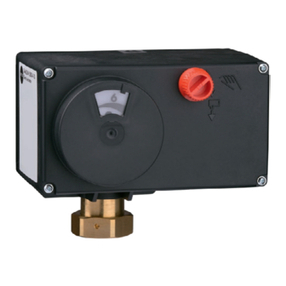
Johnson Controls FW-14 User manual


Table of contents
Other Johnson Controls Controllers manuals
Johnson Controls
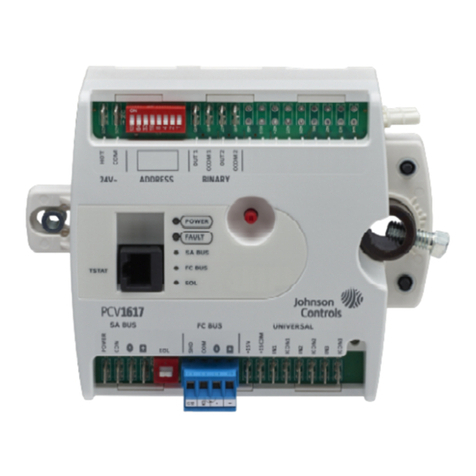
Johnson Controls FX-PCV1617 User manual
Johnson Controls
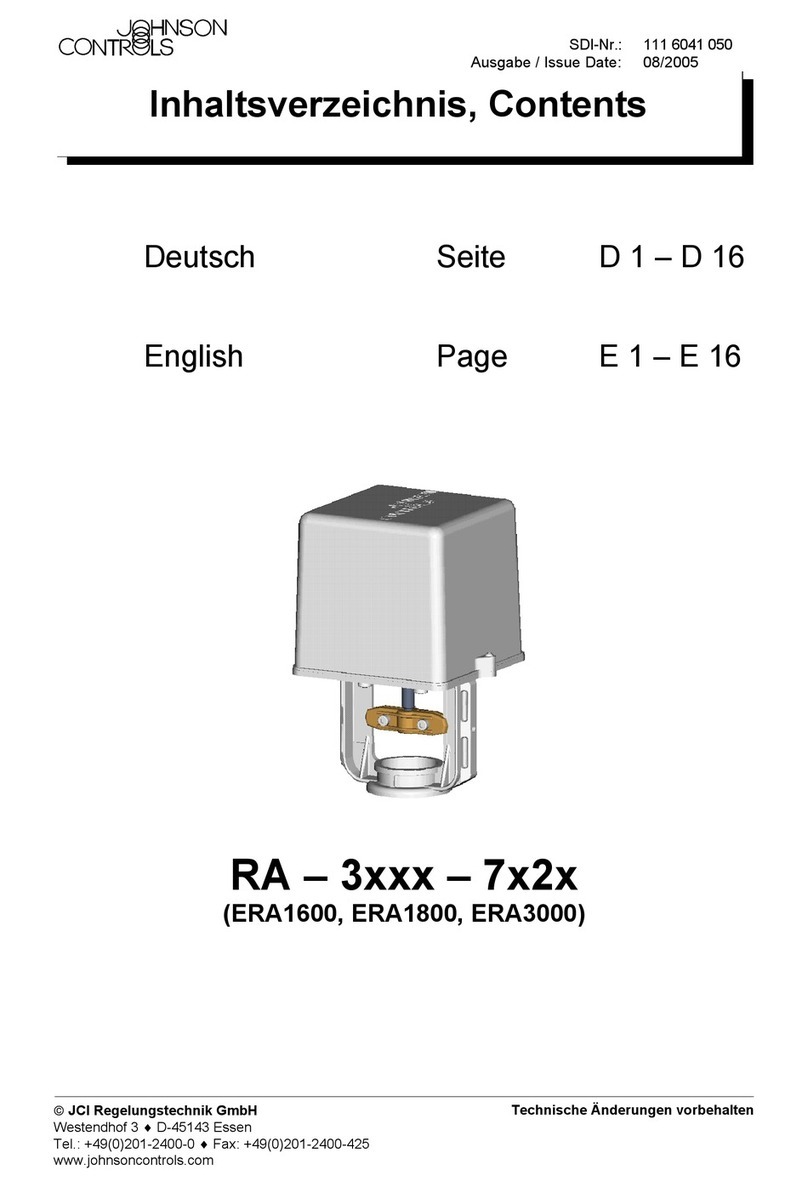
Johnson Controls RA-3 Series Owner's manual
Johnson Controls
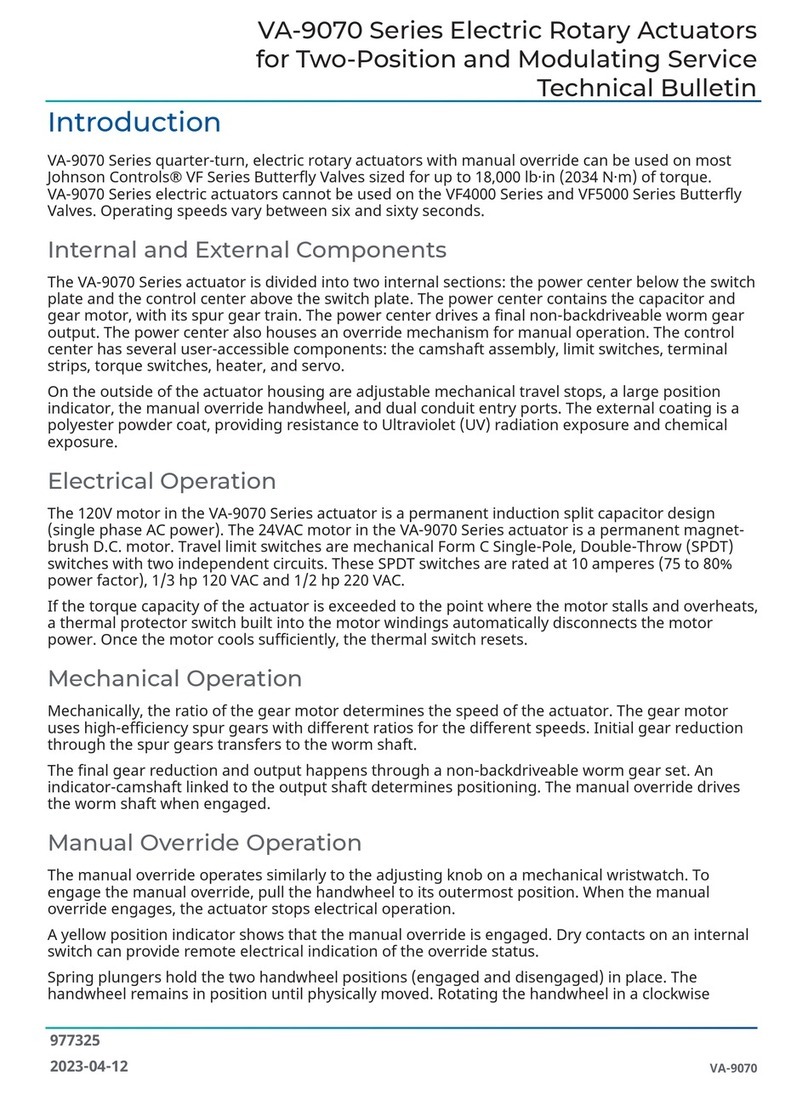
Johnson Controls VA-9070 Series Service manual
Johnson Controls
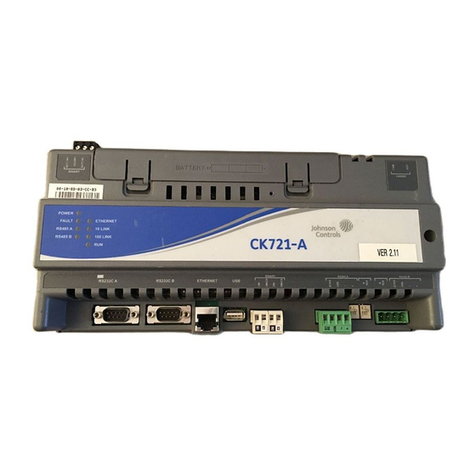
Johnson Controls CK721-A Assembly instructions
Johnson Controls
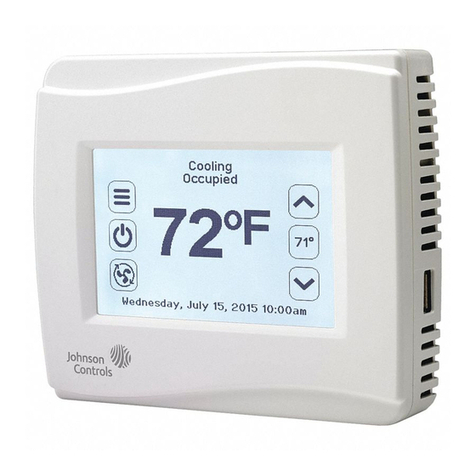
Johnson Controls TEC3010 User manual
Johnson Controls
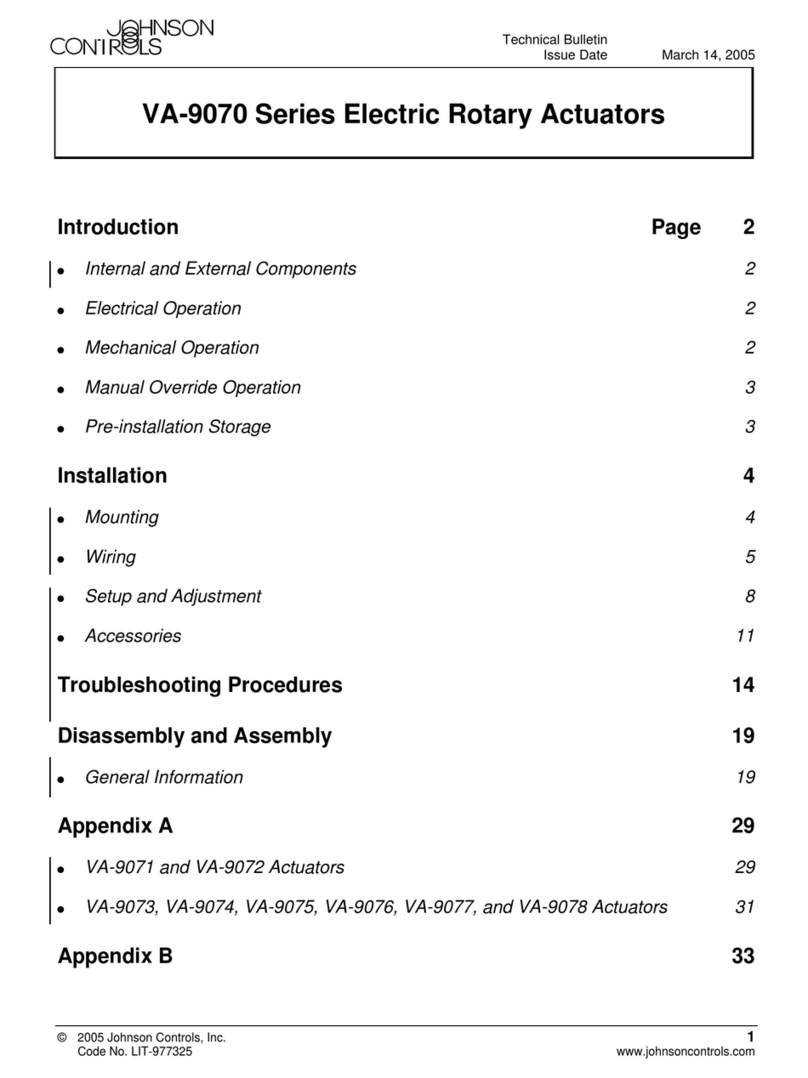
Johnson Controls VA-9070 Series User manual
Johnson Controls
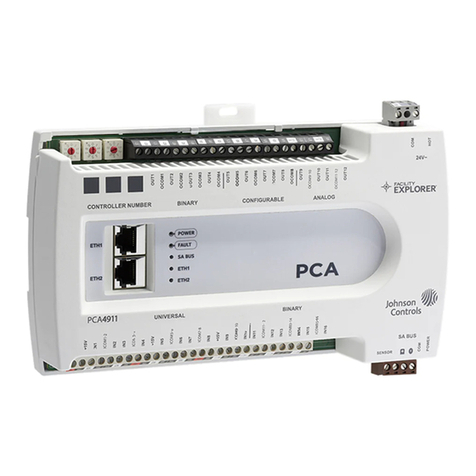
Johnson Controls FX-PCA4911 User manual
Johnson Controls
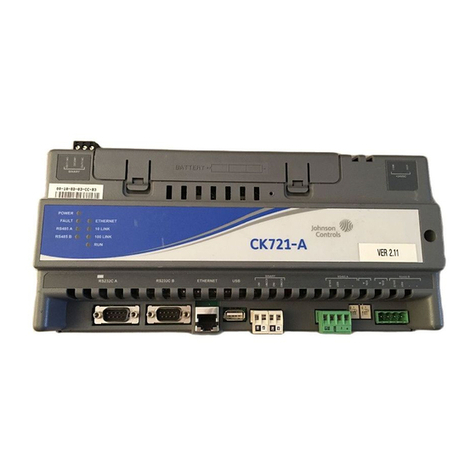
Johnson Controls CK721-A Quick start guide
Johnson Controls
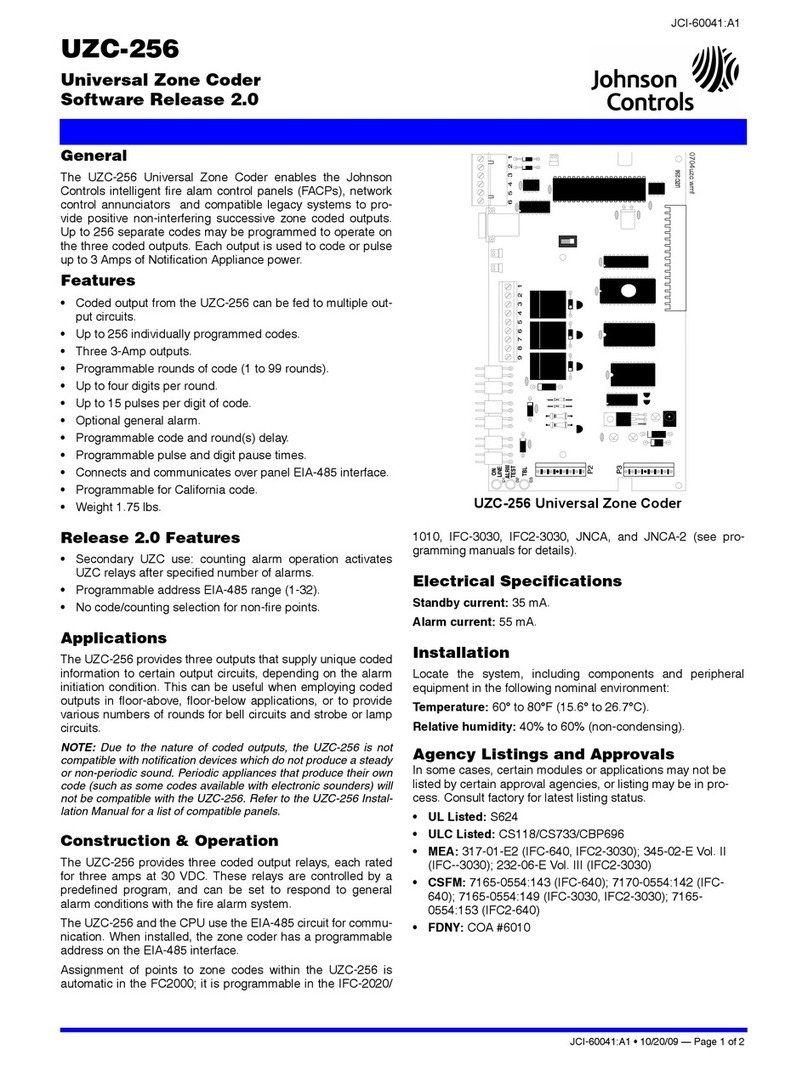
Johnson Controls UZC-256 User manual
Johnson Controls
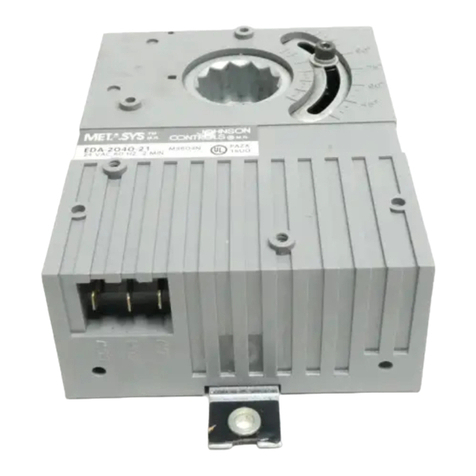
Johnson Controls EDA-2040 User manual

Johnson Controls
Johnson Controls TRUE RH HC-67x3 User manual

Johnson Controls
Johnson Controls Facility Explorer FX20 User manual
Johnson Controls
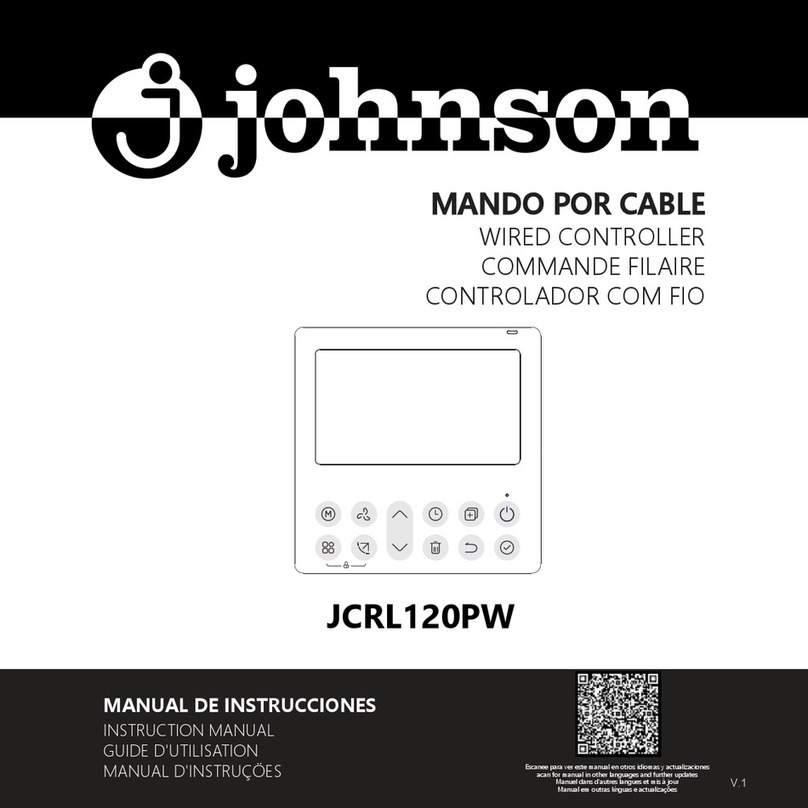
Johnson Controls JCRL120PW User manual
Johnson Controls
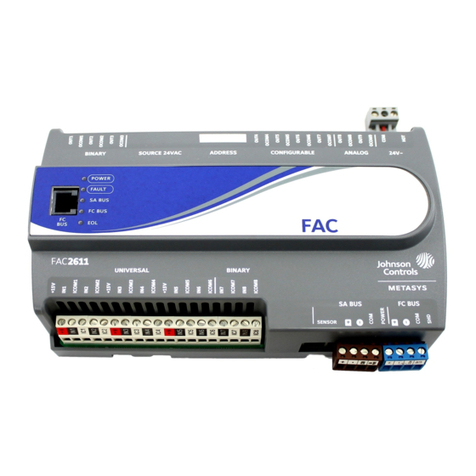
Johnson Controls FAC2611 User manual
Johnson Controls
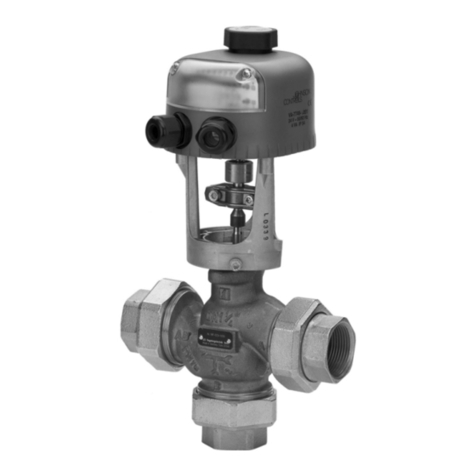
Johnson Controls VA-7700 Series User manual
Johnson Controls
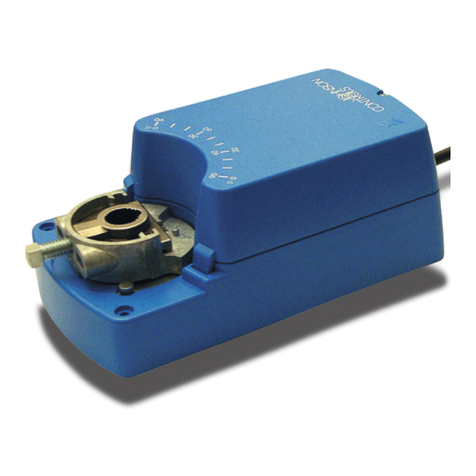
Johnson Controls M9304-GGA-1N User manual
Johnson Controls
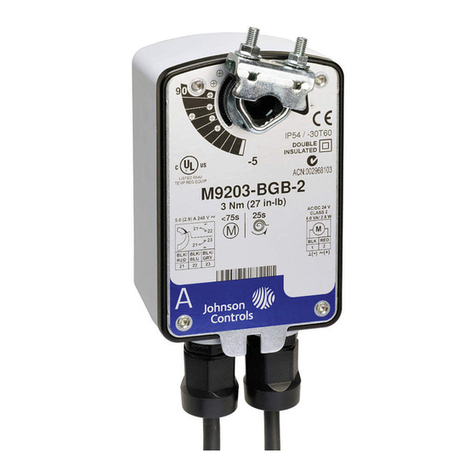
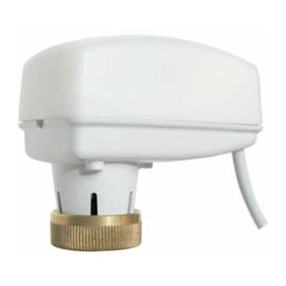
Johnson Controls M9203-B Series User manual
Johnson Controls
Johnson Controls VA-7481-0011 User manual

Johnson Controls
Johnson Controls ARC30 User manual
Johnson Controls
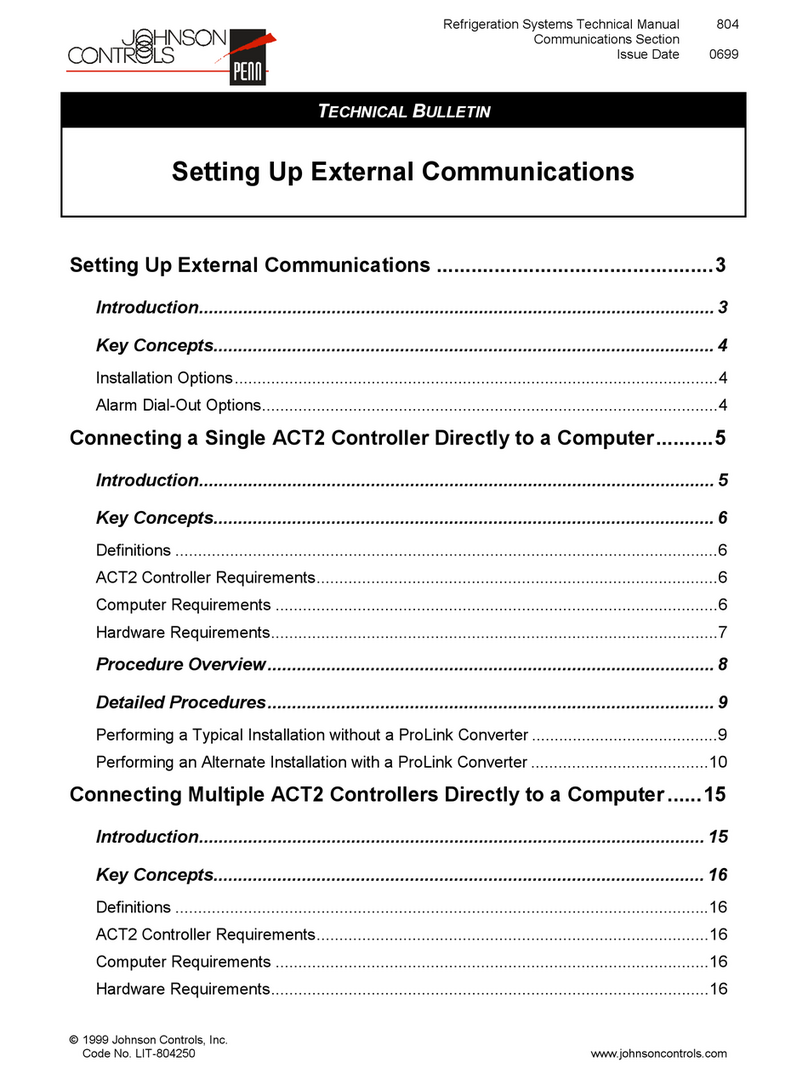
Johnson Controls PENN ACT2 Service manual
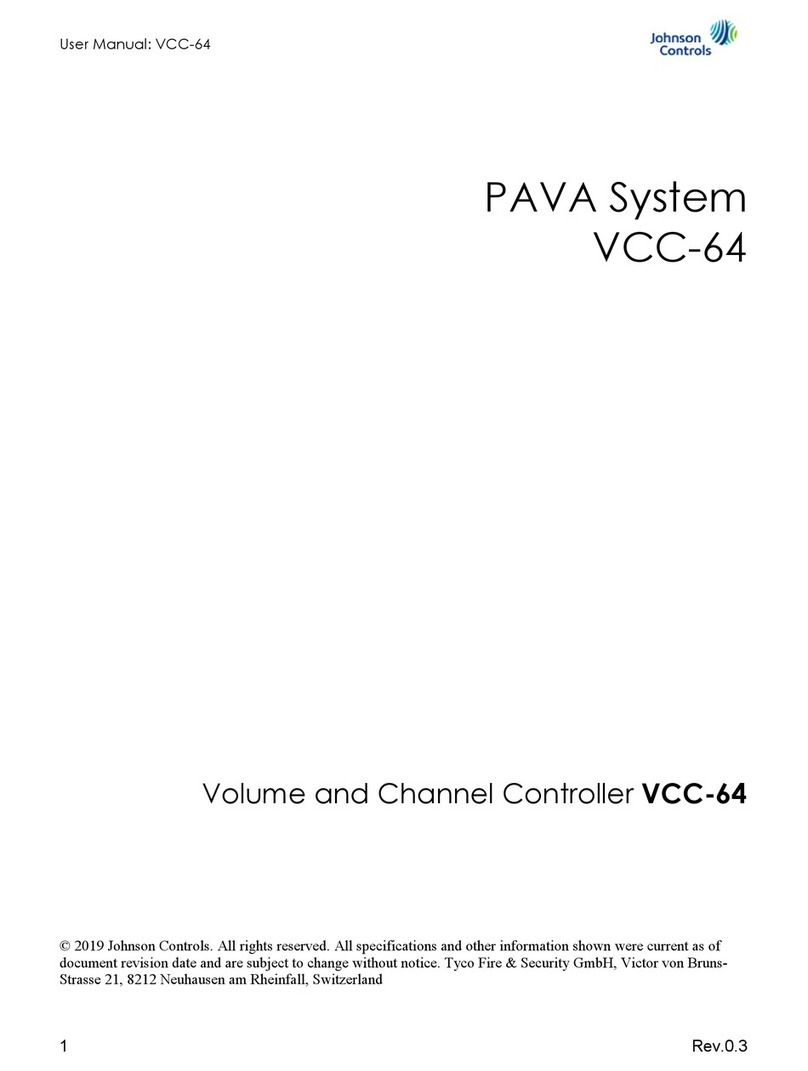
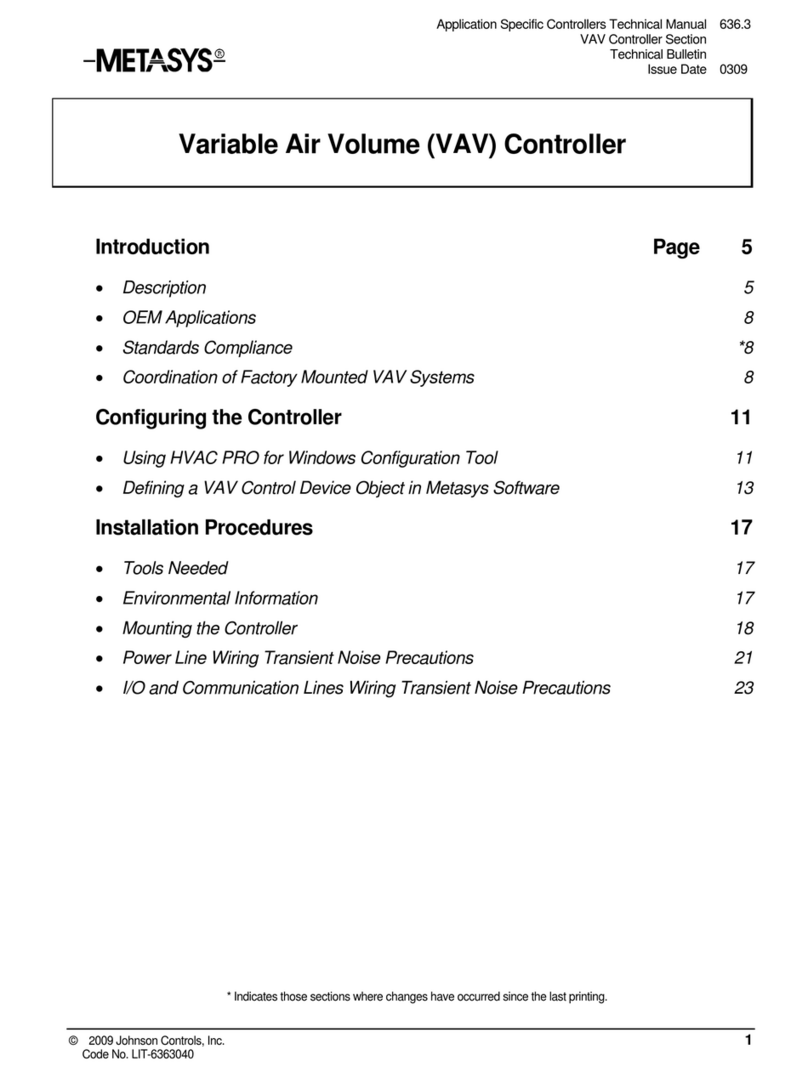
Popular Controllers manuals by other brands

Digiplex
Digiplex DGP-848 Programming guide

YASKAWA
YASKAWA SGM series user manual

Sinope
Sinope Calypso RM3500ZB installation guide

Isimet
Isimet DLA Series Style 2 Installation, Operations, Start-up and Maintenance Instructions

LSIS
LSIS sv-ip5a user manual
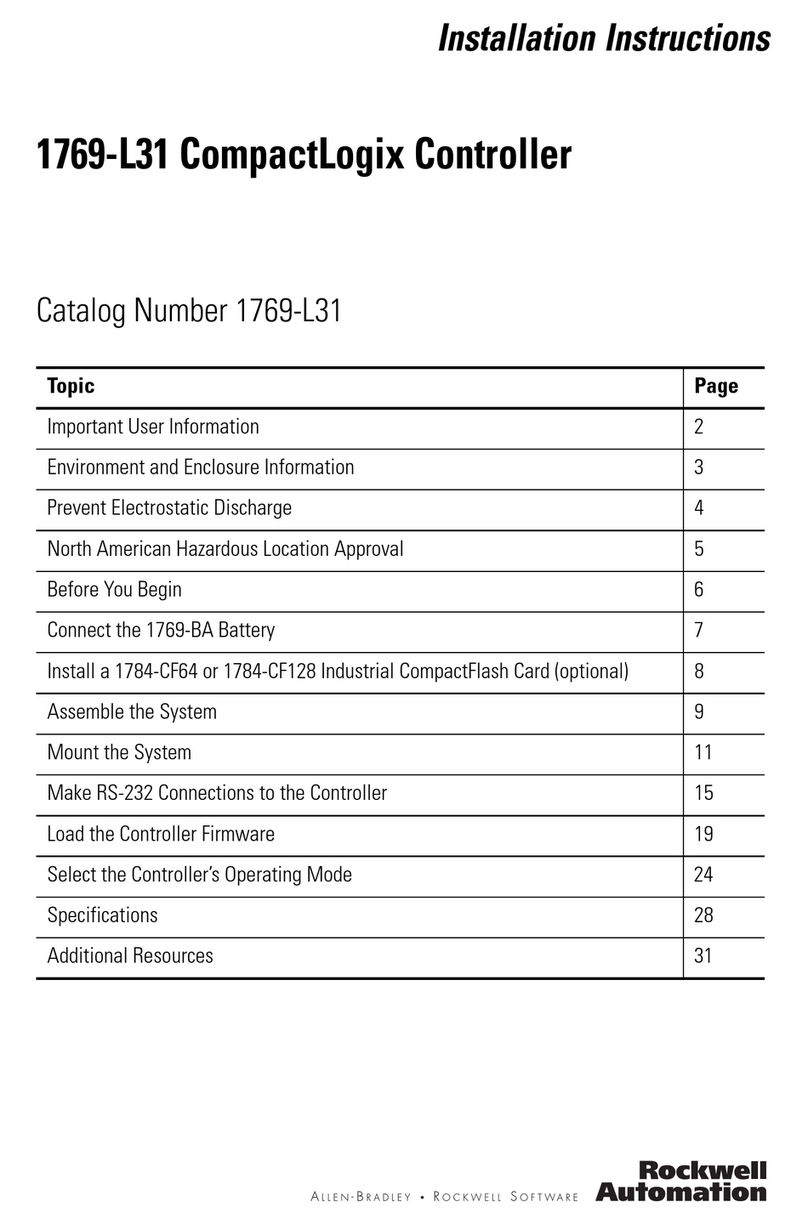
Rockwell Automation
Rockwell Automation 1769-L31 installation instructions