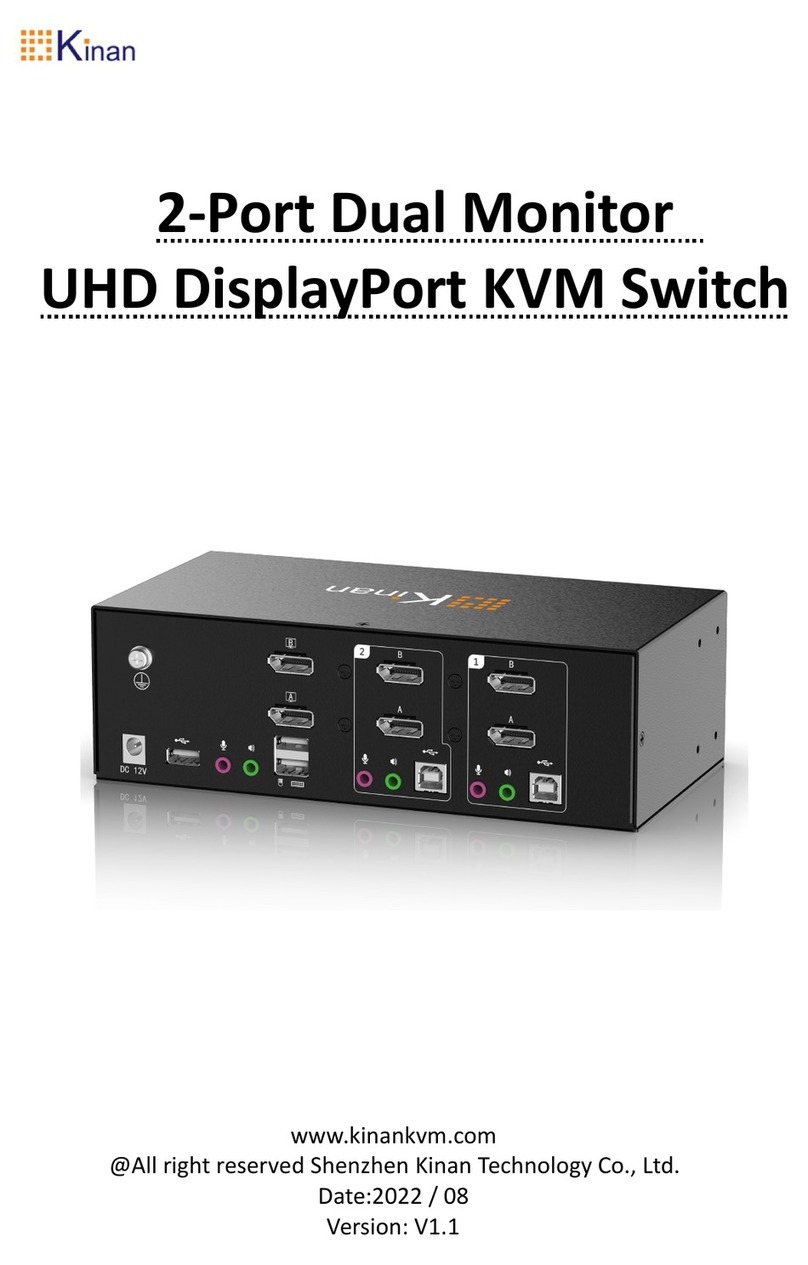
KinAn DM5232 User manual

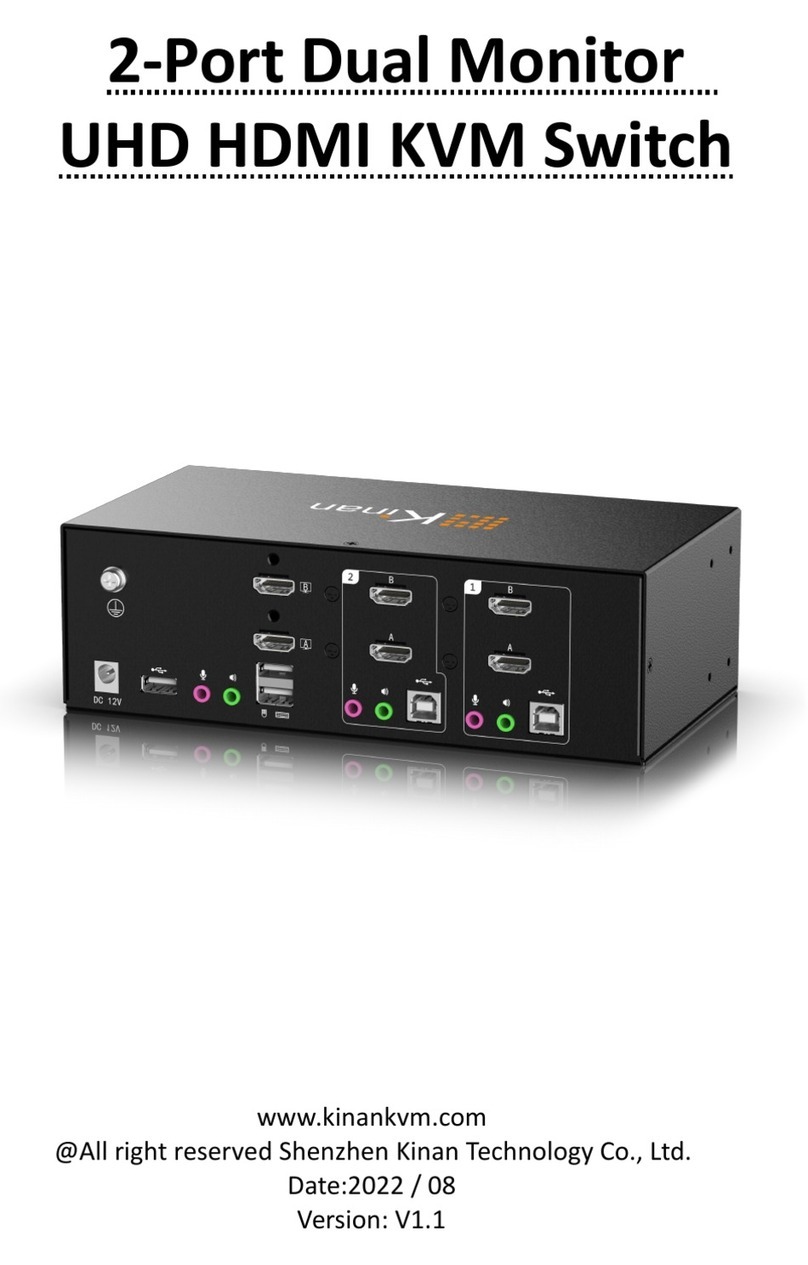
2-Port Dual Monitor
UHD DisplayPort KVM Switch
www.kinankvm.com
@All right reserved Shenzhen Kinan Technology Co., Ltd.
Date:2022 / 08
Version: V1.1

DM5232 User Manual
-1-
User Notification
·All information, documentation, and specifications contained in this
manual are subject to change without prior notice.
·The manufacturer does not make any explicit or implied statement or
guarantee about the contents of this document, especially for
merchantability or fitness for any specific purpose. Any manufacturer's
equipment described in this manual is sold or licensed as it is.
·If the equipment is damaged artificially after purchase, the buyer (not
the manufacturer) shall bear all costs for necessary repair and any
losses caused by equipment defects.
·If the correct operating voltage setting is not selected before operation,
the manufacturer will not be responsible for any damage caused by
system operation. Please make sure the voltage has been set correctly
before use.

DM5232 User Manual
-2-
Content
User Notification....................................................................................................... 1
Overview....................................................................................................................3
Product Features.................................................................................................... 4
Required equipment.............................................................................................. 5
Components...............................................................................................................6
Front panel............................................................................................................. 6
Back panel.............................................................................................................. 8
Hardware Settings..................................................................................................... 9
Connection diagram.............................................................................................10
Mouse Switching..................................................................................................... 10
Hotkey Operation.................................................................................................... 11
Specifications........................................................................................................... 12
Frequently Asked Questions................................................................................... 13

DM5232 User Manual
-3-
Overview
DM5232 is a 2 in 2 out UHD KVM switch that allows users to access to two dual DP
display port computers via a single USB keyboard and mouse. Both input and output
support DisplayPort1.2. With a built-in 1 USB 3.0 hub and 2.1 channel audio for rich bass
surround sound. It supports superior video quality up to 4K UHD @ 60 Hz and 4K DCI @
60Hz,displaying vivid high-definition images and providing high-quality sound effects for
music, movies and games.
The DM5232 supports supports switch via the front panel buttons, hotkeys and mouse.
With a built-in USB 3.0 hub, the KVM switch supports connection to other USB peripheral
devices.
The screen dynamic synchronization display can optimize display resolution, speed up
switching between systems, and ensure that the screen can be displayed normally (when
switching ports, the windows opened on the extended screen will not be restored to their
default setting of the main screen).
The independent (asynchronous) switching function supports switching
keyboard/mouse, audio and USB HUB independently. This will eliminate the need to
purchase a separate USB hub or a peripheral sharer, such as a print server, modem splitter,
etc.
The DM5232 KVM switch combines Ultra HD 4K resolution, USB 3.0 hub and friendly
operation to provide innovative desktop KVM switching technology.

DM5232 User Manual
-4-
Product Features
A single USB keyboard and mouse controls 2 computers with dual DP display
interface.
Supports DisplayPort1.2 input and output.
Supports screen dynamic synchronization display---optimize display resolution, speed
up switching between systems, and ensure that the screen can be displayed normally
(when switching ports, the windows opened on the extended screen will not be
restored to their default setting of the main screen).
Supports 4K UHD (3840 x 2160 @ 60 Hz) and 4K DCI (4096 x 2160 @ 60Hz) Ultra HD
resolutions.
Computer selection via front panel buttons, keyboard hotkeys, mouse.
Provides a USB 3.0 hub.
Supports independent (asynchronous) switching function, which can switch the
keyboard/mouse, audio and USB Hub independently.
Compatible with DisplayPort 1.2, HDCP 2.2 .
Supports DisplayPort audio.
Supports high quality 2.1 channel surround system.
Supports switching ports via mouse.
Hot-pluggable—Add or remove computers without power down the switch.
Automatic scanning mode for monitoring all computers.

DM5232 User Manual
-5-
Required equipment
Please follow the table below to prepare the required equipment and cables.
DM5232
Console
Two DP monitors
One USB mouse
One USB keyboard
Microphone and Speaker
Computers
(Each computer must be
equipped with the following
components)
Two DP ports
One USB Type-A port
Audio and Microphone Port
Cables
It’s recommended to use the KVM
cables in the package of our equipment
to ensure video quality.
Note:
1. Ensure that the operating system of the computer is supported. Refer to the operating
system part for more details.
2. The display effect of the monitor is affected by the quality of the computer graphics card.
It is recommended to use high-quality displays.
3. The monitor display quality is affected by the cable. The total length from the signal
source to the monitor should not exceed 3.3m (1.5m between the computer and KVM
switch; 1.8m between KVM switch and monitor). If you need additional cables, please
contact your supplier to buy cables approved by the manufacturer.
Operating system
The supported operating systems are shown in the following table:
OS
Windows
Linux
Mac

DM5232 User Manual
-6-
Components
Front panel
No.
Function
Description
1
LED Status
Panel
This panel contains three icons to indicate the mode
and port status. And the mode and port selection
buttons have three corresponding LED icons to
indicate the status - KVM, audio and USB HUB.
2
Port selection
button
1
Press the button to switch to the
corresponding port
2
3
Mode selection
button
This button allows you to cycle through the four
modes
─All
─USB HUB + KVM
─Audio + KVM
─KVM
Long press for more than 8S to restore factory
settings (Hotkey, mouse switch function, auto scan
time will be restored to factory settings ).

DM5232 User Manual
-7-
LED status panel
No.
Components
1
Port LED
2
Mode Selection LED
3
Audio LED
4
KVM LED
5
USB HUB LED
Mode selection button and mode indicator
Pressing the Mode Selection button at different times will light up
different Mode LED.
Press Button
Mode LED that lights up
Once
KVM、Audio、USB HUB
Twice
USB HUB、KVM
Three times
Audio、KVM
Four times
KVM
Long press the mode button for more than 8 seconds to restore factory settings (hotkey
Stroll-Lock/mouse switch function/auto scan time will be restored to factory settings)

DM5232 User Manual
-8-
Back panel
No.
Function
Description
1
Power input
Connect to the 12V power supply
2
USB3.0 interface
Plug USB peripherals (printers, scanners, drivers,
etc.) into this port
3
Audio output and
microphone input
Connect speaker and microphone here
4
USB HID ports
Connect USB keyboard and USB mouse
5
Audio input and
microphone output
Connect the computer's audio and microphone
ports
6
USB input interface
Connect the computer to the device using the
USB cable
7
Grounding screw
Grounding the equipment
8
DisplayPort output
Connect DP monitor
9
DisplayPort input
Connect to the computer's DP display port

DM5232 User Manual
-9-
Hardware Settings
1.
It is important that all connected equipment must be properly
grounded to prevent damage from electrical surges or static
electricity.
2.
Ensure that power of all devices will be connected to this
installation are turned off. You must unplug the power cord of all
computers with "Keyboard on" function.
Installation guide
Please refer to the installation diagrams on the next page and do the following:
1. Ground the equipment (Fig. ①).
2. Plug the monitor into the DP port on the rear panel of the equipment, and power on
the monitor (Fig. ②).
3. Plug the microphone and speaker into the audio port on the rear panel of the
equipment (Fig. ③)
4. Plug the DP cable into socket A of the KVM port section of the switch, then plug the USB
cable, microphone/speaker cable into the corresponding sockets. Plug another DP cable
into socket B of the same KVM (Fig. 4).
5. Plug the other end of the microphone/speaker cable into the corresponding port of the
computer (Fig. ④).
6. Plug the other end of the DP cable and USB cable into the corresponding ports on the
computer. Repeat steps 4, 5 and 6 to install another computer (Fig. ④).
7. Plug the USB keyboard and mouse into the USB HID port on the rear panel of the
equipment (Fig. ⑤).
8. (Optional) Plug the USB peripheral into the USB peripheral port (Fig. ⑥).
9. Plug the included power adapter into an AC power source, and then plug the power
adapter cable into the power jack of the KVM switch (Fig. ⑦).
10. Power on.
Note:
By default, the switch is on the first port after it is powered on.
It is recommended that the total length of the cable from the computer to the
monitor (including KVM) does not exceed 3.3 meters.
Table of contents
Other KinAn Switch manuals