Step 5
Connecting a landline
telephone
• Use the provided telephone cable with green
connectors or the telephone cable of your current
landline phone with a mini connector.
• Connect the telephone to the green [PHONE] port
on the Experia Box.
• Have you purchased extra DECT handsets?
Refer to the user manual of your DECT telephone
for instructions.
Do you have multiple telephones?
You can consult or download the interactive user
manual at kpn.com/handleidingen and choose
Phone.
Does your telephone have a dierent connector?
If your phone has a dierent connector, refer
to kpn.com/handleidingen and choose the
‘Making Telephone Calls’ installation card.
Step 6
Benefit from strong
Wi-Fi anywhere in
your home
• Go to the Wifi Tuner at kpn.com/wifi.
• Follow the directions in the Wifi Tuner.
• See whether your Wi-Fi can be improved straightaway.
• Benefit from strong Wi-Fi anywhere in your home.
DECT base station
PHONE port
on Experia Box
Change Wi-Fi name and password
Advice: Always change your Wi-Fi name and password.
Change your Wi-Fi network name and password immediately
after installing the Experia Box. You can change these
settings with the Online Service Tool. Always do this from
your own home. Visit kpn.com/netwerkbeveiligen for
more information.
Creating a MijnKPN (MyKPN) account
How do you create a KPN ID? Go to kpn.com/mijnkpn and
create a MijnKPN account. You can view and change your
settings in the MijnKPN environment. You will also find your
invoice and subscription details here.
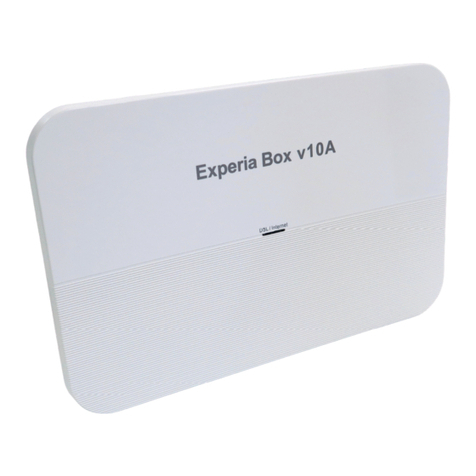
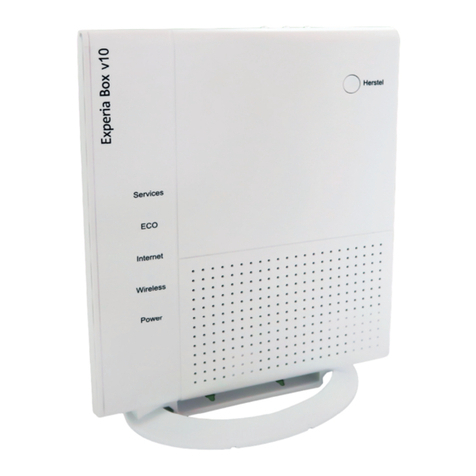
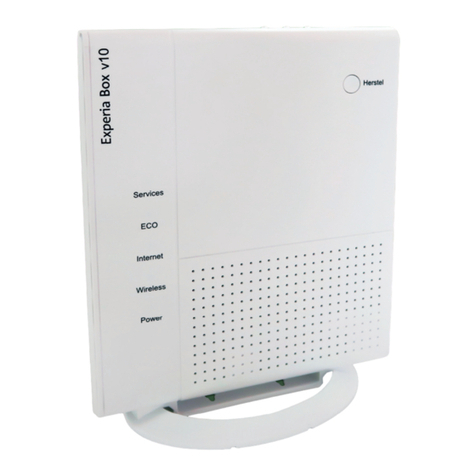
Lights on the Experia Box v10A
Colour Explanation
DSL/Internet (front)
O Experia Box (modem) is o.
Green light Experia Box (modem) is on.
Flashes green An update is being performed.
Flashes blue Booting up; xDSL Training.
Blue light Booting up; xDSL Show Time.
Red light Booting up; No Internet or cannot obtain
IP address, permission denied.
Orange light Booting up; Boot-P mode. Obtaining IP address.
Green light Experia Box (modem) is ready for use.
Wireless/WPS (side)
O Wi-Fi is o.
Red light Wi-Fi is on in unsecured mode.
Blue light Wi-Fi is on; your home network is set up with
a WPA-secured connection.
Flashes blue Data transfer within your home network.
Blue light and
flashes red
WPS is active, you can now link the Experia
Box to your laptop, tablet or smartphone.
1) If you wish to connect more than three TV receivers, you will need the provided KPN Switch.
Refer to the ‘KPN Switch’ user manual for more information and help with installation.