manuals.online logo
Brands
  1. Home
  2. •
  3. Brands
  4. •
  5. LEGRAND
  6. •
  7. Batteries Charger
  8. •
  9. LEGRAND 059005 User manual

LEGRAND 059005 User manual

This manual suits for next models

2

Other LEGRAND Batteries Charger manuals
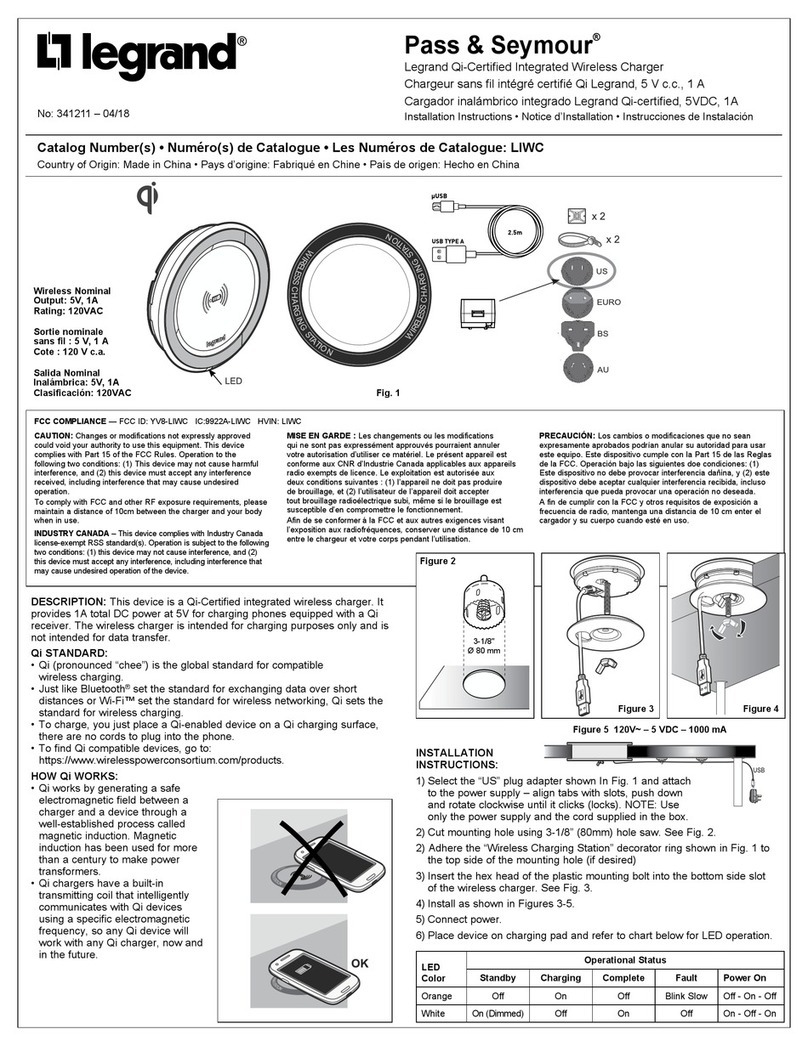
LEGRAND Pass & Seymour LIWC User manual

LEGRAND

LEGRAND Pass & Seymour LIWC User manual

LEGRAND L2EVSE48AC User manual

LEGRAND

LEGRAND L2EVSE48AC User manual

LEGRAND HPM Excel VIVO EVWC Series User manual

LEGRAND

LEGRAND HPM Excel VIVO EVWC Series User manual

LEGRAND ecotap DC60 User manual

LEGRAND

LEGRAND ecotap DC60 User manual

LEGRAND Green'up One User manual

LEGRAND

LEGRAND Green'up One User manual

LEGRAND HPM D1233TC User manual

LEGRAND

LEGRAND HPM D1233TC User manual

LEGRAND Valena Life User manual

LEGRAND

LEGRAND Valena Life User manual

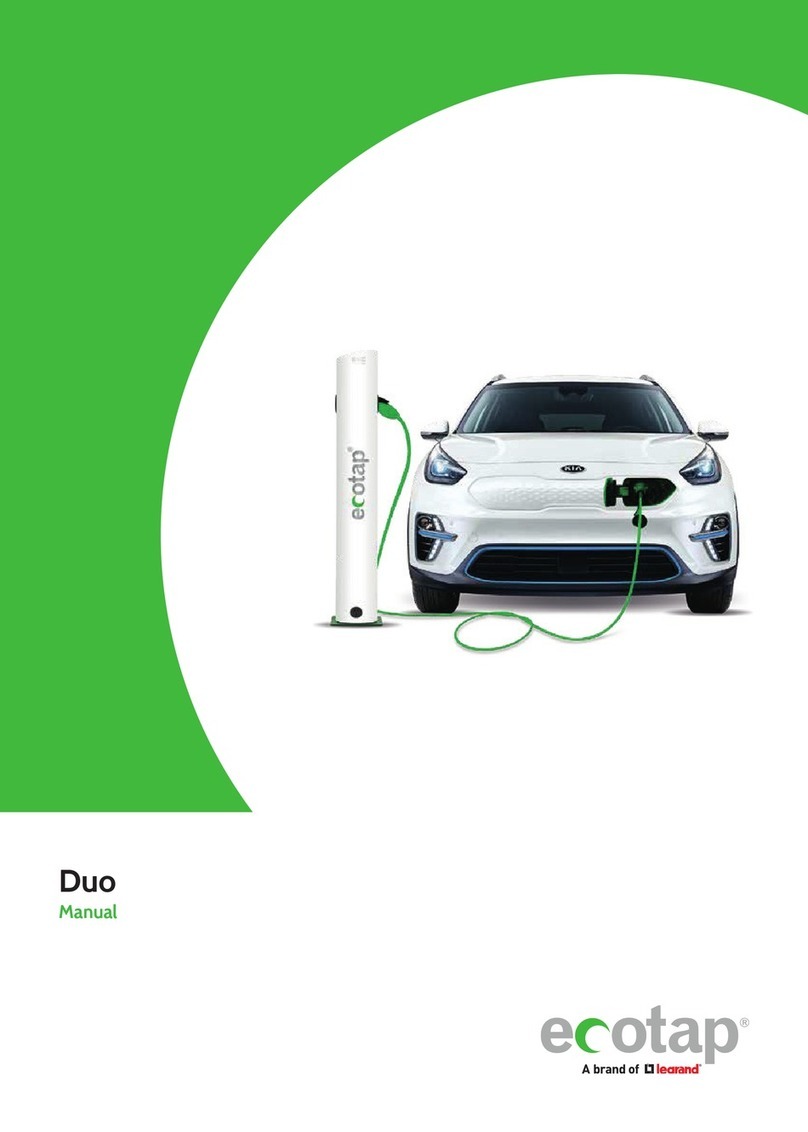
LEGRAND Ecotap Duo Operating manual

LEGRAND

LEGRAND Ecotap Duo Operating manual

LEGRAND HPM WMCBL User manual

LEGRAND

LEGRAND HPM WMCBL User manual

LEGRAND 1A User manual

LEGRAND

LEGRAND 1A User manual

LEGRAND 0 590 00 User manual

LEGRAND

LEGRAND 0 590 00 User manual

LEGRAND DAKER DK PLUS User manual

LEGRAND

LEGRAND DAKER DK PLUS User manual

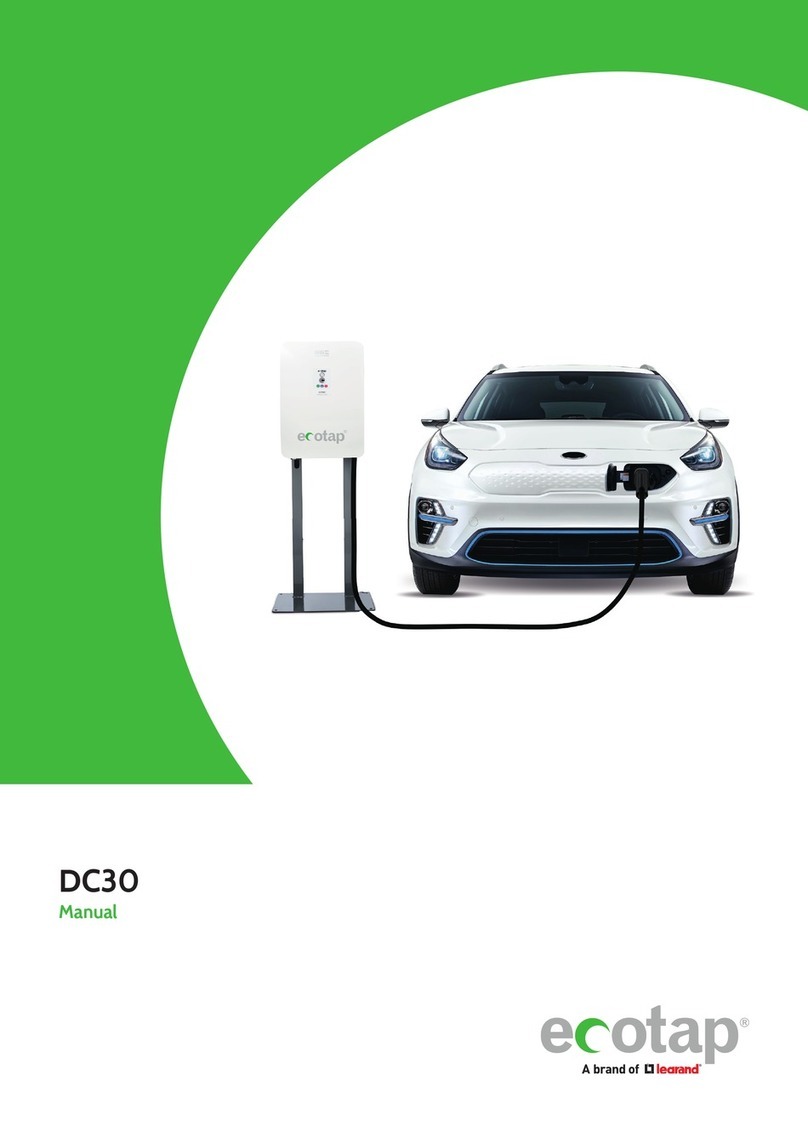
LEGRAND ecotap DC30 User manual

LEGRAND

LEGRAND ecotap DC30 User manual

LEGRAND Battery Charger 240V User manual

LEGRAND

LEGRAND Battery Charger 240V User manual

LEGRAND ecotap Wallcharger Duo User manual

LEGRAND

LEGRAND ecotap Wallcharger Duo User manual

LEGRAND ecotap DC 120 User manual

LEGRAND

LEGRAND ecotap DC 120 User manual

LEGRAND WIREMOLD XCSSHELF User manual

LEGRAND

LEGRAND WIREMOLD XCSSHELF User manual

LEGRAND 0 590 05 User manual

LEGRAND

LEGRAND 0 590 05 User manual

LEGRAND ecotap DC60 User manual

LEGRAND

LEGRAND ecotap DC60 User manual

LEGRAND 6 946 30 User manual

LEGRAND

LEGRAND 6 946 30 User manual

LEGRAND A. & H. Meyer ZENS PuK3 User manual

LEGRAND

LEGRAND A. & H. Meyer ZENS PuK3 User manual

LEGRAND Ecotap Duo User manual

LEGRAND

LEGRAND Ecotap Duo User manual

LEGRAND 3 107 85 User manual

LEGRAND

LEGRAND 3 107 85 User manual

LEGRAND XCSAV Service manual

LEGRAND

LEGRAND XCSAV Service manual

Popular Batteries Charger manuals by other brands

EVBox BusinessLine manual

EVBox

EVBox BusinessLine manual

Goobay 71808 user manual

Goobay

Goobay 71808 user manual

Kogan KACRDQIS4XA user manual

Kogan

Kogan KACRDQIS4XA user manual

Sealey WCB3 quick start guide

Sealey

Sealey WCB3 quick start guide

Vanner SP00143/181 owner's manual

Vanner

Vanner SP00143/181 owner's manual

KeyOuest KO037515 quick start guide

KeyOuest

KeyOuest KO037515 quick start guide

Enplus Silk Series user manual

Enplus

Enplus Silk Series user manual

Intermec SF51 user guide

Intermec

Intermec SF51 user guide

Colorovo PowerBox 6800 user guide

Colorovo

Colorovo PowerBox 6800 user guide

Smartech WBC-250 Operator's manual

Smartech

Smartech WBC-250 Operator's manual

PIXO C-USB instruction manual

PIXO

PIXO C-USB instruction manual

Gunson G4104 quick start guide

Gunson

Gunson G4104 quick start guide

Dometic NDS SCE320 Short Operating Manual

Dometic

Dometic NDS SCE320 Short Operating Manual

ABB HT572708 Operation manual

ABB

ABB HT572708 Operation manual

EVOline Square80 manual

EVOline

EVOline Square80 manual

Redarc SBC24025 Operating instructions and owner's manual

Redarc

Redarc SBC24025 Operating instructions and owner's manual

Absaar HV04 manual

Absaar

Absaar HV04 manual

DazeTechnology Cover Dazebox Home installation manual

DazeTechnology

DazeTechnology Cover Dazebox Home installation manual

manuals.online logo
manuals.online logoBrands
  • About & Mission
  • Contact us
  • Privacy Policy
  • Terms and Conditions

Copyright 2025 Manuals.Online. All Rights Reserved.

USER GUIDE
THE GLOBAL SPECIALIST IN ELECTRICAL
AND DIGITAL BUILDING INFRASTRUCTURES
OCPP
GREEN’UP CHARGING STATIONS
OCPP
LEGAL INFORMATION
Presentation pictures do not always
include personal protective equipment
(PPE), but this is a legal and regulato-
ry obligation that must be scrupulously
respected.
In accordance with its continous improve-
ment policy, Legrand reserves the right
to change the specifications and illus-
trations without notice. All illustrations,
descriptions and technical information
included in this document are provided
as indications and cannot be held against
Legrand.
WWW.LEGRAND.COM
TABLE OF CONTENTS
Use of Green’Up charging stations with OCPP
Before you start ...................................................................... 4
How does it work? ................................................................. 5
Configuration procedure ..................................................6
Configuration file .............................................................. 12
Available features and configurations .................... 14
3
OCPPUSER GUIDE
TABLE OF CONTENTS
Legrand ESVE charging station use the protocol version OCPP
1.6J.
Before you start
You need to have :
- a connected and functional charging station ;
- a communication kit cat.no 0 590 56 ;
- optional - a RFID kit cat.no 0 590 59 ;
- an available and functional OCPP 1.6J server ;
- a laptop to set the station and the communication kit ;
- a RJ45 cable between the laptop and the communication kit ;
- a connection to the server that can be used by the charging station ;
- the latest update package (including OCPP) available on the Legrand
e-catalogue (www.legrand.fr) ;
4
USE OF GREEN’UP
CHARGING STATION
WITH OCPP
WWW.LEGRAND.COM
TABLE OF CONTENTS
STEP 1 : Installation of the communication and RFID (option) kits.
Check the instructions sheet LE09802AA\XX
STEP 2 : Laptop connection to the communication kit.
Check the communication kit instructions sheet LE09802AA\XX page 14
STEP 3 : Charging station set up in OCPP mode
How does it work ?
5
OCPPUSER GUIDE
TABLE OF CONTENTS
1. Browse the charging stations’s web pages by logging into the Communication Kit cat.no 0 590 56 via the IP address
(default 192.168.1.200).
2. Connect to the web pages using the Id and password (by default admin/admin). For a reminder of the first connec-
tion procedure, please check the communication kit’s instructions sheet LE09802A-XX.
3. Select the page “Charging Mode“.
6
CONFIGURATION
PROCEDURE
WWW.LEGRAND.COM
TABLE OF CONTENTS
4. Select OCPP mode in the load mode selection tab.
When selecting the OCPP charging mode, the charging station will change mode automatically.
For a double charging station, the OCPP charging mode will be imposed on both sides of the station (previously select
the right side of the charging station).
7
OCPPUSER GUIDE
8
OCPP
TABLE OF CONTENTS
On the configuration page one find several parts :
OCPP server connection button. When activated, the charging station attempts to connect to the
server using the information transmitted in the OCPP configuration file (OCPPConf.xml). The
web socket connection format is the following “URL - UID.“
The first button allows you to get the existing OCPP configuration file from the charging station.
This file serves as a template.
The second allows you to choose a modified file on the computer.
The third allows you to save, the file chosen on the computer, in the charging station.
9
OCPPUSER GUIDE
WWW.LEGRAND.COM
TABLE OF CONTENTS
The OCPP status allows to know the connection situation of the charging station in relation to the OCPP server.
Activation: If the variable is 0, the terminal does not attempt to connect to the OCPP server. If the variable is 1, the terminal tries
to connect to the OCPP server.
Connection to the server: If the variable is 0, the charging station is not connected to the server via web socket. If the variable is at
1, the charging station is connected to the server via web socket.
OCPP data allows you to know the configuration data in the configuration file. It is this data that will be used by the charging sta-
tion. Example: For the web socket connection, the charging socket will use the URL-UID part informed.
10
OCPP
TABLE OF CONTENTS
5. Modifying and saving the configuration file
Download the configuration file which is on the charging station via the “Recover OCPPConf.xml“ button,
downloading takes a few seconds.
Once downloaded, it is possible to change it. It is important to respect the xml formatting of the file. Check the chap-
ter “Configuration file“.
Once the file is modified, use the “choose a file .xml“ button to give the file’s direction to the communication kit. Now
you can press the “Store OCPPConf.xml“ button to upload the file to the communication kit.
It is possible to control information on the page in the part entitled “OCPP data“. It is recommended that you check
the information carefully before taking the next step.
It is possible to directly change the charging station’s network settings via the OCPP configuration file. It is
also possible to change the network configuration of the communication kit through the “Networks“ page.
Be careful when changing network settings, they will be taken into account immediately.