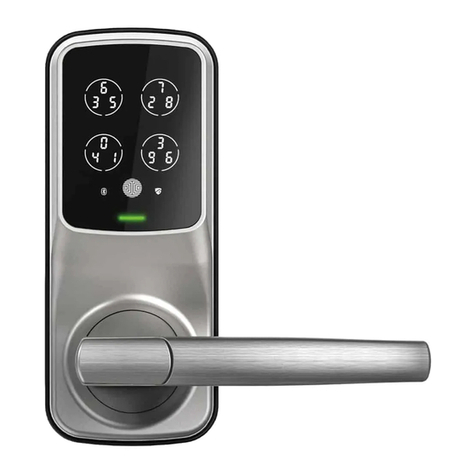
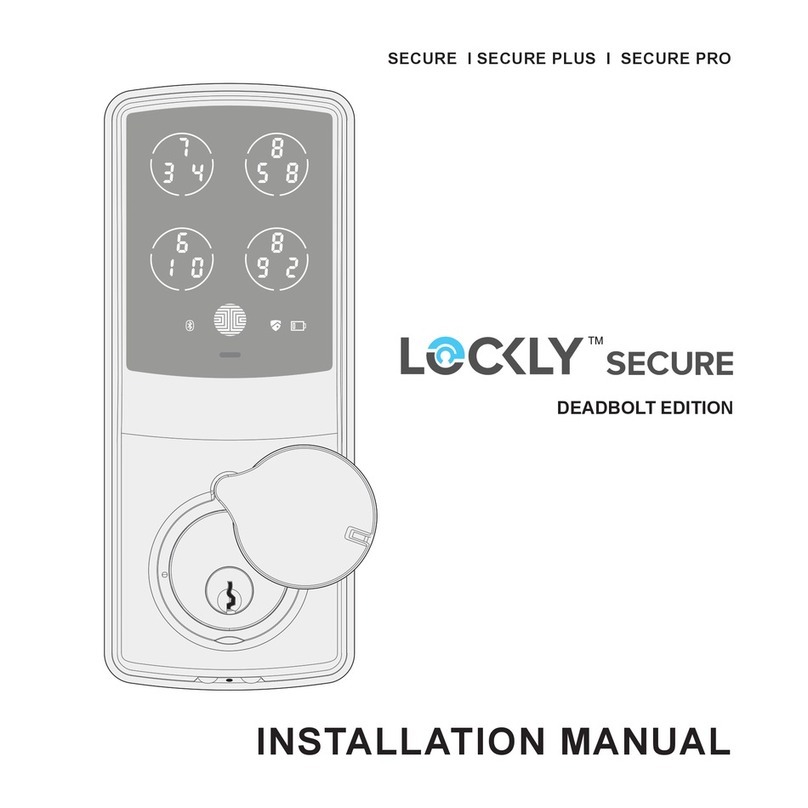
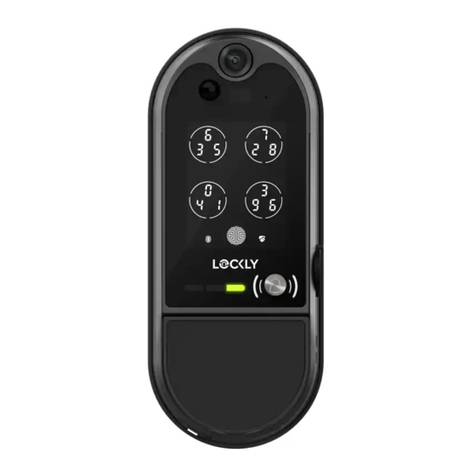
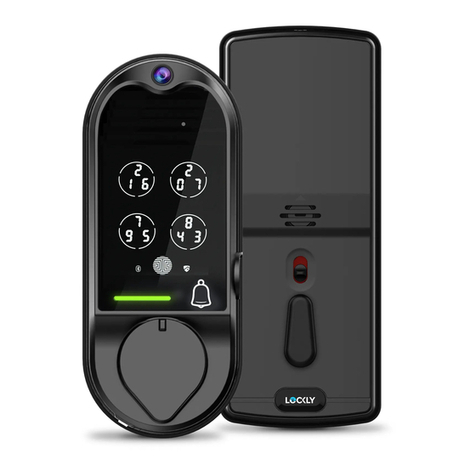
Lockly SECURE User manual

USER MANUAL
SECURE PLUS | SECURE PRO
DEADBOLT EDITION

About Lockly™ Secure, Secure Plus and Secure Pro
Lockly™ Secure, Secure Plus and Secure Pro are keyless smart locks equipped with the
patented PIN GenieTM, which is a peep proof and hidden camera proof algorithm software.
Lockly™ makes your life easier and safer.
For digital versions and instructional videos, please visit the following link:
Lockly™ Smart Lock - Secure
Lockly™ Smart Lock - Secure Plus
Lockly™ Smart Lock - Secure Pro
U.S. Patent No. 9,665,706
Other Patents Pending With All Rights Reserved
http://lockly.com/help

Table of Contents
TABLE OF CONTENTS
2.1 Product Overview - Outside
2.2 Product Overview - Inside
2.3 Understanding Your New Lock
2.4 Factory Reset
2.5 Keypad Display Switch
2.6 Rebooting Lockly™ Secure
2.7 Low Battery
2.8 Changing The Battery
Section 1 - Product Highlights
Section 2 - Product Overview
Section 3 - Using Your Smart Lock
3.1 Configuring Access
3.2 Entering Programming Mode
3.3 Adding an Access Code
3.4 Deleting an Access Code
3.5 Checking an Access Code
3.6 Adding a Fingerprint
3.7 Fingerprint Scanning Directions
3.8 Fingerprint Tips & Troubleshooting
3.9 Deleting Stored Fingerprints
Section 4 - Locking and Unlocking
1.1 Product Features 4.1 Locking / Unlocking using Access Codes
4.2 Locking / Unlocking using Fingerprint
4.3 Locking / Unlocking using App
4.4 Locking / Unlocking using Physical Key
4.5 Safe Mode
Section 5 - Advanced Features
5.1 Offline Access Code (OAC)
Section 6 - Important Notes
6.1 Important Notes
Section 7 - Cleaning
7.1 Cleaning
Section 8 - Safety Precautions
8.1 Safety Precautions
For additional support, visit http://lockly.com/help
or email help@Lockly.com
1
2
3
4
5
5
6
7
8
9
10
11
13
15
16
19
21
22
23
24
25
26
27
29
30
31
32

Patented Anti-Peep Keypad
Digits are randomly displayed on the key pad ensuring access codes to be undetectable to
intruders after repeated use. To experience the patented and innovative key pad software, powered
by PIN GenieTM, please download the PIN GenieTM Vault App from iOS App Store or Google Play.
Multiple Access Codes & Monitoring
Store up to 8 Access Codes for family, friends, and guests, as well as monitor entry and exit
records.
Advanced 3D Fingerprint Recognition (Secure Plus and Secure Pro Only)
Biometric Fingerprint Recognition protocol allows up to 99 registered fingerprints to be used and
accepts only actual fingerprints - preventing lifted prints from being used.
Complete Privacy
The exterior displayed keypad can be locked and switched off using the simple ON/OFF toggle from
the inside panel. The owner can prevent others trying to input the passcode from the outside and
entering the home
Offline Access Code (OAC)
The offline access code can allow owners to issue access codes, set the allowed access duration,
all without Lockly™ ever connecting to the internet, so in case of power outage, you can still
magically and remotely issue Access Codes without any connection to the web.
Automatic Lock
Owners no longer have to worry about forgetting to lock the door. With Auto Lock enabled, Lockly™
Secure will automatically re-lock the door based on your customized timing set between 5-300 seconds.
Backup Keys and 9V Battery Socket
The door can be opened with physical backup keys. There is also a 9V battery connection socket
for emergency power backup to access the key pad in case your smart lock runs out of battery.
1.1 Product Features
SECTION 1.1 1

2.1 Product Overview - Outside
SECTION 2.12
Restart Button
Lock Status Icon
Bluetooth light
PowerStatus
Bluetooth icon
OK Button
Key Hole Cover
9V Battery Emergency
ChargingSocket
Key Hole

2.2 Product Overview - Inside
SECTION 2.2 3
Battery Compartment ( Operated by 4 x AA Batteries)
Battery Cover
Display Keypad Switch
Thumbturn
Beep Alert
Reset Button
Program Button

2.3 Understanding Your New Lock
SECTION 2.3
The Default Access Code is
NOTICE 1 2 3 4 5 6
After the installation of your new Lockly™ , understanding some key functions of operating your
smart lock is important. The following guides will walk you through resetting a lock, adding
Access Codes, deleting Access Codes, adding and deleting fingerprints (Applicable to
Secure Plus and Secure Pro only) and also how to configure your OAC (Offline Access
Code).
For any questions you can always visit http://lockly.com/help for assistance.
Don’t forget that Lockly™ Secure works best with our iOS and Android app. Please download
the app by visiting the link below.
Scan or visit Lockly.com/app
4

2.4 Factory Reset
SECTION 2.4
In order to restore the Lockly™ to factory default settings, you must have your “Initial Code”
available. The Initial Code can be found on the Initical Code Card that came with your smart
lock. (Was n the Quick Start Guide)
After you have the Initial Code ready, push the reset button on the back panel of the Lockly™
to perform your reset. See below to see which Reset Process applies for you. Once the smart
lock has been reset, all the data previously stored will be deleted.
2.5 Keypad Display Switch
The exterior keypad screen can be locked and
turned off by using the ON/OFF switch at the back
panel (interior) of the smart lock. When it is
switched off, people who are outside cannot enter
any access codes to unlock the door.
Reset Button
If Paired with App If Never Paired
Press Reset Button
for one (1) second
Open the Lockly™
smartphone app to
add your lock using
the Initial Code
Press Reset Button
for three (3) seconds
5

2.6 Rebooting Lockly™ SECURE
SECTION 2.6
NOTICE
Reboot Lockly™ in case of dead battery or malfunction.
No settings will be changed and all Access Codes will still
be stored within Lockly™.
Press and release the reboot button when you want to reboot the lock. Your Lockly™ will beep
once after reboot. Only reboot when necessary.
To reboot, find the reboot button located on the bottom of the exterior side of Lockly™ Secure.
The reboot button is located in the middle of the two 9V battery backup sockets.
You will need something small such as a paperclip, to press the reboot button. Insert the paper
clip and press down firmly.
Reboot Button
6

2.7 Low Battery
SECTION 2.7
When the battery is in seriously low condition, Lockly™ will make continuous beeping
sounds in addition to the flashing low battery icon on the touch screen. You should replace
batteries immediately to avoid your smart lock from shutting down.
Dead Battery
Condition Indicator Solution
Low Battery
.
Battery Icon on the display keypad
will light up to indicate low battery.
Replace batteries immediately to
avoid battery failure. Lockly™
Secure can still operate up to 300
cycles in low battery condition.
When there is no display and sounds;
and screen is non-functional.
Replace batteries immediately.
Supplied physical backup keys
can be used to unlock the door.
Alternatively, use a 9V battery as
shown below to temporarily
activate the lock.
9V Battery
-
+
Your Lockly™ will automatically
detect
battery polarity. So hold your 9V
battery
lead in place against bottom of
the
Lockly™ to temporarily activate
t
he
screen to enter your
Access Code
.
Be
sure to hold the 9V battery against
the
contact points located at the bottom
of
the lock until you have successfully
unlocked your door with your
Access
Code
. Once unlocked, batteries should
be replaced immediately.
7
Other manuals for SECURE
2
This manual suits for next models
2
Table of contents
Other Lockly Lock manuals