EnglishDeutsch
 logo
Brands
  1. Home
  2. •
  3. Brands
  4. •
  5. Mitsubishi
  6. •
  7. Control Unit
  8. •
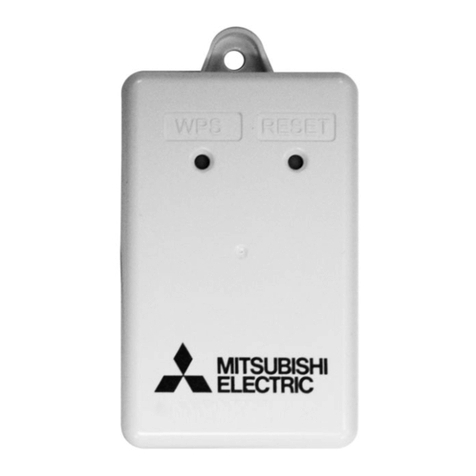
  9. Mitsubishi MAC-588IF-E User manual

Mitsubishi MAC-588IF-E User manual

This manual suits for next models

1

Other Mitsubishi Control Unit manuals

Mitsubishi FR-A5ND User manual

Mitsubishi

Mitsubishi FR-A5ND User manual

Mitsubishi QJ72LP25-25 Instructions for use

Mitsubishi

Mitsubishi QJ72LP25-25 Instructions for use

Mitsubishi MELSEC-A A1S68AD User manual

Mitsubishi

Mitsubishi MELSEC-A A1S68AD User manual

Mitsubishi MELSEC-L Series User manual
Mitsubishi

Mitsubishi MELSEC-L Series User manual

Mitsubishi FX3U-ENET-ADP User manual

Mitsubishi

Mitsubishi FX3U-ENET-ADP User manual
Mitsubishi MELSEC Q Series User manual
Mitsubishi

Mitsubishi MELSEC Q Series User manual

Mitsubishi MELSEC L Series User manual
Mitsubishi

Mitsubishi MELSEC L Series User manual

Mitsubishi AL-ASI-BD User manual

Mitsubishi

Mitsubishi AL-ASI-BD User manual

Mitsubishi GOT MELSEC 800 Series User manual

Mitsubishi

Mitsubishi GOT MELSEC 800 Series User manual

Mitsubishi MELSEC QD75P User manual

Mitsubishi

Mitsubishi MELSEC QD75P User manual

Mitsubishi Q68RD3-G User manual

Mitsubishi

Mitsubishi Q68RD3-G User manual

Mitsubishi GOT 1000 User manual

Mitsubishi

Mitsubishi GOT 1000 User manual

Mitsubishi MELDAS MDS-C1 User manual

Mitsubishi

Mitsubishi MELDAS MDS-C1 User manual

Mitsubishi A8GT-50KBF User manual

Mitsubishi

Mitsubishi A8GT-50KBF User manual
Mitsubishi MELSECNET/10 A1SJ72QLP25 User manual

Mitsubishi

Mitsubishi MELSECNET/10 A1SJ72QLP25 User manual

Mitsubishi QD75M1 User manual

Mitsubishi

Mitsubishi QD75M1 User manual
Mitsubishi A0J2CPU User manual

Mitsubishi

Mitsubishi A0J2CPU User manual
Mitsubishi MELSEC-F FX2N Series User manual

Mitsubishi

Mitsubishi MELSEC-F FX2N Series User manual

Mitsubishi Q64AD User manual

Mitsubishi

Mitsubishi Q64AD User manual
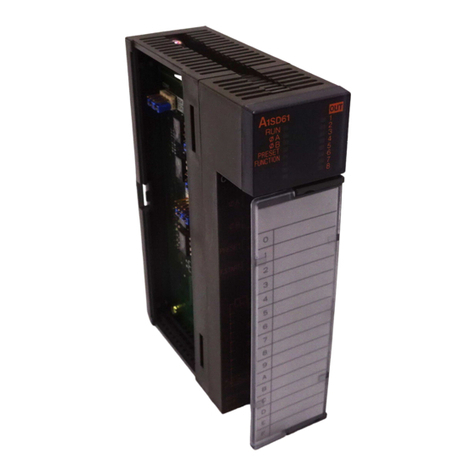
Mitsubishi MELSEC-A A1SD61 User manual
Mitsubishi

Mitsubishi MELSEC-A A1SD61 User manual
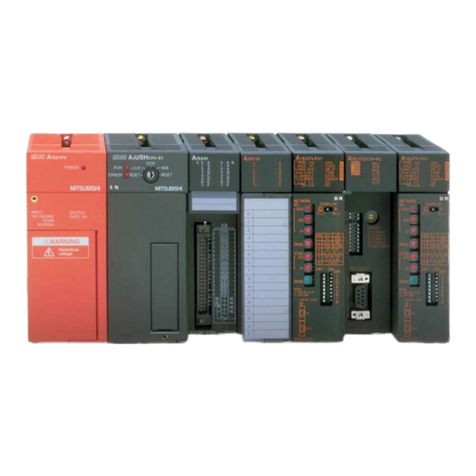
Mitsubishi MELSEC-Q Q Series User manual

Mitsubishi

Mitsubishi MELSEC-Q Q Series User manual

Mitsubishi A1S62TCRTBW-S2 User manual

Mitsubishi

Mitsubishi A1S62TCRTBW-S2 User manual

Mitsubishi Melsec-A AJ65SBT User manual

Mitsubishi

Mitsubishi Melsec-A AJ65SBT User manual

Mitsubishi Wi-Fi Control User manual

Mitsubishi

Mitsubishi Wi-Fi Control User manual

Popular Control Unit manuals by other brands
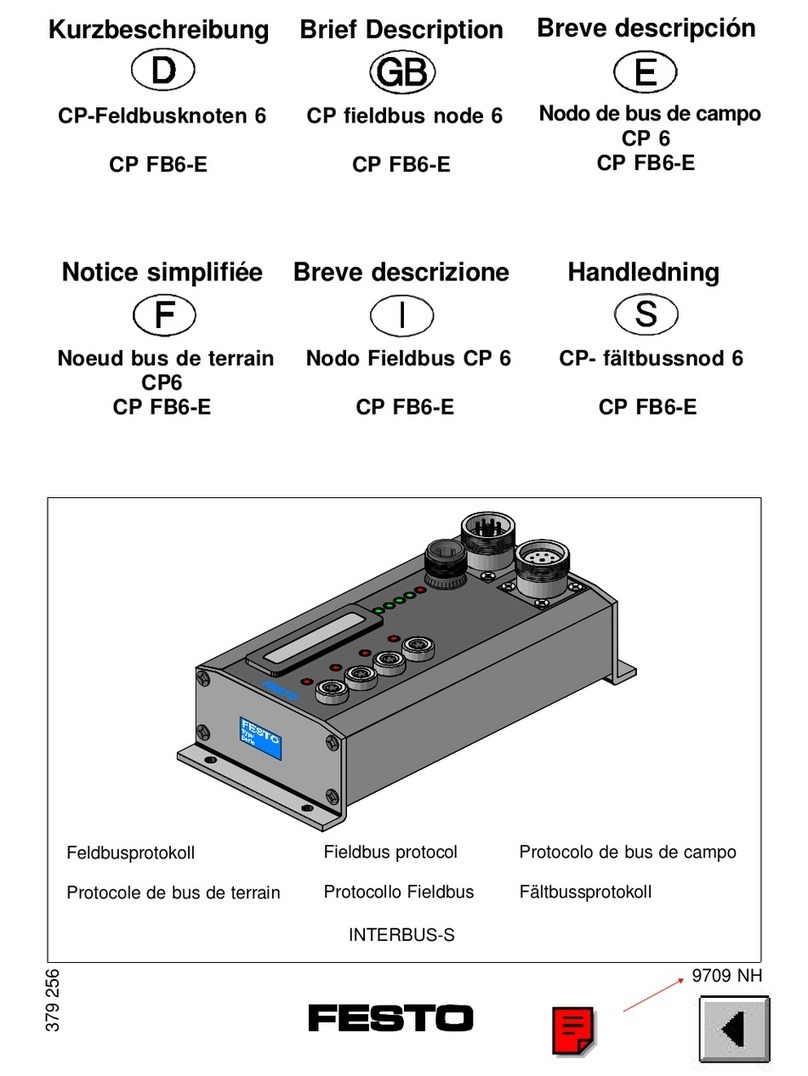
Festo Compact Performance CP-FB6-E Brief description
Festo

Festo Compact Performance CP-FB6-E Brief description

Elo TouchSystems DMS-SA19P-EXTME Quick installation guide

Elo TouchSystems

Elo TouchSystems DMS-SA19P-EXTME Quick installation guide

JS Automation MPC3034A user manual

JS Automation

JS Automation MPC3034A user manual
JAUDT SW GII 6406 Series Translation of the original operating instructions
JAUDT

JAUDT SW GII 6406 Series Translation of the original operating instructions

Spektrum Air Module System manual

Spektrum

Spektrum Air Module System manual

BOC Edwards Q Series instruction manual

BOC Edwards

BOC Edwards Q Series instruction manual

KHADAS BT Magic quick start

KHADAS

KHADAS BT Magic quick start

Etherma eNEXHO-IL Assembly and operating instructions
Etherma

Etherma eNEXHO-IL Assembly and operating instructions

PMFoundations Attenuverter Assembly guide
PMFoundations

PMFoundations Attenuverter Assembly guide

GEA VARIVENT Operating	 instruction

GEA

GEA VARIVENT Operating instruction
Walther Systemtechnik VMS-05 Assembly instructions
Walther Systemtechnik

Walther Systemtechnik VMS-05 Assembly instructions

Altronix LINQ8PD Installation and programming manual
Altronix

Altronix LINQ8PD Installation and programming manual
Eaton Powerware Series user guide

Eaton

Eaton Powerware Series user guide

WAGO 750-407/040-000 manual

WAGO

WAGO 750-407/040-000 manual

Sony CCU-590 Operation manual

Sony

Sony CCU-590 Operation manual

Graco 25D614 instructions

Graco

Graco 25D614 instructions

Task Force Tips YE-RF-900 Instructions for installation, safe operation and maintenance

Task Force Tips

Task Force Tips YE-RF-900 Instructions for installation, safe operation and maintenance

Shini SPV-U Series manual

Shini

Shini SPV-U Series manual

https://manuals.online logo
https://manuals.online logoBrands
  • About & Mission
  • Contact us
  • Privacy Policy
  • Terms and Conditions

Copyright 2026 Manuals.Online. All Rights Reserved.

Wi-Fi INTERFACE
MODEL
MAC-568IF-E
MAC-588IF-E
INSTALLATION GUIDE
Intelligent control, no matter where you are.
2
Setting Information
Indoor unit model name
Indoor unit serial number
Outdoor unit model name
Outdoor unit serial number
Wi-Fi interface MAC address (MAC)
Wi-Fi interface serial number (ID)
Wi-Fi interface PIN (PIN) <MAC-568IF-E only>
Wi-Fi interface SSID (SSID)
Wi-Fi interface KEY (KEY)
System commissioning date
Wi-Fi interface installation date
Installer Contact Details
Name
Telephone Number
Wi-Fi interface Minimum Requirements for Operation:
• Router capable of WPA2-PSK(AES) encryption. 2.4GHz needs to be enabled
on dual band Routers. The wireless network coverage must include the heat
pump installation location.
• A PC or Smartphone/Tablet that is iOS/Android compatible.
• A compatible Mitsubishi Electric indoor unit with a Wi-Fi interface.
3
Contents
About Wi-Fi Interface
This Wi-Fi interface communicates the status information and controls the
commands from the server by connecting to an indoor unit.
Safety Precautions
• Read all safety instructions before installation, setting up, or use of the Wi-Fi
interface.
• This installation manual contains important safety information. Be sure to
comply with the instructions.
• After installing the Wi-Fi interface, provide this installation manual for the user.
Instruct users to store it with their indoor unit instruction manual in a safe
location.
[Precautions for installation]
Warning
(Improper handling may have serious consequences, including serious injury or death.)
• Do not install the Wi-Fi interface by
yourself (user).
Improper installation may result in fire, electric
shock, injury due to fall of the Wi-Fi interface,
or water leaks. Consult the dealer from
whom you purchased the Wi-Fi interface or
professional installer.
• The Wi-Fi interface should be securely
installed in accordance with this
installation manual.
Improper installation may result in fire, electric
shock, or damage, or the Wi-Fi interface
falling.
• The Wi-Fi interface should be mounted in a
location that can support its weight.
If the Wi-Fi interface is installed in a location
that cannot support its weight, the Wi-Fi
interface could fall and cause damage.
• Connect and fasten the electric wires
securely so external force on the wires will
not apply on the terminals.
Improper connection and mounting may
result in breakdown, heat generation, smoke
generation, or fire.
• Mitsubishi Electric’s components or other
designated components must be used for
installation.
Improper component may result in fire,
electric shock, or damage/water leaks.
• Electric work must be performed by
authorized personnel in accordance with
the local regulations and the instructions
detailed in the installation manual.
Inadequate circuit capacity or improper
installation may result in electric shock or fire.
• Do not connect the Wi-Fi interface to earth
inside the indoor unit.
Safety Precautions
Wi-Fi interface introduction
Parts
Connecting the Wi-Fi Interface
Wi-Fi Interface: Setting Up Instructions
LED Pattern
Troubleshooting
Specifications
3
7
9
9
11
15
16
18
4
Warning
(Improper handling may have serious consequences, including serious injury or death.)
• Attach the electrical cover to the indoor
unit securely.
If the electrical cover of the indoor units is not
attached securely, it could result in a fire or an
electric shock due to dust, water, etc.
• When installing the Wi-Fi interface, use
appropriate protective equipment and
tools for safety.
Failure to do so could cause injury.
• Turn off the breaker or unplug the power
supply plug of the indoor unit when
connecting the Wi-Fi interface.
Failure to do so could cause electric shock.
• Make sure to connect the connecter of
the Wi-Fi interface to the P.C. board of the
indoor unit properly.
Incomplete connecting or mounting may
result in broken wire, heat generation, smoke
generation, or fire.
• Do not install the Wi-Fi interface nearby
the automatic control devices such as
automatic doors or fire alarms.
It can cause accidents due to malfunctions.
• Do not disassemble, modify, or repair by
yourself.
It can cause electric shock, fire, or injury.
• Do not use the Wi-Fi interface near medical
electrical equipment or people who
have a medical device such as a cardiac
pacemaker or an implantable cardioverter-
defibrillator.
It can cause an accident due to malfunctions
of the medical equipment or device.
• This equipment should be installed and
operated with a minimum distance of 20
cm between the device and the user or
bystanders.
• This device complies with all Australia and
New zealand regulrements for EMC and
electrical safety.
Caution
(Improper handling may have consequences, including injury or damage to building.)
• To prevent damage from static electricity,
touch a nearby metal body to discharge
static electricity from yourself before
touching the Wi-Fi interface.
Static electricity from the human body may
damage the Wi-Fi interface unit.
• Do not install the Wi-Fi interface in a place
which produces steam, such as bathrooms
and kitchens.
Avoid places where water is splashed or
where condensation forms on walls. Installing
in such places can cause electric shock or
breakdown.
• Do not install the Wi-Fi interface in places
with direct sunlight or where the ambient
temperature is 40°C or more or is 0°C or
less.
Direct sunlight and high or low temperature
environments may cause the Wi-Fi interface
to deform or breakdown.
• Do not use in special environments.
Use in places with oil (including machine oil),
steam, or sulfuric gas may lead to severe
decrease in functionality and damage to parts.
• Turn off power supply of connected
equipment when performing construction
or wiring work.
Failure to turn off the power supply to
the connected equipment may lead to
malfunction or breakdown of the Wi-Fi
interface or connected equipment.
• The connecting cable must not touch
piping directly.
• Do not use the Wi-Fi interface near other
wireless devices, microwaves, cordless
phones, or facsimiles.
It can cause malfunctions.
• Do not mount the Wi-Fi interface where
children can reach.
It can cause injury.
5
[Precautions for setting up, or use of the Wi-Fi interface]
Warning
(Improper handling may have serious consequences, including serious injury or death.)
Be sure not to do. Never touch with wet hand.
• Do not disassemble, modify, or repair by
yourself (user).
It can cause electric shock, fire, or injury.
• This appliance is not intended for use by
persons (including children) with reduced
physical, sensory or mental capabilities,
or lack of experience and knowledge,
unless they have been given supervision
or instruction concerning use of the
appliance by a person responsible for
their safety.
• Children should be supervised to ensure
that they do not play with the appliances.
• This appliance can be used by children
aged from 8 years and above and persons
with reduced physical, sensory or mental
capabilities or lack of experience and
knowledge if they have been given
supervision or instruction concerning
use of the appliance in a safe way and
understand the hazards involved.
• Children shall not play with the appliance.
Cleaning and user maintenance shall not
be done by children without supervision.
• Do not use the Wi-Fi interface near
electrical medical equipment or people
who have a medical device such as a
cardiac pacemaker or an implantable
cardioverter-defibrillator.
It can cause an accident due to malfunctions
of the medical equipment or device.
• Do not install the Wi-Fi interface near
automatic control devices such as
automatic doors or fire alarms.
It can cause accidents due to malfunctions.
• Do not touch the Wi-Fi interface with wet
hands.
It can cause damage to the device, electric
shock, or fire.
Never splash water on the unit.
• Do not splash water on the Wi-Fi interface or
use it in a bathroom.
It can cause damage to the device, electric
shock, or fire.
Be sure to follow all the instructions.
• Do not install the Wi-Fi interface by yourself
(user).
Improper installation may result in fire, electric
shock, or injury due to the Wi-Fi interface
falling. Consult the dealer from whom you
purchased the Wi-Fi interface or professional
installer.
Be sure to disconnect the power
supply plug from the power outlet.
• When the Wi-Fi interface is dropped, or the
holder or cable is damaged, disconnect the
power supply plug or turn the breaker OFF.
It may cause fire or electric shock. In this case,
consult your dealer.
• In case of an abnormal condition (such as
a burning smell), stop the indoor unit and
disconnect the power supply plug or turn
the breaker OFF.
A continued operation in the abnormal state
may cause a malfunction, fire, or electric
shock. In this case, consult your dealer.
6
[Precautions for installation, setting up, or use of the Wi-Fi interface]
Caution
(Improper handling may have consequences, including injury or damage to building.)
Be sure not to do.
• Do not mount the Wi-Fi interface where
children can reach.
It can cause injury.
• Do not step on unstable step stool to set
up or clean the Wi-Fi interface.
It may cause injury if you fall down.
• Do not use the Wi-Fi interface near other
wireless devices, microwaves, cordless
phones, or facsimiles.
It can cause malfunctions.
Note
• Please ensure that the Router supports the
WPA2-PSK(AES) encryption setting before
installation for this Wi-Fi interface begins.
• The end user should read and accept the
terms and conditions of the Wi-Fi service
before installation of this Wi-Fi interface
begins.
• The Router may be required to complete
connection of this Wi-Fi interface to the Wi-Fi
service.
• This Wi-Fi interface should not be installed
and connected to any Mitsubishi Electric
System which is to provide application critical
cooling or heating.
• Please write down the model information and
more on the first page "Setting Information",
when you install this Wi-Fi interface.
• Before transferring or disposing of the Wi-Fi
interface, it has to be reset to the factory
default.
• Dismantling the indoor unit
Please refer to the indoor units “service
manual” for detailed instructions for accessing
the control adaptor connector CN105 on the
indoor unit control PCB.
Mitsubishi Electric’s Wi-Fi interface is designed for communication to Mitsubishi Electric’s
Wi-Fi service. Third party Wi-Fi interfaces cannot connect to Mitsubishi Electric’s Wi-Fi
service. Mitsubishi Electric is not responsible for any (i) underperformance of a system or
any product; (ii) system or product fault; or (iii) loss or damage to any system or product;
which is caused by or arises from connection to and/or use of any third party Wi-Fi
interface or any third party Wi-Fi service with Mitsubishi Electric equipment.
For the latest information regarding Wi-Fi Control:
New Zealand based enquiries please visit: www.mitsubishi-electric.co.nz/wifi
Australian based enquiries please visit: www.mitsubishielectric.com.au/wifi
7
This Wi-Fi interface, communicates the status information and controls the
commands from the server by connecting to the indoor unit.
No Item Description
1MODE Button Selects modes.
2RESET Button
Resets the system and ALL settings.
3ERR LED (Orange)
Shows the network error state.
4NET LED (Green) Shows the network state.
5
MODE LED (Orange)
Shows the Access Point Mode state.
6UNIT LED (Green)
Shows the indoor unit state.
(1) MODE Button
WPS-Push mode <For a router with a WPS button>
[To enter the mode]
Hold down the MODE Button for 2 seconds.
[LED indication]
When WPS-Push is enabled on the Wi-Fi interface, the MODE LED starts flashing
orange (every second).
[To cancel the mode]
Hold down the RESET Button for 2 seconds to return to the initial state.
Access Point mode <For a router without a WPS button and to set up with a
smart phone>
[To enter the mode]
Hold down the MODE Button for 7 seconds.
[LED indication]
When Access Point mode is enabled on the Wi-Fi interface, the MODE LED
starts flashing orange (every 5 seconds).
[To cancel the mode]
Hold down the MODE Button for 7 seconds again and ensure that the MODE
LED is no longer flashing.
In any mode, the NET LED will ash when the Wi-Fi interface is connected to the
Router.
Wi-Fi interface introduction
RESET
ERR
NET
MODE
UNIT
MODE
3
4
5
6
21
MAC-568IF-E MAC-588IF-E
ERR
NET
MODE
UNIT
RESET MODE
Wi-Fi INTERFACE
MODEL
XXXXXXXX
MAC
ID
SSID
KEY
:XXXXXXXXXXXX
:XXXXXXXXXX
:XXXXXXXXXXXX
:XXXXXXXXXXXX
VOLTAGE
CURRENT
:
:
MITSUBISHI ELECTRIC CORPORATION
WiFi.ASSYDWG No.
XXXXXXXXXXX
MADE IN CHINA
XXXXXXXXXX
>PP<
3
4
5
6
21
8
(2) RESET Button
• Hold down the RESET Button for 2 seconds to reboot the system.
• Hold down the RESET Button for 14 seconds to initialise the Wi-Fi interface
to the factory default.
Note: When the Wi-Fi interface is reset to the factory default, ALL the
configuration information will be lost. Take great care in implementing this
operation.
WPS-PIN mode <MAC-568IF-E only>
[To enter the mode]
Hold down the MODE Button for 14 seconds.
[LED indication]
When WPS-PIN is enabled on the Wi-Fi interface, the MODE LED starts flashing
orange (every 0.5 seconds).
[To cancel the mode]
Hold down the RESET Button for 2 seconds to return to the initial state.
9
Before dismantling the indoor unit, turn the power off and make sure that the
power has been disconnected from the complete system.
Dismantle the indoor unit in accordance with the service manual to access the
main control PCB.
Locate the CN105 port on the main control PCB and connect the Wi-Fi interface.
When mounting the interface unit inside an indoor unit, refer to the
installation manual of the indoor unit. Do not mount the interface
unit inside the indoor unit, unless mentioned in the manual.
Connecting the Wi-Fi Interface
(For details about your heat pump, see the relevant installation manual)
Parts
Interface unit
(with connecting
cable)
Holder
Fixing screw
for
3.5×16 mm
Clip
Fixing screw
for
4×16 mm
Mounting cord
clamp
Fastener
(for bundling
the wires)
10
Insert the clip into the holder until it clicks
into place.
Slip the clip over the edge of corner box to fix
the interface unit .
Note: Mount the interface unit on the
underside of the indoor unit if it cannot be
mounted on the side of the indoor unit.
Insert the interface unit into the holder until
it clicks into place.
Note: When inserting the interface unit into
the holder, align the cable of the interface unit
with the mark for the cable on the holder .
1
3
2
4
2
Clip
Holder
Interface unit
Mark for cable
Align
Holder
Connecting cable
Interface
unit
Corner box
Clip
1
Indoor unit
Indoor unit
Corner box
Corner box
Underside of the
indoor unit Side of the
indoor unit
Example of mounting on the left side of the indoor unit
Otherwise, light leakage or degradation in
appearance may result.
Note: Interface unit can also be mounted on
the right side of the indoor unit.
To check the LED indication after setup, remove
the interface unit from the holder .
Run the connecting cable in the space on the
back of the unit as shown in the above image.
Tuck cabling away and secure it.
Note: Make sure that the connecting cable will
not get caught on or between the installation
plate and the wall, or between the indoor unit
and the installation plate. Failure to do so may
cause damage to the connecting cable resulting
in communication problems.
Make sure that the connecting cable will not
come out from the indoor unit.