manuals.online logo
Brands
  1. Home
  2. •
  3. Brands
  4. •
  5. Panasonic
  6. •
  7. Projector Accessories
  8. •
  9. Panasonic Panaboard KX-BP535 User manual

Panasonic Panaboard KX-BP535 User manual

Other manuals for Panaboard KX-BP535

1

This manual suits for next models

2

Other Panasonic Projector Accessories manuals
Panasonic ET-LAL510 User manual

Panasonic

Panasonic ET-LAL510 User manual

Panasonic ET-LAD60A User manual

Panasonic

Panasonic ET-LAD60A User manual

Panasonic ET-PKE300 User manual

Panasonic

Panasonic ET-PKE300 User manual

Panasonic ET-LAL100 User manual

Panasonic

Panasonic ET-LAL100 User manual

Panasonic ET-LAE200 User manual

Panasonic

Panasonic ET-LAE200 User manual

Panasonic ET-D3LEU100 User manual

Panasonic

Panasonic ET-D3LEU100 User manual

Panasonic ET-LAD57 Guide

Panasonic

Panasonic ET-LAD57 Guide

Panasonic ET-ELW21 User manual

Panasonic

Panasonic ET-ELW21 User manual

Panasonic ET-ELW20 User manual

Panasonic

Panasonic ET-ELW20 User manual

Panasonic TY-WPR1 Operating instructions

Panasonic

Panasonic TY-WPR1 Operating instructions

Panasonic ET-D75LE8 System manual

Panasonic

Panasonic ET-D75LE8 System manual

Panasonic ET-MWP100G Quick start guide

Panasonic

Panasonic ET-MWP100G Quick start guide

Panasonic PressIT TY-WPS1 User manual

Panasonic

Panasonic PressIT TY-WPS1 User manual

Panasonic ET-LAB50 Guide

Panasonic

Panasonic ET-LAB50 Guide

Panasonic PressIT TY-WPS1W Operating instructions

Panasonic

Panasonic PressIT TY-WPS1W Operating instructions

Panasonic ET-EMF510C User manual

Panasonic

Panasonic ET-EMF510C User manual

Panasonic ET-RFL100 User manual

Panasonic

Panasonic ET-RFL100 User manual

Panasonic ET-LAD510 User manual

Panasonic

Panasonic ET-LAD510 User manual

Panasonic ET-SFD320C User manual

Panasonic

Panasonic ET-SFD320C User manual
Panasonic ET-PKB50 Installation instructions

Panasonic

Panasonic ET-PKB50 Installation instructions

Panasonic ET-LAD310A User manual

Panasonic

Panasonic ET-LAD310A User manual

Panasonic ET-LAD7700 Guide

Panasonic

Panasonic ET-LAD7700 Guide

Panasonic ET-LAE200C User manual

Panasonic

Panasonic ET-LAE200C User manual

Panasonic ET-PKE200H User manual

Panasonic

Panasonic ET-PKE200H User manual

Popular Projector Accessories manuals by other brands

Optoma BX-AL133B datasheet

Optoma

Optoma BX-AL133B datasheet

PEERLESS PE 1120 Installation and assembly

PEERLESS

PEERLESS PE 1120 Installation and assembly

Osram SIRIUS HRI Series Directions for use

Osram

Osram SIRIUS HRI Series Directions for use

Presentation Switchers PS111 quick start

Presentation Switchers

Presentation Switchers PS111 quick start

Kramer VIA GO user manual

Kramer

Kramer VIA GO user manual

Yamaha PJL-112 Replacement guide

Yamaha

Yamaha PJL-112 Replacement guide

Mitsubishi Electric 236CB Features

Mitsubishi Electric

Mitsubishi Electric 236CB Features

Epson BrightLink 475Wi user guide

Epson

Epson BrightLink 475Wi user guide

Acer WP100 quick guide

Acer

Acer WP100 quick guide

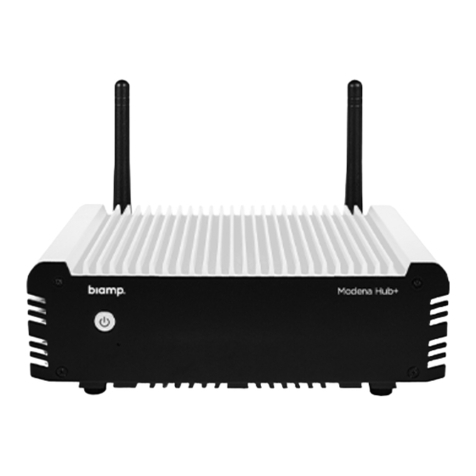
Biamp Modena Hub Network administrator's guide

Biamp

Biamp Modena Hub Network administrator's guide

Panamorph DCR-S3 installation guide

Panamorph

Panamorph DCR-S3 installation guide

Exact solutions FRAME-EVO-P10 manual

Exact solutions

Exact solutions FRAME-EVO-P10 manual

i3 i3board user manual

i3

i3 i3board user manual

CHIEF VCM103S installation instructions

CHIEF

CHIEF VCM103S installation instructions

InFocus LP70+ Replacement instructions

InFocus

InFocus LP70+ Replacement instructions

Sharp AN-PH20EZ Operation manual

Sharp

Sharp AN-PH20EZ Operation manual

PDR UPM51 product manual

PDR

PDR UPM51 product manual

CHIEF HB-43E installation instructions

CHIEF

CHIEF HB-43E installation instructions

manuals.online logo
manuals.online logoBrands
  • About & Mission
  • Contact us
  • Privacy Policy
  • Terms and Conditions

Copyright 2025 Manuals.Online. All Rights Reserved.

Panasonic
Electronic
Print
Board
Operating
Instructions
with
Installation
Manual
(for
qualified
service
personnel)
Model
No.
KX-BP535
KX-BP635
KX-BP735
Oo
=)
@
=
fr
as
=
w
4
oF
n
ba
c
oO
eT
o
=
ir
The
unit
in
this
picture
is
KX-BP635.
[Stand
and
wall-mounting
kit
are
optional.)
jenueyw
uonejjersu
®
Before
operating
this
unit,
plaase
read
these
instructions
completely,
After
reading
them,
preserve
them
carefully
for
future
reference.
Because
of
the
nature
of
the
print
film,
all
the
printed
text
will
remain
on
the
film.
è
This
product
is
designed
for
installation
by
a
qualified
servicing
dealer.
Installation
performed
by
non-authorized
individuals
could
cause
safety-related
problems
with
the
operation
of
this
equipment.
To
locate
the
closest
authorized
dealer
in
your
area,
please
call
1-800-447-4700,
Thank
you
for
purchasing
the
Panasonic
Electronic
Print
Board.
For
optimum
performance
and
safety,
please
read
these
instructions
carefully.
Accessories
o]
Thermal
transfer
film
POECPREECESELECECCTOCOSTORT
EOE
TEST
TT
1
.
Power
cord
VERT
VELTOLESTERTEPETLEP
TTR
TTT
E
TT
eTeree
TTT
1
@
Markers
(red,
black
and
blue)
eeerteereereee
1
each
@
Film
cassette
(Blue
gearX1,
Green
gearsX3)}
ereen
1
e
Operating
Instructions
vsosasaaansesttoovvosavssevenooaooas
1
o
Letter
size
copy
paper
suvea
eee
s
veer
nee
naceDaanbeanponene
1
@
Eraser
POP
CHAAR
EEO
TATED
ERE
E
RRR
RHEE
DEERE
DERE
UOT
DERE
ES
For
your
future
reference
Date
of
purchase
Serial
number
Dealer’s
name
and
address
Dealer's
telephone
number
|
Warning
Notices
WARNING:
|
|
CAUTION:
TO
PREVENT
FIRE
OR
SHOCK
HAZARD,
DO
NOT
EXPOSE
TO
PREVENT
RISK
OF
ELECTRIC
SHOCK
HAZARD,
DO
THIS
PRODUCT
TO
RAIN
OR
ANY
TYPE
OF
MOISTURE.
NOT
REMOVE
THE
COVER
OF
THIS
PRODUCT,
REFER
SERVICING
TO
QUALIFIED
SERVICE
PERSONNEL.
THE
SOCKET-OUTLET
MUST
BE
NEAR
THIS
EQUIPMENT
AND
MUST
BE
EASILY
ACCESSIBLE.
Federal
Communications
Commission.
Requirements
Note:
This
equipment
has
been
tested
and
found
to
comply
with
the
limits
for
a
Class
A
digital
device,
pursuant
to
part
15
of
the
FCC
Rules.
These
limits
are
designed
to
provide
reasonable
protection
against
harmful
interference
when
the
equipment
is
operated
in
a
commercial
environment.
This
equipment
generates,
uses,
and
can
radiate
radio
frequency
energy
and,
if
not
installed
and
used
in
accordance
with
the
instruction
manual,
may
cause
harmful
interference
to
radio
communications.
Operation
of
this
equipment
in
a
residential
area
is
likely
to
cause
harmful
interference
in
which
case
the
user
will
be
required
to
correct
the
interference
at
his
own
expense.
FCC
Warning:
To
assure
continued
FCC
compliance,
the
user
must
use
only
the
provided
power
supply
cord.
Also,
any
unauthorized
changes
or
modifications
to
this
equipment
would
void
the
user's
authority
to
operate
this
device.
Table
of
Contents
o
Pages
Precautions
TOTP
PTrTrerererereerreerrerrrer
err
re
eee
ee ee
ee
a
3
Part
Names
and
Functions
oem
emcee
cere
TETTETETT
6
©
The
Control
Pane!
esvosovenoeecooovssosoosovosoassososeoenso
7
Installing
the
Thermal
Transfer
Film
teere
8
Loading
the
Copy
Paper
eeeresocccoososocssonasogagaoa
10
Making
Copies
Sorrrrrrrrrrrrrrrrerrrer
rer
reer
re
eee
ee
ei
ee
1
2
@
Copy
Types
and
Procedures
<vrrrrssrretetretere
reese
13
Replacing
the
Thermal
Transfer
Film-::s+:*+++*:
14
Paper
Jams
corrcrcrstttrecetcett
ere
eceeeeesee
eee
et
arenes
15
Daily
Care
and
Maintenance
crrrrrsrssssessteeeee
18
Troubleshooting
cccrereecetrecec
eres
eee
tees este
eee
ences
20
Specifications
l
a
nce
red
Sess
ane
brs
ene
cis
7
||
@
Refer
to
page
22
of
the
Installation
Manual.
\o)
©
D
=
s]
m=
=
Ca)
5
N
(ama
=
S
Oo
=e
e
=
w
Precautions
Never
remove
the
cover,
or
take
apart
or
modify
the
Do
not
position
the
electronic
print
board
in
a
location
product.
where
it
is
not
stable.
Precautions
Do
not
put
drinks
or
other
liquids
on
the
tray.
After
installing
or
moving
the
electronic
print
board,
lock
the
casters.
Locking
the
casters
(Push
this
side)
Do
not
use
the
electronic
print
board
in
an
excessively
|
If
the
electronic
print
board
is
not
going
to
be
used
for
an
humid
or
dusty
location.
extended
period
of
time
(e.g.,
during
extended
holidays),
turn
off
the
power
and
remove
the
plug
from
the
wall
YQ
By
-
outlet.
Installation
-|
@
Do
not
install
the
unit
where
it
may
be
exposed
to
direct
sunlight,
near
heating
equipment,
or
near
air-conditioning
vents
as
this
may
cause
stretching
and/or
discoloration
of
the
screen.
@
Do
not
install
the
unit
in
locations
having
a
temperature
of
10°C
(50°F)
or
lower
or
where
the
temperature
may
change
suddenly
as
this
may
disable
the
unit's
ability
to
make
copies.
Precautions
Sg
a
a
a
NT)
@
Make
thick,
dark
lines
inside
the
copying
area.
Note
that
any
writing
inside
the
shaded
area
in
the
figure
cannot
25
mm
(1”)
be
copied.
(Dimensions
listed
in
the
3
”
brackets
are
for
the
KX-BP635.
)
a
is
7
4A
3
8
25
mm
(1)
@
Do
not
allow
writing
to
remain
on
the
screen
for
an
extended
period
of
time
as
it
will
become
harder
to
erase.
@
Do
not
touch
the
screen,
write
with
markers,
or
erase
while
the
screen
is
moving
as
this
may
result
in
damage
to
the
unit.
@
Do
not
attach
chart
paper
to
the
screen
film
for
copying
with
the
KX-BP735
as
this
may
result
in
damage
to
the
unit.
Markers,
@
Use
only
the
included
or
designated
dry
erase
markers,
erasers
and
Erasers
and
thermal
transfer
film.
(See
page
21.)
Thermal
Use
of
accessories
other
than
those
included
or
designated
(such
as
oil-based
,
markers)
may
damage
the
screen
or
result
in
hard-to-erase
markings.
Transfer
Film
@
Do
not
store
the
thermal
transfer
film
in
a
location
subject
to
extreme
changes
in
temperature
(such
as
near
air
conditioning
or
heating
equipment)
as
this
may
cause
condensation
on
the
thermal
transfer
film
and
result
in
poor
print
quality
and/or
paper
jams.
O
TT
D
~
D
=f
2
©
=}
~“”
=
=
Z
O
+,
°
5
i]
@
The
length
of
one
roli
of
the
designated
thermal
transfer
film
(Replacement
film
:
KX-BP081)
is
approximately
100
meters
(328
ft.).
One
roll
of
thermal
transfer
film
can
print
approximately
300
copies.
Note
that
the
number
of
copies
possible
may
differ
depending
on
the
operating
conditions.
Also
note
that
the
length
of
the
thermal
transfer
film
supplied
with
the
unit
is
shorter
than
the
replacement
film
roll
and
is
only
approximately
20
meters
(65.6
ft.
).
@
Store
markers
horizontally
as
vertical
storage
may
stop
the
ink
from
coming
out.
Power
Cord
@
When
moving
the
unit,
disconnect
the
power
cord
from
the
electrical
power
socket
and
from
the
printer's
power
connector
and
coil
it
for
transportation
as
stepping
on
the
power
cord
or
having
it
catch
on
something
during
movement
may
result
in
damage
to
the
cord.
Replacing
@
Dispose
of
the
used
thermal
transfer
film
in
a
trash
receptacle
for
burnable
the
Thermal
trash.
@
A
negative
of
the
copied
image
will
remain
on
the
thermal
transfer
film.
(To
protect
the
security
of
your
information,
we
recommend
cutting
up
the
used
thermal
transfer
film
with
scissors
or
a
shredder
before
disposing
of
it.)
Transfer
Film
Part
Names
and
Functions
Power
Switch
Screen
Film
Outputs
copy
paper
that
has
been
copied.
Can
hold
up
to
20
sheets.
|
AC
Inlet
einen.
=
ie
oe
e
eS
Rome
Output
Port
———————+&
;
|
\
aay
N
\————
Power
Cord
Paper
Cover
Open
this
cover
when
loading
Printer
Open
Lever
copy
paper.
Push
down
this
lever
to
open
the
printer
door.
Printer
Door
Open
the
printer
door
when
loading
the
transfer
film
or
when
removing
paper
jams.
(See
pages
8,
14
and
15.)
Control
Panel
for
KX-BP535
and
KX-BP635
Indicator
(7)
Advance
Key
C)
Contrast
/Remaining
Film
|
(5)
Multi-Copy
“Error
Indicator
|
raone
IE
E
|
—
een
Panasonic
|
O
Ca)
—
4
|
@)
Contrast
Key
ed
(4)
Copy
Key
(3)
2-Screen
Copy
Key
Multi-Copy
“Stop
Key
Control
Panel
for
KX-BP735
|
A
Contrast/
Remaining
Film
O
Multi-Copy/
Error
Indicator
Indicator
i
—®
Reverse
Key
(7)
Advance
Key
(6)
Multi-Copy
Stop
Key
Part
Names
and
Functions
(The
Control
Panel)
Name
Panel
Description
This
lamp
indicator
notifies
the
user
when
the
time
to
replace
the
thermal
transfer
film
is
approaching
(estimated)
and
of
the
printing
contrast
used
during
copying.
Indicator
off
:
Normal
printing
contrast.
Indicator
on
:
Darker
than
normal
printing
contrast.
Indicator
flashing
:*Almost
time
to
replace
the
thermal
transfer
film.
Film
Indicato
(Note
that
only
about
15
more
sheets
may
be
copied
when
this
indicator
starts
flashing.)
Replacement
film
(
KX-BP081
or
KX-BP082)
is
separately
available
from
the
dealer
where
you
purchased
your
unit.
*
The
flashing
indicator
will
go
out
after
the
power
is
turned
off
and
the
printer
has
ra
ee
and
closed.
(When
copying
is
och
a
this
indicator
will
begin
flashing
again.)
(Contrast
/
Remaining
@Contrast
Key
@2-Screen
For
the
KX-BP535
and
KX-BP635
only:
Copy
Key
@
This
key
causes
both
screens
to
be
copied
on
a
single
sheet
of
paper.
:
This
key
causes
the
screen
to
be
copied.
:
For
the
KX-BP735
only:
@Copy
Key
@
When
copying
is
finished,
the
next
screen
is
displayed.
:
@
With
4-screen
continuous
copying,
the
screen
on
which
copying
was
started
is
displayed.
This
indicator
displays
the
number
of
copies
to
be
made.
The
display
®Multi-
changes
each
time
the
multi-copy/
stop
key
is
pressed.
Copy/
For the
KX-BP535
and
KX-BP635:
Example
1—
2
w+
9>
1>
For
the
KX-BP735:
Example
1
>
2
>
=
>
9
=
i>
1
=>
Error
“ti”
is
used
by
the
KX-BP735
to
indicate
4-screen
continuous
copying.)
Indicator
When
an
error
occurs,
a
flashing
symbol
will
appear
in
this
display
to
indicate
the
error
status.
(See
page
20.)
When
making
multiple
copies,
press
this
key
until
the
desired
number
of
copies
is
displayed
on
the
multi-copy/
error
indicator.
This
key
can
also
be
pressed
while
mul-
tiple
copies
are
being
made
to
stop
the
copying
process.
The
display
indication
changes
while
multiple
copies
are
being
made
as
shown
below.
After
reaching
O,
the
©Multi-
display
will
reset
to
1.
=
Example:
5
~
4
—
3
—
2
—
1
—
0
—
1
(countdown
display
during
copying)
Copy”
For
the
KX-BP735
only:
Stop
Key
@
For
4-screen
continuous
copying,
keep
pressing
the
key
until
“//”
appears
in
the
multi-
copy/
error
indicator.
Also
press
the
key
to
stop
4-screen
continuous
copying
at
any
time.
@
The
display
indication
changes
while
4-screen
continuous
copies
are
being
made
as
shown
below.
After
reaching
0,
the
display
will
reset
to
1.
bE
—
yf
—
44
+
1-0-1
(display
during
4-screen
continuous
copying)
O
p.
1)
|
0)
af
=
tQ
=}
i
m
="
c
9O
[an
©
=
n
This
key
advances
the
screen
from
right
to
left.
@Advance
Key
(a)
|
For
the
KX-BP735
only
:
@
Pressing
this
key
twice
will
cause
the
screen
to
advance
two
screens
from
right
to
left.
KX-BP735
For
the
KX-BP735
only
:
@
This
key
advances
the
screen
from
left
to
right.
@
Pressing
this
key
twice
will
cause
the
screen
to
advance
two
screens
from
left
to
right.
(®)Reverse
Key
L>)
Installing
the
Thermal
Transfer
Film
Load
the
thermal
transfer
film into
the
film
cassette
and
install
it
into
the
printer.
1
Set
the
power
switch
to
on
(|
).
è
“r”
will
flash
on
the
muiti-copy
error
indicator
when
the
thermal
transfer
film
has
run
out,
Push
down
the
printer
open
lever
and
open
the
printer
door.
Insert
the
four
gears
into
the
new
thermal
transfer
film.
Gear
Tabs
\
s
Grooves
®
Securely
align
the
gear
tabs
with
the
grooves
in
`
A
(Blua)
the
thermal
transfer
film
and
insert
them
as
far
as
they
will
go.
ON
Thermal
Green
Gear
;
Transfer
Film
@
There
is
a
blue
gear
and
three
green
gears
which
need
to
be
attached
as
shown
in
the
`~
figure.
ne
Green
Gears
Green
Gear
Installing
the
Thermal
Transfer
Film
Load
the
thermal
transfer
film into
the
film
Blue
Label
Thermal
cassette.
Transfer
Film
@
Load
the
thermal
transfer
film into
the
film
Load
the
thermal
transfer
cassette
so
that
the
blue
gear
inserted
in
the
film
in
this
direction
thermal
transfer
film
is
located
on
the
blue
label
side
of
the
film
cassette.
Push
in
the
direction
of
the
arrow
until
you
hear
all
four
gear
shafts
click
in
place.
Film
Cassette
If
the
thermal
transfer
film
has
slack,
take
up
the
slack
by
winding
the
gears
on
the
label
side
of
the
cassette
in
the
direction
of
the
arrows.
@
The
multi-copy
“error
indicator
may
flash
“o”
if
the
thermal
transfer
film
is
slack.
In
addition,
the
thermal
transfer
film
may
wrinkle,
and
blank
(unprinted)
spots
or
black
streaks
may
appear
on
the
copy
paper.
install
the
film
cassette.
O
U
D
=
®
vt
=
(©
=]
n
=
=
Z
O
m
e]
=|
“
@
Insert
the
film
cassette
into
the
printer
so
that
the
blue
gear
on
the
cassette
aligns
with
the
blue
label
on
the
printer
and
then
insert
the
gear
shafts
on
both
sides
of
the
cassette
into
the
grooves
inside
the
printer.
Close
the
printer
door.
@
Securely
close
the
printer
door
by
using
both
hands
until
a
click
is
heard.
@
The
“r”
flashing
on
the
multi-copy//
error
indicator
will
go
out.
@
If
the
flashing
“r
”
does
not
go
out
even
though
the
printer
door
has
been
closed,
this
indicates
that
the
film
cassette
has
not
been
installed
properly
or
that
there
is
slack
in
the
thermal
transfer
film.
Check
the
condition
of
the
film
cassette
and
for
slack
in
the
thermal
transfer
film.
Loading
the
Copy
Paper
It
is
possible
to
load
up
to
80
sheets
of
Letter
size
copy
paper
(assuming
a
paper
weight
of
80g
/
m).
Note
that
only
Letter
paper
may
be
used.
When
the
unit
is
first
used
or
when
“
+”
flashes
on
the
multi-copy/error
indicator
to
indicate
that
the
unit
is
out
of
paper,
load
copy
paper
as
described
below.
PEPER
rere
—_————
Notes
on
Loading
Copy
Paper
Follow
the
guidelines
below
to
ensure
smooth
and
accurate
printing
by
the
unit.
®
Only
use
Letter
size
copying
paper
having
a
weight
of
60
to
90
g
/
m
as
the
copy
paper
for
this
unit.
|
@
Do
not
simultaneously
load
paper
of
varying
types
and
thickness
as
this
may
result
in
paper
jams.
@
Before
adding
the
copy
paper,
be
sure
to
remove
all
the
copy
paper
remaining
inside
the
unit's
paper
cover.
(Note
:
The
copy
paper
remaining
inside
the
unit's
paper
cover
will
slightly
resist
being
removed,
but
may
be
pulled
out
without
problems.)
|
After
removing
the
copy
paper,
stack
the
removed
paper
together
with
the
new
paper,
fan
it
thoroughly,
square
it
and
reload.
|
DO
NOT
USE
THE
FOLLOWING
TYPES
OF
PAPER
|
@
Extremely
smooth
or
glossy
paper
@
Coated
paper
@
Thermal
paper
@
Paper
that
is
printed
on
one
side
@
Wrinkled
paper,
creased
paper,
etc.
erent
EANN
ae
1
Set
the
power
switch
to
on
(
|
).
@
“5”
will
flash
on
the
multi-copy
/
error
indicator
when
the
copy
paper
has
run
out.
@
Be
absolutely
sure
to
check
that
the
power
is
on
when
loading
the
copy
paper
as
it
will
not
load
properly
otherwise.
Power
Switch
10