Planet POE-E301 User manual

1-Port 802.3bt to 1-Port 802.3bt
Gigabit PoE++ Extender
POE-E301
User's Manual

Table of Contents
1. Package Contents................................................................................. 3
2. Product Features .................................................................................. 4
3. Hardware Introduction .......................................................................... 5
3.1 Product Outlook............................................................................. 5
3.2 Ports Connection............................................................................ 5
3.3 LEDDenition: .............................................................................. 6
3.4 DIP Switch .................................................................................... 7
4. Hardware Installation............................................................................ 8
4.1 Before Installation.......................................................................... 8
4.2 Connecting POE-E301 to the PSE .................................................... 8
4.3 Connecting POE-E301 to the PD...................................................... 9
4.4 Multiple PoE Extender Installation.................................................. 10
4.5 Grounding the Device................................................................... 11
4.6 Wall-mount Installation ................................................................ 12
4.7 DIN-rail Mounting (Optional)......................................................... 12
5. ProductSpecications ......................................................................... 14

3
1. Package Contents
Thank you for purchasing PLANET IEEE 802.3bt PoE++ Extender, POE-E301.
Open the box of the PoE++ Extender and carefully unpack it. The box should
containthefollowingitems:
IEEE 802.3bt PoE++ Extender x 1 QR Code Sheet x 1
Let’s get started with your PLANET product
POE-E301
EN Please scan the QR code to browse our online User’s Manual or Quick
Installation Guide and follow the instructions to complete the setup.
User's Manual
DE
Bitte scannen Sie den QR Code sie werden per Browser zur
Bedienungsanleitung oder Schnellanleitung weiter geleitet. Folgen Sie den
Anweisungen um die Installation abzuschließen.
FR
Veuillez scanner le code QR pour obtenir notre Notice d’Utilisation en
ligne ou notre Guide d’Installation Rapide et suivez les instructions pour
compléter la conguration
ES
Escanee el código QR para encontrar el Manual del Usuario en línea o
la Guía de Instalación Rápida y siga las instrucciones para completar la
conguración.
IT Scansiona il codice QR per consultare online il Manuale utente o la Guida di
installazione rapida e segui le istruzioni per completare la congurazione.
PT Por favor, escaneie o QR code para navegar no Manual do Usuário ou Guia
de Instalação Rápida. Siga as instruções para completar a conguração.
PL
Zeskanuj kod QR, aby otworzyć naszą internetową instrukcję obsługi
lub instrukcję szybkiej instalacji. Postępuj zgodnie z instrukcjami, aby
zakończyć poprawną kongurację.
RU
One word modify: Отсканируйте QR-код, чтобы просмотреть наше
онлайн-руководство пользователя или руководство по быстрой
настройке, и следуйте инструкциям для завершения настройки
RO Te rugam sa scanezi codul QR, pentru a descarca User’s Manual sau Quick
Installation Guide si a urmari instructiunile necesare in nalizarea instalarii
AR
Need more help?
PLANET online FAQs:
http://www.planet.com.tw/en/support/faq
Copyright © PLANET Technology Corp. 2023.
Contents are subject to revision without prior notice.
PLANET is a registered trademark of PLANET Technology Corp.
All other trademarks belong to their respective owners.
Part No. 2361-AF0720-000
If any of these are missing or damaged, please contact your dealer
immediately; if possible, retain the carton including the original packing
material for future use in case there is a need to return it to us for repair.

4
2. Product Features
zCompliant with IEEE 802.3bt PoE++ PSE and PD standard
zBackward compatible with IEEE 802.3at/af PoE
zComplies with IEEE 802.3/802.3u/802.3ab 10/100/1000BASE-T
zExtends the range of PoE by an additional 100 meters (328ft.)
zAutomatically detects and protects PoE equipment from being damaged by
incorrect installation
zMultiple units allowed with daisy-chain installation support
zForwards both Ethernet data and PoE power to remote device
zNo external power cable installation required
zCompact size, wall-mountable design
zPlug-and-Play installation

5
3. Hardware Introduction
3.1 Product Outlook
Power over Ethernet
PWR PoE-
in-Use UPoE
BT
OUTIN
LNK/ACT
10/100/1000T
PoE OUT
IEEE 802.3bt PoE++ Extender
10/100/1000BASE-T
10/100/1000BASE-T
PoE IN
3.2 Ports Connection
PoE IN Port
Connect the PoE IN port of the POE-E301 to any of the
following 802.3af/802.3at/802.3bt PSE devices like in this
caseaPoEinjectorthroughaCAT-5/5e/6UTPcable:
z PoE injector
z PoE Injector hub
z PoE Ethernet switch
PoE OUT Port
Connect the PoE OUT port of the POE-E301 to the any
of the following 802.3af/802.3at/802.3bt PD devices or
connect to the other POE-E301 unit through a CAT-5/5e/6
UTPcable:
z PoE IP camera
z PoE VoIP phone
z PoE wireless AP
z PoE splitter

6
3.3 LEDDenition:
PWR PoE-
in-Use UPoE
BT
OUTIN
LNK/ACT
10/100/1000T
PoE OUT
LED Color Function
PWR Green
Lit: To indicate the port is receiving 802.3af/
at/bt PoE PSE
O: To indicate that the PoE power is not
detected.
IN
LNK/ACT Green
Lit: To indicate the link through port is
successfully established.
Blink: To indicate the port is actively sending or
receiving data.
O: To indicate that the copper port is linked
down.
OUT
LNK/ACT Green
Lit: To indicate the link through port is
successfully established.
Blink: To indicate the port is actively sending or
receiving data.
O: To indicate that the copper port is linked
down.
PoE-in-Use
Green
(bt mode)
Lit: To indicate the port is providing PoE
in-line power.
O: To indicate the port is not providing PoE
in-line power
Amber
(UPOE
mode)
Lit: To indicate the port is providing UPOE
in-line power
O: To indicate the port is not providing UPOE
in-line power

7
3.4 DIP Switch
PoE Mode Function
BT
(Default)
This mode makes the POE-E301 series fully support IEEE
802.3af/at/bt standards.
UPOE This mode makes the POE-E301 series fully support Cisco UPoE
or PoH standards

8
4. Hardware Installation
This section describes the hardware features of the POE-E301. Before
connecting any network device to the POE-E301, read this chapter carefully.
4.1 Before Installation
Before your installation, it is recommended to check your network
environment. If there are any far-away IEEE 802.3bt/802.3at/802.3af devices
that need to be powered on, the POE-E301 can provide you with a way to
supply power to this Ethernet device conveniently.
zThe POE-E301 is installed between the PSE and the PD; it is powered by
PSE and forwards the Ethernet data and remaining PoE power to the PD.
zThe POE-E301 doesn’t require an external power supply and it can be
installed easily by means of plug and play, meaning the operator does not
needtocongurethePOE-E301.
zThe POE-E301 injects power to the PDs without aecting the data trans-
mission performance. It oers a cost-eective and quick solution to extend
power and data by an additional 100 meters.
1. To provide you with a better PoE power and data exten-
sion quality, we strongly recommend you to use “Solid UTP
Cable” when installing the POE-E301.
2. The POE-E301 can be installed with a third-party device if the
device is compliant with the IEEE 802.3bt/802.3at/802.3af
standard.
4.2 Connecting POE-E301 to the PSE
There are 2 RJ45 ports in the PoE-E301, of which the “PoE IN” port functions
as “PoE (Data and Power) input” and the “PoE OUT” port on the other
side functions as “PoE (Data and Power) output”.
Step 1: Connect a standard Cat.5/5e/6 UTP cable from a PSE, such as PoE
switch, PoE injector hub or single port PoE injector, to the “PoE IN”
port of the POE-E301.

9
Step 2: The PSE delivers both Ethernet data and PoE power over UTP cable
to the POE-E301 and the “PWR” LED will be steady on.
802.3bt
Power Source Equipment
PoE
+Power
Data
100M
PoE
+Power
Data
100M
802.3af/at/bt
Powered Device
PD PSE
POE-E301
802.3bt PoE++ Extender
1. The green PWR LED means the POE-E301 is being powered
successfully.
2. If the PWR LED does not light up, check whether the cable
connecting to a remote PSE, or the cable with a PC or a
network device is correct or not. Or check whether the
wattage of power to an IEEE 802.3at/802.3af powered device
is right or not.
4.3 Connecting POE-E301 to the PD
Step 3: Connect the additional Cat.5/5e/6 cable from the “PoE OUT” port of
the POE-E301 to a remote PoE PD.
Step 4: The “PoE OUT” port is a power injector that transmits data and
power simultaneously between the PSE and PD.
Step 5: Once the POE-E301 detects a UPOE PD device, the “PoE-in-Use”
LED indicator will light up in amber to show it is providing power.
That light-up shows in Green when it detects an IEEE 802.3bt PoE
device.
200M
AC
Data
Power
PoE
+Power
Data
100M
PoE
+Power
Data
100M
DC
802.3bt
PoE++ Injector
Power Line (AC)
AC
DC Power Line (DC)
1000BASE-T UTP
PoE
1000BASE-T UTP with PoE
PoE++
IP Camera
POE-E301
802.3bt PoE++ Extender

10
1. If the connected device does not fully comply with the IEEE
802.3bt/802.3at/802.3af standard or in-line power device, the
PoE OUT LED indicator of the POE-E301 will not be turned on.
2. When the DIP switch of the POE-E301 is set to “BT” mode,
according to the IEEE 802.3bt/at/af standard, the POE-E301
will not inject power if the PD is not the said standard.
4.4 Multiple PoE Extender Installation
The POE-E301 PoE++ Extender supports multiple units with daisy-chain
installation. They can be employed in series for even longer distances based
on remote PoE IP Camera or PoE Wireless Access Point power requirement.
Distance
Power Line (AC)
AC
DC Power Line (DC)
1000BASE-T UTP
PoE
1000BASE-T UTP with PoE
PoE Ethernet Switch/
Injector Hub
PoE
100 meters
PoE
100 meters
PoE
100 meters
PoE
100 meters
PoE
100 meters
PoE
100 meters
PoE
100 meters
PoE
100 meters
PoE
100 meters
HMI
Touch Panel
PoE++
Splitter
DC
Power Output
0 meter 100 meters 200 meters 300 meters 400 meters
AC
(60W)(80W) (25W) (10W)
PoE
IP Camera
PoE
Access Point
POE-E301
802.3bt PoE++
Extender
POE-E301
802.3bt PoE++
Extender
POE-E301
802.3bt PoE++
Extender
POE-E301
802.3bt PoE++
Extender
POE-E301
802.3bt PoE++
Extender
POE-E301
802.3bt PoE++
Extender
Table of contents
Other Planet Extender manuals
Planet
Planet IPOE-E172 User manual

Planet
Planet IPOE-E202 User manual
Planet
Planet WNAP-1110 Operator's manual

Planet
Planet IVC-4011-T-V2 User manual
Planet
Planet WGS-E304PT User manual

Planet
Planet VC-205PT User manual

Planet
Planet WAP-7500 Operator's manual
Planet
Planet LRP-101C-KIT User manual
Planet
Planet WBT-1000 User manual
Planet
Planet IPOE-E302 User manual
Planet
Planet PL-510W User manual
Planet
Planet IHD-200PT User manual
Planet
Planet POE-E101 User manual
Planet
Planet IVC-234GT User manual
Planet
Planet WTB-1000 User manual
Planet
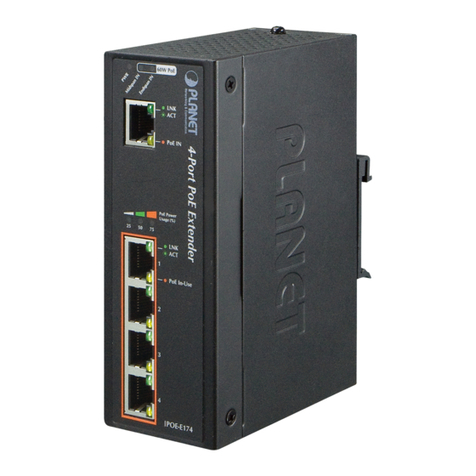
Planet IPOE-E174 User manual
Planet
Planet LRE-101 User manual
Planet
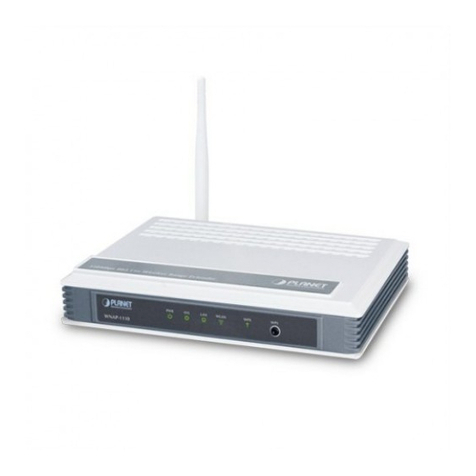
Planet WNAP-1110 User manual

Planet
Planet POE-E304 User manual
Planet
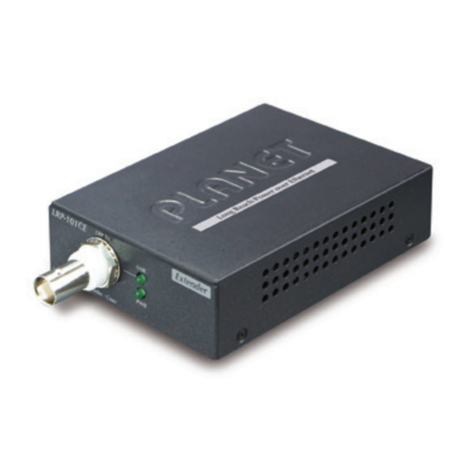
Planet LRP-101CE User manual