manuals.online logo
Brands
  1. Home
  2. •
  3. Brands
  4. •
  5. Pyle view
  6. •
  7. Car Video System
  8. •
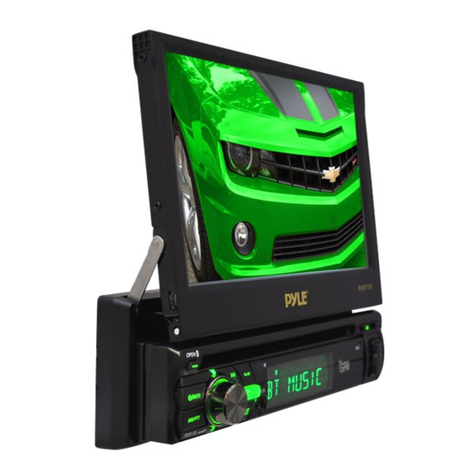
  9. Pyle view PLBT72G User manual

Pyle view PLBT72G User manual

Other manuals for PLBT72G

2

Other Pyle view Car Video System manuals

Pyle view PLDN74BT User manual

Pyle view

Pyle view PLDN74BT User manual

Pyle view PLVWR1752 User manual

Pyle view

Pyle view PLVWR1752 User manual

Pyle view PLVW20T User manual

Pyle view

Pyle view PLVW20T User manual

Pyle view VIEW PLVW1045R User manual

Pyle view

Pyle view VIEW PLVW1045R User manual

Pyle view PLVSR71GR User manual

Pyle view

Pyle view PLVSR71GR User manual

Pyle view PLDN73I User manual

Pyle view

Pyle view PLDN73I User manual

Pyle view PLVWR750T User manual

Pyle view

Pyle view PLVWR750T User manual

Pyle view PLRDVD13 User manual

Pyle view

Pyle view PLRDVD13 User manual

Pyle view PLVWR2200 User manual

Pyle view

Pyle view PLVWR2200 User manual

Pyle view PLDVCR500 User manual

Pyle view

Pyle view PLDVCR500 User manual

Pyle view PYLE View Series PL7DHRB User manual

Pyle view

Pyle view PYLE View Series PL7DHRB User manual

Pyle view PYLE PLVWR910R User manual

Pyle view

Pyle view PYLE PLVWR910R User manual

Pyle view PLBT72G User manual

Pyle view

Pyle view PLBT72G User manual

Pyle view PLVWR1544 User manual

Pyle view

Pyle view PLVWR1544 User manual

Pyle view PLVWR1544 User manual

Pyle view

Pyle view PLVWR1544 User manual

Pyle view pld11bt User manual

Pyle view

Pyle view pld11bt User manual

Pyle view PLRNV63 User manual

Pyle view

Pyle view PLRNV63 User manual

Pyle view PL1104HRBK User manual

Pyle view

Pyle view PL1104HRBK User manual

Pyle view PLD75MU User manual

Pyle view

Pyle view PLD75MU User manual

Pyle view PL90HRBK User manual

Pyle view

Pyle view PL90HRBK User manual

Pyle view PLHR97W User manual

Pyle view

Pyle view PLHR97W User manual

Pyle view PLVWR1755 User manual

Pyle view

Pyle view PLVWR1755 User manual

Pyle view PLVWR940R User manual

Pyle view

Pyle view PLVWR940R User manual

Pyle view PLRD195IF User manual

Pyle view

Pyle view PLRD195IF User manual

Popular Car Video System manuals by other brands

Farenheit MD-1510CM instruction manual

Farenheit

Farenheit MD-1510CM instruction manual

Mazda Connect manual

Mazda

Mazda Connect manual

RCA DRC97983 Manual de usuario

RCA

RCA DRC97983 Manual de usuario

Panasonic CY-VHD9401U Service manual

Panasonic

Panasonic CY-VHD9401U Service manual

Stinger HEIGH10 RB10RAM13B installation manual

Stinger

Stinger HEIGH10 RB10RAM13B installation manual

Alpine IVA-W203 - 6.5" Touch Screen 2-DIN DVD In-Dash... owner's manual

Alpine

Alpine IVA-W203 - 6.5" Touch Screen 2-DIN DVD In-Dash... owner's manual

Eonon E1057 instructions

Eonon

Eonon E1057 instructions

Milion D2223 user manual

Milion

Milion D2223 user manual

Metra Electronics 99-8153 installation instructions

Metra Electronics

Metra Electronics 99-8153 installation instructions

Voxx Electronics HR8MA1 owner's manual

Voxx Electronics

Voxx Electronics HR8MA1 owner's manual

Axxera AV604Bi quick start guide

Axxera

Axxera AV604Bi quick start guide

Clarion NX706E owner's manual

Clarion

Clarion NX706E owner's manual

Clarion NX602 quick start guide

Clarion

Clarion NX602 quick start guide

RCA DRC6296 - Twin 9" Mobile DVD System Manual Del Usuario

RCA

RCA DRC6296 - Twin 9" Mobile DVD System Manual Del Usuario

Fiat Uconnect 5.0 manual

Fiat

Fiat Uconnect 5.0 manual

Lanzar SVDVD5 owner's manual

Lanzar

Lanzar SVDVD5 owner's manual

Eonon E1060 instructions

Eonon

Eonon E1060 instructions

Macrom M-AN900 user manual

Macrom

Macrom M-AN900 user manual

manuals.online logo
manuals.online logoBrands
  • About & Mission
  • Contact us
  • Privacy Policy
  • Terms and Conditions

Copyright 2025 Manuals.Online. All Rights Reserved.

PLBT72G
USER MANUAL
7'' Single DIN In-Dash Motorized Touch Screen TFT/LCD Digital Monitor
w/DVD/CD/MP4/USB/SD-Slot Card AM/FM/RDS/Bluetooth Compatible
Dial Pad Built-In GPS/TTS w/USA/Canada & Mexico Maps
PRECAUTION
Class 1 laser product
This car multi-media player is a class 1 laser product. However
This car multi-media player uses a visible/invisible laser beam
which could cause . Hazardous radiation exposure if directed.
Be sure to operate the car multi-media player correctly as
instructed. Use of controls or adjustments or performance of
procedures other than those specified herein may result in
hazardous radiation exposure. Do not open covers and do not
repair yourself. Refer servicing to qualified personnel.
1. Remove the chassis from Slide Bracket Housing;
1) Press the REL button to release the control panel ;
2) Hold the right side of the control panel to pull it upwards a little and then to you
for removing it ;
3) Remove the PLASTIC FRAME from the chassis (see the Installation diagram);
4) Insert the 2 KEY PLATES into the grooves at the both sides of the chassis till
they click(see the Installation diagram);
5) Pulling the two KEY PLATES to remove the chassis from the Slide Bracket
Housing ;
2. Mount the Sliding Bracket Housing in the position of car multi-media system and
bend some tabs of Sliding Bracket Housing to fix it.
3. Connecting all wires:
1) Connecting all wires according ot the wiring diagram on next page;
INSTALLATION STEPS
REL button
12
SUBWOOFER GREY
RCH RED
LCH WHITE
REAR AUDIO OUTPUT
CABLE
VIDEO OUT YELLOW
FRONT AUDIO AND VIDEO OUTPUT
CABLE
REAR CAMERA INPUT YELLOW
PINK (B+)12V
REAR CAMERA SWITCH
(B-)PARKING BRAKE
GREY
GREY/BLACK
FRONT
RCH SPK.
VIOLET
VIOLET/BLACK
WHITE
WHITE/BLACK
GREEN
GREEN/BLACK
REAR
LCH SPK.
AUTO ANTENNA
BLUE
GROUND(B-)
MEMORY BACK-UP(B+)
IGNITION SWITCH(B+) RED
YELLOW
BLACK
REAR
RCH SPK.
FRONT
LCH SPK.
CHOKE
BOX
RADIO ANTENNA JACK
WIRING DIAGRAM
NOTE:
1. Must use 4 ohms impedance of speakers.
2. After connecting parking Line, video on screen of control panel
will be displayed only after
3. Before finishing wiring, do not attach control panel onto chassis.
applying parking brake.
GPS ANTENNA BOLT
RCH RED
LCH WHITE
ISO CONNECTOR
BROWN
Hollow
Bulge
1
2
2) Attaching the control panel onto the chassis;
(1) Insert the left side of the control panel into the hollow of the chassis .
(NOTE : the “bulge” point on the control panel must be attached into the hollow
of the chassis .)
(2) Gently push the right side of the control panel till you feel a “ Click” .
3) Testing it for making sure that it can work properly .
4. Installing chassis according to the installation diagram on next page:
1) Insert the chassis of the car multi-media system into the Sliding Bracket Housing.
2) Use the metal strap to fix the rear part of chassis.
* Uninstalling the chassis:
1) Remove the metal strap from the chassis ;
2) Remove the control panel from the chassis;
3) Remove the plastic frame from the chassis;
4) Insert 2 key plates into the left and right sides of the chassis and draw the chassis
out of the sliding bracket housing.
Installation Diagram
If you want to take CHASSIS out of the SLIDE BRACKET HOUSING, first remove
the PLASTIC TRIM OUT of the both sides away, then insert the two KEY PLATE into
left and right side of chassis as above illustration.
DASH BOARD
METAL MOUNTING
STRAP
HEX NUT
SPRING WASHER
PLAIN WASHER
TAPPING SCREW
CONSOLE
SLIDE BRACKET
HOUSING
HEX BOLT
SCREWDRIVER
TABS
KEY PLATE
PLASTIC TRIM OUT
KEY PLATE
1. Removing insulating sheet
If
)
)
)
.
)
)
)
.
)
)
using remote control for the first time, you
can see an insulating sheet at the bottom
side of remote control as right.
you must remove the insulating sheet as right.
Otherwise, the remote control is disabled.
2. Replace lithium cell
If the electric energy of lithium cell is weak,
replace it.
1 Press and hold the movable block as direction
indicated by arrow 1 as right, at one time pull
cell holder out of remote control as direction
indicated by arrow 2 as right.
2 Replace the old cell by a new one with (+)
polarity side upward as right.
3 Insert the cell holder into remote control again
as right.
3 Note about using remote control
1 You should face the emitting window of remote control towards the sensor
window of the unit.
2 Operation angle for front panel: About 30 degree
3 The distance between the emitting window of remote control and the sensor
window of the unit : < 5M .
4 Warning for lithium cells of remote control
leakage may cause damage to remote control.1 Cell
2 Do not throw cells into fire, it may cause explosion.
.
3.To avoid risk of accident, keep cells out of reach of children.
GENERAL KNOWLEDGE ABOUT REMOTE CONTROL
Control Panel
Main Unit Face after removing Control Panel
Locations and Names of Controls on Main Unit
1. AUX IN JACK(A/V)
2. USB PORT
3. SEL BUTTON and VOL KNOB
4. REL BUTTON
5. IR SENSOR WINDOW
6. RESET BUTTON
7. EJECT BUTTON
8. POWER or MODE BUTTON
9. TA or AF BUTTON
10. MUTE or PTY BUTTON
11. BAND or PAIR BUTTON
12. >|| or CH1-6 BUTTON
13. >>| or HANG UP BUTTON
14. |<< or CALL BUTTON
15. SD/MMC CARD SLOT
16. LCD SREEN
17. OPEN/MONITOR-ANGLE BUTTON
18. MICROPHONE
19. GPS CARD SLOT
6
1519
3
8
13
9
11
10
4
17
7
14 12 52
1
1618
1
2
6
10
11
3
20
21
33
9
12
17
34
23
4
5
7
8
1314
15 16
18
19
22
24
25 26
27 28
29 30
31
32
Locations and Names of Controls on Remote Control
16. VOL- BUTTON
17. SEL BUTTON
18. SETUP BUTTON
19. GOTO or * BUTTON
20. >|| BUTTON
21. STOP BUTTON
22. AUDIO or MO/ST BUTTON
23. ZOOM BUTTON
24. EQ or LOUD BUTTON
25. CLK BUTTON
26. ^ BUTTON
29. > BUTTON
30. V BUTTON
31. |<< BUTTON
32. INT BUTTON
33. NUMBER(0~9) BUTTON
34. +10 or # BUTTON
35. AF BUTTON
36. TA BUTTON
37. RPT BUTTON
27. >>| BUTTON
28. ENTER BUTTON
1. POWER/MODE BUTTON
2. MUTE BUTTON
3. HANG UP or REDIAL BUTTON
4. MONITOR-ANGLE BUTTON
5. CALL or PAIR BUTTON
6. MENU or SW BUTTON
7. >> BUTTON
8. SUBTITLE or LO/DX BUTTON
9. < BUTTON
BAND or OSD
<< BUTTON
12. A/PS or TITLE/PBC BUTTON
13. TOP BUTTON
14. VOL+ BUTTON
15. RDM BUTTON
10. BUTTON
11.
35
36
37
MENUMENU
SETUP SETUP
ENTERENTER
112233
445566
778899
00
VOLVOL
SELSEL
A/PSA/PS
MUTEMUTE STOPSTOP
MO/STMO/ST
MODEMODE
CLKCLK
PLAY/PAUSEPLAY/PAUSE
EQEQ
BANDBAND
VOLVOL
OSDOSD
TITLE/PBCTITLE/PBC
LO/DXLO/DX
GOTOGOTO +10+10
TOP INT
RDM
REDIAL
PAIR LOUD
RPT
ZOOMZOOM
TA
AF
Same functions in any work source mode
1. POWER button
In power off mode, pressing POWER button on remote control or pressing POWER button on
control panel powers on main unit.
In power on mode, long pressing POWER button on control panel or on remote control powers off
main unit.
2. VOL knob & VOL+/VOL- buttons
To adjust volume level, rotate VOL knob on control panel or press or hold VOL+ or VOL- button
on remote control.
3. SEL button
To switch between TREBLE,BASS, BALANCE, FADER,COLOR,BRIGHT,CONTRAST, TINT
and VOLUME, briefly and repeatedly press SEL button.
After switching on the desired mode above, rotate VOL knob or press VOL+/VOL- buttons to set it.
To switch between BT, REGION, PI, TA, AF, LOUD, SWF VOL, SWF FREQ,EQ, DX/LOCAL(in radio
mode), STEREO/MONO(in radio mode), CLOCK FORMAT, CLOCK, BUZZER,FREQ AREA and LED
COLOR, long press SEL button to switch on BT, then briefly and repeatedly press SEL button.
After switching on the desired mode above, rotate VOL knob or press VOL+/VOL- buttons to set it.
4. MUTE button
To switch MUTE mode on or off, press MUTE button on remote control or press MUTE button on
control panel.
5. EQ button
To select a desired preset EQ mode from JAZZ, CLASSIC, POP, ROCK and USER, press EQ
button on remote control continuously.
6. To switch LOUD mode
To switch LOUD mode between LOW, MIDDLE, HIGH and OFF, long press LOUD button.
7. SW button
To switch SWF FREQ between 80HZ, 120HZ and 160HZ, long press SW button on remote control.
8. CLK button
Press CLK button on remote control to display clock time .
9. OPEN or and buttons
To slide the monitor out and stand it up or into the monitor slot, press OPEN button on control panel
or press button on remote control;
To adjust the angle of the monitor, long press button on remote control or on control panel .
10. MODE button and source menu
To switch work source between RADIO, DISC(after inserting a disc), USB(after inserting a USB
storage), CARD(after inserting a card), AUX and BT MUSIC, press MODE button on remote
control or press MODE button on control panel continuously.
During disc(non-CD)/USB/card playback, touch screen to pop up Function Icons-board and then
touch the icon in the Function Icons-board to enter the display status of the source menu before
entering Disc/USB/Card mode(refer to Disc/USB/Card Operation) .
During AUX playback, touch screen to pop up AUX interface and then touch AUX icon to enter the
display status of the source menu before entering AUX mode(refer to AUX operation).
In radio,BT music or CD mode, touch RADIO, BT or DISC icon to enter the display status of the
source menu before entering radio,BT music or CD mode(refer to Radio Operation, BT Operation
and Disc/USB/Card Operation).