7
2. Windows Mobile
System requirements:
• Mobile device with Windows Mobile OS 5.0 or above.
• GPRS/3G must be provided by your mobile phone service provider.
2.1. Software installation
Please follow the steps outlined below to install the mobile application.
1. Download the ‘H 64Pocket.CAB’ files to your mobile device from the CD that came with the DVR.
. If this file is not installed automatically by your device, install it manually.
2.2. Software operation
After installing the software, enter the Program Files menu in your mobile device and enter the folder named
DVRU 64Pocket. From this folder, select and run the H 64Pocket program.
This application allows you to remotely log into and monitor a DVR. Press ‘OK’ to bring up the operation menu. See chart
below for further information.
2.3. Live monitoring
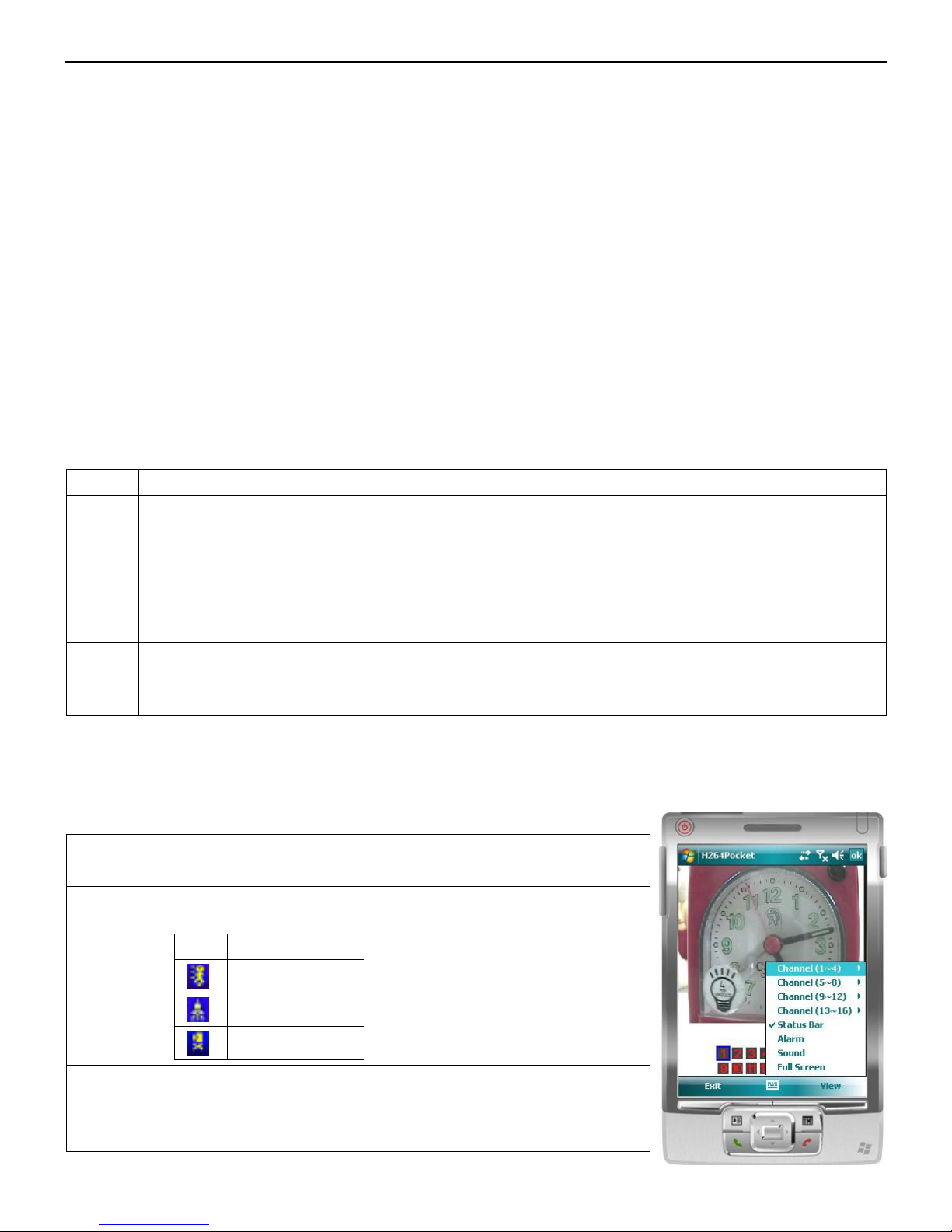
After logging into the DVR, select ‘View’ to bring up the operation menu.
Item Function Description
Add Add DVR Login Details Enter DVR’s name, IP address, Port, Account name and Password. Select ‘OK’ to
confirm.
Login Login to DVR
Choose the DVR that you’d like to log into. Select ‘OK’ to confirm.
• Live images cannot be displayed through your mobile device unless Recording is
switched on at the DVR locally.
• Data charges may be incurred as a result of connecting to the DVR. Any charges
incurred will depend on your service provider and their data rates.
Modify Modify DVR Login Details Select desired DVR. Select ‘Modify’ and change any details necessary. Select ‘OK’ to
save changes.
Delete Delete DVR Login Details Select desired DVR. Select ‘Delete’ to delete the DVR info.
Item Description
Channel Displays CH 1~4, 5~8 etc.
Status Bar
Check this option to display the Status Bar. The Status Bar displays the
icons shown below when motion, sensor trigger or video loss is detected.
Icon Description
Motion Detected
Sensor Triggered
Video Loss
Alarm Check this option to be notified when an alarm is triggered on the DVR.
Sound Check this option to hear audio coming from the DVR on channels that
have audio inputs.
Full Screen Check this option to display a single channel in full screen.