6
E4. Insert the USB end of the cable into a USB
port in a computer or USB power outlet
(FigureD 3 ).
5. Wait approximately 2.5 hours for
the battery to fully charge and then
disconnect the USB Recharge Cable.
When the tool is ON, the battery level appears
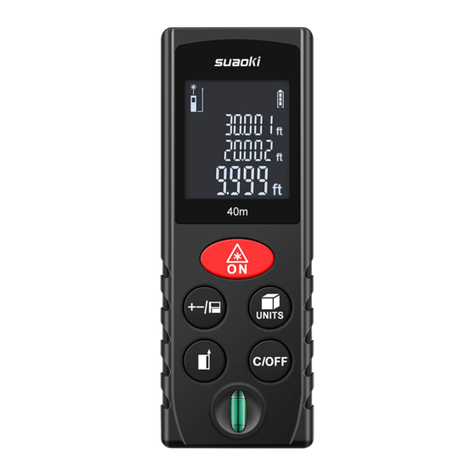
in the display window (Figure F 1 ).
Operation
Measuring the Distance to an Object
1. Point the laser at the top of the tool
(Figure A 1 ) toward the wall or object
whose distance you need to measure
(Figure E 1 ).
2. Press On (Figure A 3 ) to turn the tool on
and display the red laser dot.
3. Press On to measure the distance from the
bottom of the tool to the wall or object
(Figure E 2 ).
4. At the bottom of the display window
(Figure A 2 ), view the current
measurement (Figure F 3 ).
To take a new measurement, Press On to move
the current measurement up to the previous
line on the display window (Figure F 2 ). Then
repeat steps 2-4.
Measuring Distances Continuously
To take a series of measurements as you move
around, change to Continuous Measure mode.
1. Point the laser at the top of the tool
(Figure A 1 ) toward the wall or object
whose distance you need to measure
(Figure E 1 ).
2. Press On (Figure A 3 ) to turn the tool on
and display the red laser dot.
3. Press and hold On for 4 seconds to turn on
the Continuous Measure mode.
4. At the bottom of the display window
(Figure A 2 ), view the current
measurement (Figure F 3 ), which will
keep changing as you move the tool.
5. To take the current measurement (from
the bottom of the tool to the wall or
object) and exit Continuous Measure
mode, Press On.
To take a new measurement, Press On to move
the current measurement up to the previous
line on the display window. Then repeat steps
1-5.
Measuring Area
You can measure the area of a wall, floor, or
object.
1. Point the tool's laser (Figure A 1 ) toward
a wall or object, and not toward anyone's
eyes.
2. Press On (Figure A 3 ) to turn the tool on
and display the red laser dot.
3. Press Gear Icon (Figure A 4 ) to showArea
on the display window (Figure F 4 ).
4. Measure the width.
• Point the top of the tool at one side of the
target (wall, floor, or object).
• Position the bottom of the tool at one end
of the target and point the laser dot across
the width (Figure G 1 ).
• Press On to display the width
measurement at the top of the display
window.
5. Measure the length.
• Position the bottom of the tool at one end
of the target and point the laser dot across
the length (Figure G 2 ).
• Press On to display the length
measurement on the second line of the
display window.
6. View the Area measurement at the bottom
of the display window (Figure F 3 ).
Measuring Volume
You can measure the volume of a room or object.
1. Point the tool's laser (Figure A 1 ) toward
a wall or object, and not toward anyone's
eyes.
2. Press On (Figure A 3 ) to turn the tool on
and display the red laser dot.
• MAKE DIST BUTTON ON BUTTON