7
GB
Subtracting Measurements
You can subtract one measurement from another.
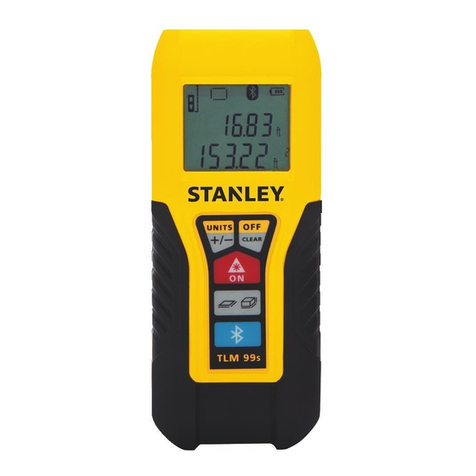
1. Click (Figure A#5) to turn on the tool.
2. The tool will measure the distance from the bottom
of the tool to the wall or object (Figure F#1).
To measure from the top of the tool instead of the
bottom (Figure F#2), hold for 2 seconds.
On the display window, the tool icon will change
from to (Figure E#5).
3. Point the laser at the top of the tool (Figure A#1)
toward the wall or object whose distance you need
to measure.
4. Click to measure the distance from the tool to
the wall or object.
5. Indicate that you want to subtract the next
measurement from this measurement.
• On the TLM99 keypad, click twice.
• On the TLM99s or TLM99si keypad, click
twice.
6. Point the laser at the top of the tool toward the next
wall or object.
7. Click to measure the distance and subtract it
from the previous measurement.
8. View the difference between the two measurements
at the bottom of the display window (Figure E#3).
Changing the Unit of Measure
Once the current measurement is taken (the device is
not in Continuous Measure mode), you can change the
unit of measure from decimal ft (6.21 ft) to fractional ft
(6'02"9/16), fractional ft to meters (1.894 m), meters to
inches (74 9/16 in), or inches to decimal ft.
• On the TLM99 keypad, click (Figure A#3).
• On the TLM99s or TLM99si keypad, hold
(Figure B#1) until you see the measurement
change (2-3 seconds).
Using the TLM99s/TLM99si With
If you have a TLM99s or TLM99si, you can use its
Bluetooth®capability to pair it with the STANLEY
Measure application on your cell phone or tablet, and
then record accurate measurements in your floor plans.
1. From either or , download
the STANLEY Measure application to your cell
phone or tablet.
2. Using the STANLEY Measure application, capture
the room or space for which you want to record the
measurements, and build your floor plan.
3. On the TLM99s or TLM99si keypad, click to
turn on the tool.
4. If the Bluetooth®icon does not appear on the
display window (Figure E#6), click on the
keypad to turn on Bluetooth®.
5. Use the STANLEY Measure application to
pair your cell phone or tablet to the TLM99s or
TLM99si.
6. Use the TLM99s or TLM99si to measure each wall
in the room or space captured in the floor plan, and
sync the measurements to the floor plan.
7. Using the STANLEY Measure application, save the
floor plan.
Once you have saved the floor plan, you can export it
to one of several different file formats, including PDF,
DXF, or JPG, and print it or email it to other people (your
realtor, home center, etc.).
“THE BLUETOOTH®WORD MARK AND LOGOS ARE REGIS-
TERED TRADEMARKS OWNED BY BLUETOOTH SIG, INC. AND
ANY USE OF SUCH MARKS BY STANLEY TOOLS IS UNDER
LICENSE. OTHER TRADEMARKS AND TRADE NAMES ARE
THOSE OF THEIR RESPECTIVE OWNERS.”