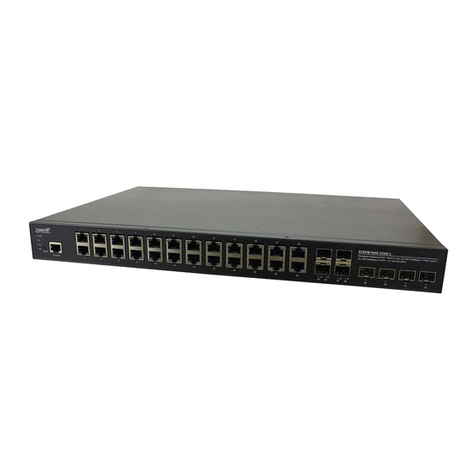
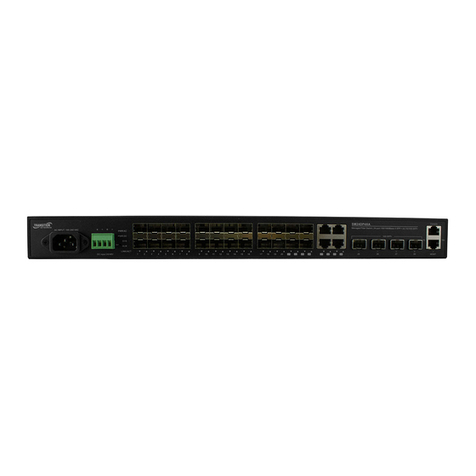
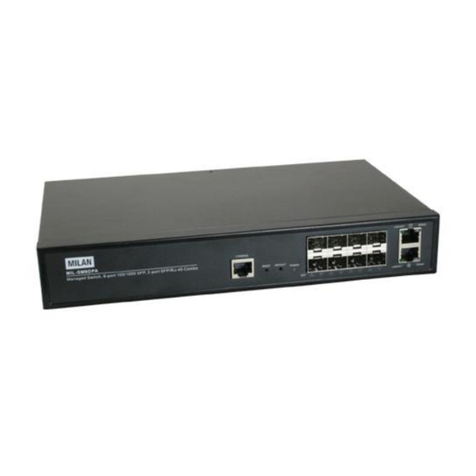
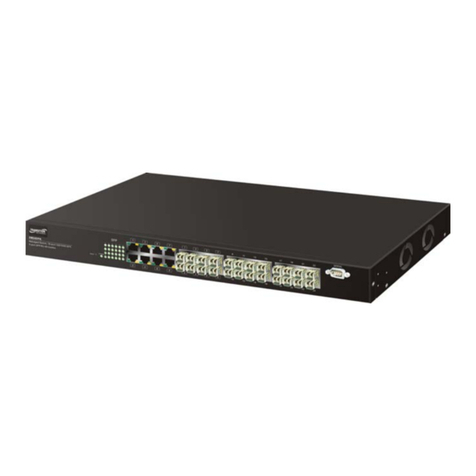
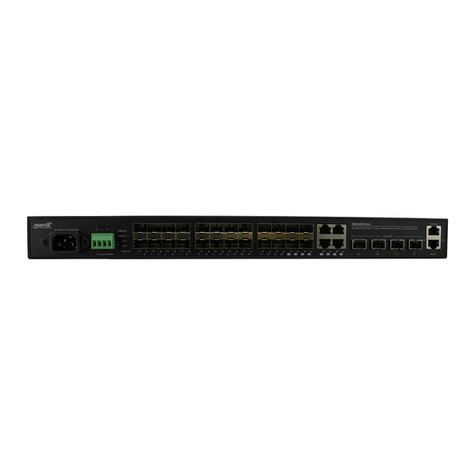
Transition Networks SM24DPB Quick Start Guide
33680 Rev. B https://www.transition.com Page 2 of 2
Connecting to Power
Connecting to AC Power Source: You can plug or remove an AC power cord from the AC socket.
1. Insert the AC power cord directly into the AC socket on the front of the switch.
2. Plug the other end of the power cord into an AC power source.
3. Check the front-panel LEDs as the device is powered on to be sure the
POWER LED is lit. If not, make sure the power cable is correctly plugged in.
Connecting to DC Power Source
1. Insert the negative or positive voltage DC power source wires into the DC
INPUT terminals. 2. Use a small flat-blade screwdriver to tighten the wire-
clamp screws on the front of the terminal block connector to keep the DC
wires from pulling loose. 3. Insert the terminal block connector prongs into the terminal block receptor.
4. Check the SYS LED. If it is ON, the power connection is correct. See the Install guide for details.
Connecting to the Console Port: The switch front panel DB-9 serial port is used to connect to the switch for out-of-band
console configuration. The command line interface can be accessed from a terminal or a PC running a terminal emulation
program. The Console port defaults are: Baud rate=115,200 bps, Character Size=8 characters, Parity=None, Stop bit=One,
Data bits=8, and Flow control=none.
You can access the CLI via either a direct serial connection to the device or a Telnet session. The default login username
and password are both admin. After you login successfully, the prompt displays “<sys_name>#“ meaning you are an
administrator for the Switch. If not logged as administrator, the prompt is shown as “<sys_name>>”, meaning you can
only perform as a guest. Each CLI command has a specific privilege level.
Defaults: The default values are: IP Address=192.168.1.77,
Subnet Mask=255.255.255.0, Default Gateway=192.168.1.254,
Username=admin, and Password=admin.
Web Management via Web GUI: After the managed switch has been configured in the
CLI via the switch’s serial interface, you can access it from a web browser.
For instance, type http://192.168.1.77 in the address row in a web browser; the
Login screen displays prompting you for a username and password in order to login
and access authentication.
The default username and password are both “admin”. For first time use, enter the
default username and password, and then click the <Login> button.
When the login process is complete, the SM24DPB web GUI displays.
Related Manuals: These manuals tell how to operate and use the management
functions of the switch:
SM24DPB Install Guid
e (33681),
User
Guide
(33682), and
CLI
Reference
(33683). For Transition
Networks Manuals go to the Product Support webpage (no logon required).
Transition Networks * 10900 Red Circle Drive * Minnetonka, MN 55343 * tel: +1.952.941.7600 | toll free:
1.800.526.9267
|
fax:
952.94
1.2322
| sal[email protected] | techsupport@transition.com | customerservice@transition.com Copyright© 2016-2019 Transition Networks. All rights reserved.