Uniden BT229 - Bluetooth Headset User manual

BT229 Bluetooth®
Headset User’s Guide
Also in this package:
AC (indoor) power adapter Extra ear cushion
Questions? Problems? Get help on the web at www.uniden.com
or call our Customer Service line at 800-292-2294.

2
Getting to Know the Headset
What the LED colors mean
Color State Meaning
Red
Steady
The headset is currently
charging. When the battery is
fully charged, the LED turns o.
Flashing
The headset is turned o. If the
headset is also beeping, the
battery is low.
Blue
Flashing The headset is turned on.
1 ash every 5
seconds
The headset is in standby
and not paired to a Bluetooth
device.
2 ashes every
5 seconds
The headset is currently paired
to a Bluetooth device.
Red &
blue
Alternating
ash The headset is in pairing mode.
* Specications and features are subject to change without notice.
Ear
hook
Volume
DOWN
Multi-
function
button
(
MFB
)
LED
Ear
cushion Microphone
Power connecter
Volume
UP
Ear
hook
Volume
DOWN
Multi-
function
button
(
MFB
)
LED
Ear
cushion Microphone
Power connecter
Volume
UP
Using the headset at excessive
volume can cause permanent
hearing loss. To reduce the
risk of hearing damage, use
the minimum volume level
necessary (see page 13).
Using the headset at excessive
volume can cause permanent
hearing loss. To reduce the
risk of hearing damage, use
the minimum volume level
necessary (see page 13).

3
What the buttons do
The headset initiates the function only after the button is released.
Press it to Press & hold it for
2 seconds to 4 seconds to
Multi-function button (MFB)
In standby: Redial the most recently
dialed number.
During an incoming call: Answer the call.
During a call: Hang up.
In standby: Activate voice dialing.
During an incoming call: Reject the call.
During a call: Transfer the call to your
phone (or back).
Turn the
headset on
or o.
Press it to Press & hold it for
2 seconds to 4 seconds to
Volume UP
During a call: Increase
the call volume. NA During a call-waiting call: Put the active
call on hold and switch to the waiting call.
Volume DOWN
During a call: Decrease
the call volume.
During a call: Mute the
microphone.
During a call-waiting call: Hang up the
active call and switch to the waiting call.

4
Setting Up Your Headset
Charge the battery
Before using your headset, charge the battery until the red LED is solid on (about 2 hours).
Charging the battery completely (and keeping it charged) will help you get the longest possible
talk and standby time out of the battery.
Connect the adapter to the power connector on the top of the headset, then plug it into any
standard 120 V AC (regular indoor) power outlet.
When the battery needs to be recharged, you will hear warning beeps every 20 seconds and see
the red LED (depending on your headset status).
Use ONLY the AC adapter supplied with the headset! Using any other adapter could
damage your headset, create a re hazard, or cause a risk of electric shock!
Pair the headset to your Bluetooth phone
Pairing is like“introducing”two Bluetooth devices and giving them permission to connect
to each other. If you want to use the headset with more than one phone, you need to pair
it with each phone separately. Once you pair a phone to the headset, the two devices can
connect automatically whenever they can detect each other.
►
►
►

5
Make sure the headset is powered o and the power adapter is not connected (you can’t use the
headset while it’s charging).
Press and hold MFB until the LED ashes alternating red and blue (approximately 6 seconds),
then release.The headset is in pairing mode and should be visible to other Bluetooth devices.
On your phone, start a search for Bluetooth headsets or handsfree devices. (This process may
take several seconds, and it will be dierent for each phone; see your phone’s manual for
detailed instructions.)
Your phone should discover a device called a
BT229
or
BT229 headset
, When your phone asks if
you want to pair with this device, answer yes.
When your phone prompts you for a PIN code or password to pair with the BT229 enter 0000.
When the headset is paired, the blue LED ashes twice every 5 seconds; your phone might also
display a conrmation message.
If the blue LED ashes once every 5 seconds, the headset is
not paired. Try the pairing procedure again.
1)
2)
3)
4)
5)
6)

6
Connect to your phone
Most phones connect to the headset as soon as you pair it; if yours won’t, turn the headset
o and back on. If headset still won’t connect, check your phone’s owner’s manual for
additional Bluetooth information.
Once the headset is paired:
Whenever you turn the headset on, it will automatically try to connect to whatever device it was
connected to last.
If the headset loses the connection (e.g., if your phone is out of range), it should reconnect
automatically. To manually reconnect, press MFB.
Using Your Headset
Turning the
headset on
To turn the headset on, press and hold MFB until the blue LED ashes and
you hear the turn-on melody (about 4 seconds).
Turning the
headset o
Press and hold MFB until the red LED ashes and you hear the turn-o
melody (about 4 seconds).
►
►
7
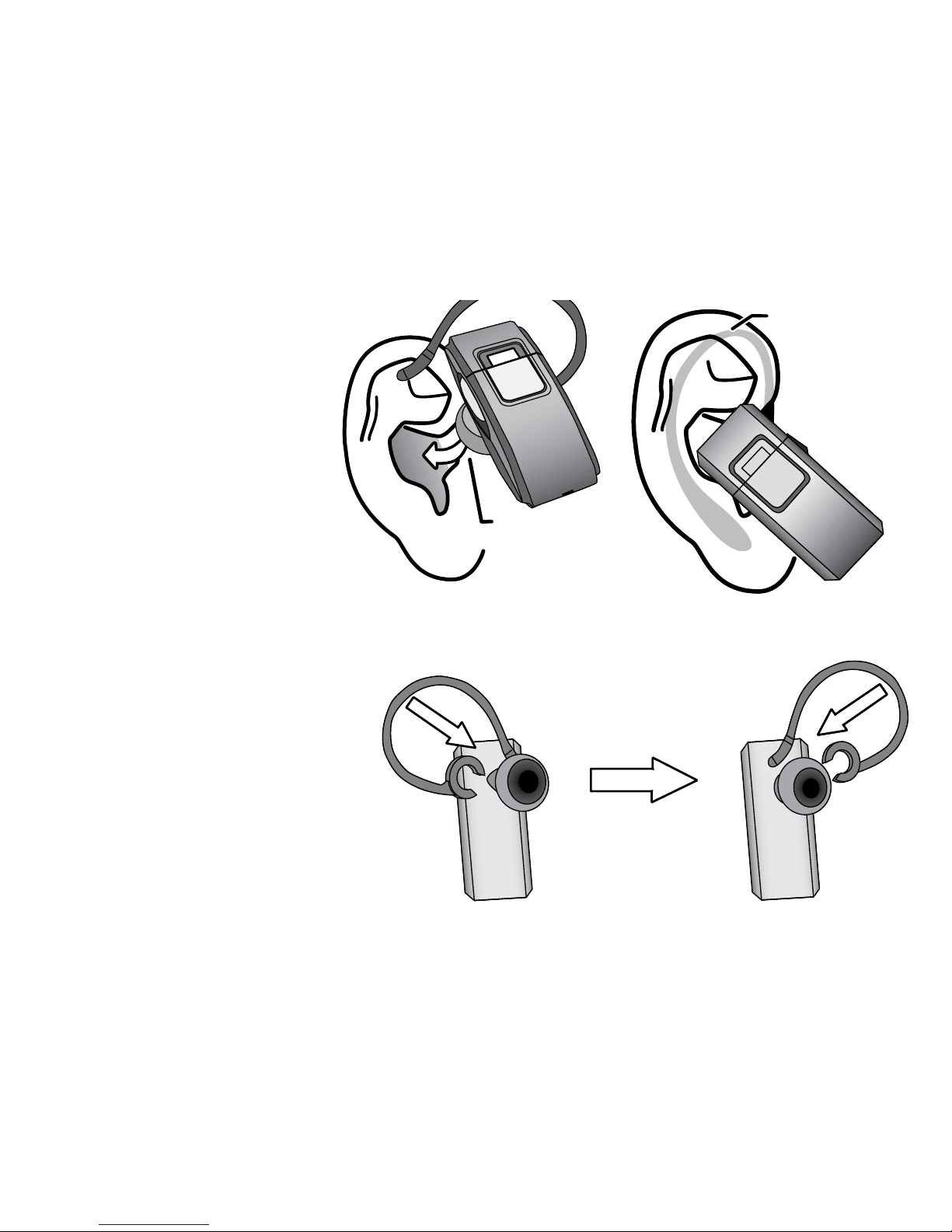
Put your headset on
Insert the ear cushion, then
wrap the earhook behind
your ear.
Everyone’s ear has a sweet
spot, a particular angle
of the speaker where the
audio comes in loud and
clear. Take a few minutes to
move the headset around until you nd the best angle for the ear cushion.
Wearing the headset
on your left ear:
If you want to wear the headset
on your left ear, take the
earhook o and turn it over.
Put the
cushion in
your ear.
Put the
cushion in
your ear.
Place the
hook
behind
your
ear.
Place the
hook
behind
your
ear.

8
Available Features
After the headset is connected, you can use the following features:
Make a call
Make the call from your mobile phone as usual; your phone should automatically
send the call to the headset; if it doesn’t, press and hold MFB for 2 seconds to
send the call to the headset manually.
Answer a call While the phone is ringing, press MFB.
End a call Press MFB.
Reject an
incoming call
While the phone is ringing, press and hold MFB for at least 2 seconds. Wait until
you hear a beep before you release the button.
Transfer a call Press and hold MFB for 2 seconds to transfer the current call from your phone to
headset (and back).
Redial the
last number
With the phone in standby, press MFB.The headset automatically dials the last
number you dialed from your phone.
Mute the
microphone
During a call, press and hold DOWN for 2 seconds. The headset plays a melody
every 10 seconds to remind you the microphone is muted and the caller can’t
hear you. To turn the microphone back on, press either UP or DOWN.

9
Call Waiting
To use this feature, you must subscribe to Call Waiting through your service
provider, and your phone must support the hands-free prole.
To put your current call on hold and switch to a waiting call, press and hold UP until you hear 3
beeps (about 4 seconds). When you release the button, you’ll be connected to the waiting call.
(Press and hold UP again to switch back to the original call.)
To hang up your current call and switch to a waiting call: press and hold DOWN for about 4
seconds. Wait until you hear 3 beeps, then release the button.
Voice-activated dialing
To use this feature, your phone must support voice dialing, and
all voice commands must already be programmed.
To activate voice dialing, make sure your phone is in standby. Then, press and hold MFB until
you hear a beep (about 2 seconds).
Use your pre-programmed voice commands as you would with your phone. (For best results, try
recording your voice tags through your headset. )
►
►
►
►

10
Using the Multipoint Function
The headset supports simultaneous connection with 2 mobile phones with full control of
each one. (This feature may not be compatible with some mobile phones.)
Pairing to more than one phone
Pair the headset to the rst phone following the instructions on page 6. When you hear a
high-pitched, short double-beep, pair the headset to the second phone.
Using both phones
The headset stays connected to both phones until a call comes in. If you answer the call, the
headset automatically disconnects from the other phone while the call is active. When you hang
up, the headset automatically reconnects to the other phone.
Only one phone at a time can be on an active call.
The headset plays a dierent ring tone for each phone so you know which one is ringing. To
answer the incoming call, press MFB as usual.
All the button functions remain the same for the rst phone (the one you paired rst).
To use last number redial on the second phone, press and hold DOWN for about 2 seconds.
(When you hear a beep, release the button.)
To activate voice dialing on the second phone, press and hold UP for about 2 seconds. (When
you hear a beep, release the button.)
►
►
►
►
►
►
Other manuals for BT229 - Bluetooth Headset
2
Table of contents
Other Uniden Headset manuals
Uniden
Uniden BT359 User manual

Uniden
Uniden BT112 User manual
Uniden
Uniden BT108 Service manual
Uniden
Uniden BT230 User manual

Uniden
Uniden BTS200 User manual
Uniden
Uniden BT229 - Bluetooth Headset Service manual
Uniden
Uniden BT-955 User manual

Uniden
Uniden BTHS500 User manual
Uniden
Uniden DECT HS950 User manual

Uniden
Uniden BT230 Service manual
Uniden
Uniden EXAI 7248 SERIES User manual

Uniden
Uniden BT-109 User manual
Uniden
Uniden BTS200 User manual
Uniden
Uniden DHS100 User manual

Uniden
Uniden BT229 - Bluetooth Headset User manual
Uniden
Uniden BT110 Service manual

Uniden
Uniden BT110 User manual

Uniden
Uniden BT-109 User manual
Uniden
Uniden BT112APT User manual