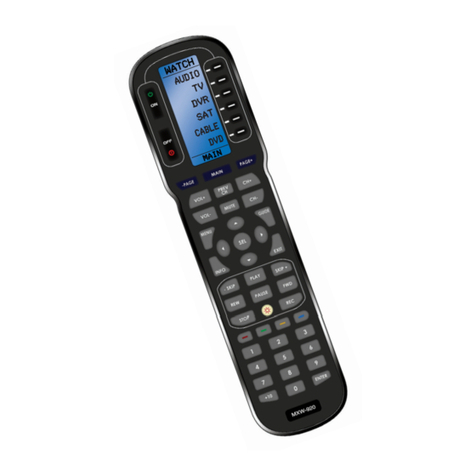
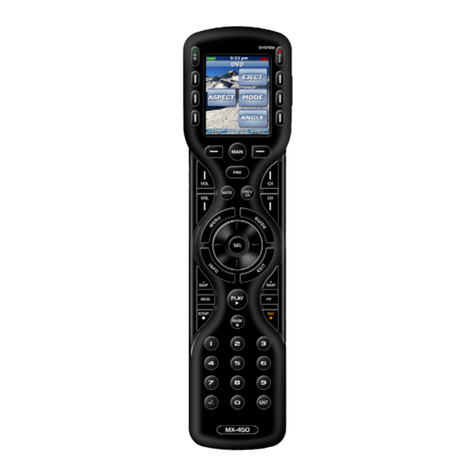
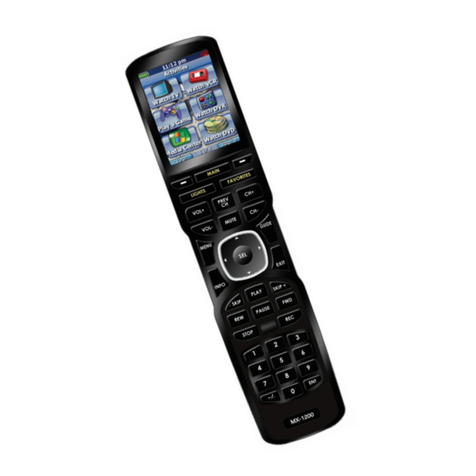
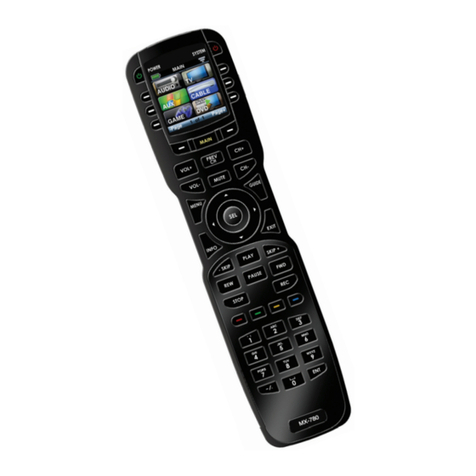
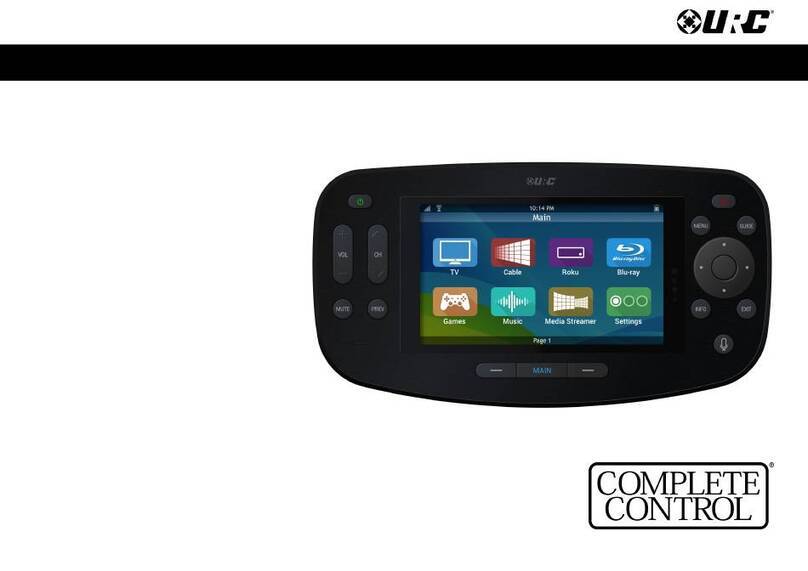
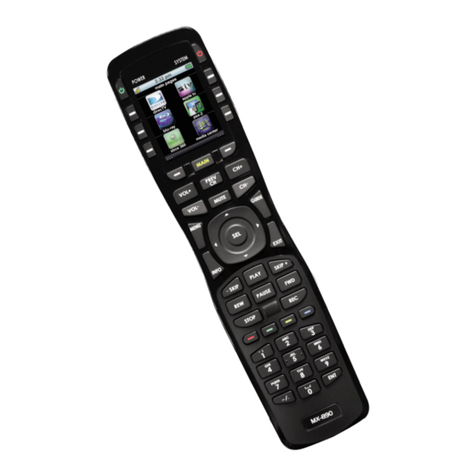
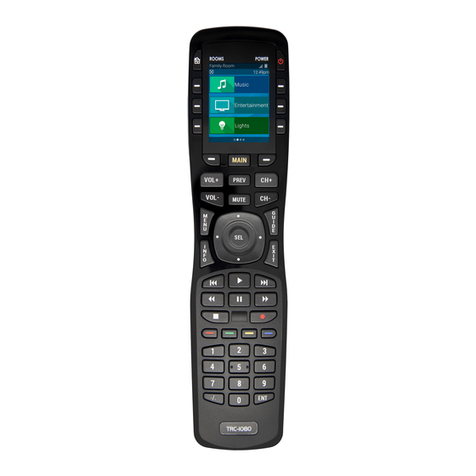
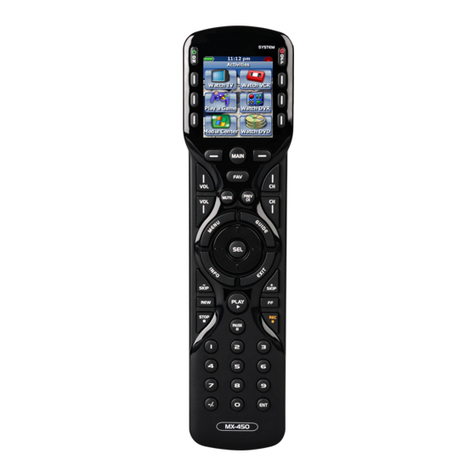
URC Complete Control MX-880 User manual

Operating Your System
With the MX-880

This remote control was
Custom Programmed for you by:
For questions about your Custom Programming call:
Custom Programming of a complex home theater and/or a multi-room
system is one of the most challenging tasks within an audio/video instal-
lation. It involves an intimate knowledge of how the components interact
and exact details on the proper sequences of control.
Only a Complete Control dealer has the requisite experience and training
to quickly and effectively customize a remote control for true automated
operation.
Congratulations on your choice!
MX-880 Owners Manual © 2008-2014 Universal Remote Control, Inc.
Front Cover Photo courtesy of Robert Ridenour of Connected Technologies,
www.connected-technologies.com
The information in this owner’s manual is copyright protected. No part of this
manual may be copied or reproduced in any form without prior written consent
from Universal Remote Control, Inc.
UNIVER AL REMOTE CONTROL, INC. HALL NOT BE LIABLE FOR OPERATIONAL,
TECHNICAL OR EDITORIAL ERROR /OMI ION MADE IN THI MANUAL.
The information in this owner’s manual may be subject to change without prior notice.
Complete Control is a registered trademark of Universal Remote Control, Inc.
Entertainment Made imple is a trademark of Universal Remote Control, Inc.
All other brand or product names are trademarks or registered trademarks of their
respective companies or organizations.
Universal Remote Control, Inc.
500 Mamaroneck Avenue, Harrison, NY 10528
Phone: (914) 835-4484 Fax: (914) 835-4532

Congratulations 1
Custom Labeled Buttons 1
Programmable only by a URC Certified Professional 1
Optional RF “No Rules” Operation 2
Installing and Charging the Battery 3
Selecting a New “Activity” 4
Using the MX-880 to Control an “Activity” 5
Accessing the MX-880’s Setup Menus 6
Selecting from the Setup Menus 7
Setting the Color Screen 7
Setting the Button Lighting 8
System Menu 9
Setting the Button Beep Volume 10
Date and Time Menus 11
Erasing and Resetting 12
Specifications 12
Contact Us 12
Limited Warranty Statement 13
End User Agreement 15
Your Listen Devices 16
Your Watch Devices 17
TABLE OFCONTENTS

Page 1
Congratulations!
You’ve purchased a unique synthesis of hardware and software engineering,
the Complete Control MX-880. The MX-880 achieves a magnificent combina-
tion of power and flexibility, simplifying and automating operation of even the
most complex system.
User Configurable Screen and Button Lighting
A built in pick up sensor can be set to light the screen and/or the buttons
automatically. Additionally, a dedicated LIG T button enables the user to
backlight the buttons if the pick up sensor is turned off.
Integrated Sound Signaling
The MX-880 incorporates a small speaker for beeps. Anytime you press a
button, the MX-880 signals that it has understood your command with a
beep sound.
Custom Labeled Buttons
When you pick up the MX-880, it automatically lights up the color LCD
screen which labels the six buttons to either side of the screeen. These
button labels change based on what you are watching or listening to.
Thus, if you have selected Watch TV, you will see a list of buttons that
are useful to that activity, while if you select Watch DVD, the buttons
will control the DVD.
Programmable only by a URC Certified Professional
To fully automate your audio/video system, the programmer must have
detailed knowledge of each component as well as how the system is
connected and operated. Only a trained and certified professional
audio/video installer can install a MX-880 remote control in a timely and
efficient manner.
LIGHT Button
Press the Light button on the
side of the MX-880 to backlight
all of the buttons. Of course,
you could opt to set the buttons
to light automatically via the
pick up sensor.
MX-880 OWNERS MANUAL

Page 2
MX-880 OWNERS MANUAL
Optional RF “No Rules” Operation
In combination with a Complete Control RF Base Station, the MX-880 can
control your system without being in line-of-sight of the equipment.
To preserve good operation always utilize a Narrow Band RF Base Station
with RF Addressing. RF Addressing gives you the ability to control equip-
ment locations throughout your home, even if they are concealed in other
rooms or are behind closed doors.
4. Self-adhesive “Flashers” affix to the Infrared
sensors on the front panels of your compo-
nents. The Flashers relay commands to com-
ponents out of sight of the MRF-350’s Front
Blaster. The flashers plug in to the MRF-350’s
rear flasher line outputs via their 10 foot
cables. Uniquely, the MRF-350 can also con-
nect to components with rear panel IR Inputs
via its adjustable IR Line Outputs.
3. The MRF-350’s built-in Front Blaster sends commands to
components in the same cabinet space as the MRF-350.
1. The MX-880 sends radio
waves in every direction, so you
don’t have to point the remote
anymore!
2. The RFX-250 RF Sensor can be freely
positioned for optimal reception.

Page .
MX-880 OWNERS MANUAL
Installing and Charging the Battery
Open the battery cover by pressing
on the release clip and removing
the cover.
Note that the three contacts on the
battery must connect to the three
spring-loaded contacts in the MX-
880. Angle the battery into the bat-
tery compartment, contacts first,
then gently fit the rear of the battery
into the compartment as well.
Replace the battery cover by insert-
ing the hinged end in first, then
snapping the cover back into place.
You can charge the Lithium Ion bat-
tery by simply plugging the includ-
ed charger into the base of the
remote as shown here.
The MX-880 can be used while
charging.

Page 4
MX-880 OWNERS MANUAL
Selecting a New “Activity”
The MX-880’s WATCH and LISTEN buttons display the activities you can
control with your MX-880. When you want to watch something else (a
DVD movie, a videotape or an HDTV broadcast), simply press the
WATCH button and select the new activity. When you want to listen to
the radio or to a CD, touch the LISTEN button and select what you would
like to listen to.
Your installer will have programmed the button you pressed to totally con-
figure your system to watch or listen to whatever you selected. Now, the
screen will change, and all of the LCD buttons will be reconfigured to
give you full control of your system while watching or listening to your
selection!
Press either of the PAGE buttons to see any other available choices.
When you press the LISTEN button,
you can see the most frequently used
activities you have for listening in
your system.
PAGE DISPLAY
At the bottom of the LCD screen, the
page display informs you if there are
other pages of buttons available.
When you press the WATCH button,
you can see the most frequently used
activities you have for watching the
sources in your system.

Page .
MX-880 OWNERS MANUAL
Using the MX-880 to Control an “Activity”
Once you’ve selected a new activity, the MX-880 displays the title of the
activity at the top of the screen. Below the title, the LCD displays the cus-
tomized names of any special features you need for the activity. All the
hard buttons of the MX-880 have now changed to functions optimized for
this activity.
The Title displays
what activity you
can control.
The Volume and
Mute buttons always
control the sound
regardless of what
screen is displayed.
Press either of the
PAGE buttons to
see any other avail-
able choices.
The transport buttons
(Play, Stop, Skip-, Skip+,
FF, REW and Pause)
operate when the select-
ed activity requires them
(for example, if you
watch CABLETV with a
TiVo type of DVR, these
buttons will control the
built-in DVR, while if
you are watching a
DVD, these buttons will
control the DVD player).
The 4 way cursor
buttons enable you
to navigate on
screen guides and
menus with ease.
The Channel and
Previous Channel
buttons will change
channels when you
have selected an
activity like Watch
CABLETV or
Watch SAT TV .
The Number keypad
will enter numbers
for the activity you’ve
selected. Thus, for
watching Cable TV,
you use the number
keypad to enter chan-
nel numbers, while
when listening to CD,
the number keypad
enters track numbers.
The LCD button
labels describe
special features
for this activity.

Accessing the MX-880’s Setup Menus
The MX-880 has internal setup menus that enable you to change the settings
that control your color screen, the button lighting, battery warnings and the
clock. To access these settings, you must press and hold two buttons at the
same time as shown here:
At the same time, press and
hold both the WATCH
button and the ENTER but-
ton. When the SETUP screen
appears, you can release the
two buttons.
MX-880 OWNERS MANUAL
Page 6

Selecting from the Setup Menus
There are two pages of settings on the Setup Menu. Use the page buttons to
view them. To select, simply press the corresponding button.
Setting the Color Screen
Although usage of the color screen will affect how frequently you have to
charge the battery, the screen does not drain the battery as quickly as the
button lighting does.
Setting Brightness
Use the buttons next to DIM and BRIGHT to adjust the brightness. You’ll
see the screen dim and brighten. When you have the right setting, press
SAVE. Pressing Cancel discards all changes.
Page 7
MX-880 OWNERS MANUAL
Select the setting you’d like to adjust by pressing the
button beside the screen.
Use the Page button to see other pages.
Exit the Setup Menus by pressing the WATCH or LIS-
TEN button, or simply waiting (the setup menus time
out in 30 seconds).
Adjust the brightness of the screen to taste. In most
lighting conditions, 50% gives good results.
The Pick Up sensor senses motion, so it will keep
the screen on (and drain your battery charge) as
long as you are holding it in your hand. If you turn
off the Pick Up sensor you will extend battery life
(the screen will still light up when you press any
button).
Adjust how long the screen stays lit after you put it
down or stop using it here.
Use the DIM and BRIGHT buttons to adjust the
lighting of the color screen.
Press the SAVE button to save your setting.
Table of contents
Other URC Remote Control manuals