manuals.online logo
Brands
  1. Home
  2. •
  3. Brands
  4. •
  5. Ursalink
  6. •
  7. Gateway
  8. •
  9. Ursalink LoRa User manual

Ursalink LoRa User manual

This manual suits for next models

1

Other Ursalink Gateway manuals

Ursalink urbana GI01 User manual

Ursalink

Ursalink urbana GI01 User manual

Ursalink UG87-In User manual

Ursalink

Ursalink UG87-In User manual

Ursalink UG87-LW User manual

Ursalink

Ursalink UG87-LW User manual
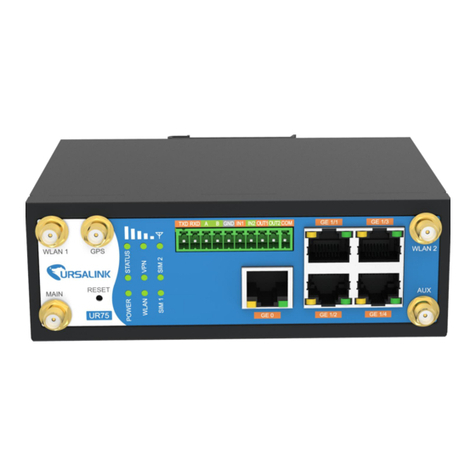
Ursalink UR75 Edge User manual

Ursalink

Ursalink UR75 Edge User manual

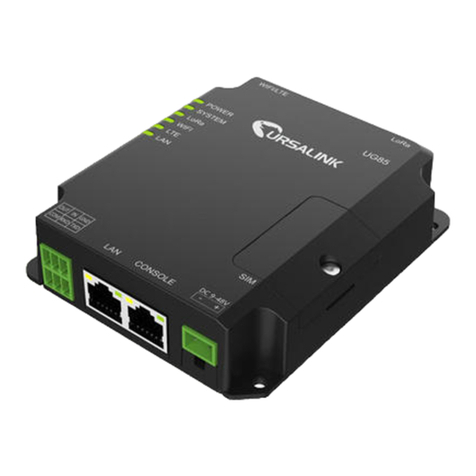
Ursalink UG85 User manual

Ursalink

Ursalink UG85 User manual
Ursalink UG85 User manual

Ursalink

Ursalink UG85 User manual

Ursalink UG87 User manual

Ursalink

Ursalink UG87 User manual
Ursalink UG65 User manual

Ursalink

Ursalink UG65 User manual
Ursalink UG87 User manual

Ursalink

Ursalink UG87 User manual

Popular Gateway manuals by other brands

Telecom FM onestream gfx Programming guide

Telecom FM

Telecom FM onestream gfx Programming guide

UfiSpace LoRa GPE810U Quick setup guide

UfiSpace

UfiSpace LoRa GPE810U Quick setup guide

Merak MMk-736F Quick setup guide

Merak

Merak MMk-736F Quick setup guide

Robustel R3010 user guide

Robustel

Robustel R3010 user guide

turck BL20-PG-EN-V3 user manual

turck

turck BL20-PG-EN-V3 user manual

IBM Security Web Gateway Appliance quick start guide

IBM

IBM Security Web Gateway Appliance quick start guide

SSS Siedle Smart Gateway Commissioning instructions

SSS Siedle

SSS Siedle Smart Gateway Commissioning instructions

ADTRAN 424RG Installation

ADTRAN

ADTRAN 424RG Installation

Chorus Hyperfibre XGS-250WX-A user guide

Chorus

Chorus Hyperfibre XGS-250WX-A user guide

Dragino G308 user manual

Dragino

Dragino G308 user manual

Data Domain DD690g Installation and setup guide

Data Domain

Data Domain DD690g Installation and setup guide

Raritan Laptop Release notes

Raritan

Raritan Laptop Release notes

Haivision Torpedo quick start guide

Haivision

Haivision Torpedo quick start guide

ATCOM AG-268 user manual

ATCOM

ATCOM AG-268 user manual

LST M500RFE-AS Specification sheet

LST

LST M500RFE-AS Specification sheet

Vega VEGA BS-3 user manual

Vega

Vega VEGA BS-3 user manual

Kinnex Media Gateway quick start guide
Kinnex

Kinnex Media Gateway quick start guide

2N Telekomunikace 2N StarGate user manual
2N Telekomunikace

2N Telekomunikace 2N StarGate user manual

manuals.online logo
manuals.online logoBrands
  • About & Mission
  • Contact us
  • Privacy Policy
  • Terms and Conditions

Copyright 2025 Manuals.Online. All Rights Reserved.

LoRa/LoRaWAN Gateway Kit
LoRa is a perfect long-range wireless solution to create low-power, wide area
networks.So far we have released several “LoRa” boards such as Seeeduino
LoRaWan and Grove LoRa Radio etc. However if you want to build you own LoRa
network, there are 3 things that you should prepare to get started: a Gateway, at
least one Node and a local server where you can monitor all your devices.
This kit provides all the basic elements you need: a Raspberry Pi 3, a Seeeduino
LoRaWAN with GPS and a gateway & local server that allows you to collect and
transfer data among all your LoRa nodes. By connecting the gateway with
Seeeduino LoRaWAN and Grove modules, you can build your IOT prototype within
minutes.
Regarding the gateway module RHF0M301, it is a 10 channel(8 x Multi-SF + 1 x
Standard LoRa + 1 x FSK) LoRaWan gateway moduel with a 24pin DIP port on
board, users can easily connect the RHF0M301 with PRI 2 bridge RHF4T002,
adapter for Raspberry Pi 3 and RHF0M301. We also included a 868MHz antenna,
an 8GB SD card and USB cables, Ethernet Cables and other accessories.
Caution
Please always plug 3.7V Lipo battery in case USB power supply is not sufficient. We use 868MHZ kit
in this wiki, but this wiki works for both 868MHz kit and 915MHz kit.
Features
•Low power consumption & wide area
•Industrial standard reliability
•Economic solution to build LoRa /LoRaWAN network
•Rich Accessories of sensor and actuator
•Real time monitoring
Hardware Overview
Partlist
Parts number
Parts name
Quantity
❶
Raspberry Pi 3
1 PCS
❷
Gateway module RHF0M301–868
1 PCS
❸
PRI 2 Bridge RHF4T002
1 PCS
❹
Seeeduino LoRaWAN with GPS (RHF76-052AM)
1 PCS
❺
USB to UART Adapter
1 PCS
❻
upgrade to 16GB Micro SD Card – Class 10
1 PCS
❼
0dBi Rubber Duck Antenna
1 PCS
❽
5V/2.1A American Standard Adapter with Micro USB Connector
1 PCS
❾
Micro USB Cable 20cm
1 PCS
❿
Micro USB Cable 100cm
1 PCS
⓫
RJ45 Ethernet Cable 200cm
1 PCS
⓬
JST2.0 Cable 10cm
1 PCS
Application Ideas
•Internet of Things
•Smart House
•Security
•Smart Grid
•Intelligent Farm
•Intelligent Park
Getting Started
Hardware
Interfaces overview
Since there are many interfaces here, it is necessary to know the capabilities of
these interfaces. Please refer to the following figure for
details.
•❶Micro-USB Input: The whole system use this Micro-USB interface for
power supply.
•❷USB HOST Connector: Output power to supply for Raspberry Pi
•❸Raspberry Pi power input: Input power for Raspberry.
•❹HDMI: HD digital video output interface.
•❺Headphone jack: 3.5mm Headphone jack
•❻Ethernet interface: You can use the Ethernet interface to connect this
system to the Internet. Or you can use Wifi after you configured the wireless
network.
Hardware connection
•Step 1. Plug Gateway module RHF0M301–868 into PRI 2 Bridge RHF4T002.
•Step 2. Plug PRI 2 Bridge RHF4T002 into Raspberry Pi 3.
•Step 3. Connect ❷and ❸via the 20cm Micro-USB cable.
•Step 4. Connect the USB to UART Adapter to the GPIO of Raspberry Pi 3.
Please connect them as the picture shown below.
•Step 5. Plug the USB to UART Adapter into your PC.
•Step 6. Connect ❶with 5V/2.1A Standard Adapter via 100cm Micro-USB
cable.
When you finished all the steps, the whole system should be like the picture below.
Software
Software Tool
In the following guide, below tools will be needed, please install it to your computer.
•Arduino, portable serial tool, used to open the serial port of Seeeduino
LoRaWAN with GPS (RHF76-052AM) and send AT commands to it.
•PuTTY, terminal tool include both serial and SSH terminal, used to control
Raspberry Pi.
•Internet browser, used to access RHF2S001 integrated LoRaWAN server (It is
recommended to use Chrome or Firefox).
Note
You may have your other favorite serial tools,of cause you can use them.However ifyou are not sure
about your tools.Pleae use the ones we recommend.
Connect To Local Server
Step 1. Power up and connect to putty
a) First, make sure the serial tool and RPi (RHF4T002 Adapter) are connected
correctly.
b) Plug FT232 tool to PC (If COM port is not recognized correctly, please refer
toVirtual COM Port Drivers)
c) Open Device Manager of your PC to get the right COM port. Like COM15 for
example. Configure ExtraPuTTY according to below picture (Speed 115200, others
use defaults), click Open. As the gateway is still not opened, so there is nothing in
the terminal.
d) Power the gateway up. Booting log will be showed in the PuTTY terminal, in the
end it will prompt you to input your log in name. Please note it takes 1 or 2 minutes
to get the prompt information.
e) Please use RHF2S001 default user name and password to log in. (
Username: rxhf, Password:risinghf ). Note, when input the password, there is no
any echo
f) Connect RHF2S001 with router through ethernet cable
g) Run ifconfig to check the ip address and mac
address.
IP IS IN THE BLUE SQUARE, MAC ADDRESS IS IN ORANGE SQUARE (FORMAT:
B8:27:EB:XX:XX:XX)
Note
After you get the IP, it is recommended to login RHF2S001 again through SSH. Because SSH is faster
(Ethernet than UART) and stable. We normally use serial tool to get the IP. Reopen PuTTY, use the
SSH module to connect again.
To login through SSH, you need to fill in the Hostname with the IP address you've
just got.And use port 22,choose the SSH connection type. Just leave the other
options by default. Then simply click Open.
Step 2. Expand SD Card File System
By default, the image enables only 2GB for Raspbian System, it is recommended to
expand to use the whole SD card (8GB or 16GB). Or the SD card will be full soon.
Run below command in the PuTTY terminal to start raspi-config,
1
sudo raspi-config
Choose “Expand Filesystem”, when finished reboot to make it effect. Run below
command in the PuTTY terminal to know the SD card capacity and usage.
1
df -h
Please refer to Raspberry Pi raspi-config tool instruction for details.Click here see
more.
Step 3. Use RHF2S001 integrated LoRaWAN server
a) Connect Gateway with internal server
Run below commands in the PuTTY terminal, and check the status:
1
sudo systemctl status pktfwd
If pktfwd service is not active, run below command to start it:
1
2
sudo systemctl enable pktfwd
sudo systemctl restart pktfwd
b) Frequency Plan
Frequency Plan for EU868
EU868
Uplink DR
CH0
867.1
DR0 ~ DR5
CH1
867.3
DR0 ~ DR5
CH2
867.5
DR0 ~ DR5
CH3
867.7
DR0 ~ DR5
CH4
867.9
DR0 ~ DR5
CH5
868.1
DR0 ~ DR5
CH6
868.3
DR0 ~ DR5
CH7
868.5
DR0 ~ DR5
Frequency Plan for US915 HYBRID
US915
Uplink DR
CH0
902.3
DR0 ~ DR3
CH1
902.5
DR0 ~ DR3
CH2
902.7
DR0 ~ DR3
CH3
902.9
DR0 ~ DR3
CH4
903.1
DR0 ~ DR3
CH5
903.3
DR0 ~ DR3
CH6
903.5
DR0 ~ DR3
CH7
903.7
DR0 ~ DR3
CH64
903.0
DR4