Vimar 21554 User manual

User manual
21554
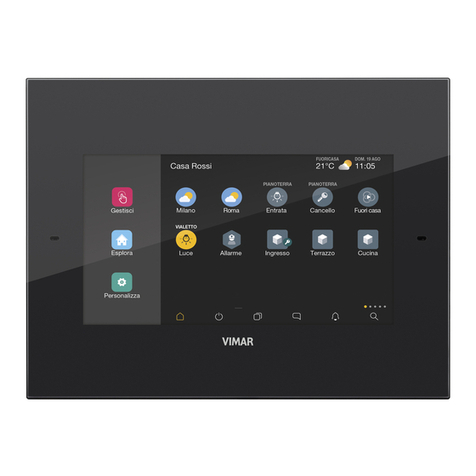
Video touch screen 4,3in Full Flat.

TABLE OF CONTENTS
1. The touch screen video ……………………………………………………………………………………… 1
2. Description ……………………………………………………………………………………………………… 2
3. Main menu ……………………………………………………………………………………………………… 2
Date and time …………………………………………………………………………………………………… 3
Display ……………………………………………………………………………………………………………… 4
Keys Tone …………………………………………………………………………………………………………… 4
Temperature Unit …………………………………………………………………………………………………… 4
Protection …………………………………………………………………………………………………………… 5
Video settings ……………………………………………………………………………………………………… 5
Temperature probe ………………………………………………………………………………………………… 6
Information…………………………………………………………………………………………………………… 6
4. Area management ……………………………………………………………………………………………… 7
4.1 Management monochrome and RGB lamps ……………………………………………………………… 9
4.2 HVAC Management ………………………………………………………………………………………… 12
5. Events Programs ……………………………………………………………………………………………… 15
6. Burglar alarm …………………………………………………………………………………………………… 19
7. Load control……………………………………………………………………………………………………… 22
8. Energy monitoring ……………………………………………………………………………………………… 24
8.1 Guide to navigating the screens …………………………………………………………………………… 24
8.2 Global consumption ………………………………………………………………………………………… 25
8.3 Energy consumption ……………………………………………………………………………………… 25
8.4 Energy flows ………………………………………………………………………………………………… 32
8.5 Single load consumption …………………………………………………………………………………… 34
8.6 Pulse counter ………………………………………………………………………………………………… 35
8.7 Settings ……………………………………………………………………………………………………… 37
9. Speaker System ………………………………………………………………………………………………… 45
9.1 Control for iPod, iPhone and auxiliary sources …………………………………………………………… 46
9.2 Control for RCA transmitter with IR interface …………………………………………………………… 50
10. Video door entry ……………………………………………………………………………………………… 51
11. Alarm clock …………………………………………………………………………………………………… 53
12. Screen saver …………………………………………………………………………………………………… 54
13. Cleaning of touch screen …………………………………………………………………………………… 54
14. Compliance with regulations………………………………………………………………………………… 54
Table of Contents

1
Table of Contents
1. THE TOUCH SCREEN VIDEO
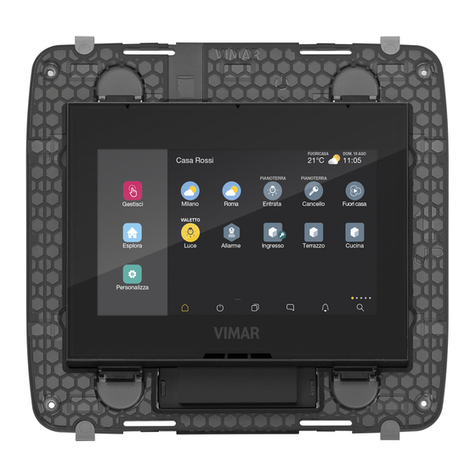
The 21554 is a touch screen device comprising a display through which, by the mere touch of the finger on the
icons displayed, you can select the home automation system management functions.
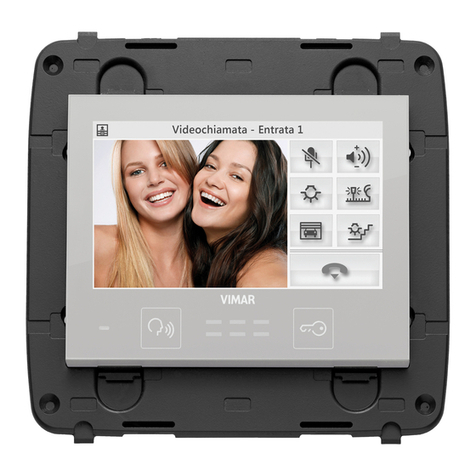
The device can also be used as a videophone and is provided with two front buttons that allow voice communi-
cation with the interlocutor and the opening of the gate electric.
: Hands-free answer button; press once to start the communication and press to end it.
: Lock command button; press to activate the electric lock that opens the gate.
IMPORTANT: When you enable it, start the video touch screen takes about 20 seconds.

2
Description - Main menù
2. DESCRIPTION.
The touch screen include control of lights (on/off/adjustment), shutters, thermostats (traditional and for fan-coil)
and scenes; control and monitoring of burglar alarm devices (specially through ‘Partialisation’ menu it is possible
to display the state of partialisations; automatic monitoring and control of power consumption of appliances (over-
load prevention).
The touch screen can also be used as a videophone and manages all functions of the two wire video entry (plaque
and display images from cameras, voice communication with the external, intercoms and call buttons, electric
opening, intercom call, etc. .).
3. MAIN MENU.
Touching the icon gives access to the Settings menu.

3
• Date and Time
By touching the icon it is possible to adjust the time and date displayed. With the icons
and set the blinking value until the desired day, month, year and time are shown.
The confirmation of transactions by touching .

4
• Display
When the icon is touched the display shows the screen that allows you to adjust the back-
lighting and the contrast of the display.
Main menù
This is set by holding your finger on the icons until and the desired level is reached.
LED Life Time: 20.000 hours (at 25 °C)
The LED life time define as the estimated time to 50% degradation of initial luminous.
• Keys Tone
With the icons and it is possible to enable or disable the acoustic signal(beep) which
accompanies the touching of the icons displayed by the touch screen.
• Temperature Unit
With the icons and it is possible to select the unit of measurement with which the touch
screen will display the temperature in the various areas of the system.
To confirm the settings made, touch the icon .
To return to the previous screen touch the icon .

5
Main menù
• Protection
With this option you set a password (from 4 to 6 digits) that inhibits displaying certain pages and therefore all the
controls associated with them. This application is useful, for example, to distinguish the use of the video touch
screen according to the current user.
Tap the icon and then the icon to display the page for setting the password (as shown on
the following page) and select the page to inhibit.
Tap the icon to edit a previously configured password.
• Video settings
Touching the screen appears that allows you to set the ring type to be combined with various types
of calls and adjust volume.

6
Main menù
• Information
When the icon is touched the display is shown which gives the software release and the main
characteristics of the touch screen.
• Temperature probe
By tapping the icon you can, by using and , compensate for the value of the
temperature measured by the external probe (where applicable).

7
Area management
4. AREA MANAGEMENT.
From the main menu, when the icon ,
is touched the display is shown which allows you to
select the different areas of the system and to control the devices associated with them (lights, roller shutters,
climate, etc.).
For example, when the icon is touched that corresponds to the area called “Lounge”, the touch screen
displays the following screen:

8
Area management
• Touching the icon switches on/off and adjusts the lighting called “Picture Light”.
• Touching the icon lifts and lowers the roller shutter called “Lounge left roller shutters”.
• Touching the icon gives access to the screen which allows you to adjust the temperature in the area
called “Lounge”.
• Touching the icon activates the scenario called “Entrance”; the same applies to all the other icons
associated with the different scenarios displayed.
• Touching the icons and scrolls through the whole screen for the groups and scenarios of the
selected area.
• Touching the icon gives access to the screens for all the other areas of the system.
• Touching the icon the screen that allows adjustment of the temperature of the environment called
"Living Room".
Touching the icon gives access to the screen for editing the automatic program.
Touching the , and , icons respectively increase and decrease the set
temperature and the speed of the fan-coil.
WARNING - Operation of the icons of activation of the scenarios:
• Short press: Activate the scenario.
• Long press (5 seconds): storage scenario (are stored and overwritten states of the groups involved in
the scenario being created).
Viewing the status of contact and relay interfaces.
If the rooms contain any contact interfaces used to control windows and/or doors and windows, the video touch
screen will enable monitoring their status.
For example, should a window have been left open, the icon for the contact interface associated with that window
will light up.
Other manuals for 21554
1
This manual suits for next models
1
Table of contents
Other Vimar Touchscreen manuals
Popular Touchscreen manuals by other brands

Elecro Engineering
Elecro Engineering Poolsmart Plus Installation & operating manual

Johnson Controls
Johnson Controls IQ4 HUB installation manual

Elo TouchSystems
Elo TouchSystems ET2270L user manual

Elo TouchSystems
Elo TouchSystems ET1002L user manual

Elo TouchSystems
Elo TouchSystems 3201L user manual

Duratec
Duratec S15 user manual