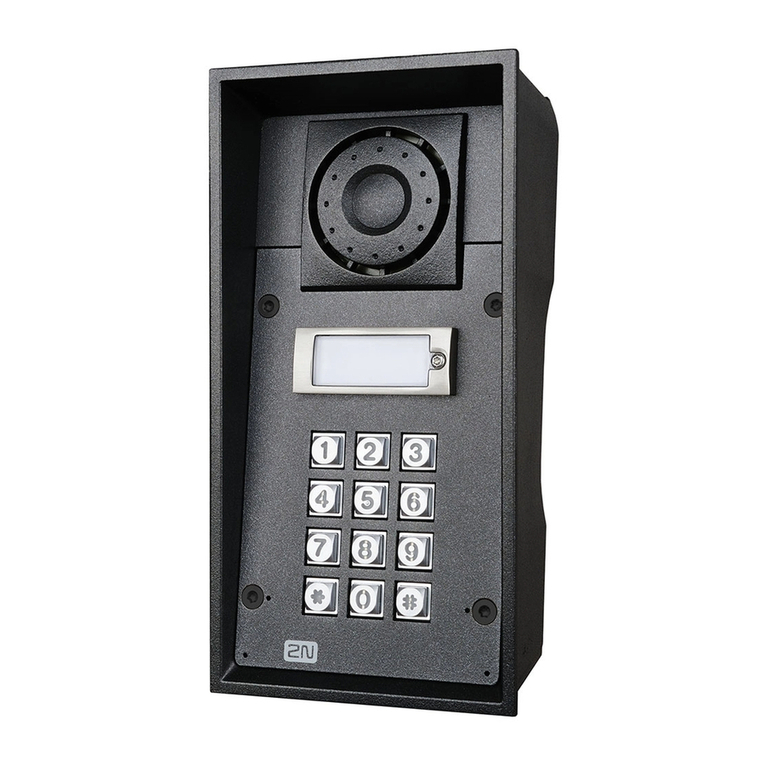
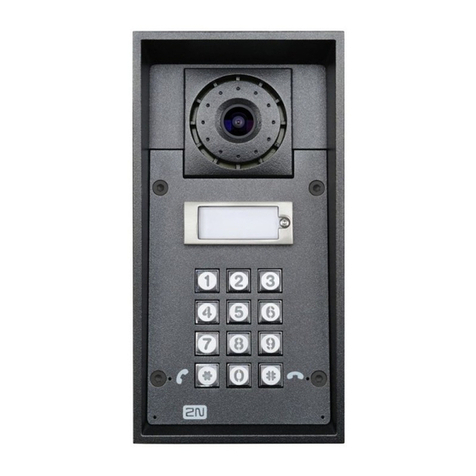
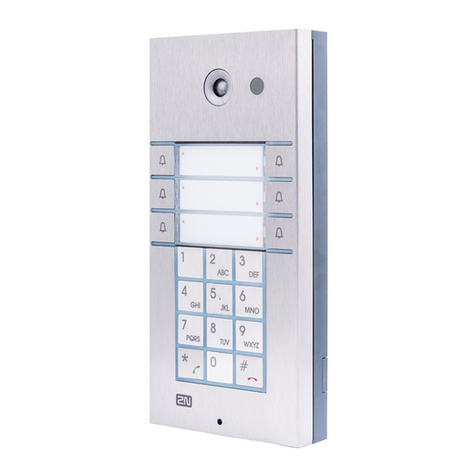
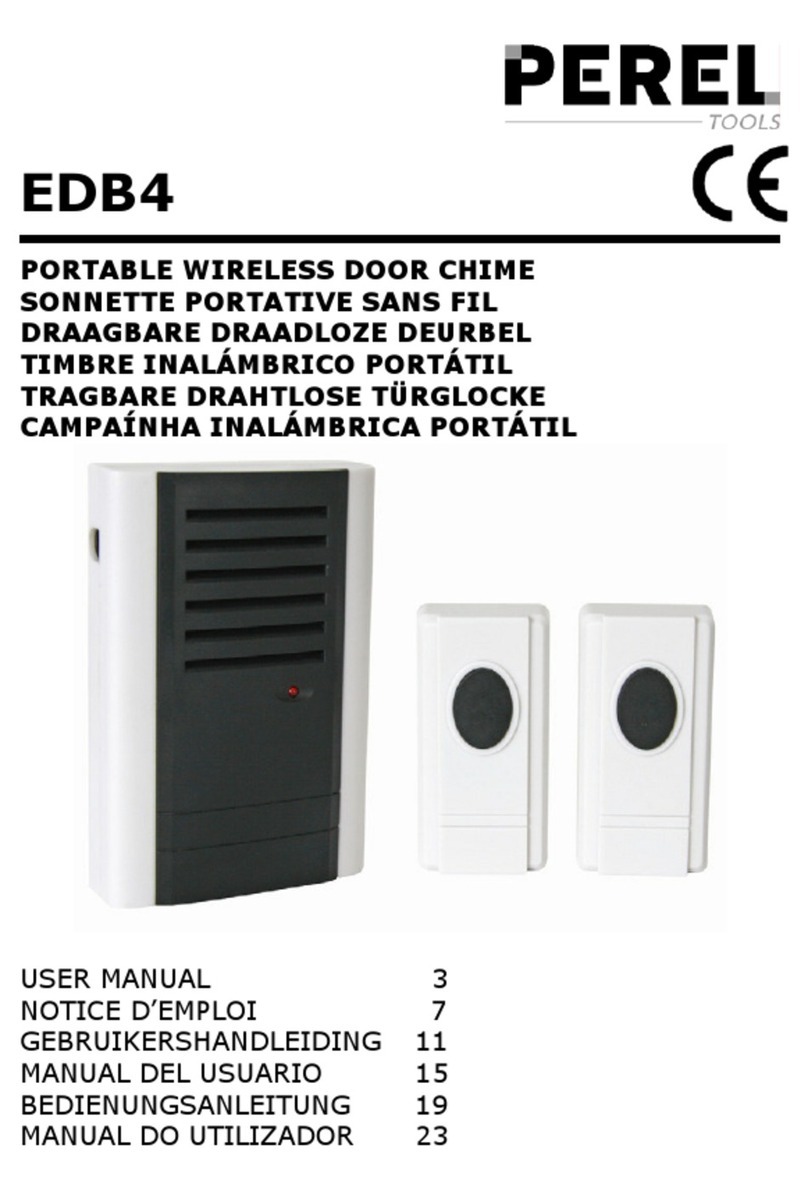
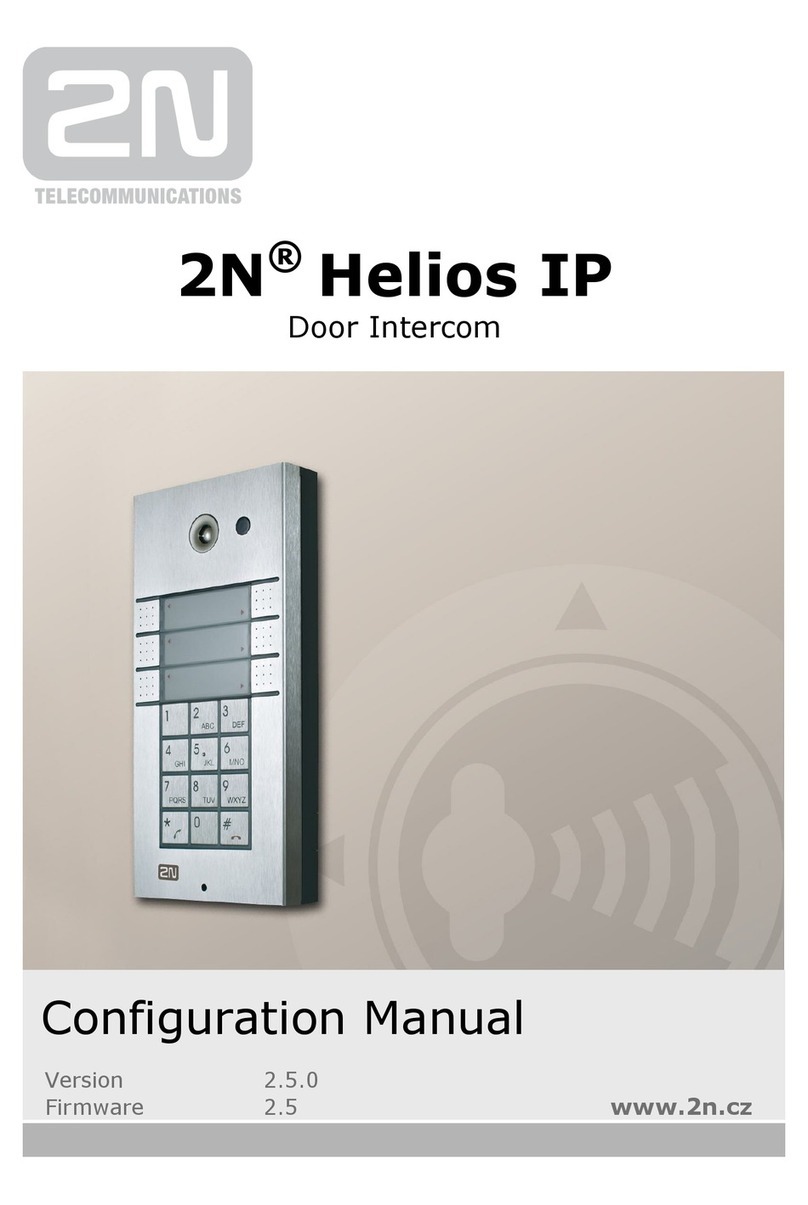
2N Helios IP Instruction sheet


The 2N TELEKOMUNIKACE a.s. is a Czech manufacturer and supplier of telecommunications
equipment.
The product family developed by 2N TELEKOMUNIKACE a.s. includes GSM gateways, private
branch exchanges (PBX), and door and lift communicators. 2N TELEKOMUNIKACE a.s. has
been ranked among the Czech top companies for years and represented a symbol of
stability and prosperity on the telecommunications market for almost two decades. At
present, we export our products into over 120 countries worldwide and have exclusive
distributors on all continents.
2N is a registered trademark of 2N TELEKOMUNIKACE a.s. Any product and/or other
®
names mentioned herein are registered trademarks and/or trademarks or brands protected
by law.
2N TELEKOMUNIKACE a.s. administers the FAQ database to help you quickly find
information and to answer your questions about 2N products and services. On
www.faq.2n.cz you can find information regarding products adjustment and instructions for
optimum use and procedures „What to do if...“.
2N TELEKOMUNIKACE a.s. hereby declares that the 2N product complies with all
®Helios IP
basic requirements and other relevant provisions of the 1999/5/EC directive. For the full
wording of the Declaration of Conformity see the CD-ROM (if enclosed) or our website at
www.2n.cz.
This device complies with part 15 of the FCC Rules. Operation is subject to the following
two conditions: (1) This device may not cause harmful interference, and (2) this device
must accept any interference received, including interference that may cause undesired
operation.
The 2N TELEKOMUNIKACE a.s. is the holder of the ISO 9001:2009 certificate. All
development, production and distribution processes of the company are managed by this
standard and guarantee a high quality, technical level and professional aspect of all our
products.
Content

Content
1. Product Overview . . . . . . . . . . . . . . . . . . . . . . . . . . . . . . . . . . 4
2. Express Wizard for Basic Settings . . . . . . . . . . . . . . . . . . . . 6
3. Model Differences and Function Licensing . . . . . . . . . . . . . 11
4. Signalling of Operational Statuses . . . . . . . . . . . . . . . . . . . . 14
5. Intercom Configuration . . . . . . . . . . . . . . . . . . . . . . . . . . . . . 16
5.1Status .........................................................19
5.2Directory .......................................................23
5.3Hardware ......................................................36
5.4Services .......................................................70
5.5System ........................................................109
6. Supplementary Information . . . . . . . . . . . . . . . . . . . . . . . . . . 125
6.1Troubleshooting .................................................126
6.2Directives,LawsandRegulations ...................................127
6.3GeneralInstructionsandCautions ...................................129

42N TELEKOMUNIKACE a.s., www.2n.cz
®
1. Product Overview
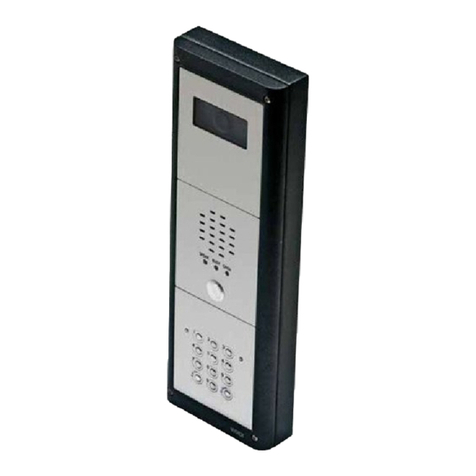
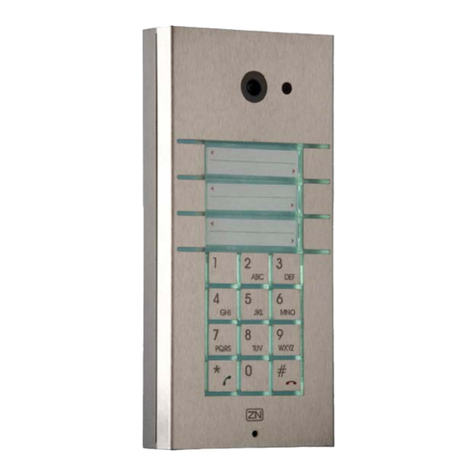
The door intercoms can smartly replace traditional doorbell2N Helios IP
®
push-button speakerphone panels and all wiring, bells and home intercom installations
in buildings with structured cabling. The intercoms provide more advanced and wider
services than standard home phones. The installation is very easy, all you need is
connect the intercom to the other LAN elements using a UTP cable and set necessary
parameters.
Thanks to the integrated SIP protocol, the intercom can make use of all VoIP services:
call forwarding at absence (to another office, VoiceMail or a cellular phone) or call
transfer (from the secretary’s office to the required person, e.g.).
The intercoms are equipped with a programmable number of quick dial buttons for
speed calling to the users whose numbers are included in the intercom Users list. Each
of the quick dial buttons can be assigned up to three phone numbers, which can be
dialled in parallel or sequentially. Thanks to an integrated time sheet it is possible to
configure each of the buttons in such a way that the called party is always accessible
and/or calls to selected phone numbers can be barred off the working hours.
Some models are equipped with a numeric keypad, which can be used2N Helios IP
®
as a code lock or a standard push-button phone.
The intercoms help LAN users scan the area in front of the camera via 2N Helios IP
®
video streaming. Thanks to the full ONVIF support, the intercoms can become part of
the Video Surveillance System in your facility .
The intercoms can be equipped with an RFID card reader for authorised2N Helios IP
®
access control and thus become a key part of your surveillance or attendance control
systems.
The intercom is equipped with a relay switch (and, optionally, other2N Helios IP
®
relays and outputs), which controls the electric lock or other equipment connected to
the intercom. Its activation time and method can be programmed flexibly: it can be
activated by a code, automatically by a call, by pressing a button, and so on.
The following symbols and pictograms are used in the manual:

52N TELEKOMUNIKACE a.s., www.2n.cz
®
Safety
abide by this information to prevent persons from injury.Always
Warning
abide by this information to prevent damage to the device.Always
Caution
Important information for system functionality.
Tip
Useful information for quick and efficient functionality.
Note
Routines or advice for efficient use of the device.

62N TELEKOMUNIKACE a.s., www.2n.cz
®
2. Express Wizard for Basic
Settings
LAN Connection Setting
You have to know the intercom configuration interface address to connect to the LAN
successfully. Automatic IP address retrieval from the DHCP server is set by default in
the intercoms. Thus, if connected to a network in which a DHCP server2N Helios IP
®
configured to assign IP addresses to all new devices is available, the intercom will
obtain an IP address from the DHCP server. The intercom IP address can be found in
the DHCP server status (according to the MAC address given on the production plate),
or will be communicated to you by the intercom voice function; refer to the Installation
Manual of your intercom model.
If there is no DHCP server in your LAN, use the intercom buttons to set the static IP
address mode, refer to the Installation Manual of your intercom model. Your intercom
address will then be Use it for the first login and then change it if192.168.1.100.
necessary.
Now enter the intercom IP address into your favourite browser. We recommend you to
use the latest Chrome, Firefox or Internet Explorer 9+ versions as is2N Helios IP
®
not fully compatible with earlier browser versions.
Use the name and password (i.e. default reset password) for your first loginadmin 2n
to the configuration interface. We recommend you to change the default password
upon your first login; refer to the parameter in the Password Services / Web Server
menu. Remember the password well or put it down just in case. Because if you forget
the password, you will have to reset the intercom to default values (refer to the
Installation Manual of your intercom model) and lose all your current configuration
changes.
Tip
FAQ: IP address - How to get IP address of 2N® Helios IP

72N TELEKOMUNIKACE a.s., www.2n.cz
®
Firmware Update
We also recommend you to update your intercom firmware upon the first login to the
intercom. Refer to for the latest firmware version. Press the www.2n.cz Update
button in the menu to upload firmware. TheFirmware System Maintenance /
intercom will get restarted upon upload and only then the updating process will be
complete. The process takes about 30 seconds.
SIP Server Connection Setting
Set the following parameters in the menu to allow yourServices Phone SIP / /
intercom make calls and be accessible within your VoIP infrastructure.
– set the name to be displayed as CLIP on the called party'sDisplay name
phone, in the login window and on the web interface start page.
– set the intercom phone number (or another unique IDPhone number (ID)
composed of characters and digits) to identify the intercom uniquely in calls and
registration.
– set the domain name of the service with which the intercom isDomain
registered. Typically, it is equivalent to the SIP Proxy or Registrar address. If you
do not use a SIP Proxy in your intercom installation, enter the intercom IP
address.
If you use a SIP server (Proxy, Registrar), set the addresses for the following network
elements:

82N TELEKOMUNIKACE a.s., www.2n.cz
®
– set the SIP Proxy IP address or domain name.Proxy address
– set the SIP Registrar IP address or domain name. The SIPRegistrar address
Proxy and SIP Registrar addresses are usually identical.
– enable intercom registration with the set SIP Registrar.Registration enabled
If your SIP server requires authentication of terminal equipment, enter the following
parameters:
– enter the password for intercom authentication.Password
Quick Dial Button Settings
All the models are equipped with quick dial buttons. If you press a2N Helios IP
®
quick dial button, a call will be set up to the phone number assigned to the respective
Users list position.
Select position 1, which corresponds to quick dial button 1, in the Directory Users/
menu.
Enable the position in the field and enter the called station phonePosition Enabled
number into the parameter in the section.Phone Number User Phone Numbers

92N TELEKOMUNIKACE a.s., www.2n.cz
®
You can also use the intercom with one or more IP phones without a2N Helios IP
®
SIP server. Use the for outgoing calls and enter the called phone SIPDirect SIP Call
address ( ) instead of the phone number.sip:phone_number@phone_ip_address
Electric Lock Switching Settings
An electric lock can be attached to the intercoms and controlled by a2N Helios IP
®
code from the intercom numeric keypad, or a code from the IP phone keypad during a
call. Connect the electric lock as instructed in the Installation Manual of your intercom
model.

Other manuals for Helios IP
16
Table of contents
Other 2N Intercom System manuals
2N
2N Helios IP Vario User manual
2N
2N IP Force User manual
2N
2N Helios Vario User manual
2N
2N Helios IP Instruction sheet
2N
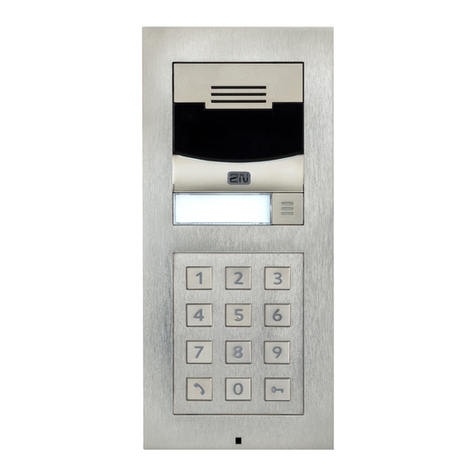
2N Helios IP Verso User manual
2N
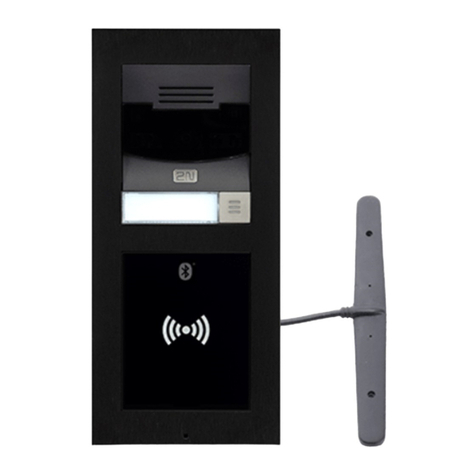
2N LTE Verso Instruction sheet
2N
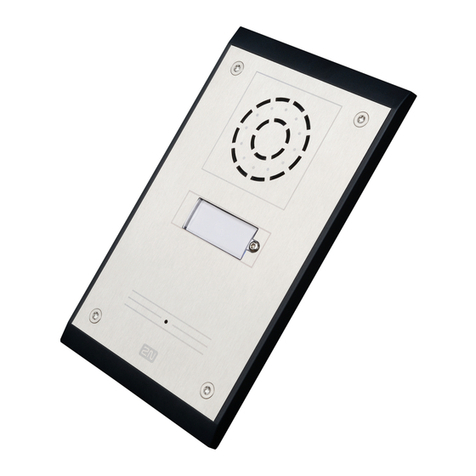
2N Helios IP Uni User manual

2N
2N Helios IP Instruction sheet
2N
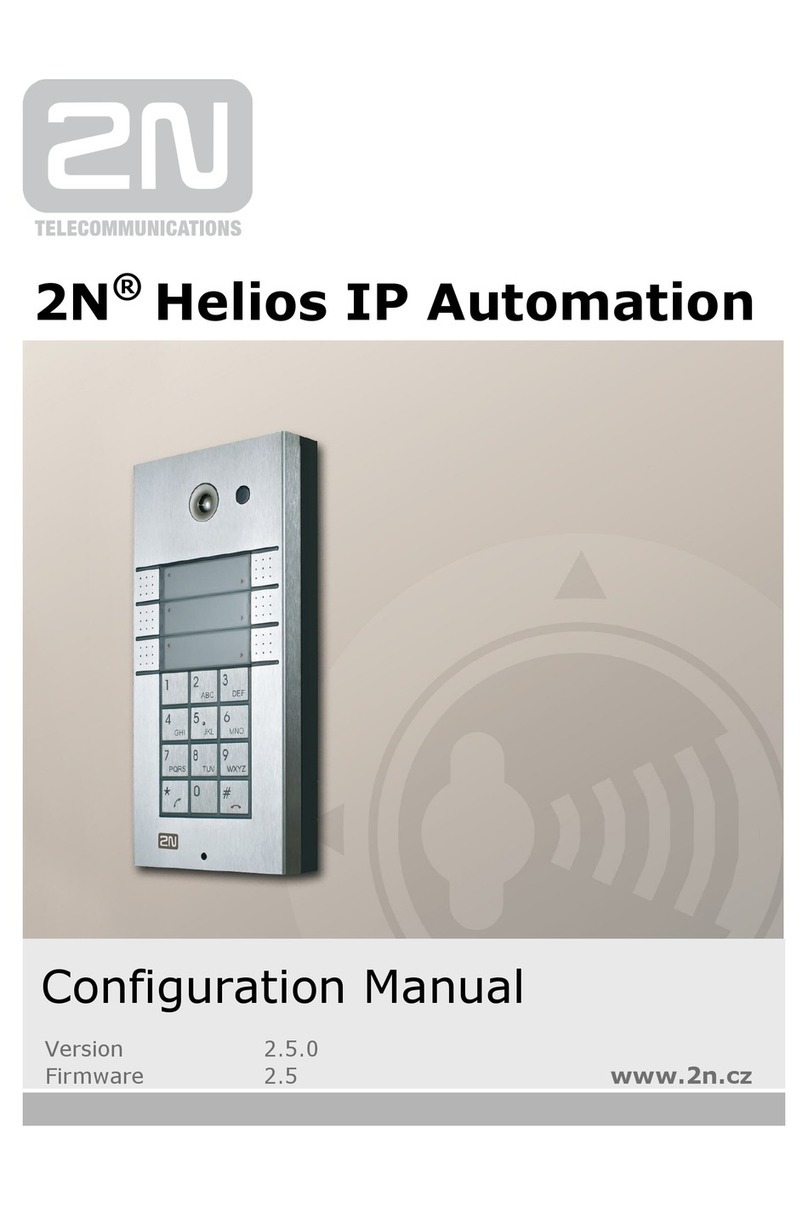
2N Helios IP Automation Instruction sheet
2N
2N 9154100 User manual
2N
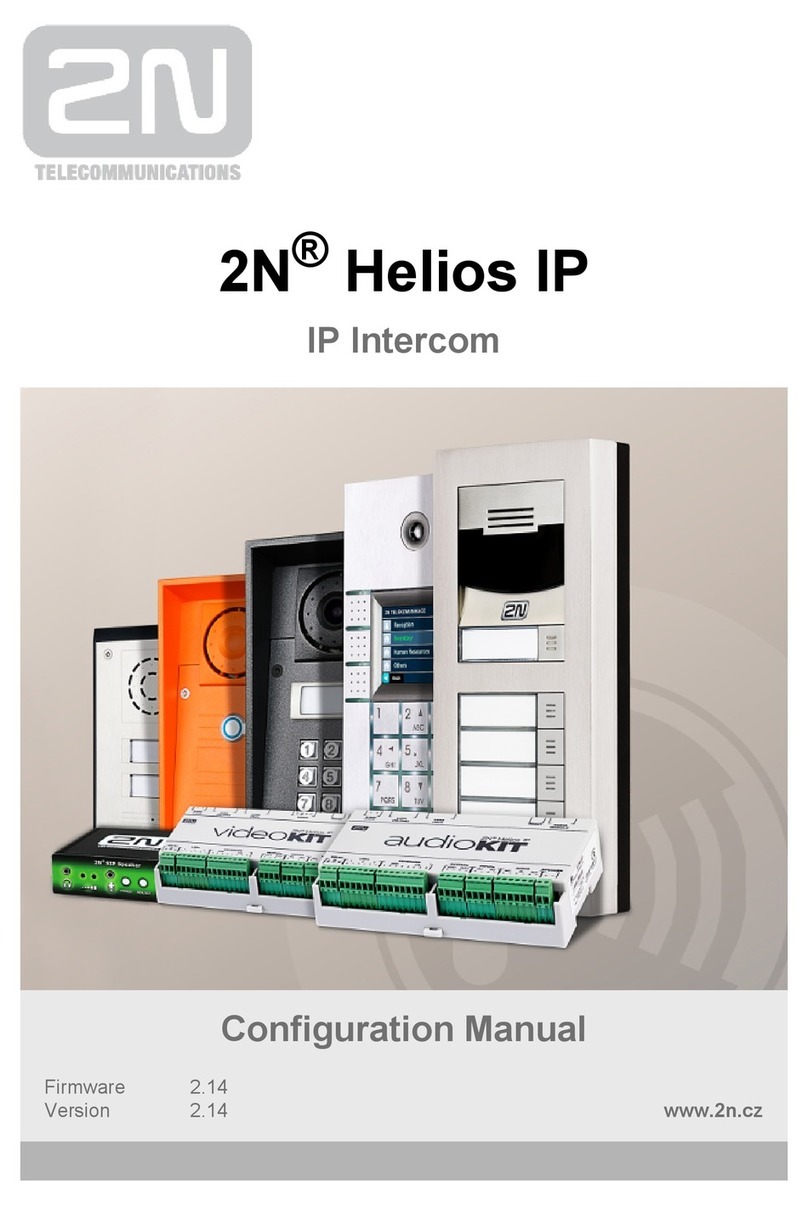
2N Helios IP Instruction sheet
2N
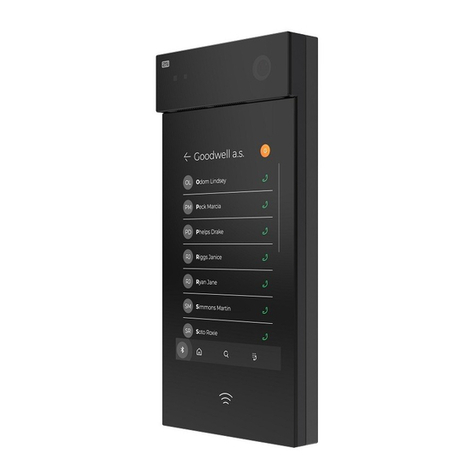
2N IP Style 9157101 User manual
2N
2N Analog Vario User manual
2N
2N Helios IP User manual

2N
2N Helios IP Operator's manual
2N
2N Helios IP Automation Instruction sheet

2N
2N Helios IP Force User manual
2N
2N Helios Troubleshooting guide
2N
2N Helios IP Verso User manual
2N
2N SingleTalk User manual