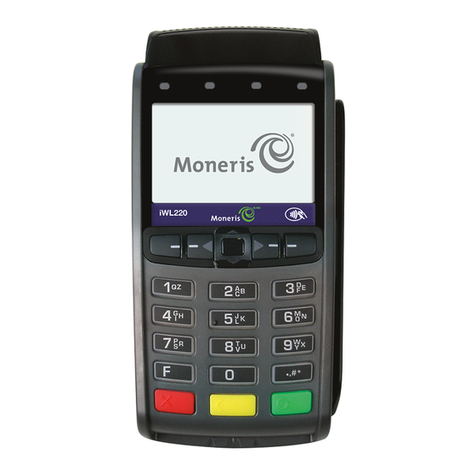
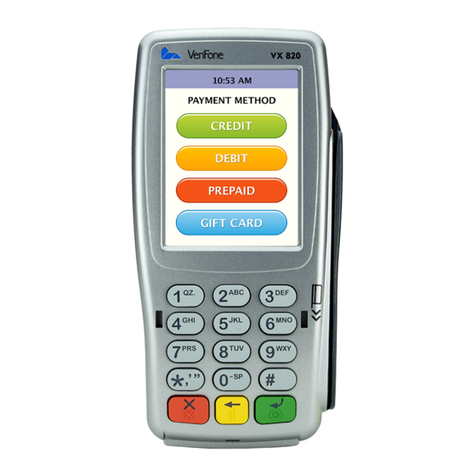
Welcome How to install your
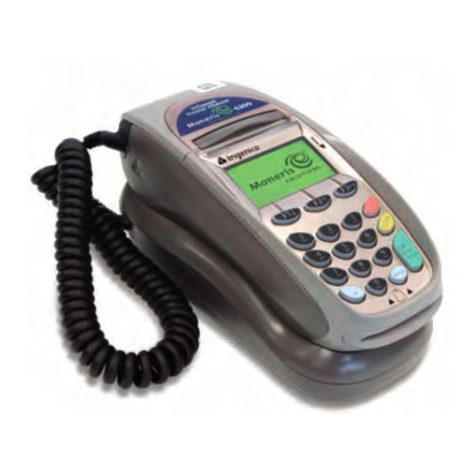
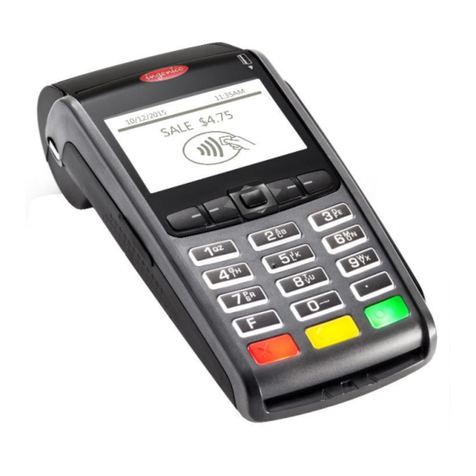
Countertop terminal
This should take about 5-10 minutes.
or on the plate on your manual imprinter.
1.
network point. Press the green
2.
sure your phone cable is securely
plugged into your phone line and
3.
Option 1
Option 2
If you selected this option, key in the
number used to obtain an outside line
4.
either of these services press the
to point 6.
5.
securely plugged into your network
6.
7.
messages.
8.
is complete.
9.
card companies for each of the card
types your terminal accepts and will
card acceptance.
10.
again and the following message
11.
installation.
12.
you to use.
13.The terminal and combined reader
will display the Barclaycard logo. The
indicator on the top of the combined
5 seconds.
Telephone (PPP)
Terminal Installation
Plug in Phone Line
used to get and
Terminal Installation
Terminal Installation
Terminal Installation
Terminal Installation
Please wait...
Your quick guide to the dierent
ways of using Countertop
Contents
– Power supply unit, specially designed for this
terminal and should not be used with any other
equipment.
cleaners and paper roll.
Inside this box you will nd everything you need to set
up your Countertop terminal.
IMPORTANT information for IP/broadband users.
Yes?
Unsure? Then it may be useful to coordinate with your
DHCP (Dynamic Host Conguration Protocol)
uses dynamic IP and will not work using static IP.
MAC Address Blocking/Filtering
Firewall Settings – if you have Firewall in place then it
may block the terminal from communicating with our
systems. For further information please contact our
0844 811 6666.*
Connecting your equipment
IMPORTANT: Do not switch on the power at the mains
until you have followed the simple steps below:
1.
2.
to the terminal) to the power supply unit and then to
the plug, both of which are in the box.
3. Put the plug into your power source.
4.
cable are connected to your terminal. Please select
the relevant cable and plug it into your telephone wall
5. Place the terminal in a clear area where the display
can be read and the keypad and card swipe are easily
accessible for your customers.
If you experience any problems during the installation
0844 811 6666.*
Please be near the terminal when you call and have the
letter or on the plate of your manual imprinter
(if the terminal is installed this is shown on your
Chip & PIN transactions
combined reader.
until prompted to do so or the transaction will
be void.
Follow the terminal prompts to complete
the transaction.
Chip & Signature transactions
card reader.
receipt and obtain cardholder signature.
reader and check signature.
Follow the terminal prompts to complete
the transaction.
Mail order/Telephone order
button.
– Key in expiry date and press the green
Follow the terminal prompts to complete
the transaction.
Contactless transactions
Contactless transactions are currently
allowed only for sales up to £20.
– The cardholder should hold their card against
the contactless symbol showing on the
If the card is removed too quickly a message will
appear on the display and the cardholder will be
asked to present the card again.
The terminal will only print a merchant receipt.
Press if a cardholder copy is required.
To print a cardholder receipt, at the READY
prompt press the key and a customer receipt
will be printed. Press ENTER to return to the
READY prompt.