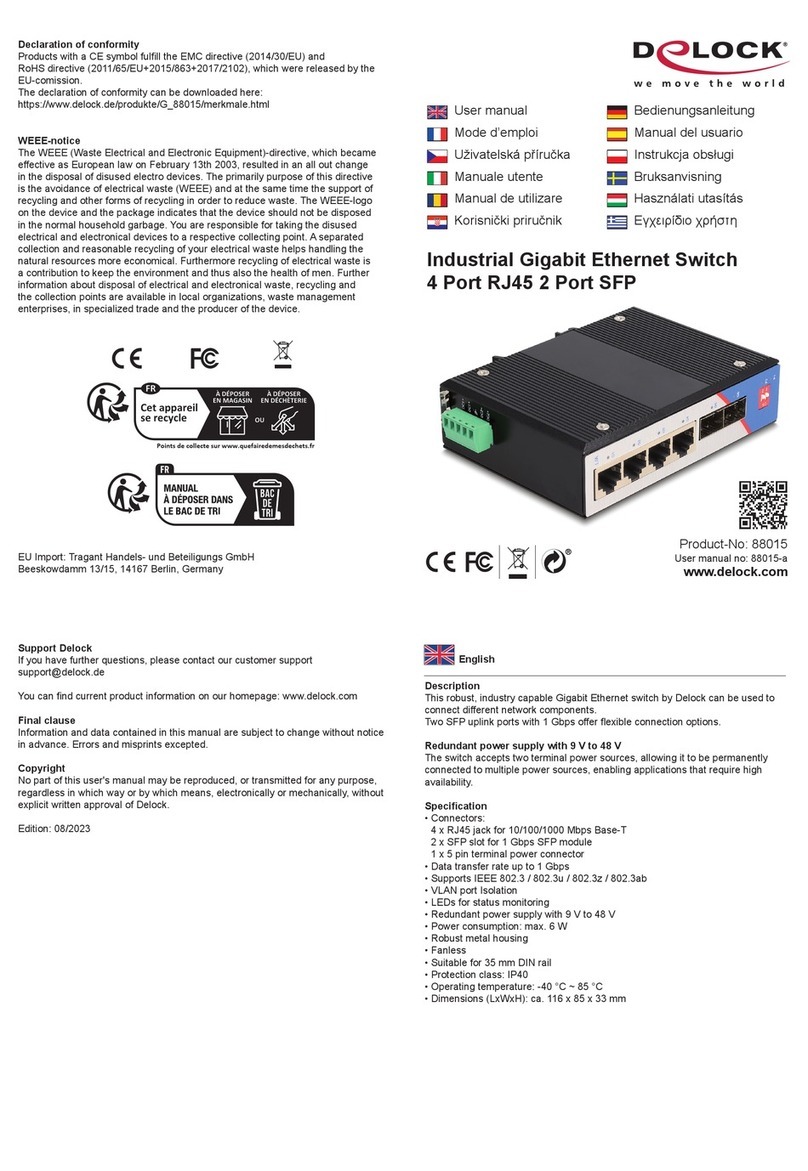
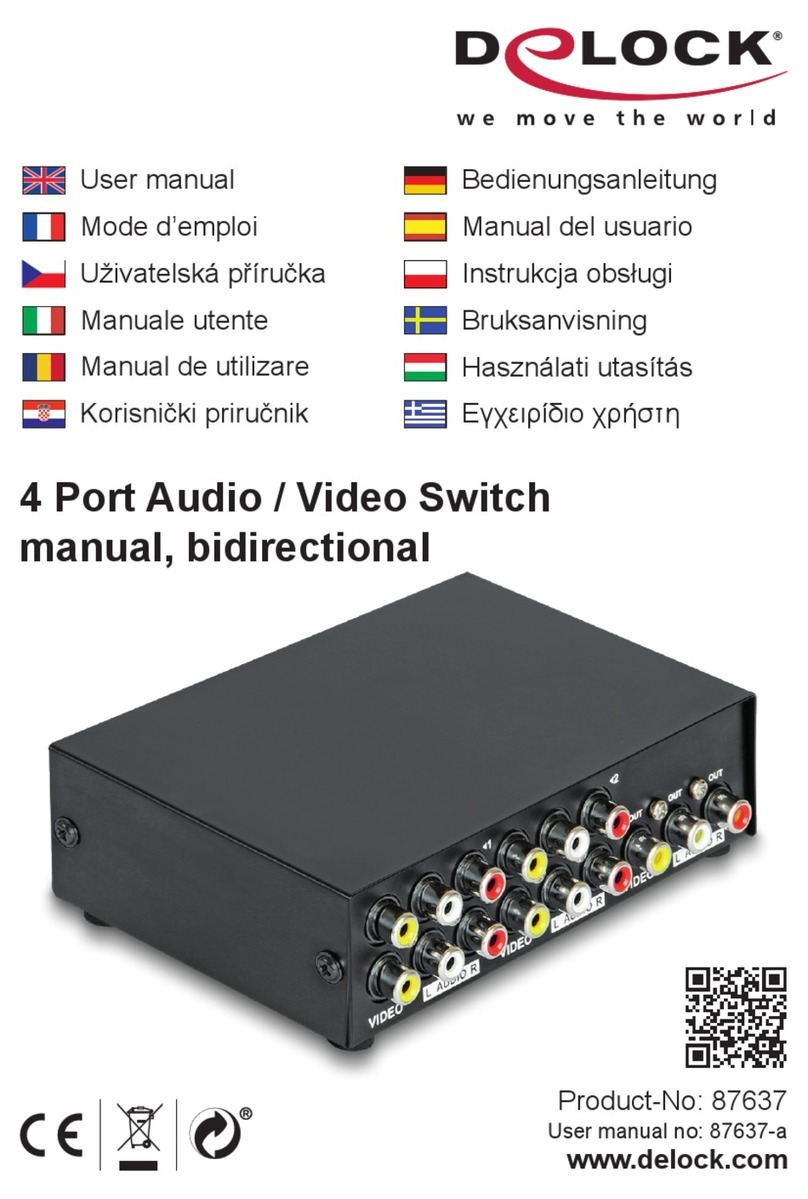
DeLOCK 11481 User manual

2 Port HDMI KVM Switch 4K 60 Hz
with USB 3.0 and Audio
Product-No:11481
User manual no:11481-a
www.delock.com
User manual
Mode d’emploi
Uživatelská příručka
Manuale utente
Manual de utilizare
Korisnički priručnik
Bedienungsanleitung
Manual del usuario
Instrukcja obsługi
Bruksanvisning
Használati utasítás
Εγχειρίδιο χρήστη

-2-
English
Description
This KVM switch by Delock is a convenient solution for connecting two computers with HDMI output to one HDMI
monitor.
Note
KVMs emulate a standard wired 104 key keyboard and wired generic 2 or 3 button scroll wheel mouse on their respective
console ports. Whether or not a wireless or gaming mouse and keyboard work with KVM switches depends on several
factors; in general, most wireless mice and keyboards do not support working with KVM switches. We recommend to use
a standard wired mouse and keyboard with our KVM switches.
Specication
• Connectors:
Input:
2 x HDMI-A female
2 x USB 3.0 Type-B female
4 x 3.5 mm 3 pin stereo jack female (audio)
1 x 3.5 mm 3 pin stereo jack female for optional IR-receiver
1 x DC 5 V power connector screwable
Output:
1 x HDMI-A female
2 x USB 3.0 Type-A female (USB 3.0 Hub)
2 x USB 2.0 Type-A female (keyboard + mouse)
4 x 3.5 mm 3 pin stereo jack female (audio)
• Switching via button, mouse button, hotkey or infrared remote control
• Automatic switching when turning a PC on or o
• Supports HDCP 1.4 and 2.2
• Supports HDR
• HDMI output: Resolution up to 3840 x 2160 @ 60 Hz (depending on the system and the connected hardware)
• Robust metal housing
• Colour: black
• Dimensions (LxWxH): ca. 178 x 75 x 26 mm
System requirements
• PC with HDMI female + USB Type-A female
• Monitor or TV with HDMI connector
• Connection cables
Package content
• KVM switch with USB and audio
• Remote control
• 2 x cable USB 3.0 A male to USB 3.0 B male, length ca. 1.0 m
• External power supply
• Mounting brackets and screws
• User manual
Safety instructions
• Protect the product against moisture
• Protect the product against direct sunlight
Hardware Installation
Connect a USB keyboard and mouse to the console ports of the KVM.
Connect all audio cables to each computer, the KVM, and speakers if necessary.
Connect other USB devices to the USB 3.0 Hub if necessary.
Connect the HDMI monitor to the HDMI output of the KVM.
Connect the included DC 5V power adapter to the DC port of the KVM.
Connect the HDMI cable between the HDMI output of the computer and the HDMI input of the KVM.
Connect the USB 3.0 cable to the USB-A port of the computer and to the USB-B upstream port of the KVM.
Now press the power button.
Turn on the computer and make sure that the USB ports are enabled and working properly.

-3-
English
Note
Whether or not a wireless or gaming mouse and keyboard work with KVM switches depends on several factors; in
general, most wireless mice and keyboards do not support working with KVM switches. We recommend to use a
standard wired mouse and keyboard with our KVM switches.
If keyboard, mouse or USB devices are not working properly or only intermittently, "USB power saving" must be disabled
on all connected computers.
The hotkey function is working with a standard USB keyboard which is plugged in at the rear USB ports. There is no
hotkey support for a USB keyboard plugged into the USB 3.0 Hub downstream ports of the KVM.
Operation
Port Selection
Press the buttons on the front panel of the unit to select the input, the corresponding "Select" LED lights up. After
selection, the display shows the corresponding image and the selected PC can be controlled with keyboard and mouse.
The remote control works the same as the manual buttons, press the buttons to select the input. Use the arrow buttons
for switching in a loop.
Mouse traversal function
Move the mouse on the far right side of the display and continue to slide to the right for 2 seconds, then the unit
automatically switches to the next port.
USB-B detection switching function
When the unit detects that a PC is connected to the USB-B port of the unit, the unit immediately switches to this PC and
the corresponding "Online" and "Select" indicators light up.
When the currently selected PC is powered o or the USB cable is unplugged, the unit automatically switches to the next
PC with power on and the USB port connected.
Hotkey Support
Alternatively, the device supports a hotkey function. Press the hotkey on the connected keyboard twice in quick
succession, then press a function key (see below).
Channel selection
Press [Scroll Lock] ++ [Scroll Lock] + [→ or ↓] to switch to the next port.
Press [Scroll Lock] ++ [Scroll Lock] + [← or ↑] to switch to the previous port.
Press [Scroll Lock] ++ [Scroll Lock] + ["n"] to switch to port number n.
Press [Scroll Lock] ++ [Scroll Lock] + [S] to activate the Auto-Scan function; the KVM will cycle between the ports
sequentially (default: 15 second interval). Press the space bar to stay at the currently switched port, press any key to exit
to the previous selected port.
Press [Scroll Lock] ++ [Scroll Lock] + [I] + ["n"] to adjust the time interval for Auto-Scan, where [n] can be 5 ~ 999.
Press [Scroll Lock] ++ [Scroll Lock] + [B] + [1] to enable the buzzer function. (Default)
Press [Scroll Lock] ++ [Scroll Lock] + [B] + [0] to disable the buzzer function.
Press [Scroll Lock] ++ [Scroll Lock] + [FLASH] to set all hotkeys to default.
Support Delock
If you have further questions, please contact our customer support [email protected]
You can nd current product information on our homepage: www.delock.com
Final clause
Information and data contained in this manual are subject to change without notice in advance. Errors and misprints
excepted.
Copyright
No part of this user manual may be reproduced, or transmitted for any purpose, regardless in which way or by any
means, electronically or mechanically, without explicit written approval of Delock.
Edition: 07/2020

-4-
Deutsch
Kurzbeschreibung
Dieser KVM Switch von Delock ist eine praktische Lösung, um zwei Computer mit HDMI Ausgang an einem HDMI
Monitor zu betreiben.
Hinweis
KVMs emulieren eine kabelgebundene Standardtastatur mit 104 Tasten und eine kabelgebundene generische Scrollrad-
Maus mit 2 oder 3 Tasten an den jeweiligen Konsolenports. Ob eine drahtlose oder Gaming-Maus und -Tastatur mit KVM-
Switches funktioniert, hängt von mehreren Faktoren ab; im Allgemeinen unterstützen die meisten drahtlosen Mäuse und
Tastaturen die Arbeit mit KVM-Switches nicht. Wir empfehlen die Verwendung einer standardmäßigen kabelgebundenen
Maus und Tastatur mit unseren KVM-Umschaltern.
Spezikation
• Anschlüsse:
Eingang:
2 x HDMI-A Buchse
2 x USB 3.0 Typ-B Buchse
4 x 3,5 mm 3 Pin Klinkenbuchse (Audio)
1 x 3,5 mm 3 Pin Klinkenbuchse für optionalen IR-Empfänger
1 x DC 5 V Stromanschluss verschraubbar
Ausgang:
1 x HDMI-A Buchse
2 x USB 3.0 Typ-A Buchse (USB 3.0 Hub)
2 x USB 2.0 Typ-A Buchse (Tastatur + Maus)
4 x 3,5 mm 3 Pin Klinkenbuchse (Audio)
• Umschaltung durch Taste, Maustaste, Hotkey oder Infrarot Fernbedienung
• Automatisches Umschalten beim Ein- oder Ausschalten eines PCs
• Unterstützt HDCP 1.4 und 2.2
• Unterstützt HDR
• HDMI Ausgang: Auösung bis 3840 x 2160 @ 60 Hz (abhängig vom System und der angeschlossenen Hardware)
• Robustes Metallgehäuse
• Farbe: schwarz
• Maße (LxBxH): ca. 178 x 75 x 26 mm
Systemvoraussetzungen
• PC mit HDMI Buchse + USB Typ-A Buchse
• Monitor oder TV mit HDMI Anschluss
• Anschlusskabel
Packungsinhalt
• KVM Switch mit USB und Audio
• Fernbedienung
• 2 x Kabel USB 3.0 A Stecker zu USB 3.0 B Stecker, Länge ca. 1,0 m
• Externes Netzteil
• Befestigungswinkel und Schrauben
• Bedienungsanleitung
Sicherheitshinweise
• Produkt vor Feuchtigkeit schützen
• Produkt vor direkter Sonneneinstrahlung schützen
Hardwareinstallation
Verbinden Sie eine USB Tastatur und Maus mit dem Konsolen-Port des KVM.
Verbinden Sie alle Audio Kabel mit jedem Computer, dem KVM und den Lautsprechern, falls gewünscht.
Verbinden Sie weitere USB Geräte mit dem USB 3.0 Hub, falls gewünscht.
Verbinden Sie den HDMI Monitor mit dem HDMI Ausgang des KVM.
Verbinden Sie das mitgelieferte DC 5V Netzteil mit dem DC Eingang des KVM.
Schließen Sie ein HDMI Kabel zwischen dem HDMI Ausgang des Computers und dem HDMI Eingang des KVM an.
Schließen Sie ein USB 3.0 Kabel zwischen einem USB-A Port des Computers und dem USB-B Upstream-Port des KVM
an.
Drücken Sie nun die Powertaste.
Schalten Sie den Computer an und stellen Sie sicher, dass die USB Ports aktiv sind und ordnungsgemäß funktionieren.

-5-
Deutsch
Hinweis
Ob eine drahtlose oder Gaming-Maus und -Tastatur mit KVM-Umschaltern funktioniert, hängt von mehreren Faktoren ab;
im Allgemeinen unterstützen die meisten drahtlosen Mäuse und Tastaturen die Arbeit mit KVM-Umschaltern nicht. Wir
empfehlen die Verwendung einer standardmäßigen kabelgebundenen Maus und Tastatur mit unseren KVM-Umschaltern.
Wenn Tastatur, Maus oder USB-Geräte nicht richtig oder nur zeitweise funktionieren, muss die "USB-
Energiesparfunktion" auf allen angeschlossenen Computern deaktiviert werden.
Die Hotkey-Funktion arbeitet mit einer USB-Tastatur, die in den hinteren USB Port eingesteckt ist. Es gibt keine Hotkey-
Unterstützung für eine USB-Tastatur, die an den USB 3.0 Hub Downstream-Ports des KVM angeschlossen ist.
Bedienung
Port Auswahl
Drücken Sie die Tasten auf der Frontblende des Geräts, um den Eingang auszuwählen, und die entsprechende "Select"-
LED leuchtet. Nach der Auswahl zeigt der Monitor das entsprechende Bild und der gewählte PC kann mit Tastatur und
Maus bedient werden.
Die Fernbedienung funktioniert genauso wie die manuellen Tasten, drücken Sie die Tasten, um den Eingang zu wählen.
Mit den Pfeiltasten können Sie in einer Schleife schalten.
Bewegungsfunktion der Maus
Bewegen Sie die Maus auf die rechte Seite der Anzeige und schieben Sie die Maus für 2 Sekunden nach rechts, dann
schaltet das Gerät automatisch zum nächsten Anschluss um.
Umschaltfunktion der USB-B-Erkennung
Wenn das Gerät erkennt, dass ein PC an den USB-B-Anschluss des Geräts angeschlossen ist, schaltet das Gerät sofort
auf diesen PC um, und die entsprechenden "Online"- und "Select"-Anzeigen leuchten auf.
Wenn der aktuell ausgewählte PC ausgeschaltet oder das USB-Kabel abgezogen wird, schaltet das Gerät automatisch
auf den nächsten PC mit eingeschaltetem Gerät und angeschlossenem USB-Port um.
Hotkey Unterstützung
Alternativ unterstützt das Gerät eine Hotkey Funktion. Dazu drücken Sie an der angeschlossenen Tastatur die Hotkey
Taste in schneller Folge zwei Mal hintereinander, und anschließend eine Funktionstaste (siehe unten).
Eingangsauswahl
Drücken Sie [Rollen] ++ [Rollen] + [→ oder ↓] um auf den nächsten Eingang umzuschalten.
Drücken Sie [Rollen] ++ [Rollen] + [←oder↑] um auf den vorherigen Eingang umzuschalten.
Drücken Sie [Rollen] ++ [Rollen] + ["n"] um auf den Eingang mit der Nummer n umzuschalten.
Drücken Sie [Rollen] ++ [Rollen] + [S] um die Auto-Scan Funktion zu aktivieren; der KVM schaltet nacheinander
zwischen den Ports um (Standard: 15 Sekunden Intervall). Drücken Sie die Leertaste, um auf dem aktuell gewählten
Port zu bleiben, drücken Sie eine beliebige Taste, um zu dem vorher ausgewählten Port zu gelangen.
Drücken Sie [Rollen] ++ [Rollen] + [I] + ["n"] um das Zeitintervall für Auto-Scan einzustellen, [n] darf dabei zwischen 5 ~
999 sein.
Drücken Sie [Rollen] ++ [Rollen] + [B] + [1] um den Lautsprecher zu aktivieren. (Voreinstellung)
Drücken Sie [Rollen] ++ [Rollen] + [B] + [0] um den Lautsprecher zu deaktivieren.
Drücken Sie [Rollen] ++ [Rollen] + [FLASH] um alle Hotkeys auf Standard zu setzen.
Support Delock
Bei weitergehenden Supportanfragen wenden Sie sich bitte an [email protected]
Aktuelle Produktinformationen und Treiber Downloads nden Sie auch auf unserer Homepage: www.delock.de
Schlussbestimmung
Die in diesem Handbuch enthaltenen Angaben und Daten können ohne vorherige Ankündigung geändert werden.
Irrtümer und Druckfehler vorbehalten.
Copyright
Ohne ausdrückliche schriftliche Erlaubnis von Delock darf kein Teil dieser Bedienungsanleitung für irgendwelche
Zwecke vervielfältigt oder übertragen werden, unabhängig davon, auf welche Art und Weise oder mit welchen Mitteln,
elektronisch oder mechanisch, dies geschieht.
Stand: 07/2020

-6-
Français
Description
Ce commutateur KVM de Delock est une solution pratique pour connecter deux ordinateurs avec une sortie HDMI à un
moniteur HDMI.
Remarque
Les KVM activent un clavier standard 104 touches câblé et une souris à molette 2 ou 3 touches sur leur port respectif de
la console. Qu’une souris et un clavier sans l fonctionnent ou non avec des commutateurs KVM dépend de plusieurs
facteurs ; généralement, la plupart des souris et des claviers ne sont pas compatibles pour fonctionner avec des
commutateurs KVM. Nous recommandons d’utiliser une souris et un clavier à l standard avec nos commutateurs KVM.
Spécications techniques
• Connecteurs :
Entrée :
2 x HDMI-A femelle
2 x USB 3.0 Type-B femelle
4 x stéréo femelle de 3,5 mm à 3 broches (audio)
1 x stéréo femelle de 3,5 mm à 3 broches pour un récepteur IR en option
1 x connecteur d’alimentation CC 5 V à visser
Sortie :
1 x HDMI-A femelle
2 x USB 3.0 Type-A femelle (Hub USB 3.0)
2 x USB 2.0 Type-A femelle (clavier + souris)
4 x stéréo femelle de 3,5 mm à 3 broches (audio)
• Commutation par touche, souris, hotkey ou télécommande à infrarouge
• Commutation automatique en allumant le PC ou en l’éteignant
• Prend en charge HDCP 1.4 et 2.2
• Prend en charge HDR
• Sortie HDMI : Résolution jusqu'à 3840 x 2160 @ 60 Hz (selon le système et le matériel connecté)
• Logement métallique robuste
• Couleur : noir
• Dimensions (LxlxH) : env. 178 x 75 x 26 mm
Conguration système requise
• PC avec HDMI femelle + USB Type-A femelle
• Moniteur ou télévision avec connecteur HDMI
• Câbles de connexion
Contenu de l’emballage
• Commutateur KVM avec USB et audio
• Télécommande
• 2 câbles USB 3.0 A mâle à USB 3.0 B mâle, longueur env. 1,0 m
• Alimentation électrique externe
• Supports et vis de montage
• Mode d’emploi
Instructions de sécurité
• Protéger le produit contre l’humidité
• Protéger le produit contre la lumière directe du soleil
Installation matérielle
Connecter un clavier et une souris USB aux ports de la console du KVM.
Connecter tous les câbles audio à chaque ordinateur, au KVM et aux haut-parleurs le cas échéant.
Connecter les autres appareils USB au Hub USB 3.0 le cas échéant.
Connecter le moniteur HDMI à la sortie HDMI du KVM.
Connecter l’adaptateur 5 VDC inclus au port DC du KVM.
Connecter la câble HDMI entre la sortie HDMI de l’ordinateur et l’entrée HDMI du KVM.
Connecter le câble USB 3.0 au port USB-A de l’ordinateur et au port amont USB-B du KVM.
Appuyez maintenant sur le bouton d'alimentation.
Allumer l’ordinateur et s’assurer que les ports USB sont activés et fonctionnent correctement.

-7-
Français
Remarque
Qu’une souris de jeu et un clavier sans l ou non fonctionnent avec des interrupteurs KVM dépend de plusieurs facteurs
; en général, la plupart des souris et claviers sans l ne sont pas compatibles pour fonctionner avec des interrupteurs
KVM. Nous recommandons d’utiliser une souris et un clavier à l standard avec nos commutateurs KVM.
Si un clavier, une souris ou des appareils USB ne fonctionnent pas correctement ou par intermittence, "USB power
saving" doit être désactivé sur tous les ordinateurs connectés.
La fonction de clé fonctionne avec un clavier USB standard branché au port USB à l’arrière. Aucune clé n’est compatible
pour un clavier USB branché dans les ports avals du hub USB 3.0 du KVM.
Fonctionnement
Sélection de port
Appuyer sur les touches du panneau avant de l’unité pour sélectionner l’entrée, la LED "Select" s’allume. Après la
sélection, l’écran indique l’image correspondante et le PC sélectionné peut être contrôlé avec le clavier et la souris.
La télécommande fonctionne de la même façon que les touches manuelles, appuyer sur les touches pour sélectionner
l’entrée. Utiliser les èches pour commuter dans une boucle.
Fonction de traversée de la souris
Déplacer la souris à l’extrême droite de l’écran et continuer de glisser vers la droite pendant 2 secondes, puis l’unité
passe automatiquement au port suivant.
Fonction de commutation de détection USB-B
Quand l’unité détecte que le PC est connecté au port USB-B de l’unité, celle-ci commute immédiatement à ce PC et aux
indicateurs "Online" et "Select" s’allument.
Quand le PC actuellement sélectionné est éteint ou que le câble USB est débranché, l’unité passe automatiquement au
PC suivant allumé avec port USB connecté.
Support de raccourci-clavier
Alternativement, l’appareil supporte une fonction Hotkey. Appuyer deux fois rapidement sur la Hotkey du clavier
connecté, puis appuyer sur une touche de fonction (voir ci-dessous).
Sélection de canal
Appuyer sur [Scroll Lock] ++ [Scroll Lock] + [→ ou ↓] pour passer au port suivant.
Appuyer sur [Scroll Lock] ++ [Scroll Lock] + [← ou ↑] pour passer au port précédent.
Appuyer sur [Scroll Lock] ++ [Scroll Lock] + ["n"] pour passer au port numéro n.
Appuyer sur [Scroll Lock] ++ [Scroll Lock] + [S] pour activer la fonction Auto-Scan ; le KVM passe de port en port selon la
séquence (par défaut : 15 secondes d’intervalle). Appuyer sur la barre d’espace pour rester sur le port actuel ; appuyer
sur n’importe quelle autre touche pour sortir vers le port précédemment sélectionné.
Appuyer sur [Scroll Lock] ++ [Scroll Lock] + [I] + ["n"] pour ajuster l’intervalle de temps pour Auto-Scan, où [n] peut être
de 5 à 999.
Appuyer sur [Scroll Lock] ++ [Scroll Lock] + [B] + [1] pour activer la fonction de buzzer. (par défaut)
Appuyer sur [Scroll Lock] ++ [Scroll Lock] + [B] + [0] pour désactiver la fonction buzzer.
Appuyer sur [Scroll Lock] ++ [Scroll Lock] + [FLASH] pour mettre par défaut toutes les clés de fonction.
Assistance Delock
Si vous avez d'autres questions, veuillez contacter notre assistance client : [email protected]
Vous pouvez trouver les informations sur nos produits actuels sur notre page d'accueil : www.delock.fr
Clause nale
Les informations et données contenues dans ce manuel sont sujettes à modications sans préavis. Sont exclues les
erreurs et les fautes d'impression.
Copyright
Aucune partie de ce manuel d'utilisation ne peut être reproduite ou transmise, quel qu'en soit le but, et sous quelque
moyen que ce soit, électronique ou mécanique, sans l'approbation écrite expresse de Delock.
Version : 07/2020

-8-
Español
Descripción
Este conmutador KVM de Delock es una solución conveniente para conectar dos computadoras con salida HDMI a un
monitor HDMI.
Nota
Los KVM emulan un teclado estándar de 104 teclas y un ratón genérico con rueda de desplazamiento de 2 o 3 botones
en sus respectivos puertos de consola. El hecho de que un ratón y un teclado inalámbricos o para juegos funcionen o no
con los multiplexores KVM depende de varios factores; en general, la mayoría de los ratones y teclados inalámbricos no
son compatibles con el trabajo con los multiplexores KVM. Recomendamos utilizar un ratón y teclado estándar con cable
con nuestros multiplexores KVM.
Especicación técnica
• Conectores:
Entrada:
2 x HDMI-A hembra
2 x USB 3.0 Tipo-B hembra
4 x hembra estéreo de 3 contactos y 3,5 mm (audio)
1 x hembra estéreo de 3 contactos y 3,5 mm para receptor IR opcional
1 x conector de alimentación 5 VCC atornillable
Salida:
1 x HDMI-A hembra
2 x USB 3.0 Tipo-A hembra (Hub USB 3.0)
2 x USB 2.0 Tipo-A hembra (teclado + mouse)
4 x hembra estéreo de 3 contactos y 3,5 mm (audio)
• Conmutación mediante botón, botón del ratón, tecla de acceso directo o mando a distancia por infrarrojos
• Conmutación automática al encender o apagar una PC
• Compatible con HDCP 1.4 y 2.2
• Compatible con HDR
• Salida HDMI: Resolución máxima 3840 x 2160 @ 60 Hz (depende del sistema y del hardware conectado)
• Carcasa metálica robusta
• Color: negro
• Dimensiones (LAxANxAL): aprox. 178 x 75 x 26 mm
Requisitos del sistema
• PC con HDMI hembra + USB Tipo-A hembra
• Monitor o TV con conector HDMI
• Cables de conexión
Contenido del paquete
• Conmutador KVM con USB y audio
• Control remoto
• 2 x cable USB 3.0 A macho a USB 3.0 B macho, longitud aprox. 1,0 m
• Fuente de alimentación externa
• Soportes y tornillos de montaje
• Manual del usuario
Instrucciones de seguridad
• Proteja el producto contra el polvo
• Proteja el producto contra la luz solar directa
Hardware Instalación
Conecte un teclado y mouse USB a los puertos de la consola del KVM.
Conecte todos los cables de audio a cada computadora, KVM y parlantes si es necesario.
Conecte otros dispositivos USB al concentrador USB 3.0 si es necesario.
Conecte el monitor HDMI a la salida HDMI del KVM.
Conecte el adaptador de corriente DC 5V incluido al puerto DC del KVM.
Conecte el cable HDMI entre la salida HDMI de la computadora y la entrada HDMI del KVM.
Conecte el cable USB 3.0 al puerto USB-A de la computadora y al puerto USB-B ascendente del KVM.
Ahora pulse el botón de encendido.
Encienda la computadora y asegúrese de que los puertos USB estén habilitados y funcionen correctamente.

-9-
Español
Nota
Depende de varios factores si un mouse y un teclado inalámbricos o para juegos funcionan con conmutadores KVM; en
general, la mayoría de los mouse y teclados inalámbricos no admiten trabajar con conmutadores KVM. Recomendamos
utilizar un ratón y teclado estándar con cable con nuestros multiplexores KVM.
Si el teclado, el mouse o los dispositivos USB no funcionan correctamente o solo de forma intermitente, se debe
deshabilitar el "ahorro de energía USB" en todas las computadoras conectadas.
La función de teclas de acceso rápido funciona con un teclado USB estándar que está enchufado en los puertos USB
posteriores. No hay soporte para teclas rápidas para un teclado USB conectado a los puertos descendentes USB 3.0
Hub del KVM.
Funcionamiento
Selección de puerto
Presione los botones en el panel frontal de la unidad para seleccionar la entrada, se iluminará el LED "Select"
correspondiente. Después de la selección, la pantalla muestra la imagen correspondiente y la PC seleccionada se
puede controlar con el teclado y el mouse.
El control remoto funciona igual que los botones manuales, presione los botones para seleccionar la entrada. Use los
botones de echa para cambiar en un ciclo.
Función transversal del mouse
Mueva el mouse en el extremo derecho de la pantalla y continúe deslizándose hacia la derecha durante 2 segundos,
luego la unidad cambia automáticamente al siguiente puerto.
Función de conmutación de detección USB-B
Cuando la unidad detecta que una PC está conectada al puerto USB-B de la unidad, la unidad cambia inmediatamente
a esta PC y se iluminan los indicadores correspondientes "Online" y "Select".
Cuando la PC actualmente seleccionada está apagada o el cable USB está desconectado, la unidad cambia
automáticamente a la siguiente PC con alimentación y el puerto USB conectado.
Soporte para teclas de acceso rápido
Alternativamente, el dispositivo admite una función de tecla de acceso directo. Presione la tecla de acceso directo en el
teclado conectado dos veces seguidas y luego presione una tecla de función (consulte más abajo).
Selección del canal
Presione [Scroll Lock] ++ [Scroll Lock] + [→ o ↓] para cambiar al siguiente puerto.
Presione [Scroll Lock] ++ [Scroll Lock] + [← o ↑] para cambiar al puerto anterior.
Presione [Scroll Lock] ++ [Scroll Lock] + ["n"] para cambiar al número de puerto n.
Presione [Scroll Lock] ++ [Scroll Lock] + [S] para activar la función Auto-Scan; el KVM alternará entre los puertos
secuencialmente (predeterminado: intervalo de 15 segundos). Presione la barra espaciadora para permanecer en el
puerto actualmente conmutado, presione cualquier tecla para salir al puerto seleccionado anteriormente.
Presione [Scroll Lock] ++ [Scroll Lock] + [I] + ["n"] para ajustar el intervalo de tiempo para Auto-Scan, donde [n] puede
ser 5 ~ 999.
Presione [Scroll Lock] ++ [Scroll Lock] + [B] + [1] para habilitar la función de alarma. (Por Defecto)
Presione [Scroll Lock] ++ [Scroll Lock] + [B] + [0] para desactivar la función de alarma.
Presione [Scroll Lock] ++ [Scroll Lock] + [FLASH] para congurar todas las teclas de acceso rápido por defecto.
Soporte técnico Delock
Si tiene alguna pregunta, póngase en contacto con nuestro servicio de atención al cliente [email protected]
Puede encontrar información actual del producto en nuestra página Web: www.delock.es
Cláusula nal
La información y los datos contenidos en este manual están sujetos a cambios sin previo aviso. Exceptuando errores y
erratas.
Copyright
Queda prohibida la reproducción o transmisión para cualquier n de parte alguna de este manual del usuario,
independientemente de la forma en que se realice, ya sea, electrónicamente o mecánicamente, sin el consentimiento
escrito de Delock.
Versión: 07/2020

-10-
České
Popis
Tento KVM switch od Delocku je vhodným řešením pro připojení dvou počítače s HDMI ovým výstupem k jednomu HDMI
monitoru.
Poznámka
KVM na svých příslušných konzolových portech emulují standardní drátovou 104-klávesovou klávesnici a drátovou
generickou 2- nebo 3-tlačítkovou myš s posuvným kolečkem. To, zda nějaká bezdrátová nebo herní myš a klávesnice
bude fungovat s přepínači KVM, se odvíjí od několika faktorů; obecně lze říci, že většina bezdrátových myší a klávesnic
práci s přepínači KVM nepodporuje. Doporučujeme Vám používat s našimi přepínači KVM standardní bezdrátovou myš
a klávesnici.
Specikace
• Konektor:
Vstup:
2 x HDMI-A samice
2 x USB 3.0 Typ-B samice
4 x 3,5 mm 3 pin stereo jack samice (audio)
1 x 3,5 mm 3 pin stereo jack samice pro volitelný IR přijímač
1 x DC 5 V napájecí konektor šroubovací
Výstup:
1 x HDMI-A samice
2 x USB 3.0 Typ-A samice (USB 3.0 Hub)
2 x USB 2.0 Typ-A samice (klávesnice + myš)
4 x 3,5 mm 3 pin stereo jack samice (audio)
• Přepínání probíhá pomocí tlačítek, tlačítek myši, klávesových zkratek nebo infračerveného dálkového ovládání
• Automatické přepínání při zapnutí nebo vypnutí počítače
• Podporuje HDCP 1.4 a 2.2
• Podporuje HDR
• HDMI výstup: Rozlišení až 3840 x 2160 @ 60 Hz (v závislosti na systému a připojeném hardware)
• Robustní kovové pouzdro
• Barva: černá
• Rozměry (DxŠxV): cca. 178 x 75 x 26 mm
Systémové požadavky
• PC s HDMI samicí + USB Typ-A samicí
• Monitor nebo TV s HDMI konektorem
• Připojovací kabely
Obsah balení
• KVM switch s USB a audio
• Dálkové ovládání
• 2 x kabel USB 3.0 A samec na USB 3.0 B samec, délka ca. 1,0 m
• Externí napájecí zdroj
• Montážní konzoly a šrouby
• Uživatelská příručka
Bezpečnostní pokyny
• Chraňte produkt před vlhkostí
• Chraňte produkt před přímým slunečním světlem
Instalace hardware
Připojte USB klávesnici a myš k portům konzoly KVM.
Připojte všechny audio kabely ke každému počítači, KVM a reproduktorům, pokud je to nutné.
Připojte další zařízení USB k rozbočovači USB 3.0 pokud je to nutné.
Připojte monitor HDMI k výstupu HDMI KVM.
Připojte dodaný napájecí adapter DC 5V k portu DC KVM.
Připojte kabel HDMI mezi výstupem HDMI počítače a HDMI vstupem KVM.
Připojte kabel USB 3.0 k portu USB-A počítače a upstream portu USB-B KVM.
Nyní zapněte vypínač.
Zapněte počítač a ujistěte se, že porty USB jsou aktivní a správně fungují.
This manual suits for next models
1
Table of contents
Languages:
Other DeLOCK Switch manuals
DeLOCK
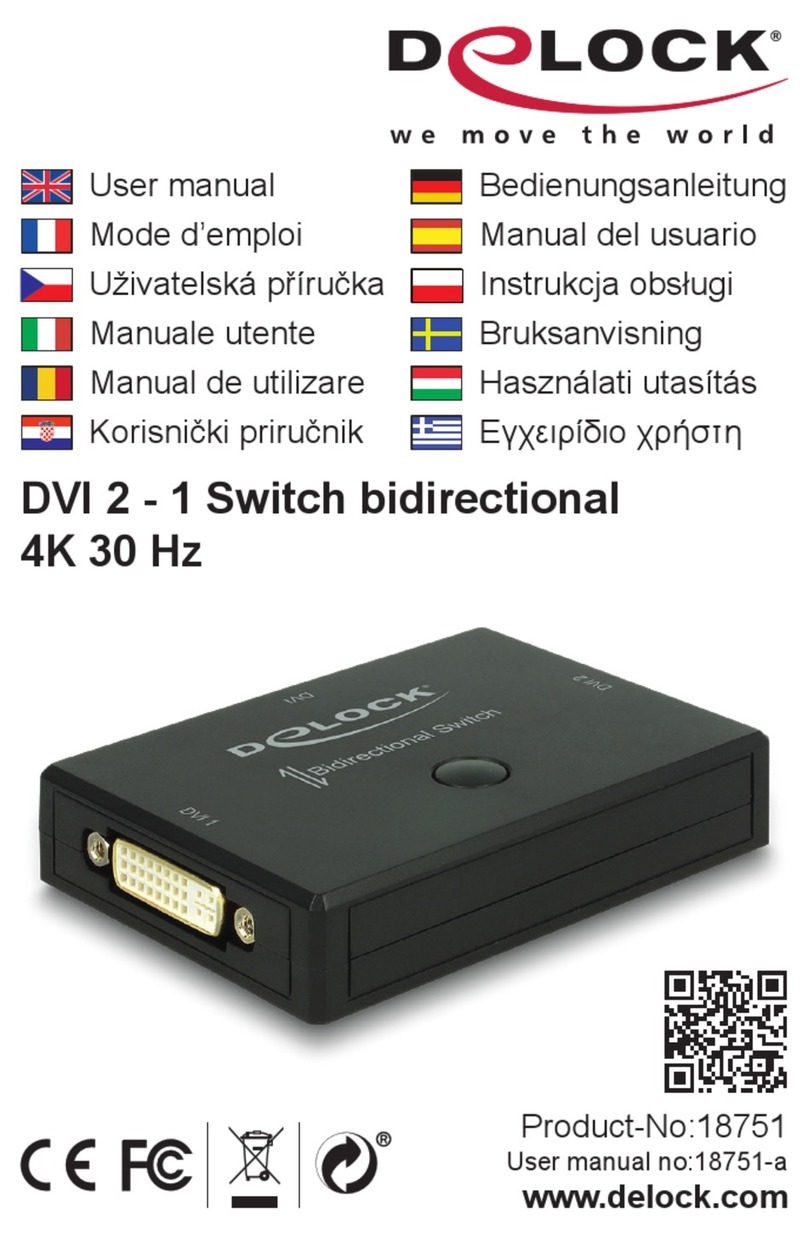
DeLOCK 18751 User manual

DeLOCK
DeLOCK 61100 User manual
DeLOCK
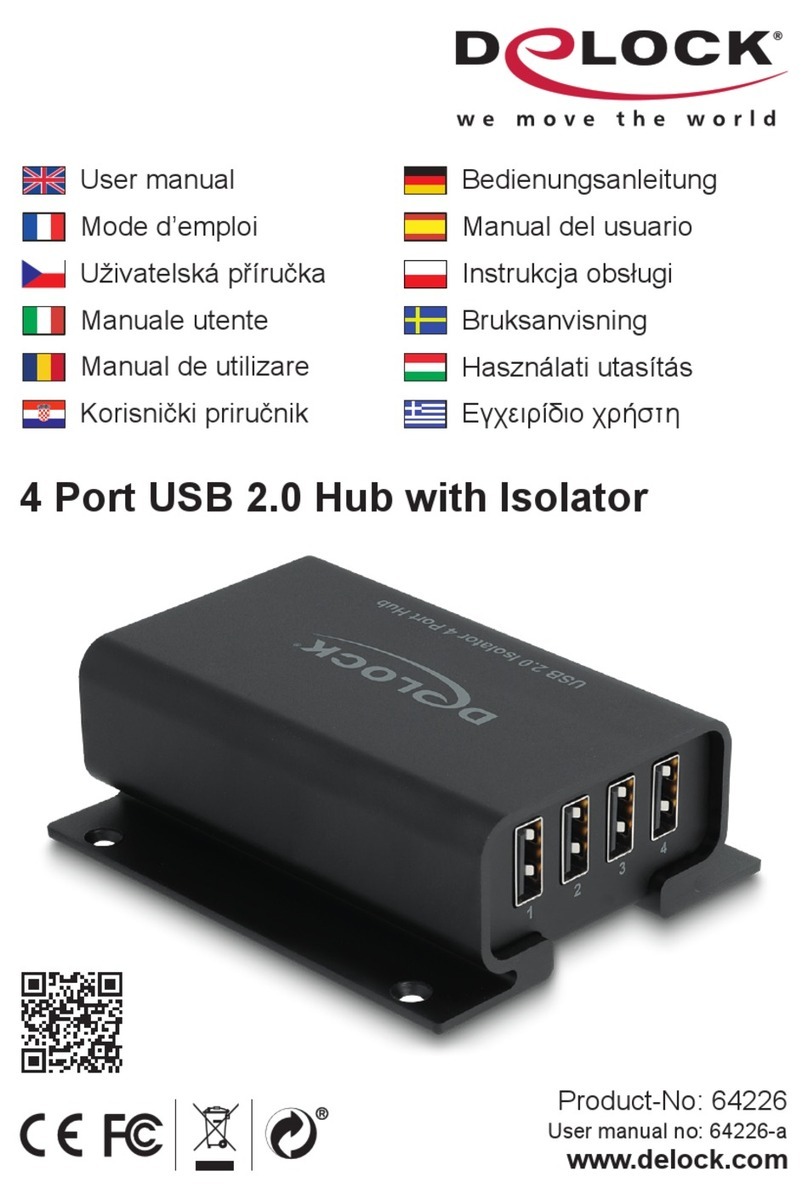
DeLOCK 64226 User manual
DeLOCK
DeLOCK 11367 User manual
DeLOCK
DeLOCK 64053 User manual
DeLOCK
DeLOCK 64157 User manual

DeLOCK
DeLOCK 64207 User manual
DeLOCK
DeLOCK 11367 User manual
DeLOCK
DeLOCK 11500 User manual

DeLOCK
DeLOCK 64155 User manual
DeLOCK
DeLOCK 18683 User manual
DeLOCK
DeLOCK 87699 User manual
DeLOCK
DeLOCK 63739 User manual
DeLOCK
DeLOCK 11826 User manual
DeLOCK
DeLOCK 87762 User manual
DeLOCK
DeLOCK 64234 User manual
DeLOCK
DeLOCK 18600 User manual
DeLOCK
DeLOCK 11482 User manual

DeLOCK
DeLOCK 11488 User manual

DeLOCK
DeLOCK 63261 User manual