D. Menu Operation
1 .Turning On/Off
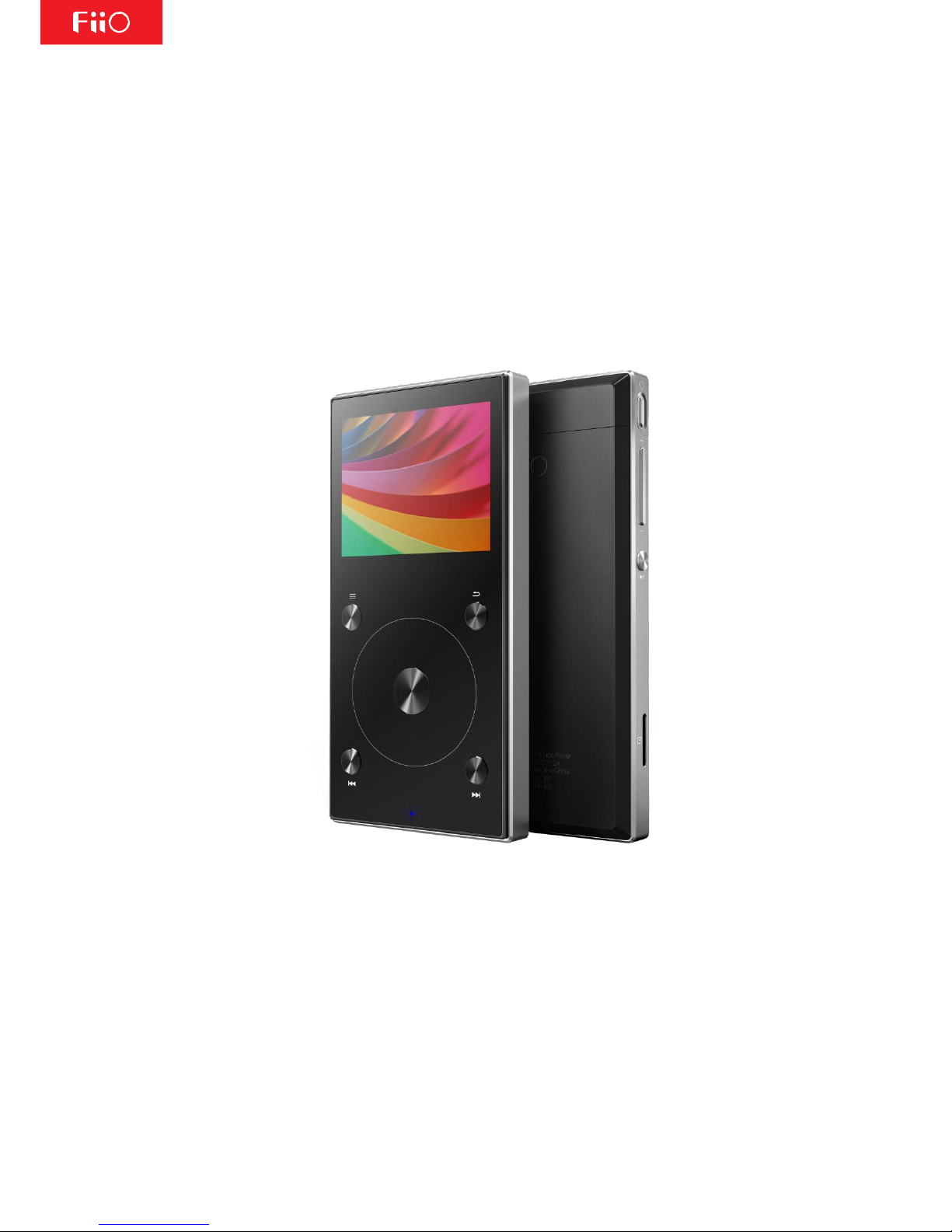
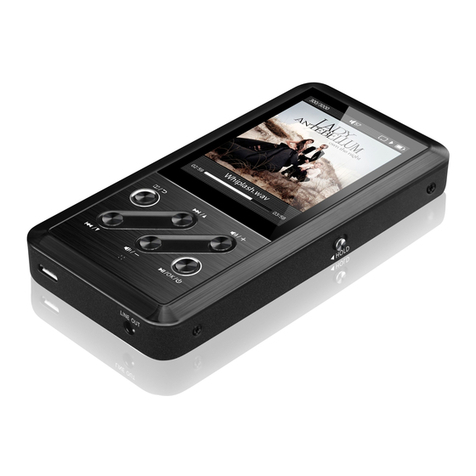
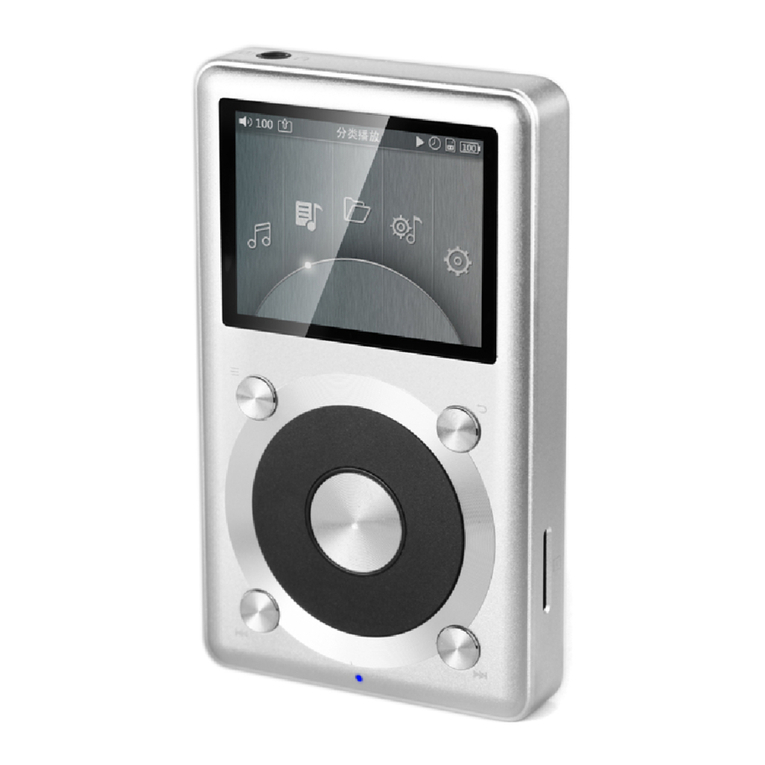
When the X3 is powered off, press and hold the power button for 2 seconds to turn it on (you will
see the language selection dialog the first time it is turned on). When the X3 is powered on, press
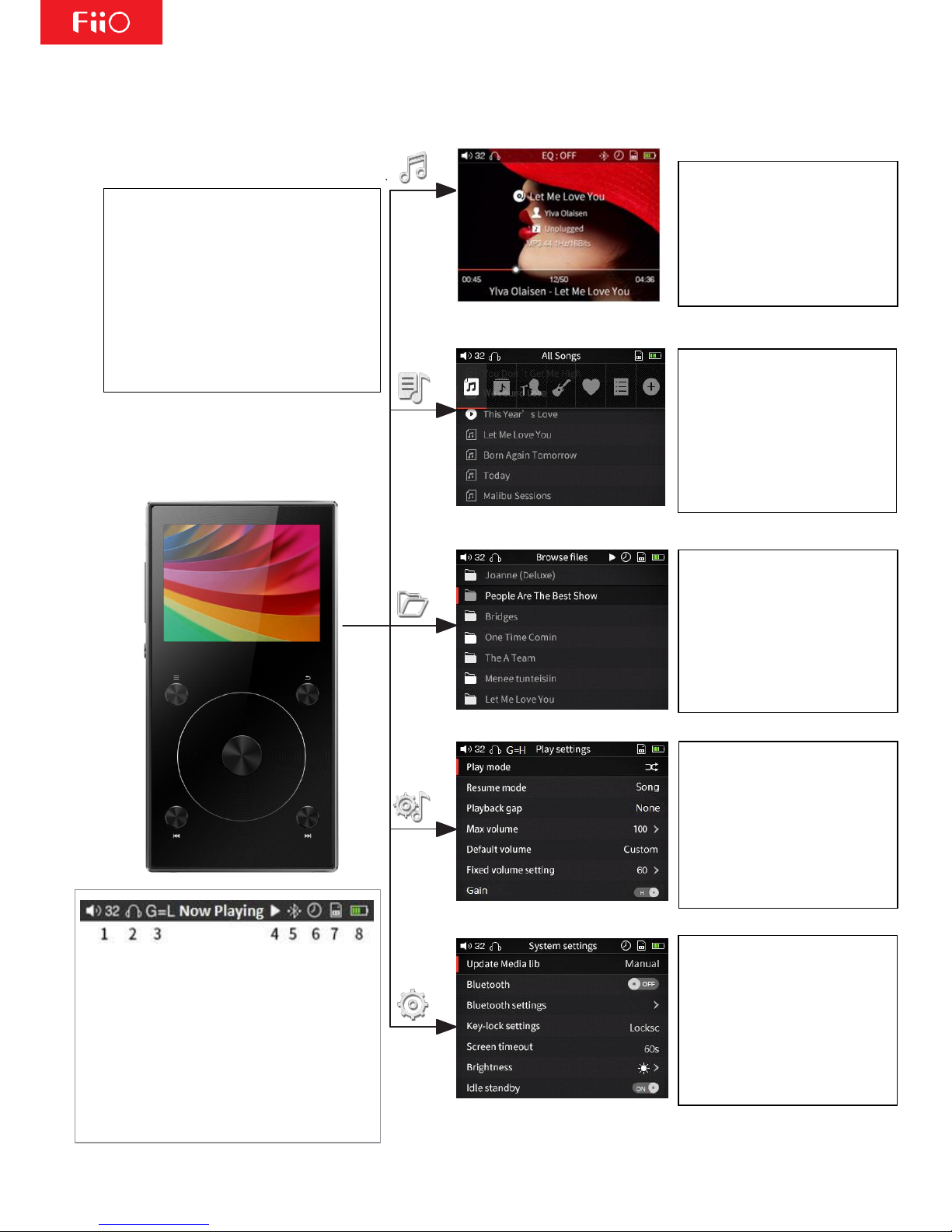
and hold the power button to turn it off. After turning on, the X3 displays the main menu. Use the
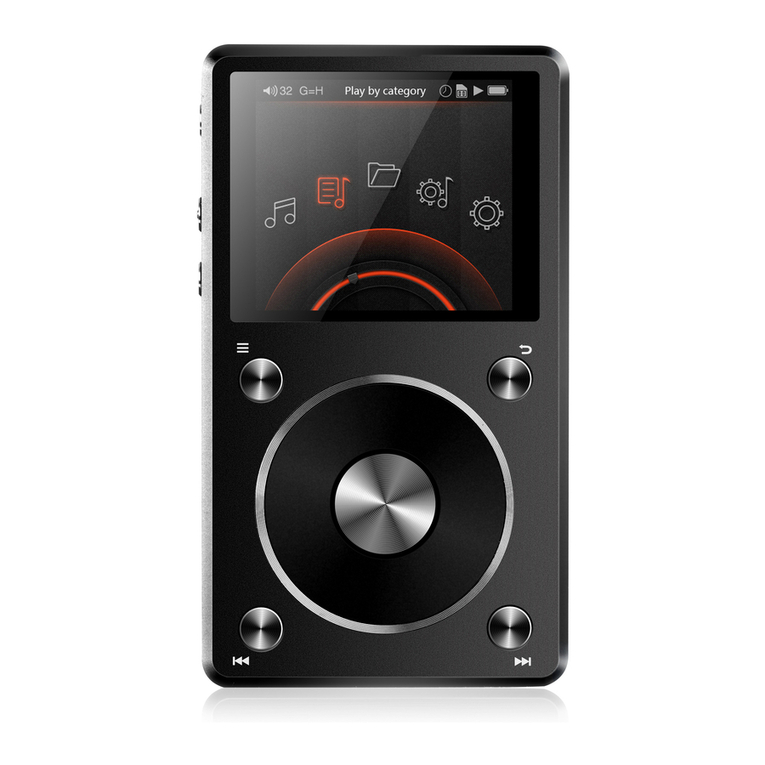
scroll wheel or Previous and Next buttons to choose between the five different options of the main
menu –Now Playing, Category, Browse Files, Play Settings, and System Settings. Press the shortcut
key while in the main menu to quickly jump to Play Settings.
2. Now Playing
When in the main menu, highlight Now Playing and press the Enter button to enter the Now Playing
screen. If no song is playing, you will be presented with a list of songs to choose from –after
selecting a song you will enter the Now Playing screen.
Note: If you do not set the X3 to automatically update the media library, you need to do so
manually in the System Settings menu.
3.Category
While in the main menu, select the Category icon and press the Enter button to get to this menu.
From here, you can use the scroll wheel or Previous/Next buttons to select from sorting by: All
Songs, Album, Artist, Genre, Favorite, Playlists, and Recently Added. Press the Enter key to go into
any of these sub-menus, where you will be presented with a list of songs sorted by your chosen
category. While in any sub-menu, pressing the Shortcuts key will allow you to quickly switch to the
other types of sorting.
Favorites need to manually added/removed through the following methods:
(1) Individually add/remove favorite songs through the shortcut context menu in the Now Playing
Screen.
(2) Batch add/remove favorite songs: To add/remove multiple favorite songs at a time, you first
need to have at least one favorite song. After doing so, you will be able to enter the Favorites sub-
menu. While here, press the Shortcuts key and select the "Add to Favorites" icon. You will be
presented with a list of songs. Use the scroll wheel to highlight between different songs. Once you
have highlighted a song, press the Next button to add it as a favorite or press the Previous button
to remove it as a favorite. Once you have finished selecting which songs to add/remove as favorites,
press the Enter button to confirm changes.
The X3 supports both externally-created (M3U and M3U8 formats) playlists as well as natively-
created playlists. To learn how to externally create playlists for the X3, please see the FiiO Support
website at http://fiio.net/en/supports/46. To directly create playlists from the X3, press the