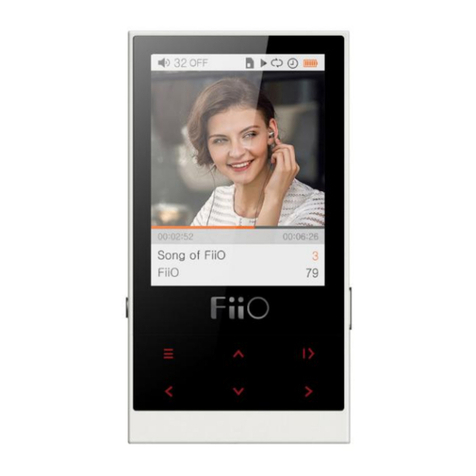
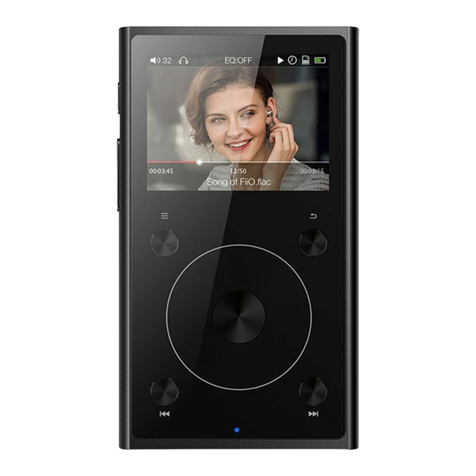
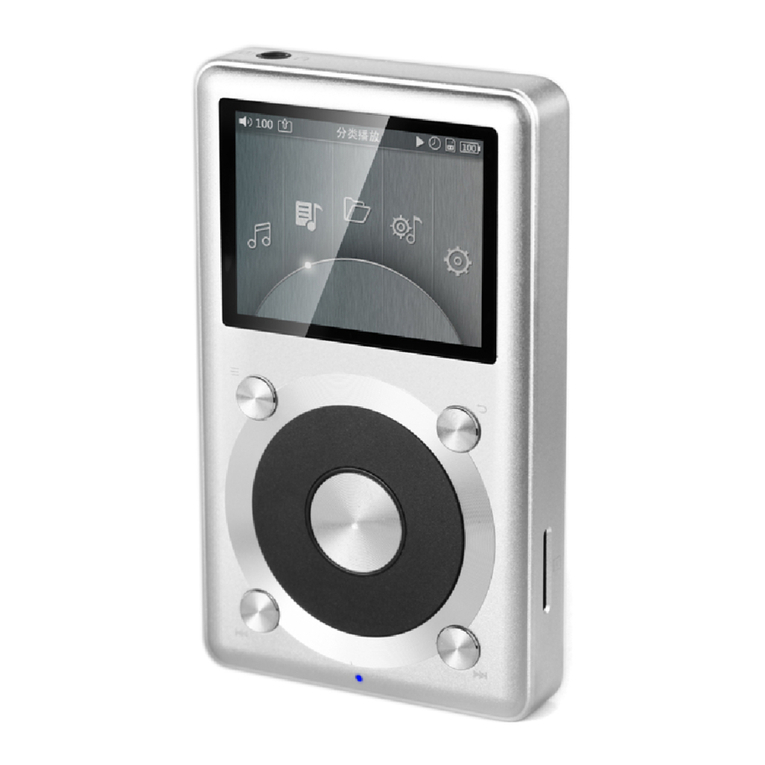
Fiio X3 User manual
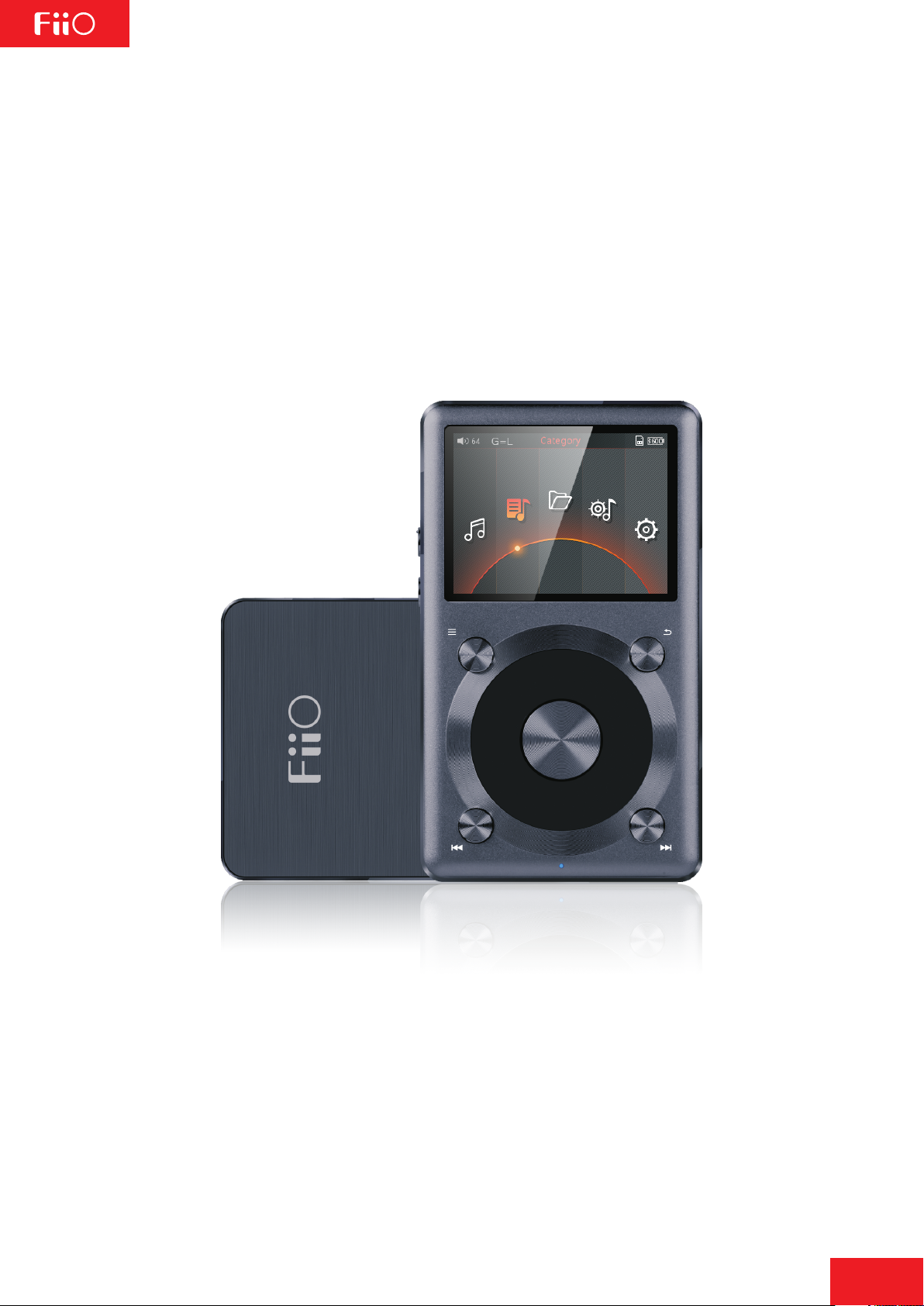
X3 Complete User Manual
(applies to FW1.0 and later)
1
Foreword:
Thank you for purchasing FiiO’s X3, our 192kHz/24bit high resolution lossless music
player. To let you better utilize the X3, we have prepared this complete user manual
and collected and answered some frequently asked questions by users. We hope this
manual will help you get to know the X3 and unleash its full potential.

2
Contents
A. Introduction 3
B. Buttons and ports introduced 3-4
C. Firmware update 5
D. Pictorial guide to menu operation 6-7
E. Menu operation 8-12
F. Tips on usage 12-13
G. FAQ on the X3 13
1) About charging 13-14
2) Transferring songs 14-15
3) Firmware upgrades
4) Storage 15-16
5) Music playback 17-18
6) Other operations 18
7) Connection with other audio equipment 19
15
………………………………....……………………………
………….…………………….
…………………….......………………………………
…......…….…………….
……………………………………………………….
……………………………………......………………
……………………………...…………………………….
…………………………………………….................………………
……………………….……………………..............……………
….………......…….……….………………………................……
………………………………………..……………………........................…….
………….......……….………………………….................…………
…………….…………………………........…....................……………
……..…..................…………………

Headphone out
13
Micro USB port
15
14
Line / Coax digital out
3
A. Introduction
B. Buttons and ports introduced
⑴Display (262k color TFT display, 320x240 pixels): Displays the user interface and other
information; for operating the unit in conjunction with buttons on the unit.
⑵Shortcuts key: press briefly to show / hide shortcuts context menu, or go to the player
settings from the main menu; when music is playing, holding down the Shortcuts key always
takes you to the “Now Playing” screen.
⑶Back / main menu: Press briefly to go back up one menu level each time until you reach
the main menu; pressing Back when you’re in the main menu when music is playing takes
you to the “Now playing” screen. Hold this button to return directly to the main menu.
⑷Up / Previous track / Rewind: In “Now Playing” screen: press briefly to select the
previous song for playback, hold down to rewind the current song;
In menus: press briefly to choose the previous item (up) in menus.
The X3 is a HiFi-class high resolution digital audio player, supporting lossy and lossless music
formats including DSD, WAV, FLAC, APE, WMA, ALAC, AAC, MP3, MP2 and ogg vorbis. A
maximum sample rate of 192kHz/64bit or 5.6MHz/1bit (DSD128) is supported and CUE sheets,
gapless playback are also supported. Other features include playing automatically through
folders and deep sleep / instant power-on. The following sections are an illustrated guide to
using the X3.
12
Display
Shortcuts: click
Now Playing screen:
hold
Charging indicator
1
4
2
Up / Prev track: click
Rewind: hold
6
OK/play/pause: click
Volume control: hold
8
Reset button
Volume -: click
Next track: hold
(Screen off)
Volume +: click
Prev track: hold
(Screen off)
Power: hold
Lockscreen: click
10
9
11
16
Micro SD
card slot
Scroll through menu /
volume control: turn
Back: click
Main menu: hold
3
5
Down/Next track:
click
Fast forward: hold
7

4
Down / Next track / Fast forward: In “Now Playing” screen: press briefly to select the next
song for playback, hold down to fast forward through the current song;
In menus: press briefly to choose the next item (down) in menus.
OK/Play/Pause/Volume adjustment:
In“Now Playing” screen: press briefly to play / pause;
In menus: press briefly to enter the submenu of the selected item, adjust the level / value /
choice of the selected item (using the scroll wheel for items with numerical value or many
choices, or alternating between choices using the OK button directly for other items);
In other dialogs: press briefly to confirm actions (press other buttons to cancel);
Volume control: Hold down this button at any time to pop up the volume control dialog and
adjust the volume using the scroll wheel.
Scroll wheel: Freely rotatable (360° rotation), turn the wheel clockwise to scroll down / right,
choose the next item on the menu or adjust the level / value / choice etc. for the selected menu
item; turn the wheel counter-clockwise to scroll up / left, choose the previous item on the menu
or adjust the level / value / choice etc. for the selected menu item in the other direction.
Indicator light: blue while working, red while charging, green when fully charged.
Volume “+” volume “-” : press briefly to change volume by one increment, hold down
to change volume continuously until the maximum volume (“+” button) is reached or the
player is muted (“-” button)
RESET button:
Push this button with a thin rod to reset and reboot the X3 in case of system error.
Power/Lock button: When the unit is powered off, hold the button for two seconds and
release it and the X3will power on (after a brief pause); when the unit is on, press the button
briefly to lock / unlock the player, or hold the button for three seconds to power off (hold for
ten seconds for a forced shutdown).
Headphone out: Headphone out supports CTIA standard (e.g. Apple, Samsung) in-line
headphone control, with operation as follows:
Play/Pause: Single-click the middle button on the headphone controller to pause, single-click
again to play.
Next song: Double-click the middle button quickly.
Previous song: Click the middle button for three times quickly.
Fast-forward: Double-click the middle button quickly and hold down the last click, release to
continue playback.
Rewind: Click the middle button for three times quickly and hold down the last click, release to
continue playback.
Line/coax digital out: line out and coaxial digital output share the same output
port—switch between the two using the “Multifunctional outputs” setting under the System
Settings menu.
Micro USB port (11 pin):
for data exchanging, battery charging and connection to docking FiiO devices.
Micro SD card slot:
standard micro SD card slot, supporting micro SD cards up to 128GB currently.
⑸
⑹
⑺
⑻
⑼ ⑽
⑾
⑿
⒀
⒁
⒂
⒃
5
updating... update success
C. Firmware update
experience; not upgrading to the latest firmware does not affect current operation of the unit.
The unit supports firmware upgrades via update files loaded into micro SD cards.
To check the current firmware version:
From the main menu, navigate to System Settings->About X3 to see the current firmware
version loaded on your X3.
•A micro SD card formatted in FAT32 is required for firmware updates. This may be obtained
by formatting a card using the X3’s built in formatting function (System settings ->Storage
formatting). CAUTION: all data and music on a card will be erased by formatting.
•A firmware update should not affect data on the micro SD card (other than any formatting
required, see above). Nevertheless, please back up any important data on your card to protect
against accidents.
•Make sure the X3 is adequately charged (preferably fully charged) for the update process to
prevent power failure during the update;
•Do not operate other buttons and dials on the player during the update process.
•If the update process fails, hold the power button for 6 seconds for a forced shutdown and
turn the player on in update mode again to resume the update.
Summary of micro SD card upgrade procedure:
1.Copy the X3II.fw file provided by FiiO into the root directory of a micro SD card in FAT32 format;
2.Turn off the X3 and insert the card into the slotof the X3 (if not already inserted);
3.Hold the power button while holding the Shortcuts key (upper left key of the X keygroup) to
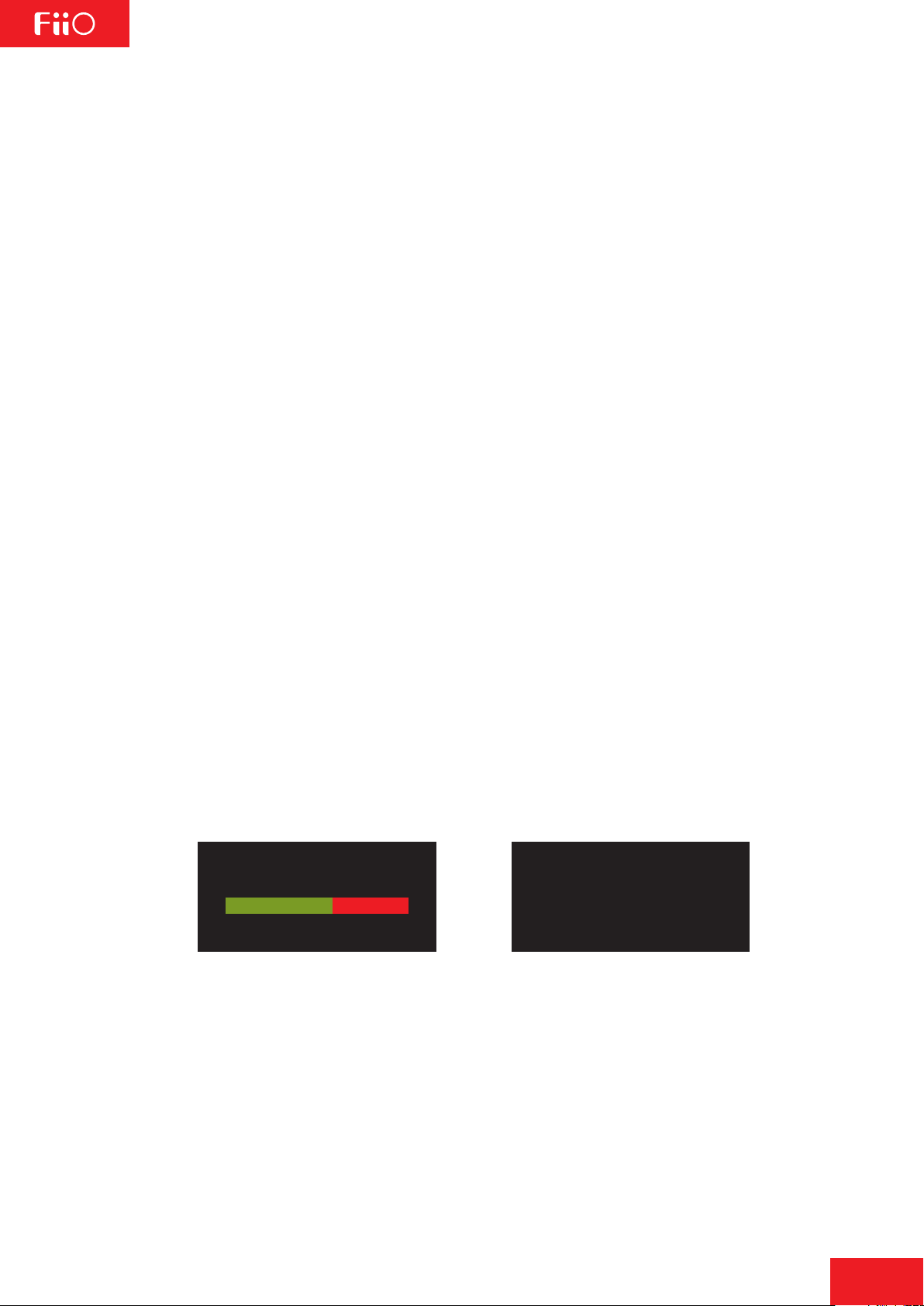
turn on the X3 in firmware update mode. The following firmware update dialogs will appear
and after the update is complete, the player will restart automatically.
•After the update process is complete, please delete the X3II.fw file from the micro SD card
and update the media library.
Firmware updates may update the player with new features and optimize the playback
Improper
operation during firmware updates may cause the unit to malfunction! Please read the
following instructions for firmware updates carefully before proceeding.
Preparations / Precautions before firmware update:
Firmware update in progress Update successful
In case of firmware update failure:
•If “update file not found” is shown, please check to make sure that the micro SD card is
formatted in FAT32 and that the X3II.fw file within the firmware update package was extracted
and placed in the root directory of the card (e.g. by dragging the file directly onto the drive
icon of the card on your computer).
•Otherwise, if the update process fails and error messages are shown, please hold the power
button for 6 seconds for a forced shutdown and turn the player on in update mode again to
resume the update.
•If the update process fails repeatedly, please try putting the X3II.fw file in a micro SD card
of 32GB or under, formatted using the X3’s built in formatting function (System settings
->Storage formatting). CAUTION: all data and music on a card will be erased by formatting.

Idle standby
Idle standby timer
6
1 2 34567
Play settings
(no submenu):
Adjust directly using
Prev/Next/OK keys
(with submenu):
Press OK and adjust
using scroll wheel
System settings
(no submenu):
Adjust directly using
Prev/Next/OK keys
(with submenu):
Press OK and adjust
using scroll wheel
Guide to status bar:
1.Current volume
2.Gain (Low / High)
3.Current UI page label
4.Now Playing sign
5.Sleep timer set
6.Micro SD card status
7.Battery indicator
D.Pictorial guide to menu operation
1. Main menu
Buttons and dial explained:
Scroll wheel: scrolls through menu items,
changes value of selected item
OK / Confirm / Play / Pause:
Enters next menu level, selects item for
adjustment, stores changes
Shortcuts key:
shows / hides shortcuts context menu
Back button: go back up one menu level
Up / Prev track | Down / Next track:
moves through menu items, changes value
of selected item
Browse Files
Displays all the folders
and subfolders in the
TF card, and all audio
files in each folder; use
scroll wheel to choose
between folders/songs,
OK to select, Back
button to go up to
parent directory
Category: After updating
the media library, music
files will be automatically
classified according to
their ID3 tags; scroll
tochoose between
selecting from all songs,
albums, artists or genres
to play; songs may be
manually added /
removed from Favorites
and Playlists
Now Playing
Shortcuts key shows
/ hides shortcuts
context menu;
navigate and select
shortcuts menu items
using scroll wheel
and OK key
All Songs
All Songs
EQ:OFF
TF Card

EQ:OFF
EQ:OFF
EQ:OFF
7
2. Now playing
Cover
Lyrics
Press the
shortcuts key briefly
3. Lockscreen settings
Lockscreen 1: Lockscreen
mode 1 locks all keys except
the power / lock button and
volume buttons while the
player is locked; at this time,
press the volume button
briefly to adjust volume, or
hold to change tracks.
Lockscreen 2: In Lockscreen
mode 2, the power / lock
button, volume buttons and
OK (Pause) button are usable
while the player is locked; at
this time, press the volume
button briefly to adjust
volume, or hold to change
tracks.
Lockscreen 3: In lockscreen
mode 3, the volume keys,
OK (Pause), Previous and
Next buttons as well as the
power / lock button are
usable while the player is
locked; at this time, press the
volume button briefly to
adjust volume, or hold to
change tracks.
Add or remove from favorites
Add to playlist
Select between loop all, loop single song,
sequential and shuffle play modes respectively
Delete current song
Use the scroll wheel or the“Previous”“Next”buttons below
the scroll wheel to choose between menu options

8
E. Menu operation (detailed)
1. Powering on and off
Hold down the power button for two seconds and release it to turn on the X3 (language
selection dialog would appear the first time the X3 is powered on);While the X3 is powered
on, hold down the power button for 2 seconds to turn off the player.
The X3 enters the main menu after it is powered on; use the scroll wheel or the Previous and
Next buttons to choose between Now Playing, Category, Browse Files, Play settings and
System settings; press the Shortcuts key to enter Play settings directly.
2.Now Playing
While in the main menu, turn the scroll wheel to choose Now Playing and press OK. If no song
is currently playing you will be shown a list of songs to choose from*. Use the scroll wheel
and OK button to select a song and enter the Now Playing interface. *Note: songs list only
appears after you have updated the media library.
a) Press the Shortcuts key briefly to pop up the shortcuts context menu; turn the scroll wheel
or press the Previous or Next key to choose between shortcut menu items and press OK to
apply the action, such as adding or removing the song from Favorites, changing play order
or deleting the song.
b)Turn the scroll wheel in the Now Playing screen to pop up a list of songs before and after
the current playing song. Turn the scroll wheel to choose between songs, press OK to select
and start playing the new song.
3. Category
While in the main menu, turn the scroll wheel to choose Category and press OK. Use the
scroll wheel or the Previous and Next buttons to choose betweenAll Songs, Album, Artist,
Genre and Favorites. Turn the scroll wheel or press the Previous and Next buttons to choose
between the above and press OK to enter the chosen categorized listing. When in one
category directory, press the Shortcuts key to switch to other categories.
Add or remove favorites by
1) The Favorites button in the shortcuts context menu in the Now Playing screen
(to add/remove the current song from the list);
2) Entering Favorites from the main menu. Press the Shortcuts key to batch add or remove
songs (press OK to select and enter the songs list); use the scroll wheel to select a song,
Previous or Next to add/remove a song from the list, and finally press OK to save changes.
External M3U / M3U8 playlists and internal playlists are supported. The method of external
playlist creation is detailed on http://fiio.me/forum.php?mod=viewthread&tid=40017
To create internal playlists and add songs to internal playlists: while playing a song, go to the
Now Playing screen and press the Shortcuts key and choose the [+] icon and press OK.
Follow the onscreen prompts to create a new playlist or add the current song to an existing
playlist.

9
4. Browse Files
Turn the scroll wheel to select “Browse Files” and press OK to browse the music files
contained in the micro SD card (“TF card not found” would pop up if there is no micro SD
card inserted) or any external storage connected to the X3 via USB OTG connection (“OTG”).
Turn the scroll wheel to select between items, press OK on a song to play it or press OK on a
folder to enter the folder.
5.Play settings
Turn the scroll wheel to choose between menu items and use the Previous, Next or OK key to
choose between options on the chosen menu item. On items with a submenu
(indicated by “>”), press OK to enter the submenu.
1) Play mode
Four play modes are available: sequential (plays to the end of the list and stops), loop all, loop
single song and shuffle.
2) Resume mode
Controls where the X3 starts playing from when it is switched off and switched back on.
Off: no memory of the last song played when X3 is switched off.
Song: resumes playback from the start of the last song played when the X3 was switched off.
Position: resumes playback from the last position on the timeline of the last song played when
the X3 was switched off.
3) Gapless playback
Turn this on to play e.g. a live performance divided into several tracks without breaks in
between tracks.
4) Max volume
To protect your headphones and your hearing, the max volume can be limited to a value between
30 and 120 (unlimited maximum is 120). Press OK to show the adjustment submenu, turn the
scroll wheel to adjust the limit value and press OK to store the change.
5) Default volume
Memory: recalls the volume set when the player was powered off.
Custom: always powers on the player at the volume defined in “Fixed volume setting”.
Fixed volume setting: adjustable only when “Power on volume” is set to“Custom”. Press OK
to show the adjustment submenu, turn the scroll wheel to change the power-on volume setting
and press OK again to store the change.
6) Gain
There are Low and High gain settings available. Low gain may be selected to extend battery life
under usual operating conditions; High gain may be selected to drive low-efficiency /
high-impedance headphones more fully to obtain further musical enjoyment.
7) Equalizer
There are several preset equalizer settings as well as a custom setting available. All presets as
well as the custom setting are editable. Press the previous and next keys to switch between
presets (Off, Rock, Classical, Jazz, Pop, Dance, Vocal, Blues, Metal and Custom). Press OK to
enter editing mode (arrow will appear above one of the EQ bands), turn the scroll wheel to
choose between different frequency bands, press OK to select a frequency band for editing and
turn the scroll wheel to adjust the frequency band up or down, and then press OK to store the
change and use the scroll wheel to choose another frequency band for editing. Press the back
button to store changes / exit to EQ band selection / preset selection.

10
8) Balance
Press OK to adjust balance with scroll wheel (press OK to store change). The adjustment range
is between +5dB to left channel and +5dB to right channel.
9) Play through folders
While playing songs selected via Browse Files, if “Play through folders” is turned on and the
last song in a folder is reached, the first song in the next folder (as shown in Browse Files) will
be played next; if said folder contains subfolders, songs in those subfolders would also be
played.
6. System settings
While in the main menu, turn the scroll wheel to choose System settings and press OK. Turn the
scroll wheel to choose between menu items and use the Previous, Next or OK key to choose
between options on the chosen menu item. On items with a submenu (indicated by “>”),
press OK to enter the submenu.
1) Update media lib
The Media Library needs to be updated for songs to be shown in “Category”.Press the
Previous and Next keys to choose between:Manual: updates the media library only when you
press OK on“Update Media lib”;
Auto: updates the media library automatically each time after the X3 was connected to a
computer or mass storage or micro SD card was inserted /removed.Updating the Media Library
takes a considerable amount of time for a large library of songs; the screen will show the
progress in terms of number of songs scanned and finally report on the total number of songs
scanned. Please do not press any buttons during the update process.
2) Key-lock settings
The keys may be locked (and the screen turned off) via a brief press of the power button (or
programmable automatic screen timeout) to prevent accidental operation when e.g. the player
is not held in your hand.Press OK to enter the Key-lock settings submenu and choose between
lockscreen modes 1, mode 2 and mode 3. As shown by the corresponding illustration
onscreen: Lockscreen mode 1 locks all keys except the power / lock button and volume buttons
while the player is locked; in Lockscreen mode 2, the power / lock button, volume buttons and
OK (Pause) button are usable; while in lockscreen mode 3, the volume keys, OK (Pause),
Previous and Next buttons as well as the power / lock button are usable.
Note: while screen is locked, press the volume button briefly to adjust volume, and hold
volume button to change tracks.
3) Screen timeout
The player turns off the screen and locks the keys automatically after the set delay when no
buttons have been pressed and the scroll wheel hasn’t been turned, whether or not songs
are playing. The set delay can be set between 30s, 40s, 50, 60s, 90s, 120 and never (always on).
Press OK on this menu item to pop out the setting dial and turn the scroll wheel to change
the setting.
4) Brightness
Press OK to adjust the brightness (adjustable in 10 steps) using the scroll wheel
and press OK again to store the change.
Other manuals for X3
5
Table of contents
Other Fiio MP3 Player manuals