6
Enroll users, manage user data and
input workcode.
Setup FingerTec terminal’s commu-
nication with computer through LAN,
RS232 and RS485. Set security pass-
word of the device for a secure data
transfer.
Configure the settings of the Fin-
gerTec terminals from general to dis-
play setting to fingerprint. Data man-
agement, update via USB flash disk,
keyboard functions, reset and other
terminal settings can be done here.
Adjust the date and time settings of
the terminal.
Upload and download data and
information to and from the Fin-
gerTec terminal using a USB flash
disk.
Run tests on the FingerTec termi-
nal to diagnose the terminal on
various aspects.
Check user attendance and trans-
action logs that are available in
FingerTec terminals and perform
housekeeping of the machine.
View free and used memory of the
terminal as well as the terminal’s
details in system information.
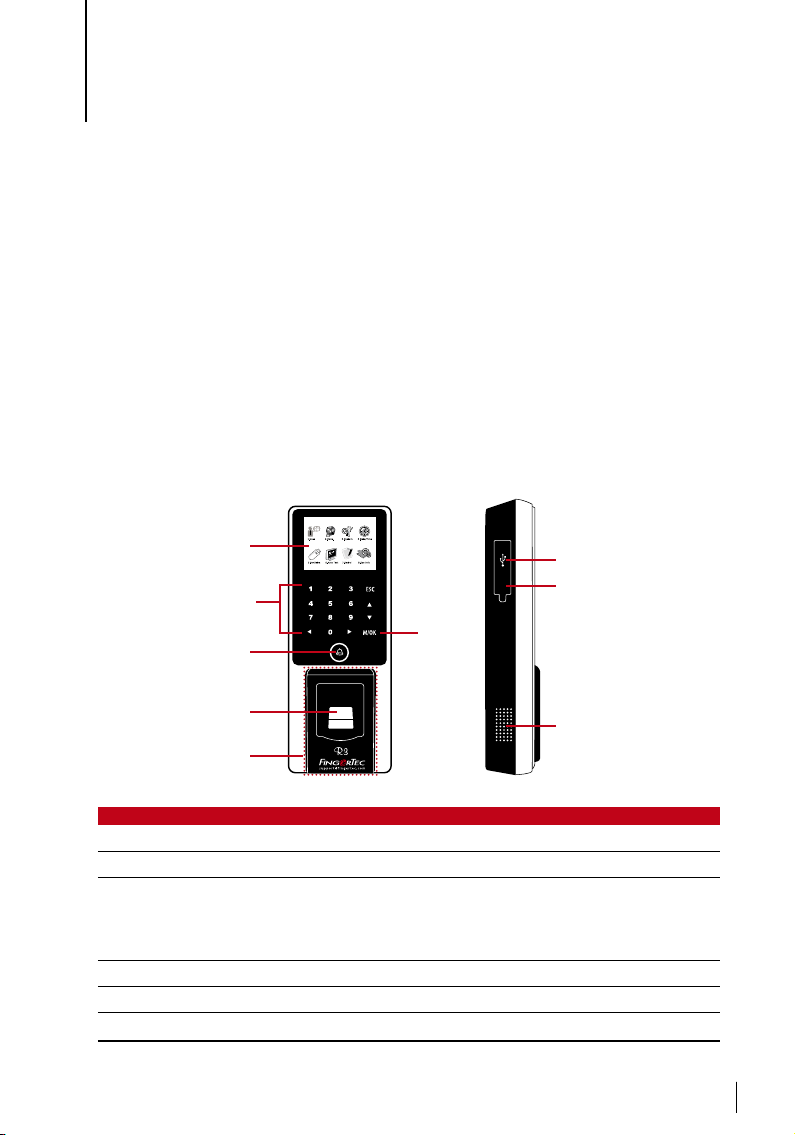
ITEM FUNCTION
USB Port To upload/download users information, password and transaction
logs via USB disk.
Reset Button To restart the terminal as and when required.
Speaker For terminal voice emission.
Main Menu
Battery
FingerTec terminals operate using power supply from a standard power outlet. In-
side each terminal, there is an RTC battery to keep the clock of the terminal running.
When there is a serious delay in time or the clock of the terminal reverts to 00:00 after
restarting, this indicates that the RTC needs to be replaced.
External power supply: Mini UPS (uninterrupted power supply) 12V provides mobile
power supply to the terminals. Charge the mini UPS sufficiently for optimum per-
formance. Refer to http://accessory.fingertec.com for more information about acces-
sories.
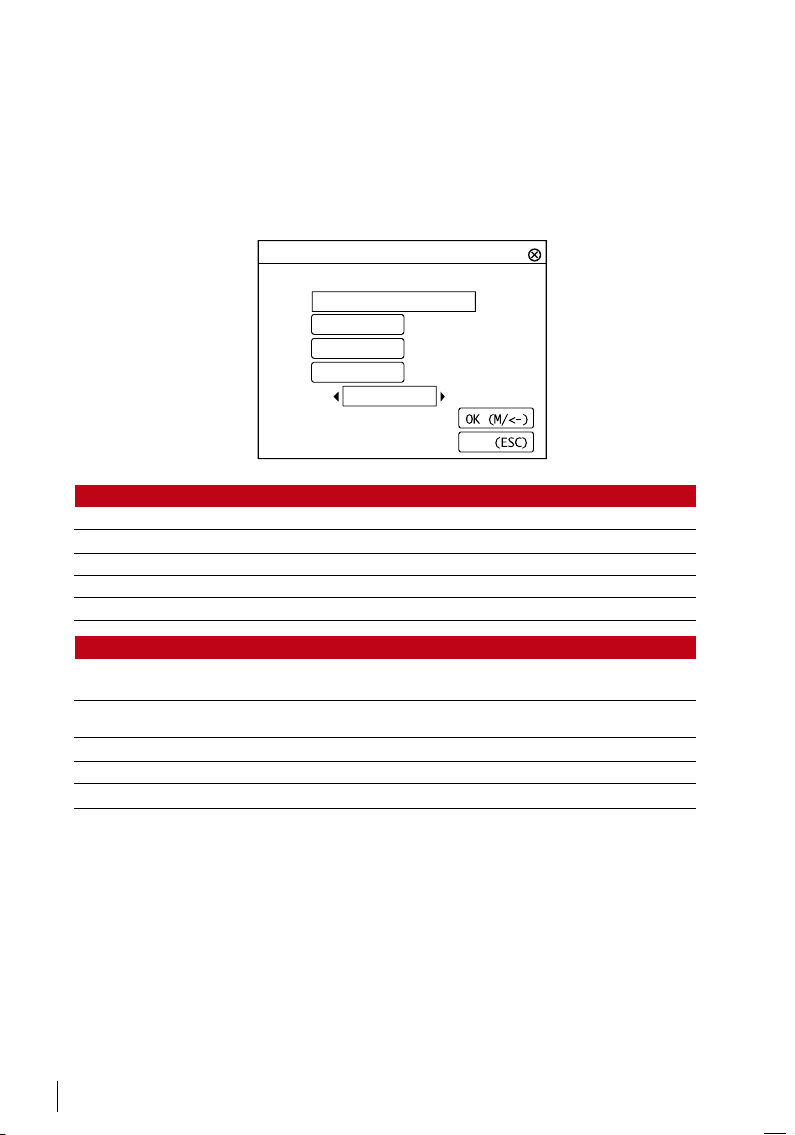
Date/Time
The terminals display the date and time at the home screen. Choose the date and
time format based on your preference. Press Menu > Date/Time > Select Value > OK
to save.
Voice Control
Voice Control lets you control the level of volume emitted by the terminal.