FA1010-SETUPGUIDE-E-1.DOCX
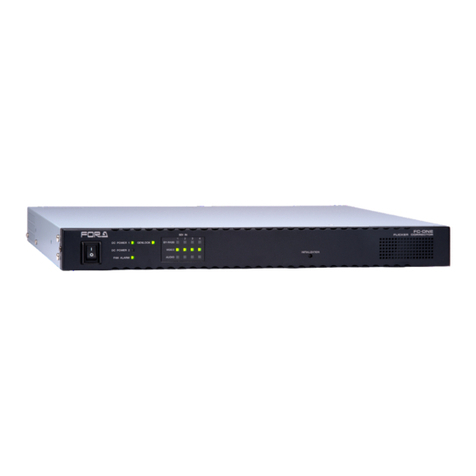
FA-1010
Quick Setup Guide
FA-1010: 1, Quick Setup Guide: 1, CD-ROM: 1 (Windows GUI installation
disc including Operation Manuals (PDF)), AC cord: 1, AC cord retaining clip:
1 set, Rack mount bracket set: 1set
Option items: FA-10AES-BL, FA-10AES-UBL, FA-10AES-UBLC, FA-10PS,
FA-10GPI, GA-10ANA-AUD, FA-10RU, FA-AUX30
Precautions
⚫Operate the unit only at the specified supply voltage.
⚫Ensure the unit is properly grounded at all times.
⚫Ensure the power cord and connectors are firmly connected.
⚫Do not access circuitry with power applied to the unit.
⚫Unit should not be operated or stored with the cover, panels, and/or casing removed.
⚫Unit should not be operated or stored in a humid, dusty, etc. environment. Doing so could
result in fire or electrical shock.
⚫Do not allow fluids, metal fragments, or any other foreign objects to enter the unit. If foreign
matter does enter the unit, turn the power off and disconnect the power cord immediately.
Remove the material or contact your authorized service representative
⚫If you notice any strange smells or noises coming from the unit, turn the power off
immediately, turn OFF the power switch, disconnect the power cord, then contact your
authorized service representative.
3. Front Panel Indicators
All setting data will initialize. Back up before executing a reinitialization.
FA-1010
FRAME SYNCHRONIZER
INITIALIZATION
OPTIONSLOT
A B C D
INSTALL
VIDEO IN
AUDIOIN
BY-PASS
VIDEO
AUDIO
1 2 3 4 5 6 7 8 9 10
DC POWER 1 GENLOCK
DC POWER 2
FANALARM LTCIN
SDI IN
Used to turn the unit ON / OFF.
A power failure has occurred.
All fans are operating normally.
One or more fans have failed.
Genlock signal input is present.
No genlock signal input is present.
Input signal is being bypassed.
No signal is being bypassed.
Video signal input is present.
No video signal input is present.
Embedded audio signal is present.
No embedded audio signal is present.
OPTION SLOT
status indicator
One or more option cards are found and
recognized in option slots A to D.
No option card is installed or recognized.
Video signal input(s) is/are present in
option slot(s).
No video signal input in option slots.
Audio signal input(s) is/are present in
option slot(s).
No audio signal input in option slots.
Used to reinitialize the unit. Read the WARNING below before proceding.
To reinitialize the unit, turn the unit on while holding down the
INITIALIZATION button. Continue pressing the button until all LEDs that
light together at startup indicate their current status.
Installing the AC Cord Retaining Clip
After connecting the AC cord, secure the AC cord with
the supplied ladder strap/retaining clip assembly to
prevent accidental removal from the FA-1010.
Be sure to install the AC cord retaining clip before
mounting the unit into a rack.
1) Wrap the retaining clip around the AC cord. (with the
anchor of the ladder strap toward the unit.)
2) Insert the anchor into the hole next to the AC IN
socket.
3) Lightly fasten the clip around the AC cord.
4) Plug in the power cord.
5) Slide the clip on the ladder strap toward the plug.
6) Fasten the clip tightly.
7) Gently pull on the AC cord to ensure it is secured.
The procedure is shown numbered in the above figure.
1Apply DC power to the FA-1010 using the supplied AC cord. Secure the cord with the
supplied AC cord retaining clip.
Ground the unit for your safety.
2Connect monitors and/or recorders to the SDI OUT connectors.
3Connect signal source devices such as video cameras and/or switchers, to the SDI IN
connectors.
4Connect a PC to be used for remote control to the FA-1010 LAN connector using a LAN
cable.
5Turn the power of the FA-1010 on. When the FA-1010 is powered on, all LEDs on the
front panel, including Alarm indicators light. Once startup is complete, current status will
be indicated.
Complete connections before turning the power of the unit on.
After a setting change, do not turn the unit power off for at least 10 seconds.
The setting data may otherwise not save properly.
<Control System Selection>
The FA-1010 offers you 2 control systems allowing you to choose in different situations.
・Windows GUI
- Enables full control over the FA-1010
- Quicker response compare to the Web GUI
・Web GUI
- Easy operation on tablet PC or PC
- No space required
1. Connection and System Configuration
Check your received items against
the packing lists. Check to ensure
no damage has occurred during
shipment. If damage has occurred,
or items are missing, inform your
supplier immediately.
6Change the PC network settings for the connection with the FA-1010.
Go to Local Area Connection > General > Internet Protocol
(TCP/IP) > General > Properties, then set the IP address and
Subnet mask to match that of the FA-1010.
192.168.0.xxx (xxx is any number from 1 to 254
except for the number set for the FA-1010 unit
and gateway number.)
*192.168.0.10 is the default IP address.
<To start up Windows GUI>
7Install the software, FA-1010 GUI.
Open the CD-ROM, and the FA-1010GUI folder. Double-click the
Setup icon to start the setup wizard.
Once the GUI starts up and a GUI page opens, enter the FA-1010 IP
address to register the unit. Click a number under Select to select a
unit, then click Connect to establish a connection with the FA-1010.
<To start up Web GUI>
7Start a web browser on the PC.
Enter the FA-1010 IP address into the web browser address bar.
You can download manuals and other documents by registering your email address.
AC100-240V 50/60Hz IN 1
GENLOCKIN
SER.NO.
OUT10IN 10OUT 9
D
IN 9OUT 8IN8OUT 7IN7OUT 6IN 6
C
3G / HD/ SD - SDI
OUT 5
B
IN 5OUT 4IN 4OUT 3IN 3
A
OUT 2IN 2OUT 1IN 1
LTCIN / OUT
LAN
AC100-240V 50/60Hz IN 2
GENLOCK IN
External reference
signal input
3G/HD/SD-SDI input and output connectors.
Alternate Input and output allocation. Bypass
outputs signal input (left) to the right of each
input/output connector pair.
Windows GUI
- Full control
- Quicker response
Monitors, recorders, etc.
GENLOCK IN
Loop-through
(Terminate at
75Ωwhen not
in use.)
Web GUI in mobile
terminal
- Easy operation
- Partial control