manuals.online logo
Brands
  1. Home
  2. •
  3. Brands
  4. •
  5. FOR-A
  6. •
  7. Switch
  8. •
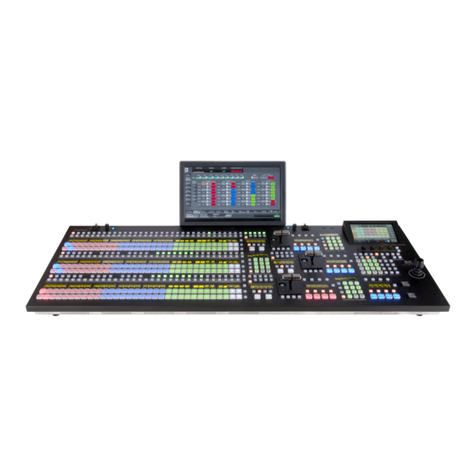
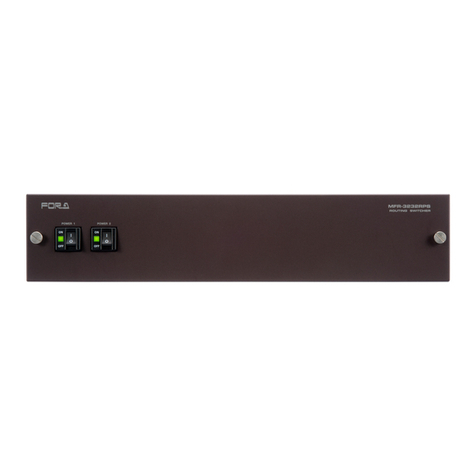
  9. FOR-A MFR-3232 User manual

FOR-A MFR-3232 User manual

This manual suits for next models

6

Other FOR-A Switch manuals

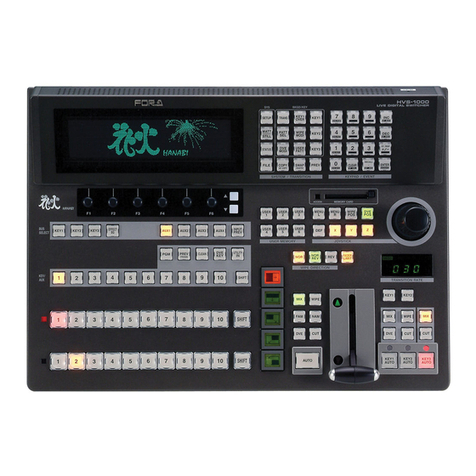
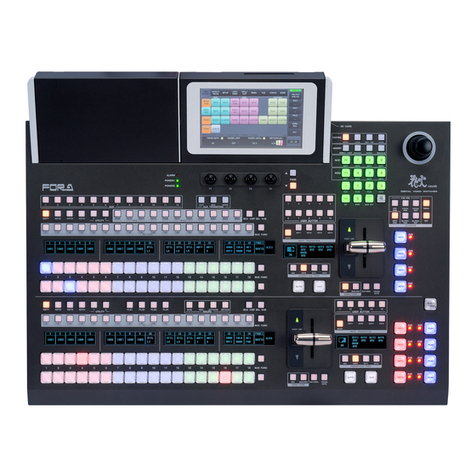
FOR-A HVS-6000 User manual

FOR-A

FOR-A HVS-6000 User manual

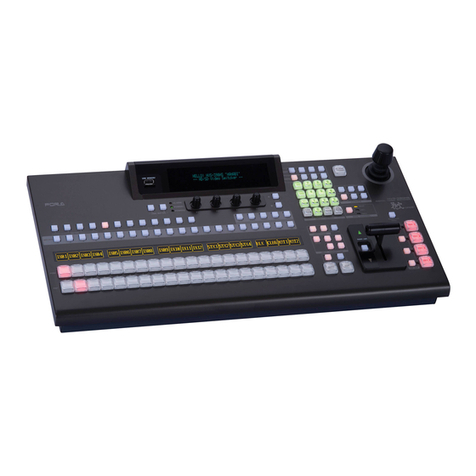
FOR-A HVS-490 User manual

FOR-A

FOR-A HVS-490 User manual

FOR-A MFR-3100EX User manual

FOR-A

FOR-A MFR-3100EX User manual

FOR-A VSF-6496 User manual

FOR-A

FOR-A VSF-6496 User manual

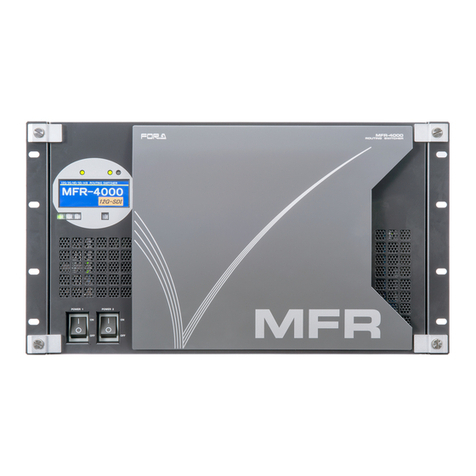
FOR-A MFR-4000 User manual

FOR-A

FOR-A MFR-4000 User manual

FOR-A HVS-3800HS User manual

FOR-A

FOR-A HVS-3800HS User manual

FOR-A RS-HD808 User manual

FOR-A

FOR-A RS-HD808 User manual

FOR-A Multi Viewer MV-40F(A) User manual

FOR-A

FOR-A Multi Viewer MV-40F(A) User manual

FOR-A MFR-6100 User manual

FOR-A

FOR-A MFR-6100 User manual

FOR-A MFR-3000 User manual

FOR-A

FOR-A MFR-3000 User manual

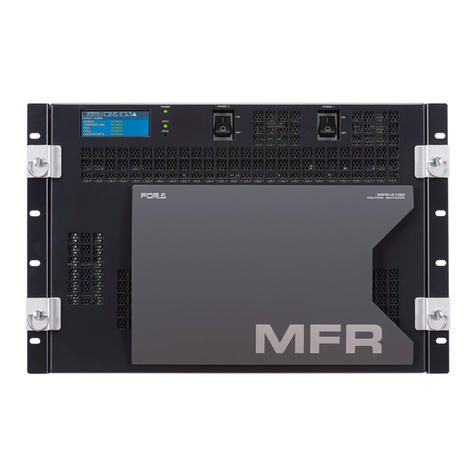
FOR-A MFR-4100 User manual

FOR-A

FOR-A MFR-4100 User manual

FOR-A MFR-6100 User manual

FOR-A

FOR-A MFR-6100 User manual

FOR-A HVS-190S User manual

FOR-A

FOR-A HVS-190S User manual

FOR-A MFR-1616 Installation manual

FOR-A

FOR-A MFR-1616 Installation manual

FOR-A MFR Series User manual

FOR-A

FOR-A MFR Series User manual

FOR-A HVS-6000 User manual

FOR-A

FOR-A HVS-6000 User manual

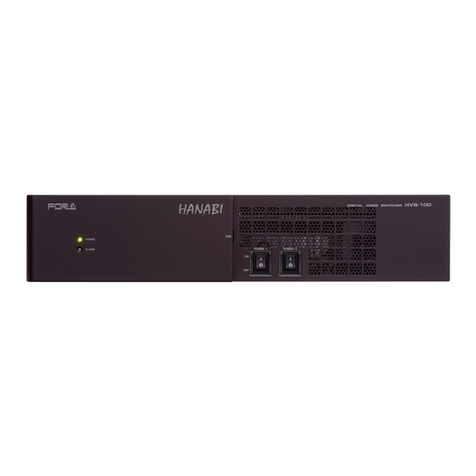
FOR-A HVS-100 User manual

FOR-A

FOR-A HVS-100 User manual

FOR-A MFR-4000R User manual

FOR-A

FOR-A MFR-4000R User manual

FOR-A HVS-AUX8 User manual

FOR-A

FOR-A HVS-AUX8 User manual

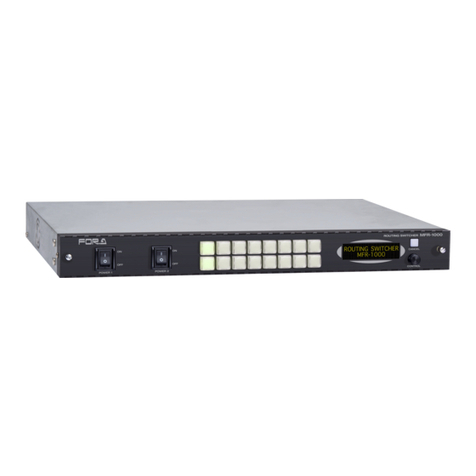
FOR-A MFR-1616 User manual

FOR-A

FOR-A MFR-1616 User manual

FOR-A MFR-5000 User manual

FOR-A

FOR-A MFR-5000 User manual

FOR-A MFR-5000 User manual

FOR-A

FOR-A MFR-5000 User manual

FOR-A HVS-300HS User manual

FOR-A

FOR-A HVS-300HS User manual

FOR-A HVS-492OU User manual

FOR-A

FOR-A HVS-492OU User manual

Popular Switch manuals by other brands

SMC Networks SMC6224M Technical specifications

SMC Networks

SMC Networks SMC6224M Technical specifications

Aeotec ZWA003-S operating manual

Aeotec

Aeotec ZWA003-S operating manual

TRENDnet TK-209i Quick installation guide

TRENDnet

TRENDnet TK-209i Quick installation guide

Planet FGSW-2022VHP user manual

Planet

Planet FGSW-2022VHP user manual

Avocent AutoView 2000  AV2000BC AV2000BC Installer/user guide

Avocent

Avocent AutoView 2000 AV2000BC AV2000BC Installer/user guide

Moxa Technologies PT-7728 Series user manual

Moxa Technologies

Moxa Technologies PT-7728 Series user manual

Intos Electronic inLine 35392I operating instructions

Intos Electronic

Intos Electronic inLine 35392I operating instructions

Cisco Catalyst 3560-X-24T Technical specifications

Cisco

Cisco Catalyst 3560-X-24T Technical specifications

Asante IntraCore IC3648 Specifications

Asante

Asante IntraCore IC3648 Specifications

Siemens SIRIUS 3SE7310-1AE Series Original operating instructions

Siemens

Siemens SIRIUS 3SE7310-1AE Series Original operating instructions

Edge-Core DCS520 quick start guide

Edge-Core

Edge-Core DCS520 quick start guide

RGBLE S00203 user manual

RGBLE

RGBLE S00203 user manual

Thrustmaster FLIGHT SIMULATOR X quick guide

Thrustmaster

Thrustmaster FLIGHT SIMULATOR X quick guide

Southwire SURGE GUARD 41390 RVC troubleshooting guide

Southwire

Southwire SURGE GUARD 41390 RVC troubleshooting guide

Buhler Nivotemp NT 61 Brief instructions

Buhler

Buhler Nivotemp NT 61 Brief instructions

Kramer VS-41HDCP user manual

Kramer

Kramer VS-41HDCP user manual

Techly IDATA AU-270 user manual

Techly

Techly IDATA AU-270 user manual

Belkin F1U109 user manual

Belkin

Belkin F1U109 user manual

manuals.online logo
manuals.online logoBrands
  • About & Mission
  • Contact us
  • Privacy Policy
  • Terms and Conditions

Copyright 2025 Manuals.Online. All Rights Reserved.

MFR1616_3232-SETUPGUIDE-J-2.DOCX
MFR-3232/3232RPS/3216/3216RPS/1616/1616R/1616A
セットアップガイド
はじめに
MFR 基本システムは、次の 3つのユニットで構成されます。
メインユニット(以下 MU)MFR-3232 / 3232RPS / 3216 / 3216RPS / 1616 / 1616R / 1616A
リモコン MFR-39RU/40RU/18RU/16RU/16RUD/16RUW/32RUW/64RUW/16RUTA/39RUA/18RUA
PC(Web ブラウザー) Web ブラウザーによる MFR システムの設定および操作
MFR システムはイーサネット LAN で接続します。出荷時に適切なネットワーク設定がされていますので、すぐに接続してご使用いただけます。システム接続前
に下記のものを準備してください。
準備いただくもの
PC 1台
Web ベースドコントロール用。LAN ポート付のもの。
PC の詳細については「MFR Web ベースドコントロール取扱説明書」の「2-1. 動作環境」を参照してく
ださい。
LAN ケーブル
(カテゴリー5e 以上)
※付属の LAN ケーブル
(ストレート) もご利用いただけます。
MU とPC を直結
クロスケーブル 1本
MU とPC をハブで接続
クロスまたはストレートケーブル 2本
MU とリモコンを直結 (*1)
クロスケーブル 1本
MU とリモコンをハブで接続
クロスまたはストレートケーブル 2本(*2)
(*1) リダンダント CPU 使用時は不可。
(*2) リダンダント CPU 使用時は、さらに 1本必要
1. LAN 接続
(1) PC のIP アドレスとネットマスクを下記のように設定してください。
IP アドレス
192.168.1.XXX
XXXは1~254 までの下記以外の数字。
10~13 (MU 出荷時設定で使用)
60~62 (MFR-TALM 出荷時設定で使用)
70~85 (MFR-RULINK 出荷時設定で使用)
ネットマスク
255.255.255.0
(2) MU 背面の MFR-LAN (MFR-LAN1)ポートとリモコン背面の MFR-LAN ポートを LAN ケーブルで接続します。
※リダンダント CPU 使用時は、必ず MFR-LAN(CPU1)とMFR-LAN(CPU2)をそれぞれ LAN 接続してください。
(3) MU 背面の PC-LAN (PC-LAN1)ポートと PC のLAN ポートを準備した LAN ケーブルで接続します。
PC-LAN とMFR-LAN は別々のネットワーク(ハブ/スイッチ)に接続してください。
詳細については「MFR Web ベースドコントロール取扱説明書」「2-3. ネットワーク設定」を参照してください。
2. 電源 ON
(1) MU の電源ケーブルを接続し、電源を入力してください。
(2) リモコンは付属の AC アダプターを使用して電源を入力し、電源ケーブルを抜け止め具で固定してください。
(3) すべての機器の電源を ON にします。
3. Web ベースドコントロール画面を開く
(1) PC 上で Web ブラウザーを起動し、次のようにアドレスを入力して接続してください。
http://192.168.1.12 (MU のPC-LAN のIP アドレス)
(2) 下記を入力してログインしてください。
ユーザー名: user
パスワード: password
(3) Web ベースドコントロール画面が表示されます。
4. MU、リモコンの設定画面を表示する
(1) Web ベースドコントロール画面左上の [System Settings] を
押します。設定画面選択ツリーがあらわれ、接続されている
MFR システムのユニットが表示されます。
ユニット ID:
ツリーには、[100]MFR-39RU、[101]MFR-18RU・・・のように
機器が表示されます。[]内はユニット ID です。
ユニット ID はIP アドレスの第 4オクテットでもあります。
この例では MFR-39RU のIP アドレスは「192.168.1.100」です。
(2) フォルダーアイコンの前の+または- をクリックによって詳細
メニューの表示/非表示が可能です。
また、詳細メニューの項目をクリックすると、右側に設定画面
が表示されます。
詳細については
「MFR Web ベースドコントロール取扱説明書」
「MFR-RU Series 取扱説明書」を参照してください。
使用上の注意
・指定電圧以外の電源電圧は使用しないでください。
・必ずアースをとってください。
・電源コードのプラグおよびコネクターはしっかりと差し込んでください。
・内部設定を行う場合は必ず電源を切ってから操作してください。
・パネルやカバーを外したままで保管や使用をしないでください。
・高温多湿、塵埃が多い、振動がある場所などには設置しないでください。
火災や感電の原因になることがあります。
・内部に水や異物を入れないでください。万一入った場合は、すぐ電源を切
り、電源コードや接続コードを抜いて内部から取り出すか、販売代理店、サ
ービスセンターへご相談ください。
・電源が入らない、異臭がする、異常な音が聞こえるときは、すぐに電源を切
り、販売代理店、サービスセンターまでご連絡ください。
[System Settings]
をクリック
[ ] 内はユニット ID
ここをクリックすると
ツリーが開く
項目をクリックすると右側に
設定画面が表示される。
hyく
リモコン
MU (Main Unit)
MFR-LAN1: 192.168.1.10/24
MFR-LAN2: 192.168.1.11/24
SDI OUT
SDI IN
Web ブラウザー
LAN ケーブル
ボタン操作
GUI 操作
HUB
HUB
PC-LAN1: 192.168.1.12/24
LAN ケーブル
MFR-LAN
メールアドレスを登録すると、取扱説明書/各種資料がダウンロードできます。
https://www.for-a.co.jp/
MFR1616_3232-SETUPGUIDE-E-2.DOCX
MFR-3232/3232RPS/3216/3216RPS/1616/1616R/1616A
Quick Setup Guide
Preparation
The MFR standard system is composed of the following three hardware components.
Main Unit (hereafter MU) MFR-3232 / 3232RPS / 3216 / 3216RPS / 1616 / 1616R / 1616A
Remote Control Unit (hereafter RU)MFR-39RU/40RU/18RU/16RU/16RUD/16RUW/32RUW/64RUW/16RUTA/39RUA/18RUA
Computer (Web Browser) The MFR system setting and operation via a web browser
The MFR system is connected via LAN. Network settings for MFR units are properly set prior to shipment. Operation can be performed
immediately upon completing the following network settings and connections. Prepare the following items in the table for the system in
advance.
Items to prepare
Computer
For Web-based Control.
A LAN port is required. Refer to section 2-1. "System Requirements" in the MFR Series
Web-based Control Operation Manual" for more details.
LAN cables
(Cat5e or higher)
* The supplied straight LAN cable
is also available.
For MU and PC direct connection
Single cross-over cable
For MU and PC connection via a hub
Two cross or straight cables
For MU and RU direct connection (*1)
Single cross-over cable
For MU and RU connection via a hub
Two cross or straight cables (*2)
(*1) Not available if redundant CPU is configured.
(*2) Additional cable required if redundant CPU is configured.
1. LAN Connection
(1) Set the PC IP address and subnet mask as shown below.
IP address
192.168.1.XXX
XXX must be from 1 to 254 except the following numbers.
10 to 13 (Used for MU)
60 to 62 (Used for MFR-TALM)
70 to 85 (Used for MFR-RULINK)
Subnet mask
255.255.255.0
(2) Connect the MFR-LAN (MFR-LAN1) port on the MU rear panel and MFR-LAN port on the RU rear panel using a LAN cable.
* Connect the MFR-LAN(CPU1) and MFR-LAN(CPU2) ports to the LAN, respectively, when the redundant CPU is configured.
(3) Connect the PC-LAN port on the MU rear panel and the PC LAN port using a prepared LAN cable.
PC-LAN and MFR-LAN must be placed in separate LAN segments (using a bridge or switch).
Refer to section 2-3. "Network Settings" in the "MFR Series Web-based Control Operation Manual" for more details.
2. Power ON
(1) Connect the power to the MU using the supplied power cord(s).
(2) Connect the power to the RU using the supplied AC adaptor and cable. Be sure to secure the cable with the supplied cable clip.
(3) Power on all devices in the system.
3. Open the Web-based Control Screen
(1) Launch your web browser on the PC, enter the MFR MU address as shown below and connect to the MFR MU.
http://192.168.1.12 (IP address of MU PC-LAN)
(2) Enter the following user name and password to login to the MFR Web-based Control.
User name: user
Password: password
(3) The Web-based Control screen will appear.
4. Display the MU or RU Setting Page
(1) Press [System Settings] in the upper left corner of the screen
to display the navigation tree in the left pane, in which the MFR
components in the system are displayed.
Unit ID:
The current MFR system devices are displayed in the tree
such as [100]MFR-39RU, [101]MFR-18RU, etc. as shown
at right.
The number displayed in square bracket such as [100] is
a Unit ID, which also indicates the fourth octet of IP address.

The IP address of MFR-39RU is "192.168.1.100" in this figure
example.
(2) Clicking on a plus or minus sign in front of a folder icon shows
or hides a detailed menu tree.
Clicking an item on detailed menus displays the associated
setting page in the right pane.
Refer to MFR Series Web-based Control Operation Manual
and MFR-RU Series Operation Manual for details.

Precautions
- Operate the unit only at the specified supply voltage.

- Ensure the unit is properly grounded at all times.
- Ensure the power cord and connectors are firmly connected.
- Do not access circuitry with power applied to the unit.
- Unit should not be operated or stored with the cover, panels,
and/or casing removed.
- Unit should not be operated or stored in a humid, dusty, etc.
environment. Doing so could result in fire or electrical shock.
- Do not allow fluids, metal fragments, or any other foreign
objects to enter the unit. If foreign matter does enter the unit,
turn the power off and disconnect the power cord immediately.
Remove the material or contact your authorized service
representative.
- If you notice any strange smells or noises coming from the unit,
turn the power off immediately, disconnect the power cord,
then contact your authorized service representative.
Click [System Settings]
Unit ID is indicated in
square brackets ([ ]).
Click to show / hide
detailed menu tree.
Click on an item opens a
setting page in the right pane.
MU (Main Unit)
RU
MFR-LAN1: 192.168.1.10/24
MFR-LAN2: 192.168.1.11/24
SDI OUT
SDI IN
Web browser
LAN cable
Button operation
GUI operation
HUB
HUB
PC-LAN: 192.168.1.12/24
LAN cable
MFR-LAN
https://www.for-a.com/
You can download manuals and other documents by registering your email address.