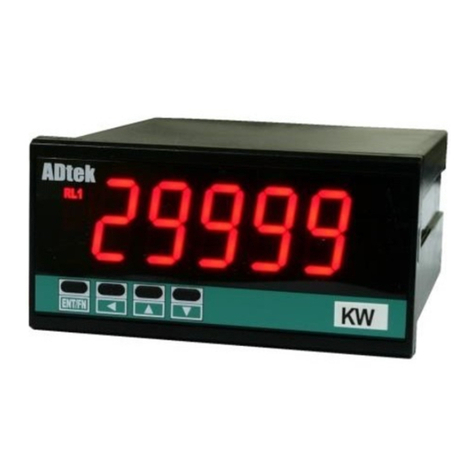
Interface 9825 Instruction Manual

9825 Installation & User Manual
Installation & User Manual
9825

Info Icons
Note:
"Note" means essential information that will help you use the device more effectively.
Caution:
"Caution" means this may cause damage to your device or data loss if you do not follow
the instructions.
Warning:
"Warning" means potential danger. Example: property damage, personal Injury or even death.
Pre Installation Warnings
Warning:
This device must be installed and connected by a professional electrical staff with the power supply
disconnected for safe and dependable operation.
Warning:
This device cannot be used in an unsafe enviornment. Example: Where explosion protection is
required.

Table of Contents
Unpacking & Installation
Unpacking
Storage & Installation
Connections
Analog Output Connections
Relay Input/Output Control Connections
Basic Operation
Power On
Display Details
Keypad Details
System Configuration
Menu Tree
Menu Descriptions
Calibration Procedures
Industrial Interfaces
USB Interface Communication
Analog Output Interface
I/O Control Applications
Setpoint Application
Alarm Application
Indicator Info
Software Version
Appendix
Appendix 1: Command Output Format 1 - Continuous Mode (ASCII)
Appendix 2: Command Output Format 1 - Demand Mode (ASCII)
Appendix 3: Condec Format Output (Condec)
Specifications
1
1
1
2
2
2
4
4
4
5
6
6
6
7
8
8
8
10
12
12
12
13
13
13
14
14
15
15
16
17
18
Power Connections
Load Cell Connections
Serial I/O Device Connections
USB Port Connections
Warranty 19

Unpacking & Installation
Unpacking:
Please follow these inspection procedures after unpacking the product:
- Check the product to ensure that there was no damage in transit.
- Check the following list and confirm that all the items are in the carton:
- 9825 Digital Indicator
- External Connecting Terminals
- Clamping Strips & Anchor Nuts
- 9825 External Power Supply
-9825 Grounding Cable Assembly
Storage & Installation:
The 9825 indicator must be stored in a dry, dust-free environment before use. Storage temperature is
-20°C to +65°C (-4°F to +149°F), working environment temperature is -10°C to +104°F (+14°F to
+104°F), relative humidity no more than 95% (Non-Condensing).
The 9825 digital indicator uses panel installation, which requires the thickness of the cabinet's front panel to
be no more than 4mm. Before installation, remove the two mounting screws from the indicator's clamping
strips, then remove the clamping strips. Push the indicator into the opening on the cabinet, then reinsert the
clamping strips. Gently tignten the two mounting screws.
Indicator structure and physical dimensions (mm)
- 9825 Installation & User Manual
-Product Qualification Certificate
Interface Inc. www.interfaceforce.com
1
9825 Installation & User Manual

Connections:
Power Connections:
The 9825 has an input range of 9VDC to 36VDC. The maximum electrical power
consumption of the 9825 is 6W (8W Peak).The unit is shipped with an external 24VDC linear power supply
and a grounding cable assembly. The GND Terminal should be routed to the grounding lug on the rear of
the 9825 housing and then to earth using the provided grounding cable assembly in order to optimize
signal stability.
Use the screw down terminals to secure the power supply leads and grounding cable to the 3
position connector in the following configuration:
Pin Assignment:
1 = VDC +
2 = VDC -
3 = GND
Warning:
Verify that the power supply connections are correct before powering on.
Note:
Make sure that the power cord does not pose a potential obstacle or tripping hazard. Only use
approved accessories and peripherals.
Load Cell Connections:
The 9825 indicator uses a 6-wire load cell signal connection. This indicator provides a 4.5 volt DC
excitation voltage to the load cell(s). The voltage difference between +SIG and -SIG is about 0 ~ 9mV when
connected to a load cell with a 2mV/V output, and about 0 ~ 13.5mV when connected to a load cell with a
3mV/V output. The 9825 indicator can drive up to six (6) 350-ohm load cells (or the equivalent resistance of
all load cells connected in parallel is higher than 87Ω).
If the application requires the 9825 to be connected to multiple load cells, please use a junction box.
Note:
This product does not contain a junction box. If a junction box is necessary for your application, we
recommend Interface Model JB104SS as an approved accessory.
The load cell cable requires a shield which must be properly grounded to ensure
maximum stability. High quality cable is recommended. Be sure to route the load cell cable away
from high voltage / power cables. The maximum length allowed for the load cell or junction box
cable is shown in the following table:
Interface Inc. www.interfaceforce.com
2
9825 Installation & User Manual

Sensor Input Terminal Pin Assignment:
Four-Wire Analog (Load Cell) or (Junction Box) Connection:
Six-Wire Analog (Load Cell) or (Junction Box) Connection:
Interface Inc. www.interfaceforce.com
3
9825 Installation & User Manual

Serial I/O Device Connections:
The 9825 indicator comes standard with one USB port.
USB Port Connections:
The 9825 indicator comes standard with a MINI-USB port that can be connected to a PC.
This USB port is designed for data communication and firmware upgrades.
Analog Output Connections:
Use the JP1 pin header on the internal analog option board to configure the analog output
for current output (4-20mA, 0-24mA) or voltage output (0-10V, 0-5V). Please note that voltage and
current outputs cannot be used at the same time. We suggest using a PLC or PC to monitor the analog
output calibration.
Configure the voltage or current output as follows. Output type is selected in the Analog Out Setup
menu, under the Output Type submenu.
Voltage output: Select either 0-5V or 0-10V. Use the Analog + & Analog - terminals.
Current output: Select either 0-24mA or 4-20mA. Use the Analog + & Analog - terminals.
Interface Inc. www.interfaceforce.com
4
9825 Installation & User Manual

Relay Input/Output Control Connections:
The Output Connections:
The 9825 optional I/O control port is relay-based and can be used with an AC or DC
power supply. The DC power supply range is 24VDC to 100VDC. The AC power supply
range is up to 220VAC.
The COM terminal can be connected to the positive or negative of the power supply. The
maximum power output of each relay is 90W / 5A.
Output control interfaces and load connection diagram:
Output control interfaces and PLC connection diagram:
The Input Connections:
The input interfaces are isolated, passive inputs. The interfaces can be connected to many
control control keys (Buttons), and the wiring is as follows.
Interface Inc. www.interfaceforce.com
5
9825 Installation & User Manual

Basic Operation
Power On:
The display will show the Interface logo followed by the Device Mode and Firmware Version. After
that, the current force value will be displayed.
Display Details:
The 9825 utilizes a 128 x 32 dot OLED display with adjustable LED back-light. The table below summarizes
the display annunciators.
Basic Force Display:
Force Display with Tare Function Active:
Force Display with Relay Function Active:
Interface Inc. www.interfaceforce.com
6
9825 Installation & User Manual

Keypad Details:
Keypad Functions:
Tare (Exit, ↑ ):
-When in display mode (Tare Function)
- Pressing this key sets force value to zero (sets tare).
- If tare is already set, pressing this key removes tare.
- When in the setup menu (Exit Function)
- Return to a previous menu.
- Increase the value when used as directional key ( ↑ ).
- Hold to exit setup menu.
PK/Val ( ↓ ):
- When in display mode (PK/Val Function)
- Cycle among real time, peak and valley display modes.
- When in the setup menu ( ↓ Function)
- Enter sub-menu.
-Decrease a value when used as a directional key ( ↓ ).
Reset ( ← ):
- When in display mode (Reset Function)
- Resets peak and valley values.
- When in setup menu ( ← Function)
-Moves left when used as directional key.
Menu (Enter):
- When in display mode (Menu Function)
- Hold this key until buzzer sounds to enter the setup menu.
- When in setup menu (Enter Function)
- Saves current setting.
Interface Inc. www.interfaceforce.com
7
9825 Installation & User Manual
Table of contents
Other Interface Measuring Instrument manuals

Interface
Interface INF1 User manual

Interface
Interface GOLD STANDARD User manual
Interface
Interface ITL Specifications
Interface
Interface INF1 Instruction Manual

Interface
Interface BlueDAQ BX8 User manual

Interface
Interface 9860 User manual
Interface
Interface 9840 User manual

Interface
Interface 9325-NU User manual
Interface
Interface 9840-400 User manual
Interface
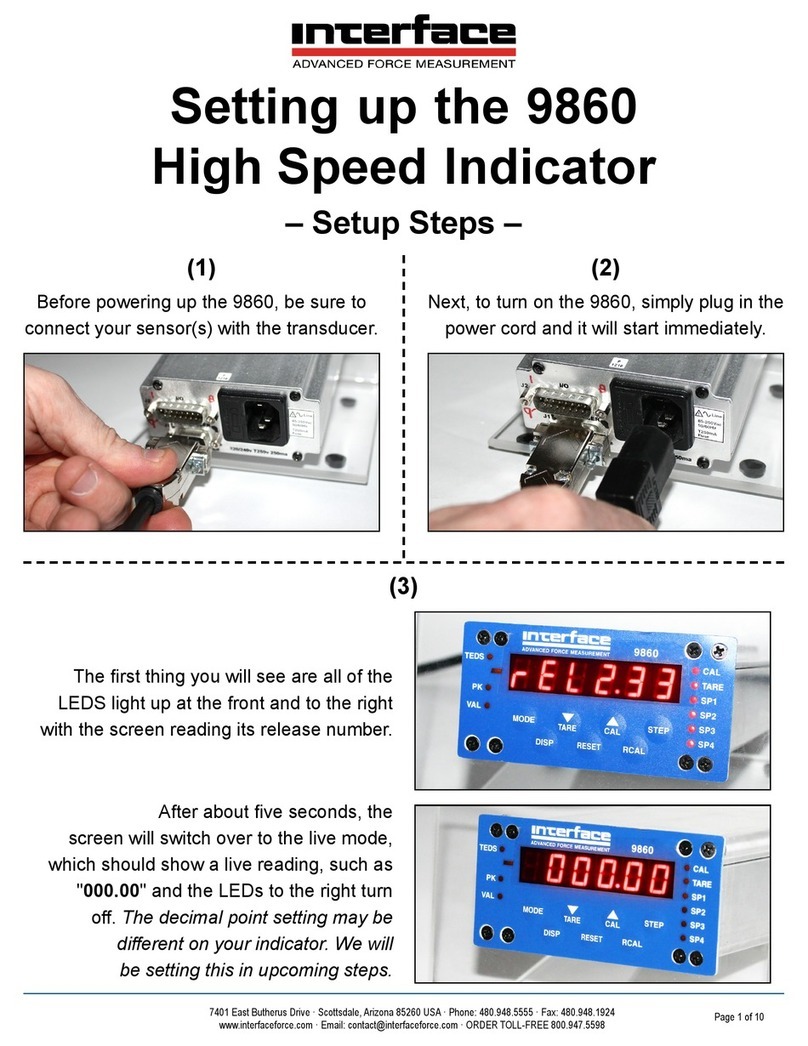
Interface 9860 User instructions