9
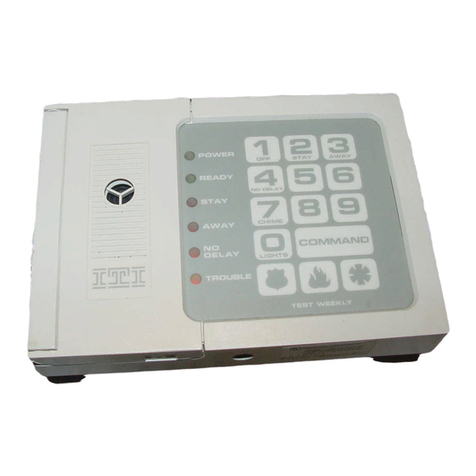
You may use an off-site phone to arm/disarm your Control
Panel, toggle lights, check system status, or conduct an audio
session (ask yourinstaller ifyou have this feature). Togain ac-
cess to the Control Panel:
1. Call the Control Panel and let the phone ring twice then
hang up.
2. Wait 10-40 seconds and call the Control Panel again.
3. The Control Panel should answer on the first ring.
You won’t hear any prompt when the system answers.
4. Press the * button on your telephone and you will hear
system activated
.
At this point you may perform the actions listed in the first
paragraph of this page.
For example, to check system status:
Press * + CODE + # + 1 on your telephone. CODE is the 4
digit master code programmed into your Control Panel.
Note: Press * + CODE + 99 to hang up or your security
system site phone may be busy for up to 90 seconds after
your disconnect.
Note: If you are interactive with your Control Panel and the
panel hangs up on you, the system is calling in a report to the
central monitoring station or a pager, due to an action made
by you or someone at the security system site.
The following table identifies the phonecommandsto be used
when using remote phone control.
Phone Commands for Remote Access
Control Panel Function Phone Command
DISARM * + CODE + 1
ARM Doors/Windows * + CODE + 2
ARM Doors/Windows with
No Entry Delay * + CODE + 2 + 2
ARM Motions * + CODE +3
ARM Motions with Latchkey * + CODE + 3 + 3
ARM Doors/Windows and
Motions * + CODE + 2 + 3
ARM Doors/Windows with
No Entry Delay and Motions
with Latchkey
* + CODE + 2 + 2 + 3 + 3
Toggle Lights * + CODE + 0
System Status * + CODE + # + 1
Audio Session * + CODE + 5 + X (X = a
command from the audio
session command set).
See Table on page 9
Hang Up * + CODE + 99
How to Use An Off-Site Phone for Remote Phone Control
2-Way Voice Audio Session
An audio session may be conducted from off site. You can call
the security system site and talk to the people present and
they can talk to you through the speaker and microphone on
the Control Panel.
Note: Ask your installer if you have this feature available
to you.
Do the following to conduct an audio session:
1. Follow the instructions above for Remote Phone Control
to gain access to the Control Panel.
2. Press * + CODE + 5 on the phone to start the audio ses-
sion.
3. Press 1 to speak or 3 to listen.
If you press 3 to listen, without first pressing 1 to speak,
you will notice a 5 second delay before you can hear the
Control Panel’s surroudings.
See the following table Audio Session Command Set for
the commands that can be used from an off site phone.
4. Press 9 + 9 to hang up.
Audio Session Command Set
Phone
Button(s) Audio Session
1 or 0 Speak
3 or 6 Listen
7 Initiates timed session
88 Terminates session with call back
99 Terminates session with no call back
CODE = 4 digit master access code
WWW.DIYALARMFORUM.COM