manuals.online logo
Brands
  1. Home
  2. •
  3. Brands
  4. •
  5. JVA
  6. •
  7. Power Supply
  8. •
  9. JVA IP Energizer MB 16 User manual

JVA IP Energizer MB 16 User manual

Other JVA Power Supply manuals

JVA MB8 User manual

JVA

JVA MB8 User manual

JVA Z14 User manual

JVA

JVA Z14 User manual

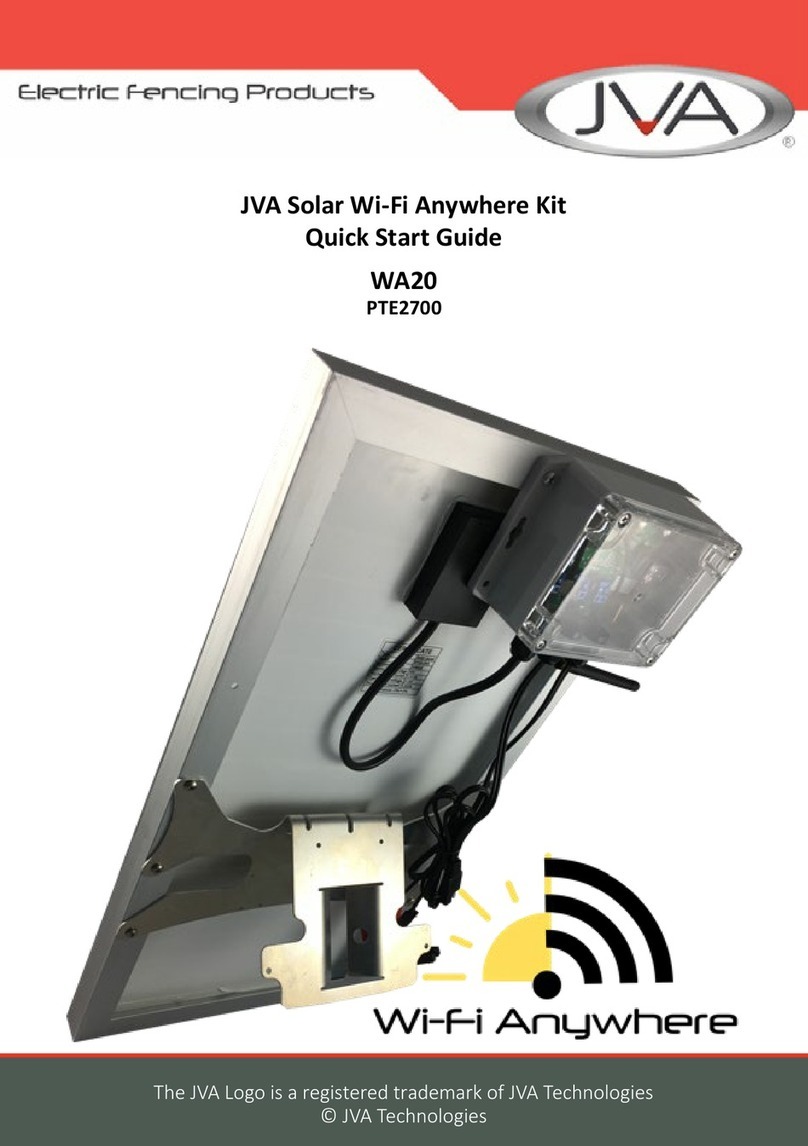
JVA Wi-Fi Anywhere PTE2700 User manual

JVA

JVA Wi-Fi Anywhere PTE2700 User manual

JVA Z114 User manual

JVA

JVA Z114 User manual

JVA Z Series User manual

JVA

JVA Z Series User manual

JVA SV2 Manual

JVA

JVA SV2 Manual

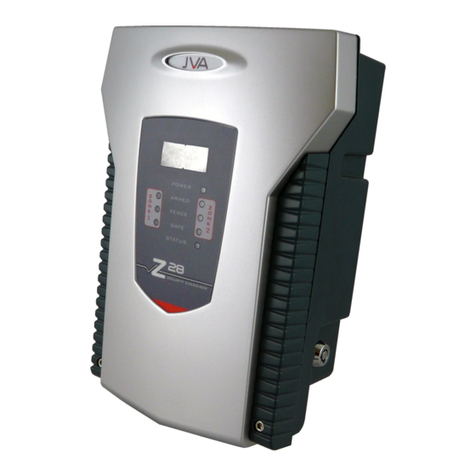
JVA Z28 User manual

JVA

JVA Z28 User manual

JVA Wi-Fi Anywhere PTE2704 User manual

JVA

JVA Wi-Fi Anywhere PTE2704 User manual

JVA Z28 User manual

JVA

JVA Z28 User manual

JVA Z Series User guide

JVA

JVA Z Series User guide

JVA MB8 User manual

JVA

JVA MB8 User manual

JVA Z28 User manual

JVA

JVA Z28 User manual

JVA M1.5 User manual

JVA

JVA M1.5 User manual

JVA M1.5 User manual

JVA

JVA M1.5 User manual

JVA MB1.5 User manual

JVA

JVA MB1.5 User manual

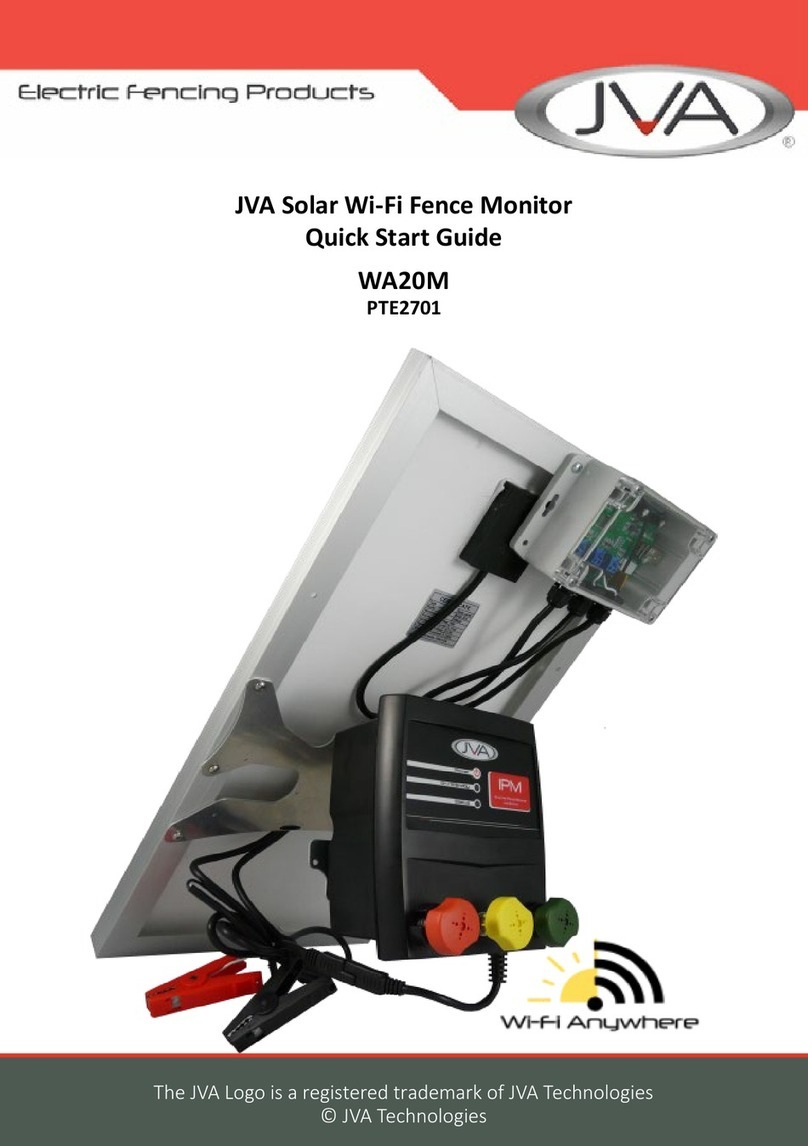
JVA Wi-Fi Anywhere WA20M User manual

JVA

JVA Wi-Fi Anywhere WA20M User manual

JVA Z13 User manual

JVA

JVA Z13 User manual

JVA Z Series User manual

JVA

JVA Z Series User manual

JVA PET Series User manual

JVA

JVA PET Series User manual

JVA Z11 User manual

JVA

JVA Z11 User manual

JVA RSG1 User manual

JVA

JVA RSG1 User manual

Popular Power Supply manuals by other brands

Videx 520MR Installation instruction

Videx

Videx 520MR Installation instruction

Poppstar 1008821 Instructions for use

Poppstar

Poppstar 1008821 Instructions for use

TDK-Lambda LZS-A1000-3 Installation, operation and maintenance manual

TDK-Lambda

TDK-Lambda LZS-A1000-3 Installation, operation and maintenance manual

TDK-Lambda 500A instruction manual

TDK-Lambda

TDK-Lambda 500A instruction manual

Calira EVS 17/07-DS/IU operating instructions

Calira

Calira EVS 17/07-DS/IU operating instructions

Monacor PS-12CCD instruction manual

Monacor

Monacor PS-12CCD instruction manual

VOLTIMA MagicBox 15 Installation and operating instructions

VOLTIMA

VOLTIMA MagicBox 15 Installation and operating instructions

Miller Auto Deltaweld 452 owner's manual

Miller

Miller Auto Deltaweld 452 owner's manual

BCP PUOUBK How to install

BCP

BCP PUOUBK How to install

HC 2210 manual

HC

HC 2210 manual

Agilent Technologies 6032A Service manual

Agilent Technologies

Agilent Technologies 6032A Service manual

Radial Engineering SB-48UB user guide

Radial Engineering

Radial Engineering SB-48UB user guide

Puls CT5.241 installation manual

Puls

Puls CT5.241 installation manual

OCZ ZX1250W Technical specifications

OCZ

OCZ ZX1250W Technical specifications

iseg ECH 238 manual

iseg

iseg ECH 238 manual

Agilent Technologies 6631B Service manual

Agilent Technologies

Agilent Technologies 6631B Service manual

Power XXL A Series instruction manual

Power

Power XXL A Series instruction manual

HP 6200B Operating and service manual

HP

HP 6200B Operating and service manual

manuals.online logo
manuals.online logoBrands
  • About & Mission
  • Contact us
  • Privacy Policy
  • Terms and Conditions

Copyright 2025 Manuals.Online. All Rights Reserved.

IP Energizer®Instructions
3
IP Energizer®Instructions
Versions: IP Energizer Controller 1.34
PAE025 3v30
Introduction
In order to allow remote control of the IP Energizer®you will need to set up its Wi-Fi connection. If you
do not need the IP Energizer remote control feature, you may simply connect the Energizer to the
fence and turn it on and off via the front panel on/off switch.
Setting up the IP Energizer is not hard, but we all know that computer equipment can have issues.
That is why we have staff ready to take your call and talk you through the setup.
Warning! Read the Energizer instruction manual and the safety information in it first!
Get Ready! You need:
1. A Wi-Fi network connected to the Internet.
2. The name of the Wi-Fi network (also known as the SSID). On most Wi-Fi routers this is printed
on the back, an example of which is shown below.
3. The Wi-Fi network password, if your Wi-Fi is password protected.
4. The IP Energizer placed within signal range of the Wi-Fi network.
5. Power supply for the IP Energizer via its 240V AC (power point) or 12V DC (battery).
6. An Android or iPhone smart phone for running the IP Energizer Controller App
7. The IP Energizer Controller App from Pakton (see below)
4
Get Set: Setting up the IP Energizer
Android
1. Plug the IP Energizer into the power supply and turn it on. Be aware that the Energizer could
start pulsing; if it does, turn it off using the ‘Power’button on the front of the Energizer.
2. Wait for approximately 20 seconds until you see ‘IP – 1’ on the front of the IP Energizer. This
means that the IP Energizer needs to be configured to connect to your Wi-Fi network.
3. Download the ‘IP Energizer Controller’ App from the Google Play store and install it on your
Android phone or device.
5
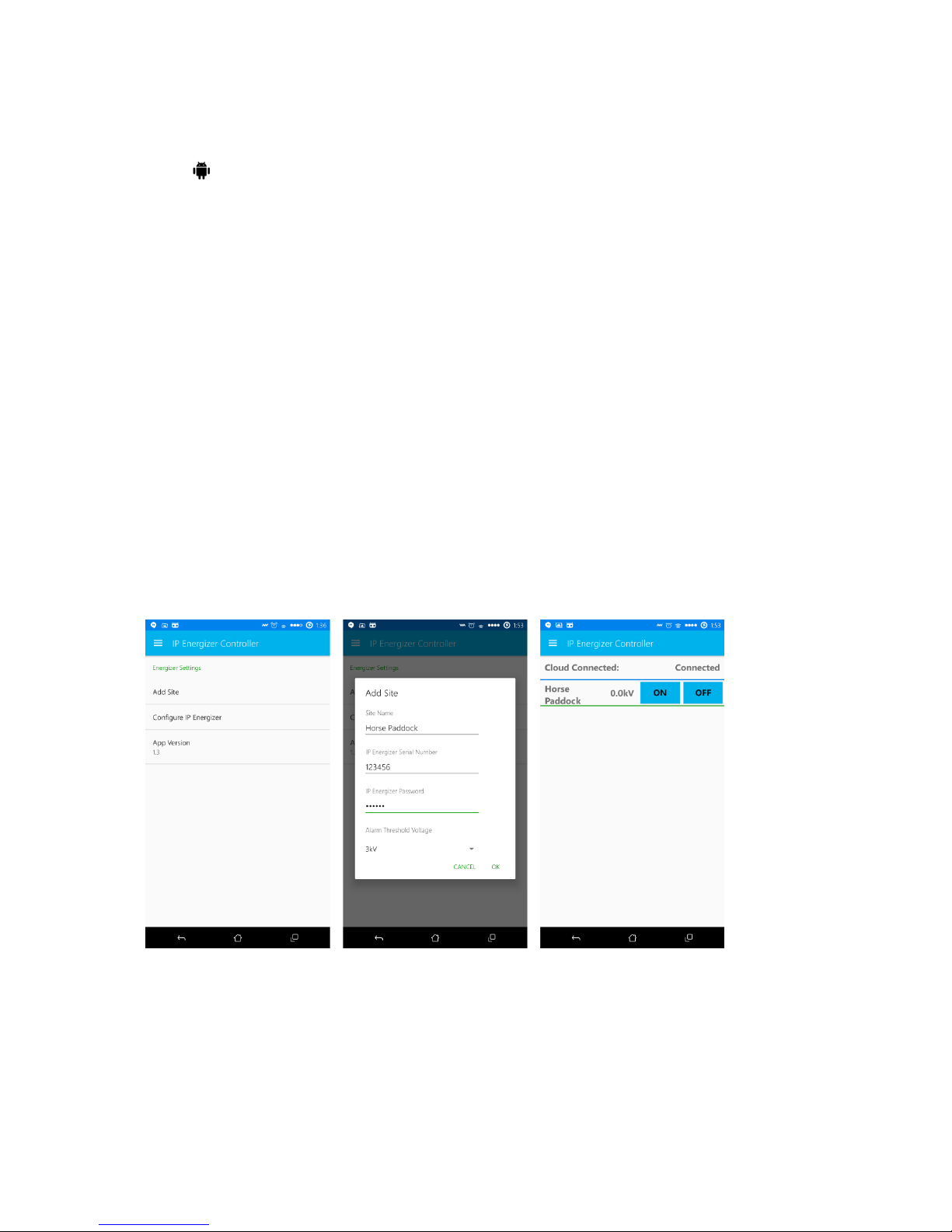
4. Open the navigation drawer and tap settings. Press Configure IP Energizer.
Choose from the drop down box the SSID of your home Wi-Fi network and enter in the
password if it has one. Next enter the IP Energizers serial number and finally choose a
password. You will need this password again later when adding a site.

6
5. Press submit, you will see the following screens as it configures the energizer with the details
you have entered.
6. Look at the screen on the front of your IP Energizer. If you have entered in the Wi-Fi details
correctly it should connect to your home Wi-Fi network and display ‘IP-3’.
7. Congratulations –your IP Energizer is configured!
iOS Device
1. Plug the IP Energizer into the power supply and turn it on. Be aware that the Energizer could
start pulsing; if it does, turn it off using the ‘Power’button on the front of the Energizer.
2. Wait for approximately 20 seconds until you see ‘IP – 1’ on the front of the IP Energizer. This
means that the IP Energizer needs to be configured to connect to your Wi-Fi network.
3. Download the ‘IP Energizer Controller’ App from the iTunes Apple Store and install it on your
iOS device.
7
4. Open the navigation bar and tap settings. Press ‘Configure IP Energizer’.
5. Exit the app and go to your device’s Wi-Fi settings and select the network ”IPEnergizer”. Now
return to the IP Energizer App.
8
6. You should be on the ‘Configure IP Energizer’page, from here enter your Wi-Fi SSID and
Password as well as the Energizer's Serial Number and a Password. Click 'Submit' and it should
configure your IP Energizer.
7. Look at the screen on the front of your IP Energizer. If you have entered in the Wi-Fi details
correctly it should connect to your home Wi-Fi network and display ‘IP-3’.
8. Congratulations –your IP Energizer is configured!
9
Go: Take control of your IP Energizer
Android
8. To control the energizer from your android device you simply need to add a site. Go to the
settings screen and press add site. Refer to part 4 under ‘A Wi-Fi network connected to the
Internet.
9. The name of the Wi-Fi network (also known as the SSID). On most Wi-Fi routers this is printed
on the back, an example of which is shown below.
10. The Wi-Fi network password, if your Wi-Fi is password protected.
11. The IP Energizer placed within signal range of the Wi-Fi network.
12. Power supply for the IP Energizer via its 240V AC (power point) or 12V DC (battery).
13. An Android or iPhone smart phone for running the IP Energizer Controller App
14. The IP Energizer Controller App from Pakton (see below)
1. Get Set: Setting up the IP Energizer’ above if you need a reminder as to how to get to the
settings.
2. Enter a site name –we have chosen ‘Horse Paddock’, then enter the serial number of the IP
Energizer, and the password you chose when you configured your IP Energizer. Then choose a
threshold voltage –you will get a notification on your phone if the fence voltage falls below this.
If you do not want this feature enabled choose ‘disabled’. Press OK to add the site and be
redirected to the Home screen.
10
3. The Home screen should show ‘Cloud Connected: Connected’ indicating that you have
successfully connected to our cloud servers. Below this is a list of your IP Energizer sites; these
show the fence voltage and two buttons to turn on and off your IP Energizer. For a more in
depth view of one of your sites you can press the sites name, in our case ‘Horse Paddock’.
From here the Site Name you entered will appear at the top of the screen, followed by the
status information of your IP Energizer, which includes:
a. Signal Strength: This indicates how well your IP Energizer is connected to your Wi-Fi
network; it is not the signal strength of your mobile phone.
b. Energizer Model: This shows the model name of your IP Energizer.
c. IP Energizer State: This shows ‘On’ when the IP Energizer is running and putting voltage
down your fence. It states ‘Off’ if the IP Energizer is in standby mode waiting for you to
turn it on.
d. Fence Voltage: This shows the actual voltage on the Energizer fence terminals. This will
update in real time.
e. Stored Joules: This shows the stored energy used by the Energizer for each pulse. It will
rise when the IP Energizer has to work harder under heavy fence loads.
f. Supply Voltage: This shows voltage of the power supply that is being used to power
your IP Energizer. This could be a battery’s voltage, or a power pack’s output voltage.
g. IP Energizer IP Address: This is the IP address that has been allocated by your home
Wi-Fi router to your IP Energizer.
9. Should you wish to add additional IP Energizers to your App, simply navigate back to the
settings and add another Site.