manuals.online logo
Brands
  1. Home
  2. •
  3. Brands
  4. •
  5. Kamoer
  6. •
  7. Water Pump
  8. •
  9. Kamoer X1 MICROPUMP User manual

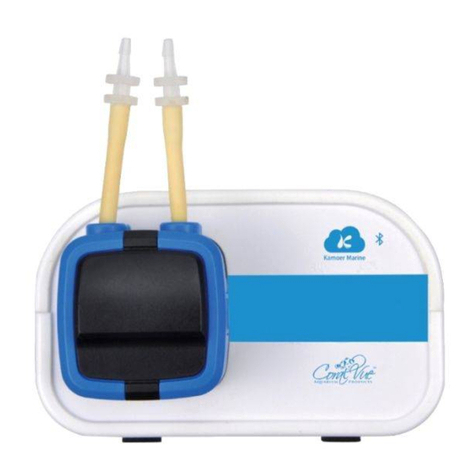
Kamoer X1 MICROPUMP User manual
Other Kamoer Water Pump manuals

Kamoer LLS Plus User manual

Kamoer

Kamoer LLS Plus User manual

Kamoer LLS Plus User manual

Kamoer

Kamoer LLS Plus User manual

Kamoer X1 User manual

Kamoer

Kamoer X1 User manual

Kamoer AIP WIFI User manual

Kamoer

Kamoer AIP WIFI User manual

Kamoer F4 PRO User manual

Kamoer

Kamoer F4 PRO User manual

Kamoer X1 PRO 2 User manual

Kamoer

Kamoer X1 PRO 2 User manual

Kamoer X1 User manual

Kamoer

Kamoer X1 User manual

Kamoer DIPump550 User manual

Kamoer

Kamoer DIPump550 User manual

Kamoer ATO One 2 User manual

Kamoer

Kamoer ATO One 2 User manual

Kamoer X1 PRO 2 User manual

Kamoer

Kamoer X1 PRO 2 User manual

Kamoer F4 PRO User manual

Kamoer

Kamoer F4 PRO User manual

Kamoer X1PROT2 User manual

Kamoer

Kamoer X1PROT2 User manual

Kamoer FX-STP User manual

Kamoer

Kamoer FX-STP User manual

Kamoer UIP CK15 User manual

Kamoer

Kamoer UIP CK15 User manual

Kamoer DIPump-KK300 V2 User manual

Kamoer

Kamoer DIPump-KK300 V2 User manual

Kamoer F1 User manual

Kamoer

Kamoer F1 User manual

Kamoer X1 PRO T User manual

Kamoer

Kamoer X1 PRO T User manual

Kamoer KSP-F01A User manual

Kamoer

Kamoer KSP-F01A User manual

Kamoer X1 User manual

Kamoer

Kamoer X1 User manual

Kamoer KXP100 User manual

Kamoer

Kamoer KXP100 User manual

Kamoer X2SR User manual

Kamoer

Kamoer X2SR User manual

Kamoer ATO One for RO User manual

Kamoer

Kamoer ATO One for RO User manual

Kamoer KSP-F01A-DC User manual

Kamoer

Kamoer KSP-F01A-DC User manual

Kamoer F4 User manual

Kamoer

Kamoer F4 User manual

Popular Water Pump manuals by other brands

Watershed Innovations HYDRAPUMP SMART FLEX Instructional manual

Watershed Innovations

Watershed Innovations HYDRAPUMP SMART FLEX Instructional manual

Graco Modu-Flo AL-5M instructions

Graco

Graco Modu-Flo AL-5M instructions

Messner MultiSystem MPF 3000 operating instructions

Messner

Messner MultiSystem MPF 3000 operating instructions

Xylem Bell & Gossett WEHT0311M Installation, operation and maintenance instructions

Xylem

Xylem Bell & Gossett WEHT0311M Installation, operation and maintenance instructions

WilTec 50739 Operation manual

WilTec

WilTec 50739 Operation manual

Franklin Electric Little Giant 555702 HRK-360S instruction sheet

Franklin Electric

Franklin Electric Little Giant 555702 HRK-360S instruction sheet

Ingersoll-Rand PD02P Series Operator's manual

Ingersoll-Rand

Ingersoll-Rand PD02P Series Operator's manual

VS ZJ Series Operating	 instruction

VS

VS ZJ Series Operating instruction

Flotec FPZS50RP owner's manual

Flotec

Flotec FPZS50RP owner's manual

SKF Lincoln FlowMaster II User and maintenance instructions

SKF

SKF Lincoln FlowMaster II User and maintenance instructions

Xylem Lowara LSB Series Installation, operation and maintenance instructions

Xylem

Xylem Lowara LSB Series Installation, operation and maintenance instructions

Water Duro Pumps DCJ500 Operating & installation instructions

Water

Water Duro Pumps DCJ500 Operating & installation instructions

Action P490 Operating instructions & parts manual

Action

Action P490 Operating instructions & parts manual

Flo King Permacore Reusable Carbon Bag Disassembly. & Cleaning Instructions

Flo King

Flo King Permacore Reusable Carbon Bag Disassembly. & Cleaning Instructions

ARO ARO PD15P-X Operator's manual

ARO

ARO ARO PD15P-X Operator's manual

Pumptec 112V Series Operating instructions and parts manual

Pumptec

Pumptec 112V Series Operating instructions and parts manual

Virax 262070 user manual

Virax

Virax 262070 user manual

Neptun NPHW 5500 operating instructions

Neptun

Neptun NPHW 5500 operating instructions

manuals.online logo
manuals.online logoBrands
  • About & Mission
  • Contact us
  • Privacy Policy
  • Terms and Conditions

Copyright 2025 Manuals.Online. All Rights Reserved.

12-MONTH LIMITED WARRANTY
Kamoer warrants to the original purchaser only that the X1 Micropump will be
free from defects in material and workmanship under normal use for a period of
one year provided that the product is installed and used properly and consis-
tent with the product manual. This limited warranty applies only to the original
purchaser and is not transferable from the original consumer purchaser. In the
event of a limited warranty claim, proof of purchase will be required.
CONTENTS
•X1 Dosing Unit
•Power Adapter
•Graduated Cylinder
•Transparent PVC Tubing
•Power Link Cable
Please ll out the product registration
form online at coralvue.com/register
SPECIFICATIONS
Dosing Channel: 1
Dosing Times: 12 times / day -once / 31 days
Fluid Volume: .1ml - 6000ml
Accuracy: <+/-2%
Pump Life: >2000 hours
Kamoer reserves the right to make any changes without notice.
Thank you for purchasing this Kamoer product. Please be sure to watch our
installation video and register your new X1 to activate its warranty. Details on back!
https://d.pr/ImoR5S
WATCH THE X1 INSTALLATION & SETUP VIDEO
MICROPUMP
QUICK START GUIDE 1.1
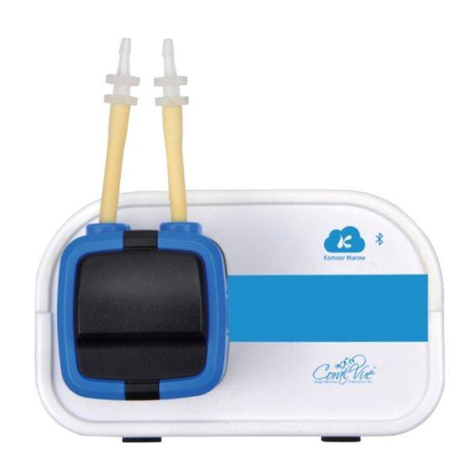
The X1 Liquid Dosing Pump is the latest state of the art controllable dosing system from Kamoer. Each
unit includes a Bluetooth connection, which allows the doser to be controlled via most mobile devices.
INSTALLATION
1. Attach the dosing pump head to the main unit by lining
up the center of the exposed side of the dosing head on to
the front of X1 unit and push the head in until it snaps into
place. You can install the head with the tubing down, up,
to the left or right. Just choose the option that better suits
your setup.
2. The location of your X1 should be easy to access; it should be close to an electrical power
source, close to sump or location where the dosing tubing will be installed and also have easy
access to dosing containers that will hold the solutions. The unit should also be installed higher
than the sump but not directly above water.
3. Connect the tubing by attaching the included PVC clear tubing to the unions already attached
to the doser head and we are ready to congure the X1. The intake is the right most tube and the
output to the left when installed facing downwards.
OPERATION
1. Download and install the “X1 Pump” App from
the Google Play or Apple App Store and make sure
that the bluetooth on our mobile device is set to on.
2. Start the app and click on the upper left-hand
corner “Plus Symbol” to add a new device. Tap on the Bluetooth symbol to let the app scan the
surrounding area and nd your X1 pump. All done! Your X1 device is now connected.
3. Name your pump by tapping on the three dots to the right of the pump and select “Set
Nickname”. Type in your new name and tap “Conrm”.
If you have multiple X1 Pumps, you can easily
assign them to different groups to make things a
little more organized. To create or assign an X1
pump to a group, just tap on the three dots to the
right of the X1 pump and tap on “Group Select”.
Type in or select your already created group name.
This feature is great if you have multiple systems
with multiple X1 Pumps.
CALIBRATION
1. After connecting to the X1 Pump, the next step in the process is to calibrate it. Tap on the pump
name to load the conguration page. Now tap on “Settings” located on the upper right-hand
corner. Now select “Flow Calibration”.
2. Prime the line and purge out any excess air. If not, the calibration will be off. Once you see all air
has been purged from the line and water starts to pour out, tap on Stop.
Using the included 10ml beaker, insert the output line into the beaker and tap on “Start Adding”.
The pump will run for 10 seconds and then automatically stop.
3. Enter the volume of liquid in the testing beaker and tap on Complete. For increased accuracy,
we recommend that you calibrate the X1 pump every 4-6 weeks.
DOSING METHODS
The X1 has two methods of opperation, Manual for single one-time dosing and Planned for a
custom 12 stage, 24 hour dosing schedule.
MANUAL ADD
To dose manually, select “Manual Add” from the “Main” screen. Tap
the center of the circle to enter your volume amount in milliliters.
Tap on “Conrm” and then tap on “Start adding”. The screen will
show you a real-time countdown as the solution is being added.
PLANNED ADD
Planned Add allows you to create a more intricate schedule of up to
12 different time points in a 24 hour period or to automate a single
dosing on a daily basis at the same time each day.
To create a new plan, just tap on the pump name you wish to congure and from the top menu,
select “Plan Add”.
At the top of the screen you will see the container section. This is a really handy section that
allows you to approximate how much solution there is left in the container based on your current
dosing schedule. In order for this to work correctly, you must enter the volume of your container
to the best of your ability.
The next section is the cycle. Here you are able to determine if you
want to dose on a daily basis or as infrequent as once every 31 days.
You can also set the pump to dose on a weekly basis which allows you
to then select which days of the week you want to dose.
To select the days of the week you want to dose, just tap on the day
until a blue checkmark is added to the right side.
The nal and bottom section is your actual schedule. Here you can
tell the doser to administer a daily total volume and spread it evenly
12 times in a day.
To create a repeating schedule, tap on the “Plus Symbol” at the
bottom right of the app.
For an automated single dose regimen that repeats itself daily, select
“Add Plan”. To create a more intricate schedule that divides a total
volume into multiple equal amounts, then select “Quick Plan”.
The Antichemical interference setting allows you have another plan or pump dosing at the
same time, one pump will delay administering the chemical by 5 minutes to ensure that the two
chemicals do not mix.
Once you have congured all settings, tap on “Save” at the upper right hand corner. The main
screen will now show your entire dosing regimen and is now set to begin dosing.
QUICK START GUIDE 1.1
MICROPUMP