manuals.online logo
Brands
  1. Home
  2. •
  3. Brands
  4. •
  5. Lightware
  6. •
  7. Transmitter
  8. •
  9. Lightware UMX-TPS-TX120 User manual

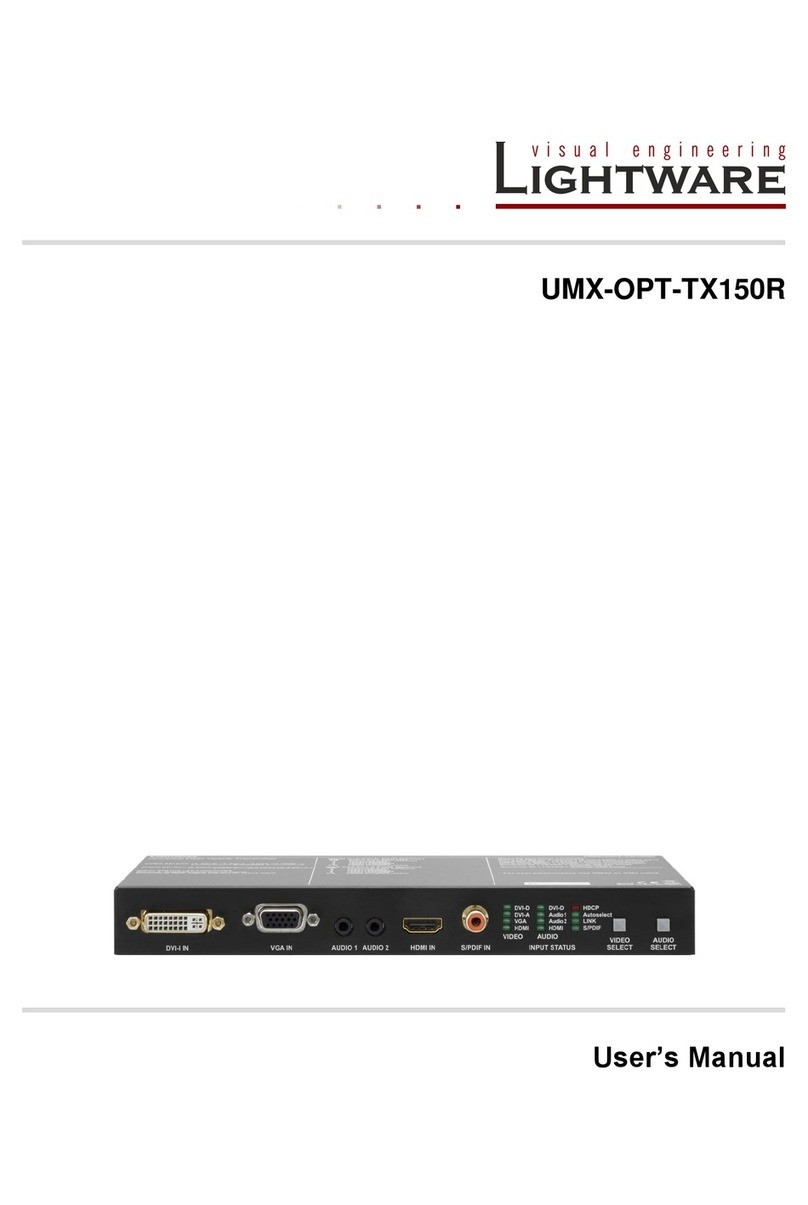
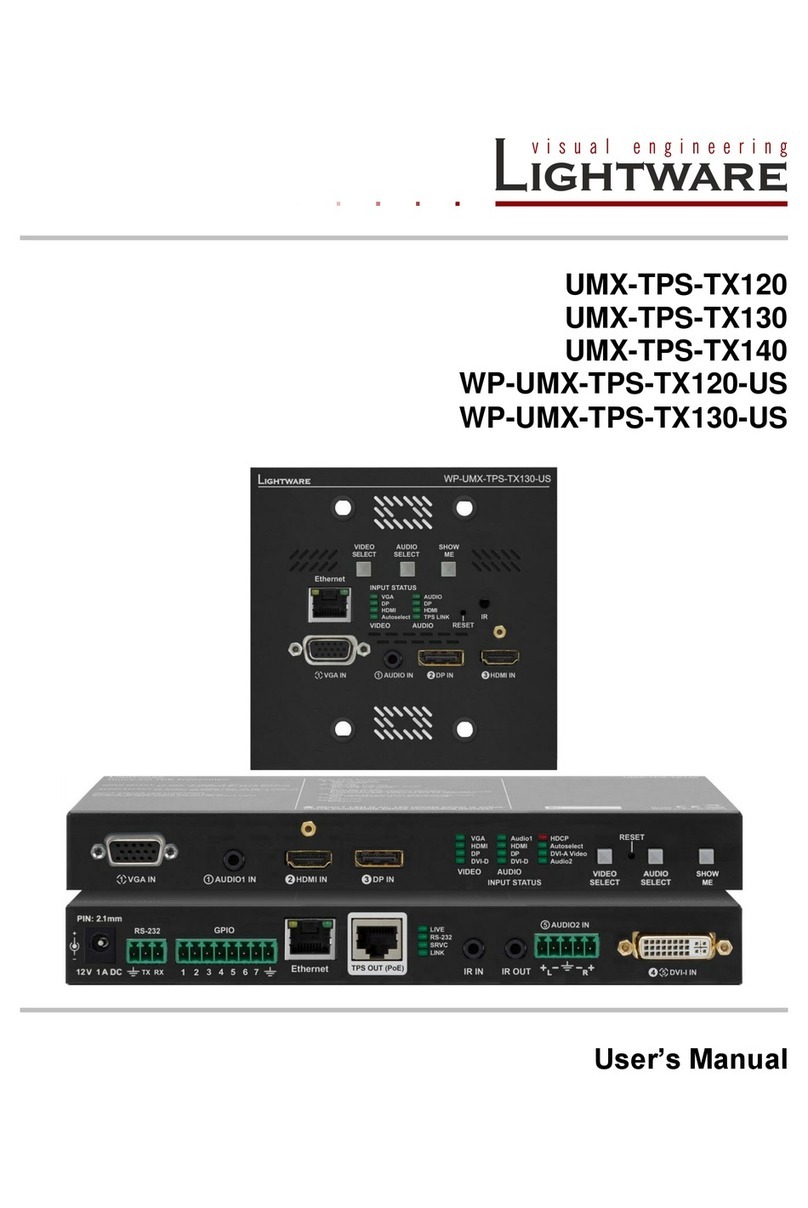
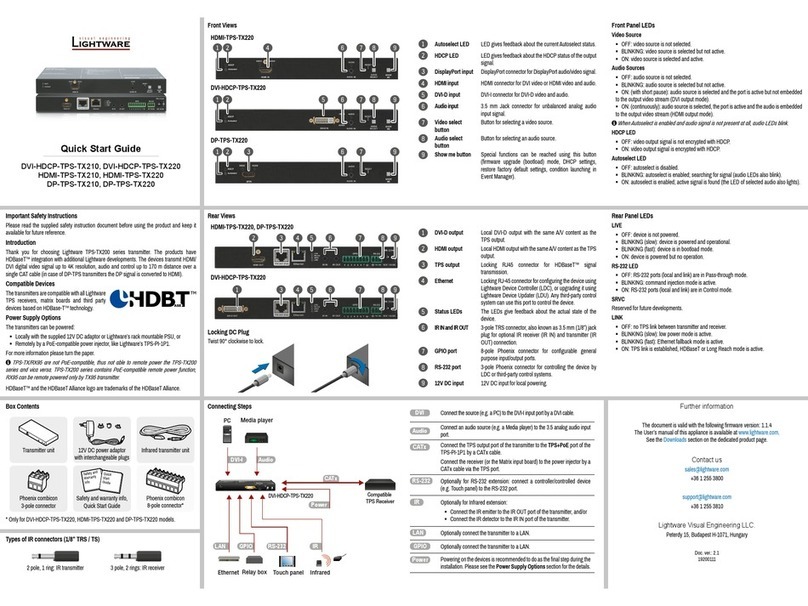
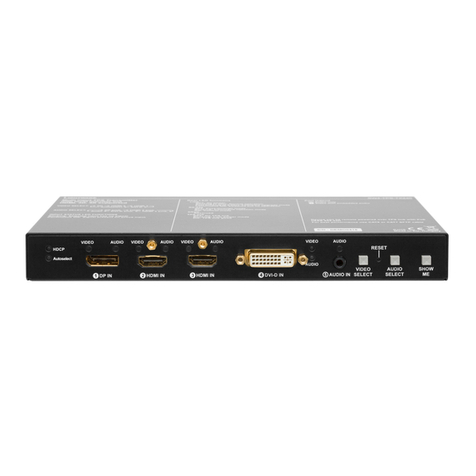
Lightware UMX-TPS-TX120 User manual

Other manuals for UMX-TPS-TX120

3

This manual suits for next models

2

Other Lightware Transmitter manuals

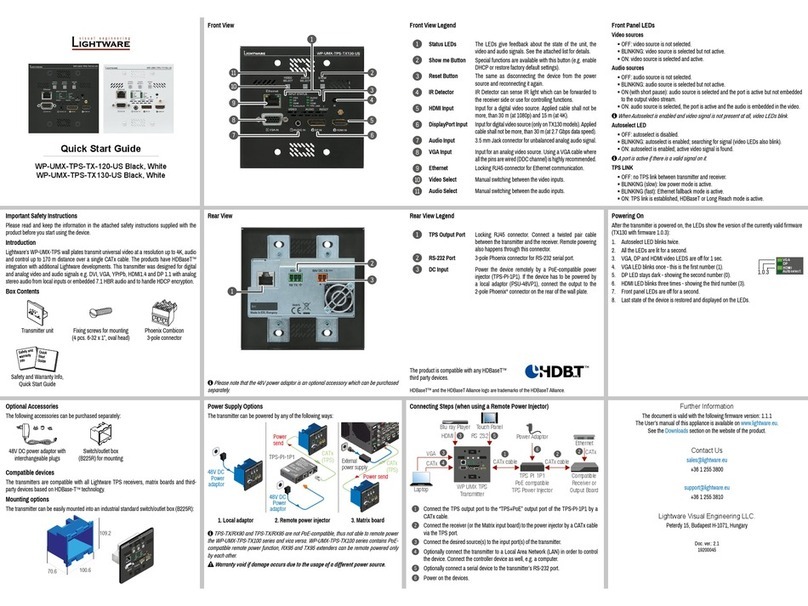
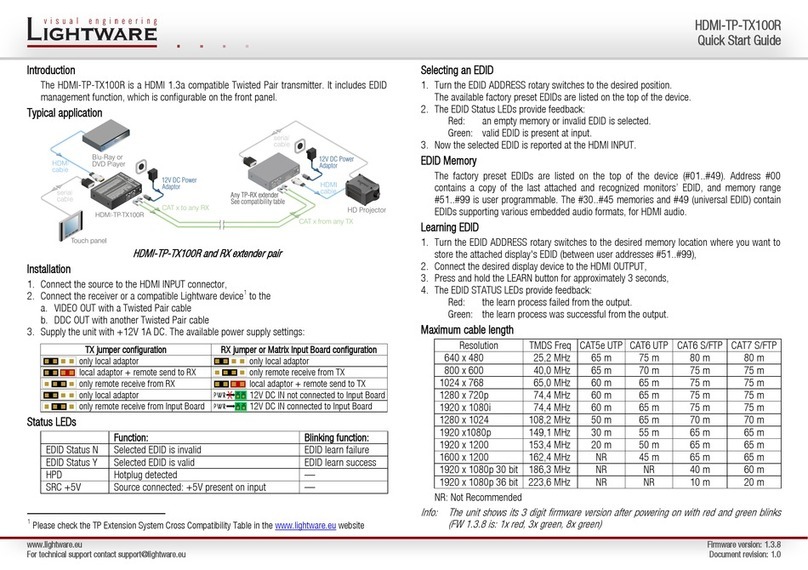
Lightware UMX-TPS-TX140 User manual

Lightware

Lightware UMX-TPS-TX140 User manual

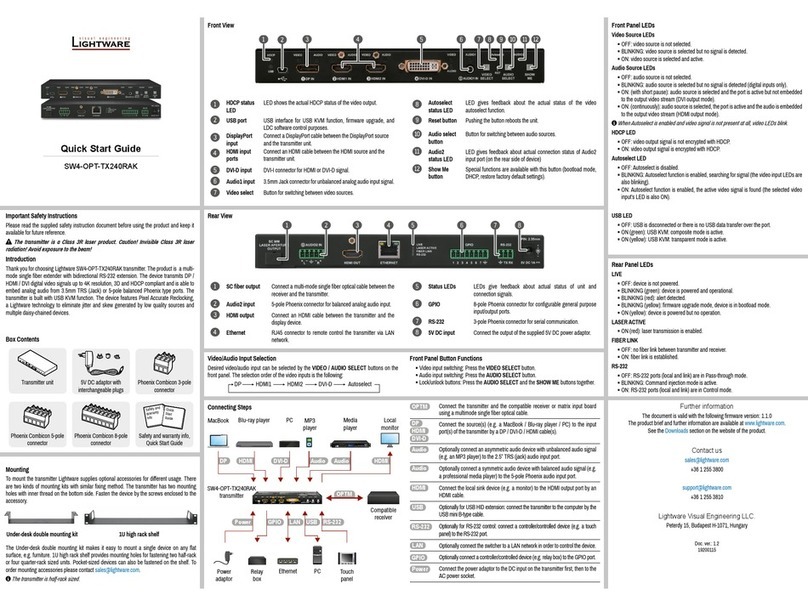
Lightware HDMI-3D-OPT-TX210A User manual

Lightware

Lightware HDMI-3D-OPT-TX210A User manual

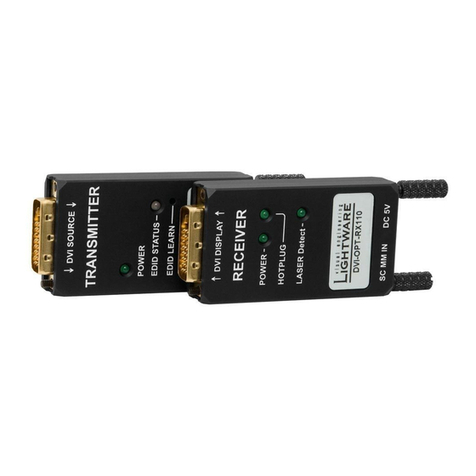
Lightware DVI-OPT-RX110 User manual

Lightware

Lightware DVI-OPT-RX110 User manual

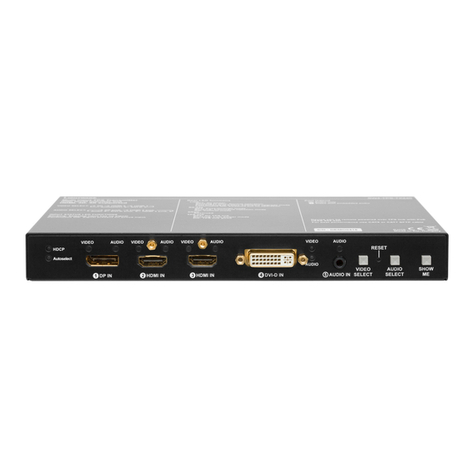
Lightware UMX-TPS-TX100 Series User manual

Lightware

Lightware UMX-TPS-TX100 Series User manual

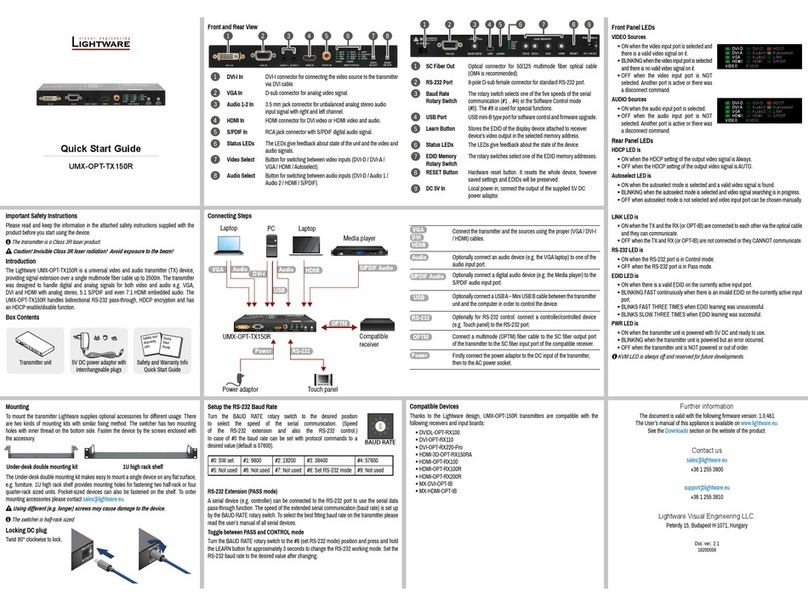
Lightware UMX-OPT-TX150R User manual

Lightware

Lightware UMX-OPT-TX150R User manual

Lightware HDMI-TP-TX50 User manual

Lightware

Lightware HDMI-TP-TX50 User manual

Lightware UMX-TPS-TX120 User manual

Lightware

Lightware UMX-TPS-TX120 User manual

Lightware UMX-TPS-TX130 User manual

Lightware

Lightware UMX-TPS-TX130 User manual

Lightware DVI-HDCP-TPS-TX210 User manual

Lightware

Lightware DVI-HDCP-TPS-TX210 User manual

Lightware WP-UMX-TPS-TX120-US Black User manual

Lightware

Lightware WP-UMX-TPS-TX120-US Black User manual

Lightware DVI-OPT-TX110 User manual

Lightware

Lightware DVI-OPT-TX110 User manual

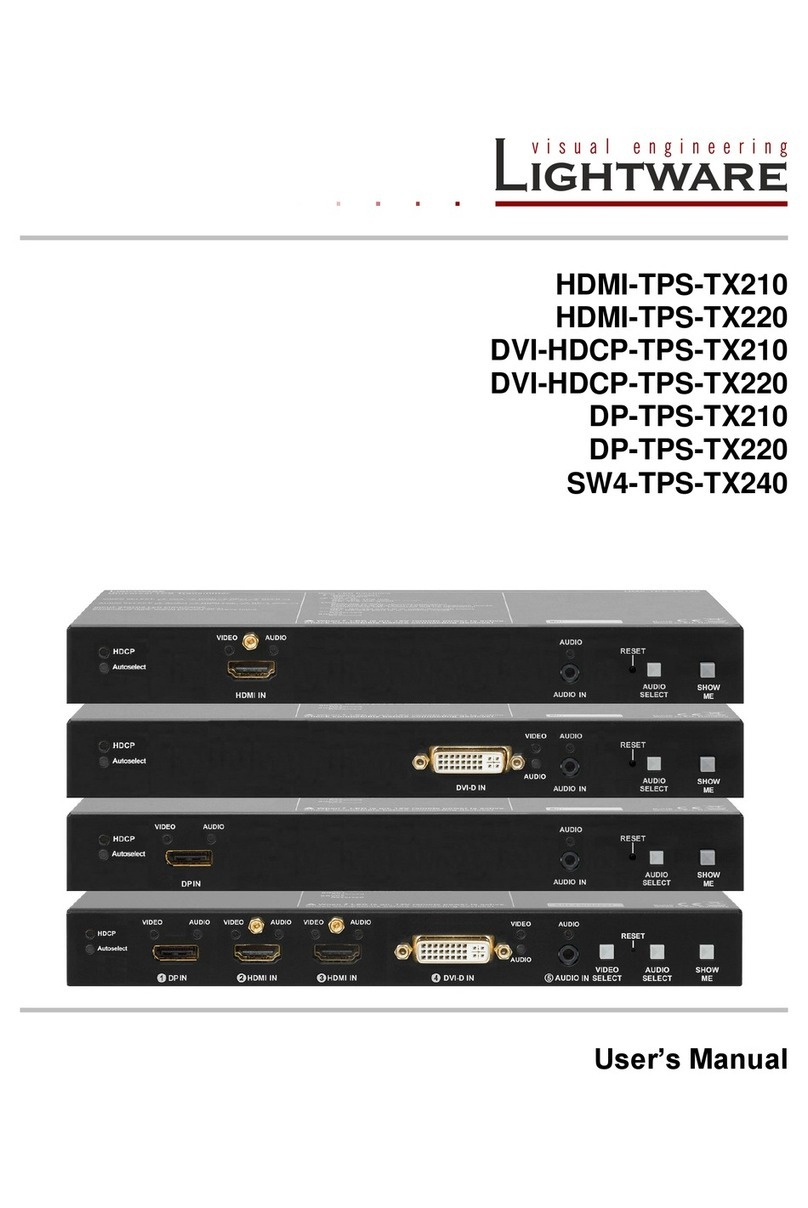
Lightware SW4-TPS-TX240 User manual

Lightware

Lightware SW4-TPS-TX240 User manual

Lightware HDMI-3D-OPT-TX210A User manual

Lightware

Lightware HDMI-3D-OPT-TX210A User manual

Lightware HDMI-TP-TX100R User manual

Lightware

Lightware HDMI-TP-TX100R User manual

Lightware SW4-OPT-TX240RAK User manual

Lightware

Lightware SW4-OPT-TX240RAK User manual

Lightware HDMI-TPS-TX210 User manual

Lightware

Lightware HDMI-TPS-TX210 User manual

Lightware UMX-OPT-TX150R User manual

Lightware

Lightware UMX-OPT-TX150R User manual

Popular Transmitter manuals by other brands

Seneca K120RTD installation manual

Seneca

Seneca K120RTD installation manual

Nautel GV40 installation manual

Nautel

Nautel GV40 installation manual

HumanTechnik cm-light operating instructions

HumanTechnik

HumanTechnik cm-light operating instructions

INOR APAQ C130 TC User instructions

INOR

INOR APAQ C130 TC User instructions

Linear DXS-64 operating instructions

Linear

Linear DXS-64 operating instructions

FeinTech ABT00102 instruction manual

FeinTech

FeinTech ABT00102 instruction manual

Geo Web Pack quick start guide

Geo

Geo Web Pack quick start guide

Inovonics EchoStream EN1210W installation instructions

Inovonics

Inovonics EchoStream EN1210W installation instructions

IKONNIK KA-6 quick start guide

IKONNIK

IKONNIK KA-6 quick start guide

Rohde & Schwarz SR8000 Series System manual

Rohde & Schwarz

Rohde & Schwarz SR8000 Series System manual

Audio Technica UniPak ATW-T93 Installation and operation

Audio Technica

Audio Technica UniPak ATW-T93 Installation and operation

NIVELCO EasyTREK SCA-300 Series Programming manual

NIVELCO

NIVELCO EasyTREK SCA-300 Series Programming manual

Honeywell 5816WMBR installation instructions

Honeywell

Honeywell 5816WMBR installation instructions

Kamstrup READy MTU Installation and operation guide

Kamstrup

Kamstrup READy MTU Installation and operation guide

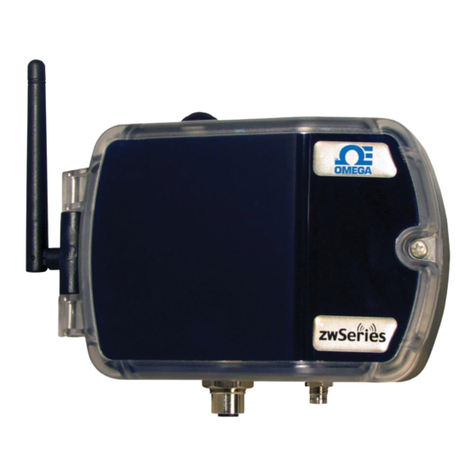
Omega ZW Series user guide

Omega

Omega ZW Series user guide

ABB Field 264H Instructions for installation

ABB

ABB Field 264H Instructions for installation

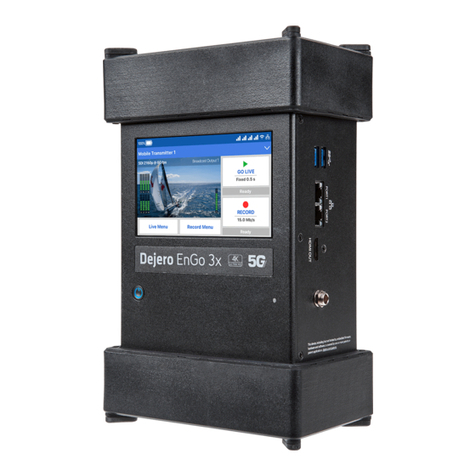
Dejero EnGo 3x manual

Dejero

Dejero EnGo 3x manual

Rosemount 4600 Reference manual

Rosemount

Rosemount 4600 Reference manual

manuals.online logo
manuals.online logoBrands
  • About & Mission
  • Contact us
  • Privacy Policy
  • Terms and Conditions

Copyright 2025 Manuals.Online. All Rights Reserved.

www.lightware.eu Firmware version: 1.0.1
For technical support contact support@lightware.eu Document revision: 1.1
UMX-TPS-TX120, UMX-TPS-TX130, UMX-TPS-TX140
Quick Start Guide
Introduction
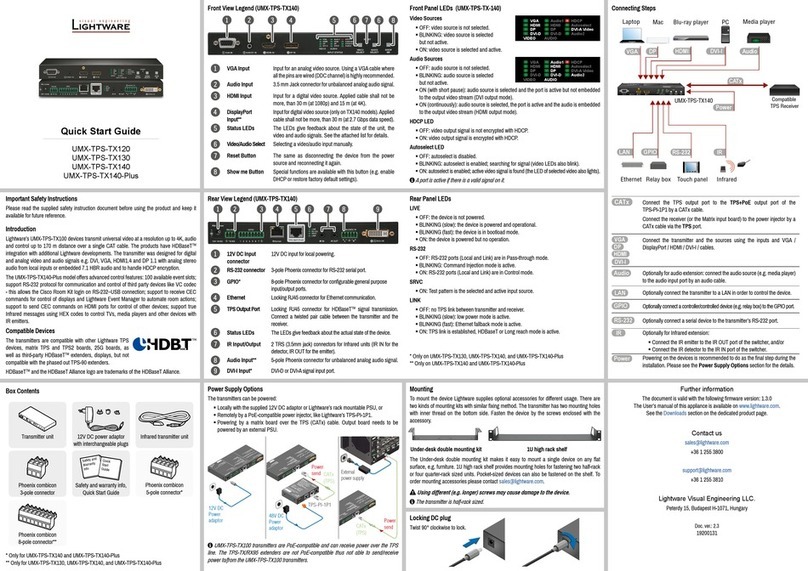
Lightware’s new UMX-TPS-TX140 transmits universal video at a resolution up to 4K, audio
and control up to 170 m distance over a single CAT cable. This transmitter was designed for
digital and analog video and audio signals e.g. DVI, VGA, YPrPb, HDMI1.4 and DP 1.1 with
analog stereo audio from local inputs or embedded 7.1 HBR audio and to handle HDCP
encryption. The transmitters are fully compatible with Lightware TPS matrix boards and other
TPS products.
Installation
The transmitters can be powered locally with +12V DC adaptor (enclosed to the device), or
remotely by a PoE-compatible power injector, like Lightware’s TPS-PI-1P1.
Connecting steps –using local PSU
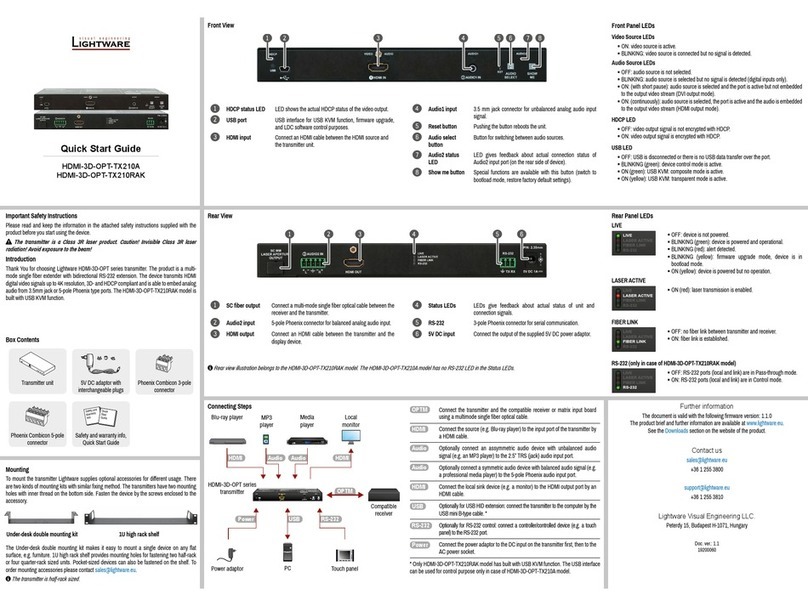
1. Connect the transmitter and the receiver unit by a CATx cable via the TPS connector.
2. Connect the desired HDMI / VGA / DVI / DP / Audio source(s) to the input connector(s) of the
transmitter.
3. Optionally connect the transmitter to a Local Area Network in order to control the device.
4. Optionally for RS-232 extension: connect a controller unit to the transmitter’s RS-232 port.
5. Optionally for Infra-Red extension:
a. Connect the IR emitter to the IR OUT port of the transmitter, and/or
b. Connect the IR detector to the IR IN port of the transmitter.
6. Connect the power cord of the supplied adaptor to the transmitter or use Lightware’s rack
mountable power supply unit.
7. Power on the devices.
Connecting steps –Using remote power
1. Connect the TPS OUT port of the transmitter to the TPS+PoE port of TPS-PI-1P1 by a CATx
cable.
2. Connect the receiver (or the Matrix input board) to the power injector by a CATx cable via the
TPS port.
3. Connect the desired HDMI / VGA / DVI / DP / Audio source(s) to the input connector(s) of the
transmitter.
4. Optionally connect the transmitter to a LAN in order to control the device.
5. Optionally for RS-232 extension: connect a controller unit to the transmitter’s RS-232 port.
6. Optionally for Infra-Red extension:
a. Connect the IR emitter to the IR OUT port of the transmitter, and/or
b. Connect the IR detector to the IR IN port of the transmitter.
7. Power on the devices.
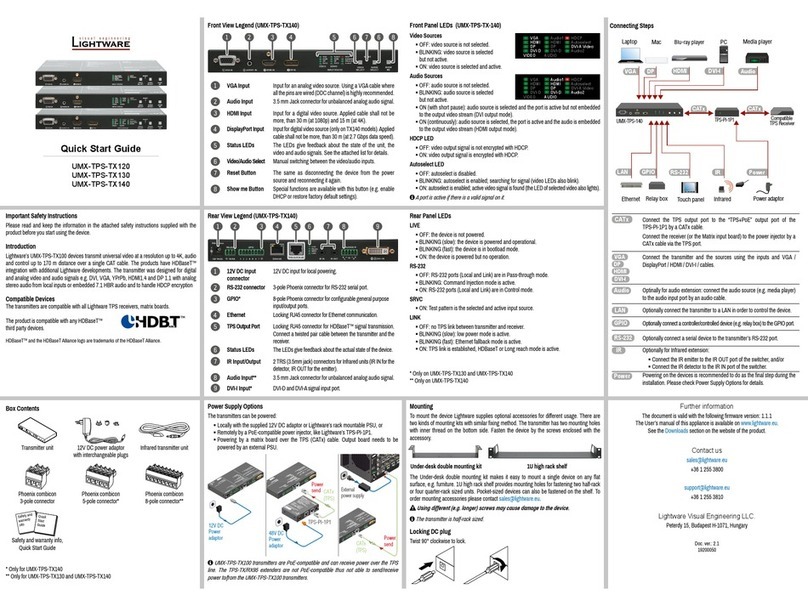
Front view (UMX-TPS-TX140)
Rear view (UMX-TPS-TX140)
www.lightware.eu Firmware version: 1.0.1
For technical support contact support@lightware.eu Document revision: 1.1
UMX-TPS-TX120, UMX-TPS-TX130, UMX-TPS-TX140
Quick Start Guide
Front panel LEDs
VIDEO sources
▪DARK: video source is not selected
▪BLINKS: video source is selected but not active
▪LIGHTS: video source is selected and active
AUDIO sources
▪DARK: audio source is not selected
▪BLINKS: audio source is selected but not active –regardless of the output mode
▪LIGHTS (with short pause): audio source is selected and the port is active
(continuously): audio source is selected, active and the audio is embedded to the
output video stream
HDCP LED
▪DARK: video output signal is not encrypted with HDCP
▪LIGHTS: video output signal is encrypted with HDCP
AUTOSELECT LED
▪DARK: autoselect function is OFF
▪BLINKS: searching for signal (video LEDs also blink)
▪LIGHTS: active video signal is found (the LED of selected video also lights)
Rear panel LEDs
LIVE
▪DARK: device is not powered
▪BLINKS (slow): device is powered and operational
(fast): device is in bootload mode
▪LIGHTS: device is powered but no operation
RS-232
▪DARK: RS-232 ports (Local and Link) are in Pass-through mode
▪BLINKS: Command Injection mode is active
▪LIGHTS: RS-232 ports (Local and Link) are in Control mode
SRVC
▪LIGHTS: Testpattern is the selected and active input source
LINK
▪DARK: no TPS link between transmitter and receiver
▪BLINKS (slow): low power mode is active
(fast): Ethernet fallback mode is active
▪LIGHTS: TPS link is established, HDBaseT or Long Reach mode is active
Video input selection
Desired video input can be selected by the Video select button on the front panel. The selection
order of the inputs depend on the model. The input can be also selected by using LDC
(Lightware Device Controller), sending a protocol command, or using Autoselect.
Audio input selection
Desired audio input can be selected by the Audio select button on the front panel. The selection
order of the inputs depend on the model. The input can be also selected by using LDC
(Lightware Device Controller), sending a protocol command or using Autoselect.
Info: A port is active if there is a valid signal on it.
Allowed audio/video embedding
Audio source
HDMI
DP
DVI-D
Audio1
(or Audio)
Audio2
Video source
HDMI

-
-


DP
-

-


VGA
-
-
-


DVI-D
-
-



DVI-A
-
-
-


Info: If 4K video is selected to the output, analog audio cannot be embedded to the video stream
due to the capabilities of the video IC, thus the original audio stream will be transmitted.
Set dynamic IP address
1. Press and keep the Show me button pressed for 5 seconds; front panel LEDs start to blink.
2. Release the button, then press it 3 times quickly. DHCP is now enabled.
Restore factory default settings
1. Press and keep the Show me button pressed for 10 seconds; front panel LEDs start to blink.
2. Release the button, then press it 3 times quickly; factory default settings are restored:

IP address (fix)
192.168.0.100
Autoselect
disabled
DHCP
disabled
RS232 mode
Pass-through
Port nr.
6107
RS232 port setting
57600 BAUD, 8, N, 1
Crosspoint setting
Audio 1 input
Emulated EDID
Analog ports: F89
VGA input
Digital ports: dynamic