manuals.online logo
Brands
  1. Home
  2. •
  3. Brands
  4. •
  5. Overland Storage
  6. •
  7. Storage
  8. •
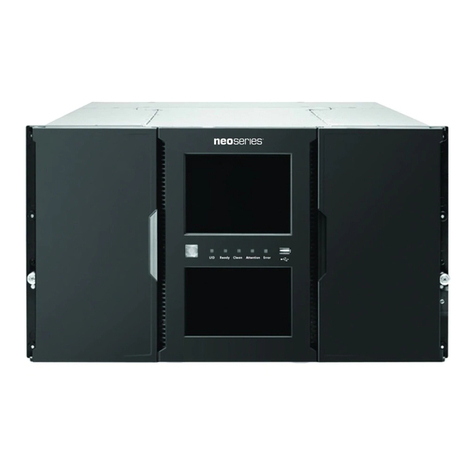
  9. Overland Storage NEOs StorageLoader User manual

Overland Storage NEOs StorageLoader User manual

Other Overland Storage Storage manuals

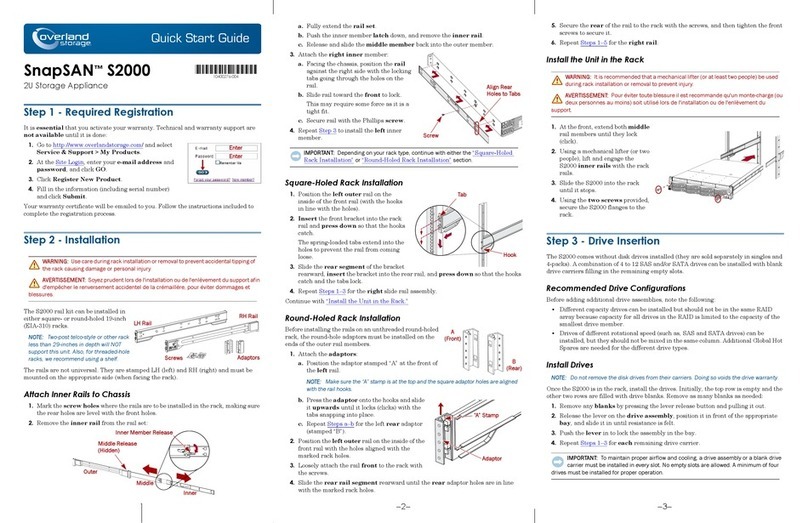
Overland Storage ARCvault Series Guide

Overland Storage

Overland Storage ARCvault Series Guide

Overland Storage NEO 2000e User manual

Overland Storage

Overland Storage NEO 2000e User manual

Overland Storage REO 4600 User manual

Overland Storage

Overland Storage REO 4600 User manual

Overland Storage NEO 8000E User manual

Overland Storage

Overland Storage NEO 8000E User manual

Overland Storage NEO 4000e User manual

Overland Storage

Overland Storage NEO 4000e User manual

Overland Storage NEO 8000E User manual

Overland Storage

Overland Storage NEO 8000E User manual

Overland Storage ARCvault 12 User manual

Overland Storage

Overland Storage ARCvault 12 User manual

Overland Storage NEO 8000 User manual

Overland Storage

Overland Storage NEO 8000 User manual

Overland Storage SnapSAN S1000 User manual

Overland Storage

Overland Storage SnapSAN S1000 User manual

Overland Storage REO 9100 How to use

Overland Storage

Overland Storage REO 9100 How to use

Overland Storage NEO 8000 User manual

Overland Storage

Overland Storage NEO 8000 User manual

Overland Storage SnapServer XSR 120 User manual

Overland Storage

Overland Storage SnapServer XSR 120 User manual

Overland Storage NEO 400S User manual

Overland Storage

Overland Storage NEO 400S User manual

Overland Storage NEO XL Series User manual

Overland Storage

Overland Storage NEO XL Series User manual

Overland Storage ARCvault 48 User manual

Overland Storage

Overland Storage ARCvault 48 User manual

Overland Storage NEO XL Series User manual

Overland Storage

Overland Storage NEO XL Series User manual

Overland Storage ARCvault Series User manual

Overland Storage

Overland Storage ARCvault Series User manual

Overland Storage NEO 8000 Guide

Overland Storage

Overland Storage NEO 8000 Guide

Overland Storage REO 9000 User manual

Overland Storage

Overland Storage REO 9000 User manual

Overland Storage ULTAMUS RAID 4800 User manual

Overland Storage

Overland Storage ULTAMUS RAID 4800 User manual

Overland Storage XchangeNOW ARCvault Series User manual

Overland Storage

Overland Storage XchangeNOW ARCvault Series User manual

Overland Storage NEOs T24 User manual

Overland Storage

Overland Storage NEOs T24 User manual

Overland Storage SnapServer DX2 User manual

Overland Storage

Overland Storage SnapServer DX2 User manual

Overland Storage E Series User manual

Overland Storage

Overland Storage E Series User manual

Popular Storage manuals by other brands

IBM 40/80 GB HH DLTVS user guide

IBM

IBM 40/80 GB HH DLTVS user guide

Synology DiskStation DS716+II Quick installation guide

Synology

Synology DiskStation DS716+II Quick installation guide

Vantec NexStar-HX4 user manual

Vantec

Vantec NexStar-HX4 user manual

LaCie Christofle Galet datasheet

LaCie

LaCie Christofle Galet datasheet

LaCie Rugged Thunderbolt user manual

LaCie

LaCie Rugged Thunderbolt user manual

OCZ IBIS datasheet

OCZ

OCZ IBIS datasheet

Transcend JetFlash 110 Brochure & specs

Transcend

Transcend JetFlash 110 Brochure & specs

QNAP TS 32PXU Series user guide

QNAP

QNAP TS 32PXU Series user guide

LaCie RUGGED RAID user manual

LaCie

LaCie RUGGED RAID user manual

Freecom CLS DOCK Quick install guide

Freecom

Freecom CLS DOCK Quick install guide

PNY Attache P-FD64MBATT3 install guide

PNY

PNY Attache P-FD64MBATT3 install guide

OWC Mercury Elite Pro Dual mini Assembly manual

OWC

OWC Mercury Elite Pro Dual mini Assembly manual

OLT 6x6 Maximizer Assembly manual

OLT

OLT 6x6 Maximizer Assembly manual

Transcend JetFlash 160 Specifications

Transcend

Transcend JetFlash 160 Specifications

Thunderbolt 600 user manual

Thunderbolt

Thunderbolt 600 user manual

Intel RAID High Availability user guide

Intel

Intel RAID High Availability user guide

LaCie 12big Thunderbolt 3 Quick install guide

LaCie

LaCie 12big Thunderbolt 3 Quick install guide

Spectra Logic T-Series Spectra T50e quick start guide

Spectra Logic

Spectra Logic T-Series Spectra T50e quick start guide

manuals.online logo
manuals.online logoBrands
  • About & Mission
  • Contact us
  • Privacy Policy
  • Terms and Conditions

Copyright 2025 Manuals.Online. All Rights Reserved.

Quick Start Guide
–1– –2– –3–
NEOs™StorageLoader®
1U Tape Library
Step 1
It is essential that you activate your warranty. Technical and warranty support are
not available until the warranty is active:
1. Go to http://www.overlandstorage.com/ and select
Service & Support > My Products
.
2. At the Site Login, enter your e-mail address and
password, and click
GO
.
3. Click
Register New Product
.
4. Fill in the information (including serial number)
and click
Submit
.
NOTE: You’ll receive a confirmation e-mail from Overland with instructions on how to
complete the registration process.
Step 2
Prepare for Installation
NOTE: If the temperature in the room where the library will be installed varies by 15º C
(30º F) from the room where the library was stored, allow the library to acclimate to the
surrounding environment for at least 12 hours before unpacking it.
1. Unpack the library and components, placing them on a secure surface.
2. Remove the shipping lock:
a. Remove the yellow label on the top that is securing the shipping lock.
b. Remove the shipping lock from the slot underneath the label.
Store the shipping lock in the slot in the power supply should it needed later.
c. Replace the yellow label over the slot.
Enter
Enter
Store Here
Step 3
The NEOs StorageLoader comes with a sliding rail rack kit for easy installation into a
19-inch (EIA-310) rack.
IMPORTANT: Two-post telco-style or other racks less than 29 inches in depth will NOT
support this unit.
Install the Rack Rails
1. Determine the location where the library is to be installed and mark each
vertical rail on the rack.
NOTE: Verify that the rails are mounted level and at the same rack height on each side.
2. Using the correct screws for your type of rack, secure one rail using four screws,
two front and two rear.
3. Repeat Step 2 for the other rail on the other side.
Attach Mounting Brackets
Using the four T10 Torx screws, attach the mounting brackets to each side of the front
of the library.
Install the Library in Rack
WARNING: It is recommended that a mechanical lifter (or at least two people) be
used to raise and align the unit to prevent injury during installation. Use care when
inserting or removing a unit into or out of a rack to prevent the accidental tipping of
the rack, causing damage or personal injury.
WARNUNG: Um Verletzungen zu vermeiden, empfehlen wir zur Rack-Installation oder
-Deinstallation die Nutzung einer mechanischen Hebehilfe (oder mindestens zwei
Personen). Seien Sie vorsichtig bei der Rack-Installation oder -Entnahme, um ein
versehentliches Kippen des Racks zu vermeiden und das Rack nicht zu beschädigen
bzw. sich selbst zu verletzen.
AVERTISSEMENT: Afin d’éviter des blessures pendant l’installation, il est
recommande d’utiliser un monte-charge (ou au moins deux personnes) pour élever ou
aligner l’appareil. Faites attention lorsque vous insérez ou retirez l’appareil d’un
support, pour empêcher le déversement accidentel de la crémaillère causant des
dommages et des blessures.
1. Using the mechanical lifter, position the library in front of the rack .
2. Slide the library onto the rack rails.
3. Secure it to the rack using two screws in the mounting bracket.
Step 4
The half-height tape drive is installed from the rear.
1. Remove and retain the drive bay cover.
2. Slightly pull out the ID label pull-out tab (3) so it does not interfere.
3. Insert the tape drive into the drive bay (2), and align the connectors on the
library while supporting the drive.
4. Push the tape drive into the drive bay until the tape drive seats itself against the
back of the library.
5. Slightly push the ID label pull-out tab back into library.
6. Tighten the blue captive screws with your fingers to secure the tape drive to the
library.
*10400636001*
10400636-001
–4– –5– –6–
http://support.overlandstorage.com
You can get additional technical support on the Internet at the Overland Storage Support web page, or
by contacting Overland Storage using the information found on the Contact Us page on our web site.
©2014 Overland Storage, Inc.
Step 5
Cable Attachment
All cabling, power connections, and cooling are located on the rear panel.
1. Connect the network cables to their ports (3).
2. Connect the management cable to the RJ45 port (5).
3. Plug the power cord into the AC Power Socket (1).
4. Press the Power button on the front just left of the LED screen.
Step 6
The library can be operated using either the Operator Control Panel (OCP) on the front
of the device or remotely using the Remote Management Interface (RMI) web access.
Operator Control Panel
The OCP is the LCD screen located on the front panel (13), and displays actions and
status information, menu items, and error messages equivalent to the operation mode.
There are two modes:
• User interaction mode – This mode is employed when a user is pushing buttons
on the OCP.
• System driven mode – This is the normal mode of operation where the OCP
displays statuses associated with the actions resulting from commands issued
from the host software application.
It is supported by four LEDs above the screen (3-6) and four buttons to the right (7, 8,
11, 12). Refer to the NEOs StorageLoader User Guide for complete details.
Remote Management Interface
Many of the same operations performed locally from the OCP can also be performed
remotely using the network-connected RMI interface.
The RMI hosts a dedicated, protected Internet site that displays a graphical representation of the
library. After establishing a network connection to the library, open any HTML browser
and enter the IP address of the library.
NOTE: To access the RMI, you must first set the desired static IP address for the library using
the OCP or configure the library to use DHCP.
Refer to the NEOs StorageLoader User Guide for complete details.
1 - AC Power Socket

2 - Shipping Lock
3 - Network Ports
4 - Tape Drive LED
5 - Ethernet Port
6 - USB Port
12 3 5 64
Step 7
User Guides
For detailed information on configuring your NEOs
StorageLoader, refer to the NEOs StorageLoader User
Guide available online at:
http://docs.overlandstorage.com/neo
Warranty and Technical Support
For warranty and general technical support information,
see our Contact Us web page:
http://www.overlandstorage.com/company/contact-us/
index.aspx
For information on contacting Overland Technical Support,
see our Contact Support web page:
http://docs.overlandstorage.com/support