34440700 1 of 4
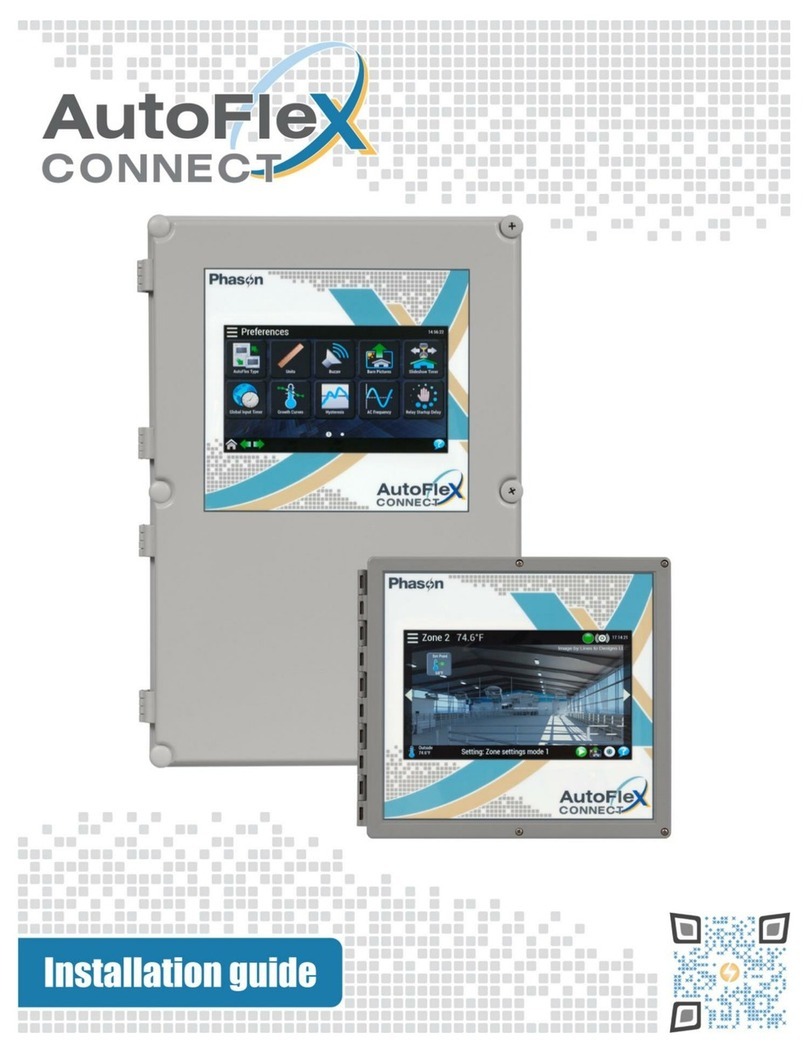
AutoFlex Connect II display kit installation guide
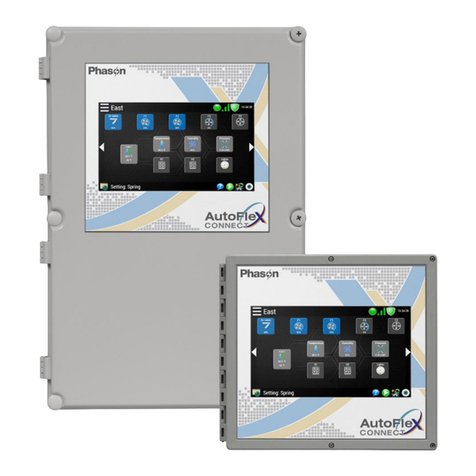
This procedure explains how to install AutoFlex Connect II display kit, model KAFXMC2-DISPLAY.
This kit is for AutoFlex Connect II controls that have six module positions.
Follow the steps in the order they are listed.
A. Create a new database backup
B. Shut down AutoFlex Connect
C. Verify the database backup
D. Remove the old display
E. Install the new display
F. Power on and test the system
A. Create a new database backup
If your AutoFlex Connect II is not functioning, skip to section B.
Create the backup on the new USB drive that DOES NOT have the WARNING
label.
Your control might look different than the pictures in the examples but the
procedure is the same.
1. At the control, press the main menu and then
Administration.
2. On the Admin Panel, press Diagnostics.
3. Press Eject USB and then press Yes. Follow
the instructions on the screen. If a message
displays that it is safe to remove the USB
drive, DO NOT press Okay.
4. Loosen the four screws that secure the cover
and then open the cover.
5. Remove the USB drive that DOES NOT have the WARNING label.
6. On the new display, remove the USB drive that DOES NOT have the WARNING label.
7. Plug the new USB drive into the port where you removed the old USB drive from in step 4.
8. Press Okay.
9. Swipe to the right or left until you see the Backup Database icon.
10. Press Backup Database.
11. Press Yes and then wait for the backup to complete.
12. Eject the USB drive as you did in step 3.
13. Remove the USB drive.
14. Plug the old USB drive into the port and then press Okay.