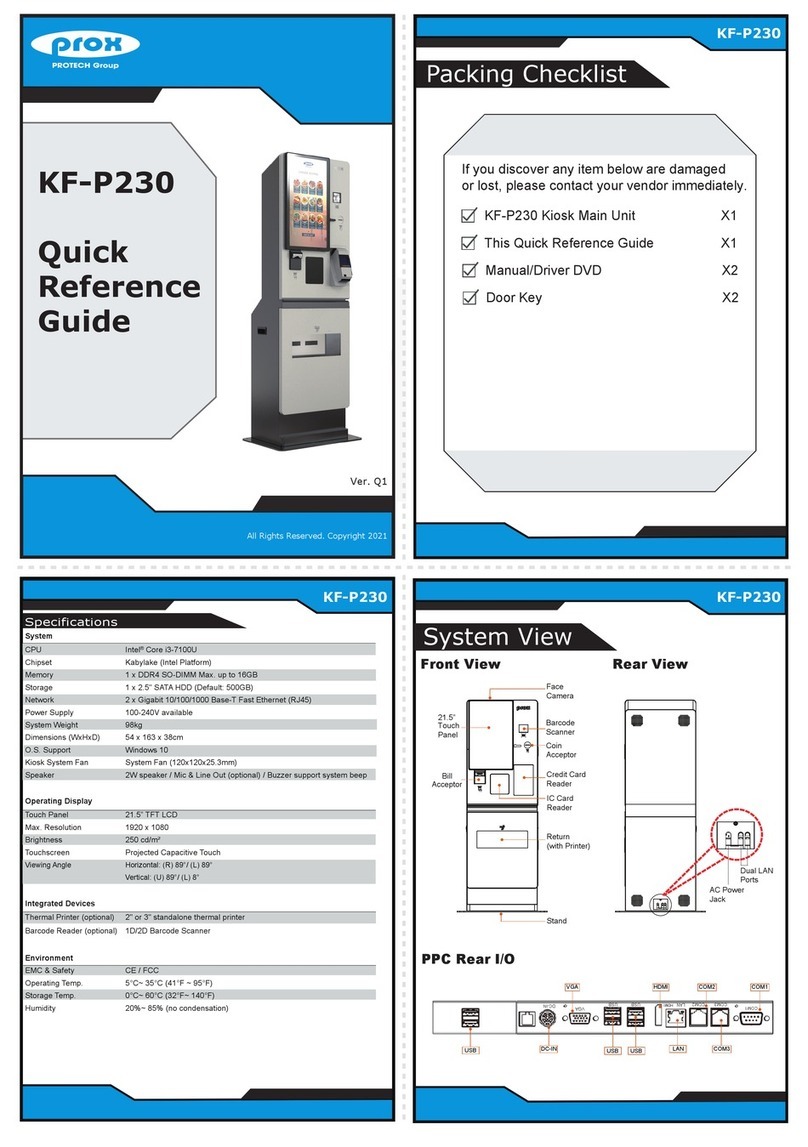
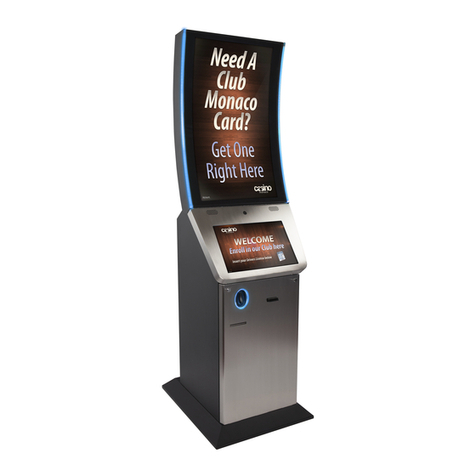
protech prox KF-P231 User manual

USER
MANUAL
KF-P231 M1
KF-P231
IndoorMulti-Functional
KioskSystem

KF-P231
Multi-Functional
Kiosk System with 17” P-Cap Touch
COPYRIGHT NOTICE & TRADEMARK
All trademarks and registered trademarks mentioned herein are the
property of their respective owners.
This manual is copyrighted in Nov. 2022. You may not reproduce
or transmit in any form or by any means, electronic, or
mechanical, including photocopying and recording.
DISCLAIMER
This user’smanual is meant to assist users in installing and setting up
the system. The information contained in this document is subject to
change without any notice.

CE NOTICE
This is a class A product. In a domestic environment this product may
cause radio interference in which case the user may be required to take
adequate measures.
FCC NOTICE
This equipment has been tested and found to comply with the limits for
a Class A digital device, pursuant to part 15 of the FCC Rules. These
limits are designed to provide reasonable protection against harmful
interference when the equipment is operated in a commercial
environment. This equipment generates, uses, and can radiate radio
frequency energy and, if not installed and used in accordance with the
instruction manual, may cause harmful interference to radio
communications. Operation of this equipment in a residential area is
likely to cause harmful interference in which case the user will be
required to correct the interference at his own expense.
You are cautioned that any change or modifications to the equipment
not expressly approve by the party responsible for compliance could
void your authority to operate such equipment.
CAUTION: Danger of explosion may occur when the battery is
incorrectly replaced. Replace the battery only with the same or
equivalent type recommended by the manufacturer. Dispose
of used batteries according to the manufacturer’s instructions.
WARNING: Some internal parts of the system may have high
electrical voltage. We strongly recommend that only qualified
engineers are allowed to open and disassemble the system.
Please operate the LCD and Touchscreen with extra care as
they can be broken easily.

i
Contents
Revision History ..........................................................................................viii
1Introduction.........................................................................................1-1
1.1 About This Manual.......................................................................1-2
2Getting Started....................................................................................2-1
2.1 Package List ................................................................................2-2
2.3 System Overview (Standard Type)..............................................2-3
2.3.1 Front View .............................................................................2-3
2.3.2 Rear View..............................................................................2-4
2.3.3 Side View ..............................................................................2-5
2.3.4 Top View................................................................................2-6
2.3.5 Bottom View ..........................................................................2-6
2.3.6 Quarter View .........................................................................2-7
2.4 System Overview (S80 Type)......................................................2-8
2.4.1 Front View .............................................................................2-8
2.4.2 Rear View..............................................................................2-9
2.4.3 Side View ............................................................................2-10
2.4.4 Top View..............................................................................2-11
2.4.5 Bottom View........................................................................2-11
2.4.6 Quarter View .......................................................................2-12
2.5 System Overview (Car Park Type) ............................................2-13
2.5.1 Front View ...........................................................................2-13
2.5.2 Rear View............................................................................2-14
2.5.3 Side View ............................................................................2-15

ii
2.5.4 Top View..............................................................................2-16
2.5.5 Bottom View........................................................................2-16
2.5.6 Quarter View .......................................................................2-17
2.6 Quick Setup ...............................................................................2-18
2.6.1 Turning On KF-P231 and Connecting System to Network .2-18
2.6.2 Installing Printer Paper Roll.................................................2-19
2.6.3 Taking Out Bills from L70 Bill Acceptor ...............................2-22
2.6.4 Taking Out Coins from Coin Hopper ...................................2-23
2.6.5 Loading Bills Into NDE1000 Bill Dispenser.........................2-24
2.6.6 Installing Light Box..............................................................2-25
2.6.7 Installing Printer Door..........................................................2-27
2.7 System Specifications................................................................2-29
2.8 Safety Precautions.....................................................................2-31
3System Configuration.........................................................................3-1
3.1 External System I/O Ports Diagram.............................................3-2
3.2 Internal Main Board Box I/O Ports Diagram................................3-3
3.3 Main Board Component Locations & Jumper Settings................3-4
3.3.1 Top View of BM-0982RA-**N ................................................3-4
3.3.2 Jumper Settings of BM-0982RA-**N.....................................3-5
3.3.3 Bottom View of BM-0982RA-**N.........................................3-17
3.4 Jumper & Connector Quick Reference Table............................3-18
3.5 Setting Jumpers.........................................................................3-19
3.6 Setting Main Board Connectors and Jumpers...........................3-21
3.6.1 COM1 and COM2 PIN9 Definition Selection Guide............3-21
3.6.2 COM Port (COM3, COM4, COM5, COM6, JCOM1)...........3-22

iii
3.6.3 VGA Port (VGA1) ................................................................3-24
3.6.4 Display Port (DP1)...............................................................3-24
3.6.5 LAN & USB 3.0 Port (LAN1_USB1, LAN2_USB2) .............3-25
3.6.6 USB 2.0 Port (USB3) ..........................................................3-29
3.6.7 Programmable GPIO Pin Header (JDIO1)..........................3-29
3.6.8 I2C Wafer (JI2C1) ...............................................................3-30
3.6.9 System Fan Connector (FAN1)...........................................3-30
3.6.10 Audio Port (AUDIO1)...........................................................3-31
3.6.11 Front Panel Connector (JFP1) ............................................3-32
3.6.12 TPM Module / S80 (JLPC1) ................................................3-32
3.6.13 Mini-PCI Express Slot (M_PCIE1) ......................................3-33
3.6.14 PCI Express Slot (PCI_E1) .................................................3-34
3.6.15 SATA 3.0 Connector (SATA1, SATA2).................................3-35
3.6.16 SATA Power Connector (SATA_PWR1, SATA_PWR2).......3-36
3.6.17 Keyboard and Mouse Port (KB_MS1).................................3-36
3.6.18 RTC Battery Connector (JBAT1).........................................3-37
3.6.19 Cash Drawer Connector (JPDRW1) ...................................3-37
3.6.20 LVDS Connector (LVDS1, LVDS2)......................................3-38
3.6.22 Panel Inverter Connector (JINV1, JINV2)...........................3-39
3.6.23 M.2 M-Key Slot (M2_M) ......................................................3-40
3.6.24 LVDS Backlight Control Selection (JP5, JP6).....................3-42
3.6.25 LVDS Panel Selection (JP4) ...............................................3-43
3.6.26 LVDS VCC Voltage Selection (JP_VDD1, JP_VDD2) ........3-44
3.6.27 SATA Connector / M.2 Selection (JPM2_1) ........................3-45
3.6.28 TPM Module Selection (JP_TPM1).....................................3-46
3.6.29 Clear CMOS Data Selection (JP3)......................................3-47
4Software Utilities.................................................................................4-1
4.1 Introduction..................................................................................4-2


iv
4.2 Installing Intel®Chipset Software Installation Utility ....................4-3
4.2.1 Introduction............................................................................4-3
4.2.2 Intel®Chipset Software Installation Utility.............................4-3
4.3 Installing Graphics Driver Utility...................................................4-4
4.4 Installing Intel® Trusted Execution Engine Installation Utility........4-5
4.5 Installing Sound Driver Utility.......................................................4-6
4.6 Installing Intel®LAN Driver Utility.................................................4-7
4.7 Installing Intel®Serial I/O Driver Utility.........................................4-8
5BIOS SETUP ........................................................................................5-1
5.1 Introduction..................................................................................5-2
5.2 Accessing Setup Utility................................................................5-3
5.3 Main Menu...................................................................................5-6
5.4 Advanced.....................................................................................5-7
5.4.1 Advanced – Trusted Computing............................................5-8
5.4.2 Advanced – ACPI Settings....................................................5-9
5.4.3 Advanced – Onboard Device Configuration........................5-10
5.4.4 Advanced – Hardware Monitor............................................5-11
5.4.5 Advanced – F81966 Watchdog Configuration ....................5-12
5.4.6 Advanced – S5 RTC Wake Settings ...................................5-13
5.4.7 Advanced – CPU Configuration ..........................................5-16
Socket 0 CPU Information...........................................................5-17
CPU Power Management............................................................5-18
5.4.8 Advanced – F81966 Super IO Configuration......................5-19
Serial Port 1 Configuration ..........................................................5-20
Serial Port 2 Configuration ..........................................................5-21

v
Serial Port 3 Configuration ..........................................................5-22
Serial Port 4 Configuration ..........................................................5-23
Serial Port 5 Configuration ..........................................................5-24
Serial Port 6 Configuration ..........................................................5-25
5.4.9 Advanced – Network Stack Configuration ..........................5-26
5.4.10 Advanced – USB Configuration ..........................................5-27
5.5 Chipset.......................................................................................5-28
5.5.1 Chipset – North Bridge........................................................5-29
5.5.2 Chipset – South Bridge .......................................................5-30
HD-Audio Configuration...............................................................5-31
LPSS Configuration.....................................................................5-32
PCI Express Configuration..........................................................5-33
SATA Drives.................................................................................5-38
Miscellaneous Configuration .......................................................5-39
5.6 Security......................................................................................5-40
5.7 Boot............................................................................................5-41
5.8 Save & Exit ................................................................................5-42
Appendix A System Diagrams....................................................A-1
Body Unit, Panel Unit, Front Door Unit Exploded Diagram......................A-2
Body Unit & Key Parts Exploded Diagram (1)..........................................A-4
Body Unit & Key Parts Exploded Diagram (2)..........................................A-6
Body Unit Assembly Exploded Diagram (1) .............................................A-8
Body Unit Assembly Exploded Diagram (2) .............................................A-9
Body Unit Assembly Exploded Diagram (3-1)........................................A-10
Body Unit Assembly Exploded Diagram (3-2)........................................A-11
Body Unit Assembly Exploded Diagram (4) ...........................................A-13
Touch Panel Assembly Exploded Diagram.............................................A-15

vi
LCD Holder Assembly Exploded Diagram..............................................A-17
Key Pad Assembly Exploded Diagram (1) .............................................A-18
Key Pad Assembly Exploded Diagram (2) .............................................A-20
Payment Device Assembly Exploded Diagram......................................A-21
S80 Assembly Exploded Diagram..........................................................A-23
MSC Reader / RFID / Payment Device Assembly Exploded Diagram...A-24
Parkinsys's Device Assembly Exploded Diagram ..................................A-26
EasyCard Device Assembly Exploded Diagram.....................................A-27
No Device Door Style Assembly Exploded Diagram (1) ........................A-28
No Device Door Style Assembly Exploded Diagram (2) ........................A-30
Printer Assembly Exploded Diagram......................................................A-32
Mini Hopper Assembly Exploded Diagram (Without Coin Box Type).....A-33
Mini Hopper Assembly Exploded Diagram (Single & Add Coin Barrel Type)
................................................................................................................A-34
Barcode Scanner Assembly Exploded Diagram (1)...............................A-35
Barcode Scanner Assembly Exploded Diagram (2)...............................A-36
Banknote Machine Assembly Exploded Diagram...................................A-37
Coin Door Assembly Exploded Diagram ................................................A-38
Door Lock Assembly Exploded Diagram................................................A-39
BOX PC Assembly Exploded Diagram...................................................A-40
HDD Assembly Exploded Diagrams.......................................................A-42
Light Box Assembly Exploded Diagram .................................................A-43
Speaker Holder and Fan Assembly Exploded Diagrams .......................A-45
Power Adapter Assembly Exploded Diagrams.......................................A-46
Printer Door Assembly Exploded Diagram (1)........................................A-47
Printer Door Assembly Exploded Diagram (2)........................................A-48
Door Lock Assembly Exploded Diagram................................................A-49
Printer Fan Assembly Exploded Diagram...............................................A-50

vii
Appendix B Technical Summary................................................B-1
Block Diagram ..........................................................................................B-2
Interrupt Map ............................................................................................B-3
I/O Map...................................................................................................B-18
Memory Map...........................................................................................B-21
Configuring WatchDog Timer .................................................................B-23
Flash BIOS Update.................................................................................B-25
List of Figures
Figure 5-1. Extensible Firmware Interface Diagram .........................5-2
Figure 5-2. POST Screen with AMI Logo..........................................5-3
Figure 5-3. BIOS Setup Menu Initialization Screen ..........................5-4

viii
Revision History
The revision history of KF-P231 User Manual is described below:
Version No.
Revision History
Page No.
Date
M1
Initial Release
- 2022/11/02

KF-P231 SERIES USER MANUAL
Page: 1-1
1 Introduction
This chapter provides the introduction for KF-P231 system
as well as the framework of the user manual.
The following topic is included:
•About This Manual

Chapter 1 Introduction
KF-P231 SERIES USER MANUAL
Page: 1-2
1.1 About This Manual
Thank you for purchasing our KF-P231 system. The KF-P231 is an updated system
designed to be comparable with the highest performance of IBM AT personal
computers. The KF-P231 provides faster processing speed, greater expandability and
can handle more tasks than before. This manual is designed to assist you how to
install and set up the whole system. It contains 5 chapters and 2 appendixes. Users can
configure the system according to their own needs. This user manual is intended for
service personnel with strong hardware background. It is not intended for general
users.
The following section describes the structure of this user manual.
Chapter 1 Introduction
This chapter introduces the framework of this user manual.
Chapter 2 Getting Started
This chapter describes the package contents and system specifications, and illustrates
the physical appearances for KF-P231 system. Read the safety reminders carefully on
how to take care of your system properly.
Chapter 3 System Configuration
This chapter describes the locations and functions of the system main board
components. You will learn how to properly configure the connectors and system
configuration jumpers on the main board and configure the system to meet your own
needs.
Chapter 4 Software Utilities
This chapter introduces how to install Intel Chipset Software Installation Utility, Intel
Trusted Execution Engine Installation Utility, Graphics Driver Utility, LAN Driver
Utility, Sound Driver Utility and Serial I/O Driver Utility.
Chapter 5 BIOS Setup
This chapter provides BIOS setup information.
Appendix A System Diagrams
This appendix provides the exploded diagrams and part numbers of KF-P231.
Appendix B Technical Summary
This appendix provides the information about the system block diagram, allocation
maps for system resources, Watchdog Timer Configuration and Flash BIOS Update.

KF-P231 SERIES USER MANUAL
Page: 2-1
2 Getting Started
This chapter provides the information for KF-P231 system.
It describes how to set up the system quickly and outlines
the system specifications.
The following topics are included:
•Package List
•System Overview
•Quick Setup
•System Specifications
•Safety Precautions
Experienced users can go to Chapter 3 System
Configuration on page 3-1 for a quick start.

Chapter 2 Getting Started
KF-P231 SERIES USER MANUAL
Page: 2-2
2.1 Package List
If you discover any of the items listed below are damaged or lost,
please contact your local distributor immediately.
Item
Q’ty
KF-P231 Kiosk Main Unit
1
Light Box
1
AC Power Cord Cable
1
Panel Key
2
Door Key
2

Chapter 2 Getting Started
KF-P231 SERIES USER MANUAL
Page: 2-3
2.3 System Overview (Standard Type) Unit: mm
2.3.1 Front View
288 130
753.4 260
508
108
1067
1364.24
1639
Speaker
17” Bezel free P-CAP
Touchscreen
Light Box
Camera
Credit Card Reader
Barcode Scanner
Bill Acceptor
Coin Acceptor
Financial Contacless
IC Card Reader
Printer
458
400
Coin Return
158
68

Chapter 2 Getting Started
KF-P231 SERIES USER MANUAL
Page: 2-4
2.3.2 Rear View Unit: mm
508
670
System Fan
Power / LAN Connector

Chapter 2 Getting Started
KF-P231 SERIES USER MANUAL
Page: 2-5
2.3.3 Side View Unit: mm
1557.71
340
18°
1718.10
Panel Key
Door Key

Chapter 2 Getting Started
KF-P231 SERIES USER MANUAL
Page: 2-6
2.3.4 Top View Unit: mm
2.3.5 Bottom View
15
300
610
75
450
477.4

Chapter 2 Getting Started
KF-P231 SERIES USER MANUAL
Page: 2-7
2.3.6 Quarter View
Other manuals for prox KF-P231
1
Table of contents
Other protech Digital Signage manuals

protech
protech MD-591X User manual

protech
protech prox KF-P230 User manual

protech
protech KS-1132 User manual

protech
protech PA-1822 User manual

protech
protech prox KF-P230 User manual

protech
protech prox KS-M220 User manual

protech
protech KS-M331 User manual

protech
protech KT-7290 User manual

protech
protech KS-M331 User manual

protech
protech KF-7270 User manual