Razer Thresher Ultimatefor Xbox One Installation guide


This manual suits for next models
1
Table of contents
Other Razer Headset manuals

Razer
Razer CHIMAERA Use and care manual

Razer
Razer BLACKSHARK V2 Use and care manual

Razer
Razer BLACKSHARK V2 User manual

Razer
Razer RZ04-0398 User manual

Razer
Razer Kraken 7.1 User manual

Razer
Razer RC30-025801 User manual

Razer
Razer RZ04-0224 User manual

Razer
Razer BLACKSHARK V2 PRO 2023 Use and care manual

Razer
Razer KRAKEN V3 PRO User manual

Razer
Razer Tiamat 2.2 Use and care manual

Razer
Razer NARI Installation guide
Razer
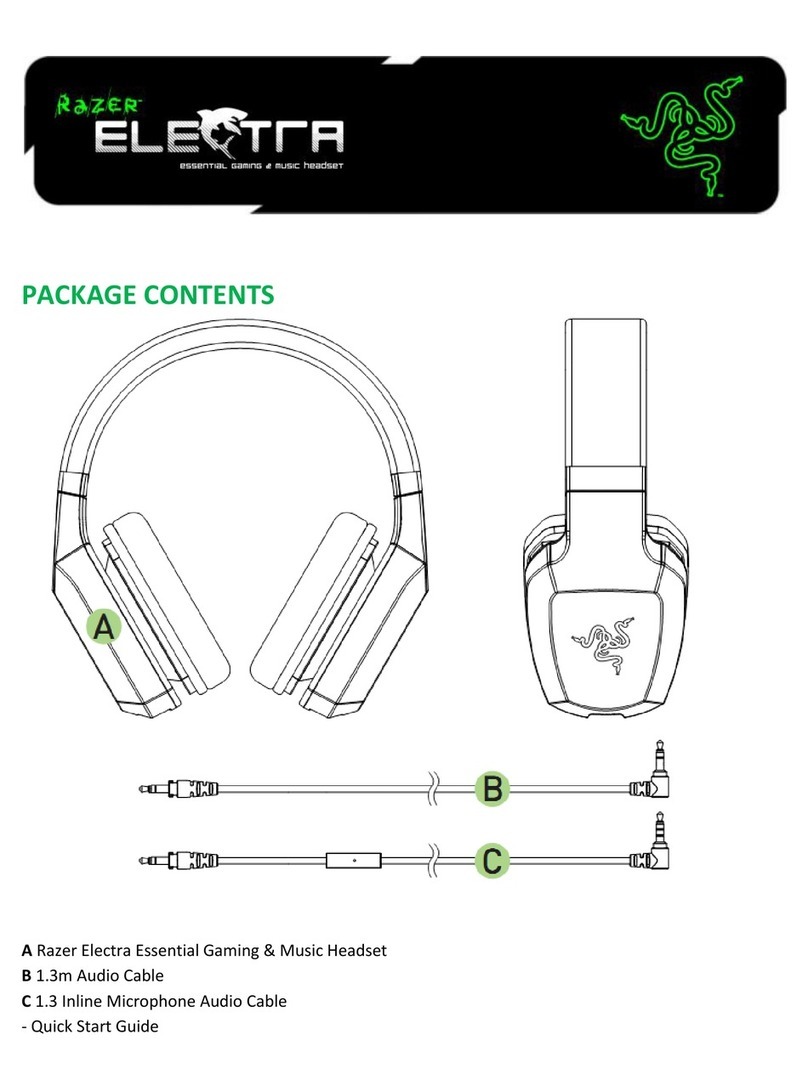
Razer ELECT?? User manual

Razer
Razer Nari Ultimate Use and care manual

Razer
Razer KAIRA PRO User manual

Razer
Razer HAMMERHEAD PRO HYPERSPEED Use and care manual

Razer
Razer RZ04-0347 User manual

Razer
Razer RZ04-0376 User manual

Razer
Razer KAIRA PRO Use and care manual

Razer
Razer KRAKEN KITTY V2 PRO Use and care manual

Razer
Razer RZ04-0267 User manual