PAIRING
YOUR
CELLULAR
PHONE
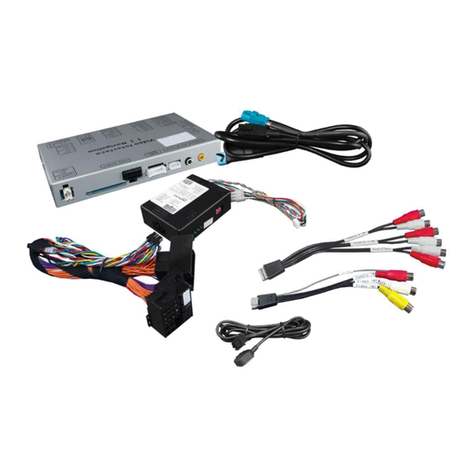
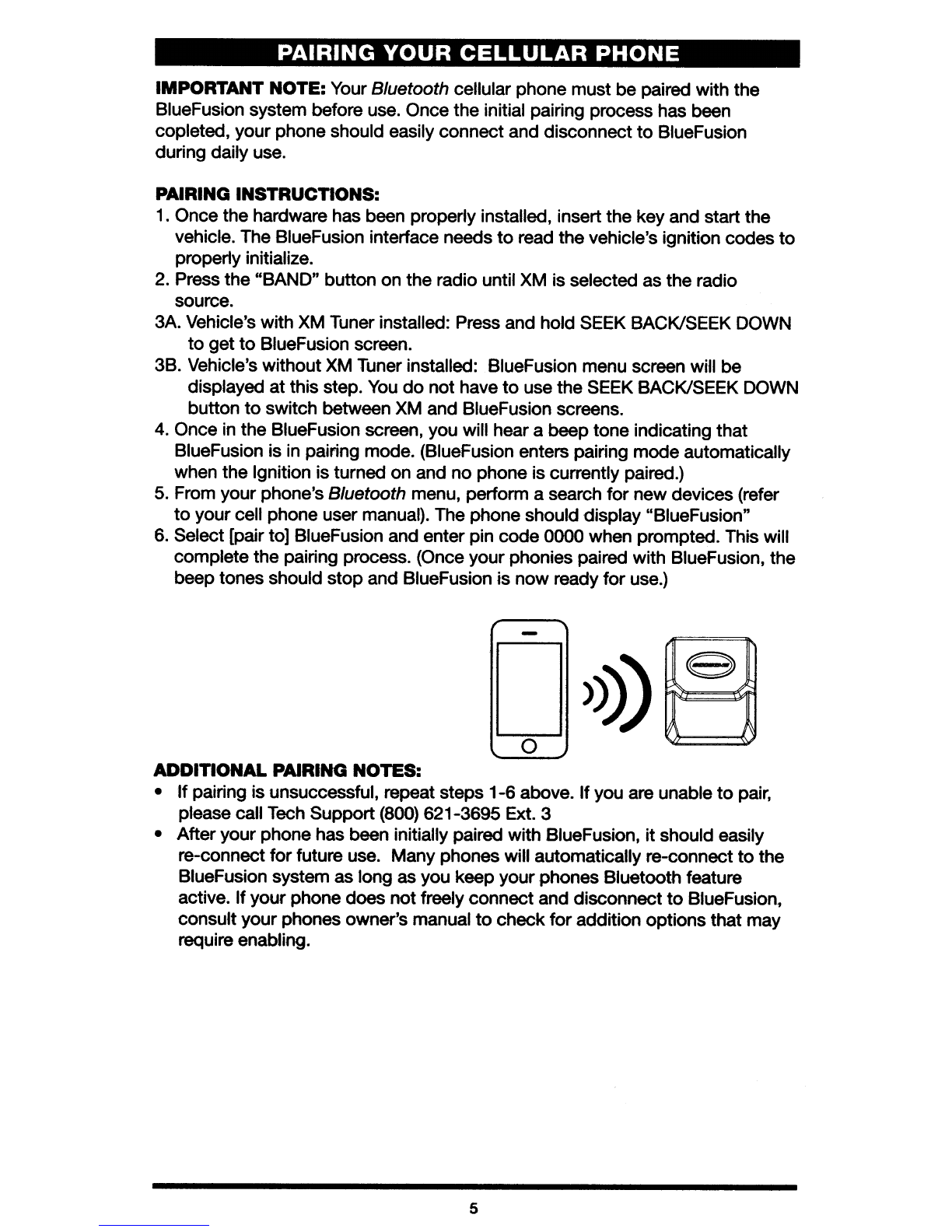
IMPORTANT NOTE: Your Bluetooth cellular phone must be paired with the
BlueFusion system before use. Once the initial pairing process has been
copleted, your phone should easily connect and disconnect
to
BlueFusion
during daily use.
PAIRING INSTRUCTIONS:
1. Once the hardware has been properly installed, insert the key and start the
vehicle. The BlueFusion interface needs
to
read the vehicle's ignition codes
to
properly initialize.
2. Press the "BAND" button on the radio until XM is selected as the radio
source.
3A. Vehicle's with XM Tuner installed: Press and hold SEEK BACK/SEEK DOWN
to
get
to
BlueFusion screen.
3B. Vehicle's without XM Tuner installed: BlueFusion menu screen will be
displayed
at
this step.
You
do
not
have
to
use the SEEK BACK/SEEK DOWN
button
to
switch between XM and BlueFusion screens.
4.
Once
in
the BlueFusion screen, you will hear abeep tone indicating that
BlueFusion is in pairing mode. (BlueFusion enters pairing mode automatically
when the Ignition is turned on and
no
phone is currently paired.)
5.
From your phone's Bluetooth menu, perform asearch
for
new devices (refer
to
your cell phone user
manuaQ.
The phone should display "BlueFusion"
6.
Select [pair to] BlueFusion and enter pin code 0000 when prompted. This will
complete the pairing process. (Once your phonies paired with BlueFusion, the
beep tones should stop and BlueFusion is
now
ready
for
use.)
ADDITIONAL PAIRING NOTES:
•
If
pairing is unsuccessful, repeat steps
1-6
above.
If
you are unable
to
pair,
please call Tech Support (800) 621-3695 Ext. 3
•After your phone has been initially paired with BlueFusion,
it
should easily
re-eonnect for future use. Many phones will automatically re-connect
to
the
BlueFusion system as long as you keep yourphones Bluetooth feature
active. Ifyour phone does
not
freely connect and disconnect
to
BlueFusion.
consult your phones owner's manual
to
check
for
addition options that may
require enabling.
5