Please read this manual first
Setting Guide
Sold by: KDDI CORPORATION, OKINAWA CELLULAR TELEPHONE COMPANY
Manufactured by: SHARP CORPORATION
When using the product
●The battery is built into the product, and cannot be removed by the customer.
●To force the power off, hold fdown for 8 or more seconds (Release your finger after the product vibrates to turn the power off).
Basic Operations
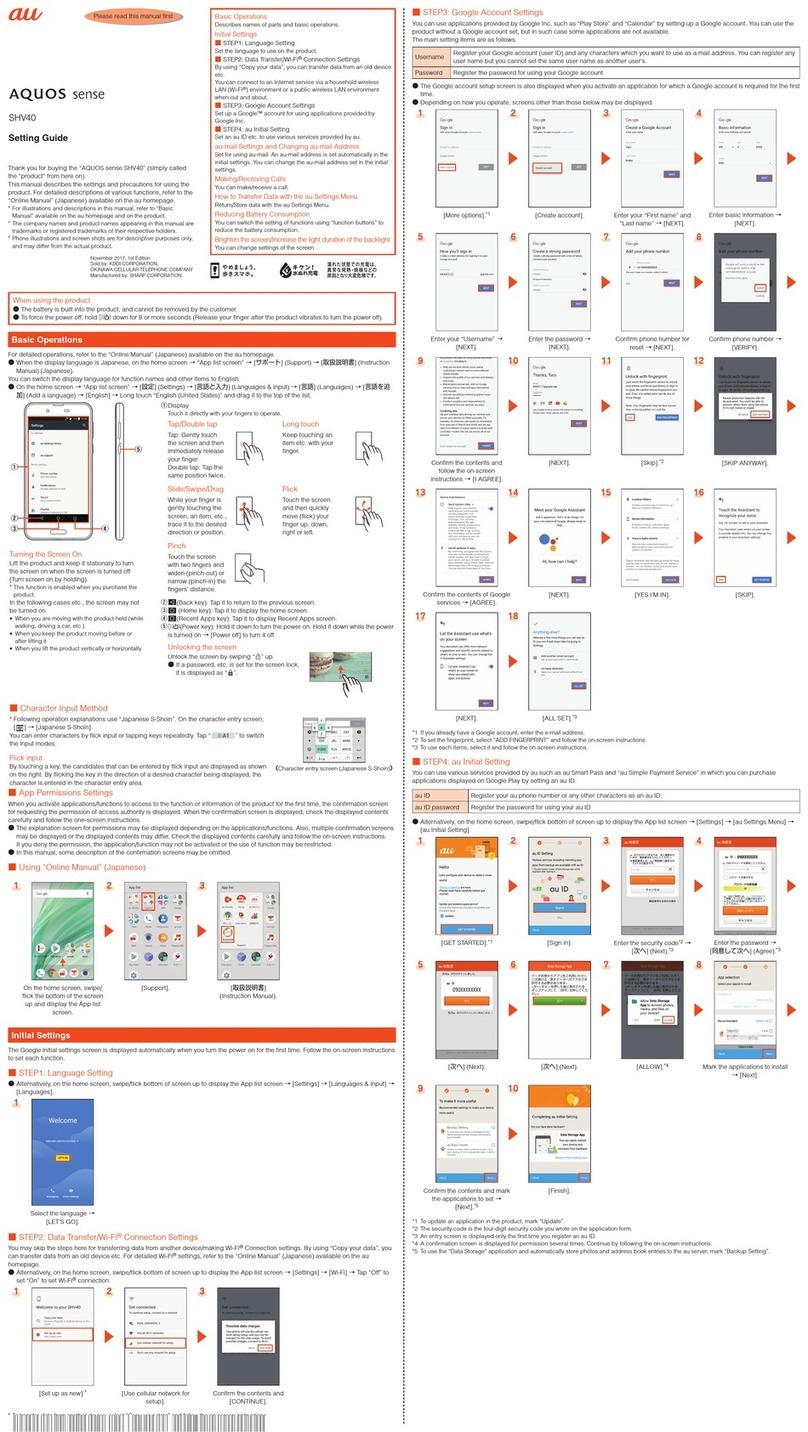
For detailed operations, refer to the “Instruction Manual application” (Japanese version) that can be used on the product.
●On the home screen, “Apps Sheet” →[Basic Manual].
●When the display language is Japanese, on the home screen, “Apps Sheet” →[取扱説明書] (Instruction Manual).
You can switch the display language for function names and other items to English.
●On the home screen, “Apps Sheet” →[設定] (Settings) →[言語と文字入力] (Language & input) →[言語(Language)を選択] (Select
language) →[English].
③
④
②
⑤
⑥
①
①
f(Power key): Hold it down to turn the power on. Hold it down while the
power is turned on →[Power off]→[OK] to turn it off.
②Display
Touch it directly with your fingers to operate.
Tap/Double tap Long touch
Tap: Gently touch
the screen and then
immediately release
your finger.
Double tap: Tap the
same position twice.
Keep touching an
item etc. with your
finger.
Slide/Drag Flick
While your finger is
gently touching the
screen, an item, etc.,
trace it to the desired
direction or position.
Touch the screen
and then quickly
move (flick) your
finger up, down,
right or left.
Pinch
Touch the screen
with two fingers and
widen (pinch-out) or
narrow (pinch-in) the
fingers’ distance.
③
^(Back key): Tap it to return to the previous screen.
④
#(Home key): Tap it to display the home screen.
⑤
$(Recent Apps key): Tap it to display Quick Launcher. Long touch it to
display the notification/status panel.
⑥
e(Menu key): Tap it to display available functions (menus).
Unlock
Unlock by sliding
down.
■Character Input Method
You can enter characters by flick input or tapping keys repeatedly. Tap “ ” to switch the input
modes.
Flick input
By touching a key, the candidates that can be entered by flick input are displayed as shown on the
right. By flicking the key in the direction of a desired character being displayed, the character is
entered in the character entry area.
《Character entry screen (12 Key)》
Initial Settings
The Google initial settings screen is displayed automatically when you turn the power on for the first time. Follow the on-screen instructions
to set each function.
■STEP1: Language Setting
●Alternatively, on the home screen, “Apps Sheet” →[Settings] →[Language & input] →[Select language].
Select the language →[ ].
■STEP2: Wi-Fi®Connection Settings
You may skip the steps here for making Wi-Fi®connection settings. For detailed Wi-Fi®settings, refer to the “Instruction Manual
application” (Japanese version) that can be used on the product.
●Alternatively, on the home screen, “Apps Sheet” →[Settings] →[Wi-Fi] →Slide “OFF” to the right to “ON”.
[Skip]. [Skip anyway].
■STEP3: Google Account Settings
You can use applications provided by Google Inc. such as “Gmail”, “Play Store” and “Hangouts” by setting up a Google account. You can
use the product without a Google account set, but in such case some applications are not available.
The main setting items are as follows.
User name Register your Google account (user ID) and any characters which you want to use as a mail address. You can register any
user name but you cannot set the same user name as another user’s.
Password Register the password for using your Google account.
●The Google account setup screen is also displayed when you activate an application for which a Google account is required for the first
time.
●Depending on how you operate, screens other than those below may be displayed.
Confirm the contents →[No].*1 [Get an account]. Enter your “first name” and
“last name” →[ ].
Enter your user name →[ ].
Enter the password →[ ]. [Set up recovery options]. Enter the e-mail address for
password recovery*2 →[ ].
Confirm the contents →[ ].
[I accept]. Enter the authentication text →
[]
[Not now]*3 [NOT NOW]*4
*1 If you already have a Google account, tap [Yes].
*2 If you do not already have another e-mail address, leave blank.
*3 Tap [Get started] to join Google+™.
*4 To specify payment information for use with Google Play, follow the on-screen instructions.
■STEP4: auかんたん設定 (au Easy Setting)
You can use various services provided by au such as au Smart Pass and “au Simple Payment Service” in which you can purchase
applications displayed on Google Play by setting an au ID.
au ID Register your au phone number or any other characters as an au ID. The same “au ID” as another user’s cannot be
registered.
au ID password Register the password for using your au ID.
●Alternatively, on the home screen, “Apps Sheet” →[au Easy Setting].
[Next]. [Register "au ID"] →[Next]. [au IDの設定・保存]
(Set/Save au ID).
Enter the security code →
[OK].*1
Enter the password →
[設定] (Settings).
[au ID設定メニューへ]
(au ID Settings Menu).*2
[パスワードを忘れた時の
ために]
(If you forgot your password).
Enter your date of birth, the
secret question and its answer
→[入力完了] (Finish entering).
[
変更
]
(Change) →
[
終了
]
(Finish).
Confirm the contents and
follow the on-screen
instructions →[Next].
Confirm the contents and follow
the on-screen instructions →
[Agree] →[Next].
*3*4
Confirm the contents and
follow the on-screen
instructions →[Next].
Confirm the contents and
follow the on-screen
instructions →[Next].
Confirm the contents →
[Activate].*5*6
Select the applications to
install →[次へ] (Next).*7
[Finish].
*1 The default value is the four-digit security code you wrote on the application form.
*2 au ID registration is complete. Next, set the information for reissuing the password.
*3 When the confirmation screen is displayed, follow the on-screen instructions.
*4 If a screen for recovery of data appears, follow the on-screen instructions to recover your data.
*5 Displayed when [Loss or Theft Measures(3LM)] is set to “Activate 3LM”.
*6 If a screen for recovery of an application appears, follow the on-screen instructions to recover the application.
*7 If a confirmation screen for recovery of an application appears, follow the on-screen instructions.
E-mail Settings and Changing E-mail Address
E-mail (@ezweb.ne.jp) is a service which enables you to exchange e-mails with other cell phones which support e-mail and with PCs. An
e-mail address is set automatically in the initial settings. You can change the e-mail address set in the initial settings.
■Initial Settings
Home screen →[ ]. Confirm the contents →
[接続する] (Connect).
Confirm the contents →
[閉じる] (Close).*
* When the information on E-mail update is displayed, confirm the contents and follow the on-screen instructions.
■Changing E-mail Address
Home screen →[ ]. [e] →[E-mail settings]. [Other settings]. Confirm the contents →
[接続する] (Connect) →
[Eメールアドレスの変更へ]
(To change e-mail address).
Basic Operations
Describes names of parts and basic operations.
Initial Settings
■STEP1: Language Setting
Set the language to use on the product.
■STEP2: Wi-Fi®Connection Settings
You can connect to an Internet service via a household wireless
LAN (Wi-Fi®) environment or a public wireless LAN environment
when out and about.
■STEP3: Google™ Account Settings
Set up a Google account for using services such as Google Play™
and Gmail™.
■STEP4: auかんたん設定 (au Easy Setting)
Set an au ID etc. to use various services provided by au.
E-mail Settings and Changing E-mail Address
Set for using E-mail (@ezweb.ne.jp). An e-mail address is set
automatically in the initial settings. You can change the e-mail
address set in the initial settings.
Making/Receiving Calls
You can make/receive a call.
Transferring and Backing Up Data
You can transfer/back up your data.
Infrared Communication
You can send/receive data with devices which support the infrared
communication function.
Reducing Battery Consumption
You can switch the setting of “function buttons” to reduce the battery
consumption.
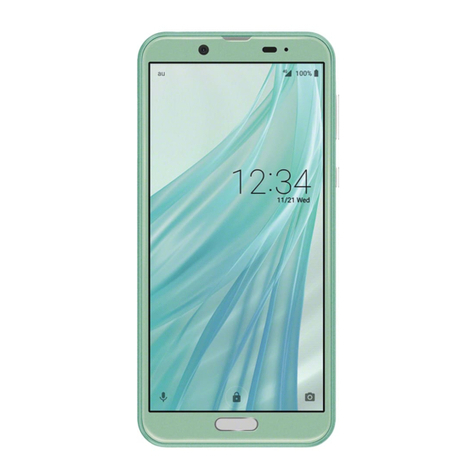
Thank you for buying the “AQUOS SERIE SHL25” (simply called
the “product” from here on).
This manual describes the settings and precautions for using the
product. For detailed descriptions of various functions, refer to the
“Instruction Manual application” (Japanese version) that can be
used on the product.
* For illustrations and descriptions in this manual, refer to “Basic
Manual” available on the au homepage and on the product.
* The company names and product names appearing in this manual are
trademarks or registered trademarks of their respective holders.
* Phone illustrations and screen shots are for descriptive purposes only,
and may differ from the actual product.
May 2014, 1st Edition