Sharp AQUOS zero User manual

AQUOS zero
User Guide


1
AQUOS zero
AQUOS zero
User Guide Contents
Introduction
About the User Guide........................................................ 3
Getting Started
Package Contents............................................................... 6
Parts & Functions.............................................................. 6
SIM Card.............................................................................. 8
Internal Storage................................................................10
Charging Handset..............................................................10
Power On/Off................................................................... 13
Making Initial Settings.................................................... 14
Google Account................................................................. 16
Unlocking Screen...............................................................18
Basic Operations
Basic Operations...............................................................22
Using Manner Mode.......................................................... 22
Using Airplane Mode.........................................................24
Using Fingerprint Authentication Function....................24
Updating the System........................................................27
Using ROBOQUL................................................................ 28
Touchscreen/Text Entry
Using Touchscreen............................................................ 32
Text Entry.........................................................................33
Handset Interface
Handset Screens............................................................... 36
Icons at Display Top (Status Bar)...................................43
Checking Notifications (Notifications Window).............44
Checking Notifications (Quick Settings Window).......... 46
Capturing Screenshots (Clip Now)...................................48
Scrolling Screen Automatically (ScrollAuto)...................49
Phone
Placing/Answering Calls...................................................52
Optional Services..............................................................56
Handset Phone Number.................................................... 63
Making Phone Settings.....................................................63
Address Book.................................................................... 65
Messaging
Sending Messages (+メッセージ (+Message))................ 70
Using Gmail....................................................................... 71
Using Email........................................................................74
Internet
Using the Internet (Chrome)............................................78
Camera
Capturing Photos/Videos................................................. 84
Music & Images
Listening to Music (Play Music)......................................90

2
Viewing & Managing Photos/Videos (Album)..................92
Application Basics
Confirmation when First Activating Applications......... 96
Applications.......................................................................97
Adding/Deleting Applications.......................................... 99
Managing Data
Backup & Restore...........................................................106
Importing Data from Other Mobiles............................. 106
Wi-Fi/Bluetooth®
Connecting by Wi-Fi.......................................................110
Using Bluetooth® Function............................................ 116
Using Tethering.............................................................. 120
Handset Settings
About Settings............................................................... 122
Data Usage Settings...................................................... 123
Battery Settings.............................................................130
Display Settings............................................................. 132
Sound Settings................................................................139
AQUOS Useful Settings..................................................144
Security & Location Settings........................................146
System Settings..............................................................158
Other Handset Settings.................................................164
Global Services
Global Roaming............................................................... 174
Calling from Outside Japan...........................................175
For Assistance
Handset Powers Off...................................................... 180
Handset Does Not Power On.........................................180
Cannot Charge / Charging Stops / Charging Is Slow... 181
Battery Runs Out Quickly............................................. 181
Display Turns Off Suddenly.......................................... 182
Display Goes Dark Suddenly.......................................... 182
Screen Freezes / Operation Is Unstable.......................183
SIM Card Not Recognized.............................................. 183
Cannot Send/Receive Mail..............................................184
Cannot Connect to Internet..........................................184
Cannot Talk on Phone / Cannot Hear Other Party...... 185
Cannot Use Applications................................................185
Warranty/Specifications/Customer Service
Warranty & After-Sales Service................................... 188
Specifications..................................................................188
Customer Service............................................................190
Safety Precautions
Safety Precautions.........................................................192
Important Product Information.....................................200
Handset & Hardware Care............................................. 202
General Notes................................................................. 204
Radio Wave Exposure and Specific Absorption Rate (SAR)
Information..................................................................... 206
Water & Dust Resistance.............................................. 208

3
Introduction AQUOS zero
Introduction
About the User Guide
In the User Guide, most operation descriptions are based on
handset at time of purchase.
Unless noted otherwise, descriptions are for Home Screen
(AQUOS Home). Some operation descriptions may be omitted.
Before Using This Product
Read "Safety Precautions" thoroughly beforehand for proper
usage.
Accessible services may be limited by subscription contract
conditions.
Data Communication
・Handset is designed to be always connected to the Internet.
Communication is initiated automatically for some functions
such as data syncing.
・Large-volume data communication, such as downloading
applications and viewing videos, incurs expensive
transmission fees. Subscription to a flat-rate plan is
strongly recommended.
・Even if connected by Wi-Fi, some applications and services
incur transmission fees.
Screenshots & Key Labels
Screenshots in the User Guide may differ in appearance with
actual Display. Key labels in the User Guide are simplified for
description purposes and differ with actual Display.
Other Notations
In the User Guide, the product is referred to as "handset."
"801SH" here refers to this mobile phone "AQUOS zero."

4

Getting Started
Package Contents............................................................... 6
Parts & Functions.............................................................. 6
SIM Card.............................................................................. 8
Internal Storage................................................................10
Charging Handset..............................................................10
Power On/Off................................................................... 13
Making Initial Settings.................................................... 14
Google Account................................................................. 16
Unlocking Screen...............................................................18

6
Package Contents
Package Contents
・Handset (AQUOS zero)
・Battery is built into handset.
・Handset back cover is not removable.
・SIM Removal Tool (Complimentary sample)
・3.5mm Earphones Adapter (Complimentary sample)
・クイックスタート (Japanese)
・お願いとご注意 (Japanese)
・Instructional insert
Parts & Functions
Handset (Front)
Name Description
Proximity/
Light Sensor
Proximity Sensor prevents Touchscreen
misoperation during calls. Light Sensor
adjusts Display brightness according to
ambient light.
Front
Camera Use to shoot photos or videos of yourself.
Display Touchscreen-type display; operate with
your fingers on Display.
Earpiece/
Speaker
Hear the other party's voice, music, video,
etc. here.
Charging/
Notification
Lamp
Illuminates while charging or for missed
calls and notifications.
Earpiece/Speaker Cautions
Avoid holding Earpiece close to ear other than during a call
or playing back Answer Phone messages. Earpiece is also
a speaker; a sudden ringtone or alarm may affect hearing.
Handset also increases volume gradually to the set volume
after switching to Speakerphone during a call or ending a
call to prevent loud speaker sound close to ears.

7
Getting Started AQUOS zero
Handset (Back and Sides)
Name Description
Mic
(Recorder Mic)
Use while recording videos or when talking
through Speakerphone.
Make sure not to cover Recorder Mic.
Back
Camera Shoot photos or videos.
FeliCa mark Hold up to reader/writer to use NFC/
Osaifu-Keitai®.
External
Connection
Jack
Connect ROBOQUL, AC Adaptor, etc.
Speaker Listen to music, video sound, etc.
Card Tray Install/remove SIM Card.
Mobile
Light Use as a camera flash, flashlight, etc.
Fingerprint
Sensor
Use fingerprint authentication to unlock
screen.
Mic/
Recorder Mic
Talk to the other party here. Also use
while recording videos or when talking to
emopa.
Make sure not to cover Mic/Recorder Mic.
Handset Keys
Name Description
Volume Up
Key Increase volume.
Volume
Down Key Decrease volume.
Power Key Turn Display off/on. Long Press for power
on/off, reboot, etc.
Charging/Notification Lamp
Lights/flashes while charging or for missed calls, new SMS/
+Message, etc.
Lamp
color and
illumination
Indication
Red, lit Charging (Battery level less than about
94%)
Green, lit Charging (Battery level more than about
95%)
Red, flashing Charging not possible
White,
flashing1
Notifications (missed calls, new SMS/
+Message, etc.)
1 Flashes when Display turned off.

8
SIM Card
SIM Card is an IC card containing phone number and other
customer information.
Handling SIM Card
Check the following regarding SIM Card handling.
IC (gold) chip
・For SIM Card handling, see SoftBank Website.
https://www.softbank.jp/mobile/support/protect/usim/
(Japanese)
・Avoid applying labels. May damage SIM Card.
・SIM is replaceable (at cost) in case of loss/damage.
・Wipe clean with a dry, soft cloth.
・Always keep the IC (gold) chip clean.
SIM Card Cautions
Observe the following when using SIM Card.
・Within Japan, SIM Card must be installed to make
emergency calls (110, 119, 118).
・Always follow emergency procedures to suspend service
if your SIM Card or handset (SIM Card inserted) is lost/
stolen. For details, contact Customer Service.
・Customer is responsible for any damage caused by
inserting SIM Card in an other-brand IC card reader, etc.
SoftBank Corp. is not responsible in such case.
・It is recommended that you back up information that is
saved on SIM Card. SoftBank Corp. is not responsible for
damages from saved information that is lost.
・Always power off handset before inserting/removing SIM
Card.
・Note that SIM Card specifications and performance may
change without notice.
・Return SIM Card to SoftBank Corp. when canceling
subscription.
・SIM Card is the property of SoftBank Corp.
・Returned SIM Cards are recycled for environmental
purposes.
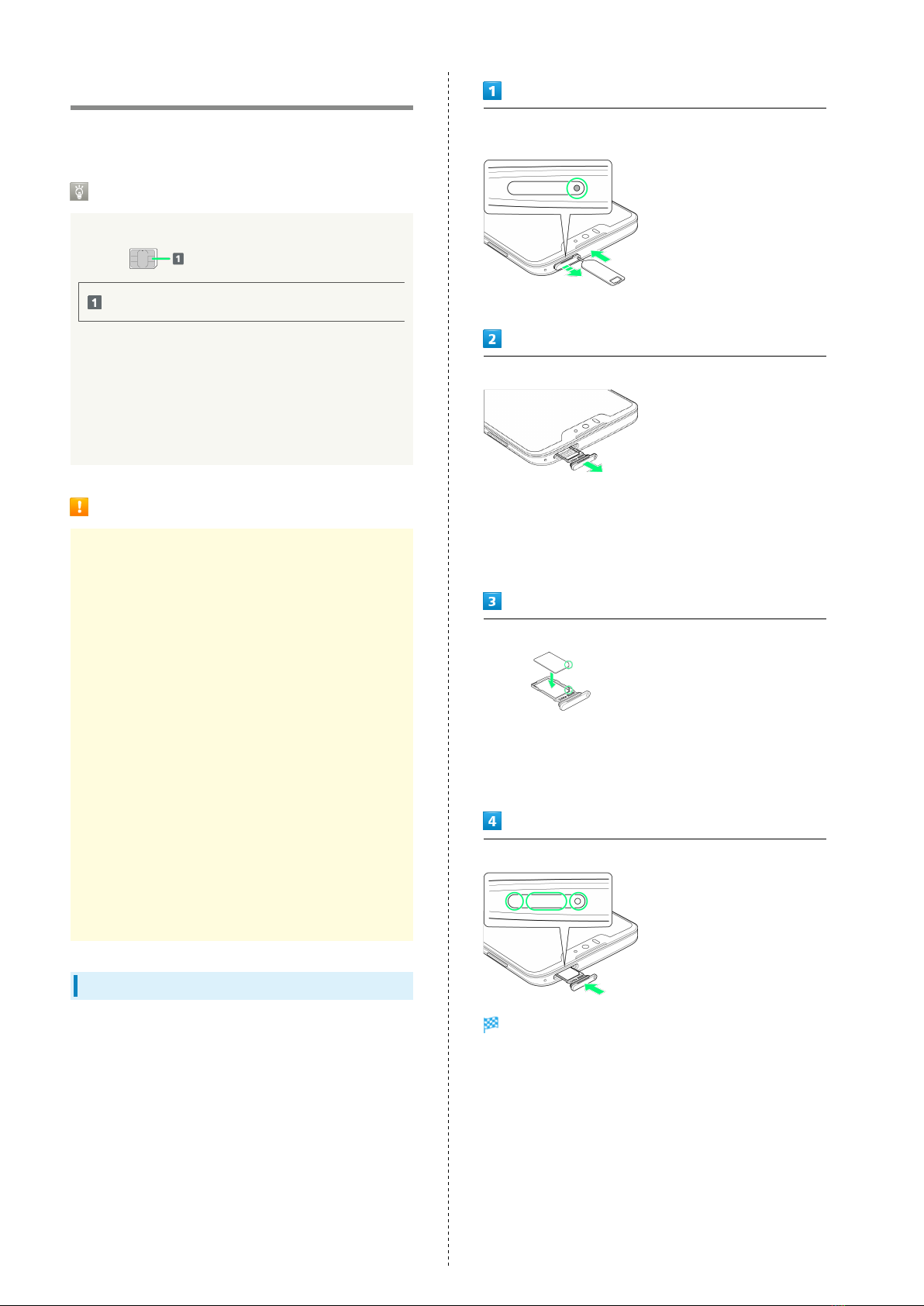
Inserting SIM Card
Always power off beforehand.
・Set SIM Card in Card Tray beforehand. Do not insert SIM
Card without setting it in Card Tray.
With Display upward, insert SIM Removal Tool in removal hole
in Card Tray
・Press firmly and straight until Card Tray ejects.
Pull out Card Tray
・With Display upward, pull out Card Tray. Pulling out Card
Tray with Display downward or handset held upright can
allow SIM Card to fall from Card Tray and become misplaced.
・Do not pull Card Tray forcefully or at an angle; damage may
result. Gently pull Card Tray out horizontally.
Set SIM Card in Card Tray
・Place gently, noting orientation of SIM Card (notch/IC (gold)
chip facing down).
・Make sure SIM Card is in Card Tray. Inserting Card Tray with
SIM Card on its edge may cause damage.
Insert Card Tray in SIM Card Slot
SIM Card is inserted.
・Do not insert Card Tray upside down.
・Insert gently all the way horizontally in direction shown.
・Push Card Tray firmly where circled (○) so that there is no
gap between handset and Card Tray.
・To maintain water and dust resistance, use handset with
Card Tray completely closed.

Table of contents
Other Sharp Cell Phone manuals

Sharp
Sharp AQUOS Crystal User manual

Sharp
Sharp sh906i Guide

Sharp
Sharp AQUOS Xx User manual

Sharp
Sharp TM200 User manual

Sharp
Sharp Z2 User manual

Sharp
Sharp AQUOS R3 SH-04L User manual

Sharp
Sharp FX PLUS Series User manual

Sharp
Sharp AQUOS zero6 User manual

Sharp
Sharp YO-520 User manual

Sharp
Sharp Aquos SHL23 Installation guide

Sharp
Sharp AQUOS PHONE SERIE ISW16SH Service manual

Sharp
Sharp Zeta SH-04F User manual

Sharp
Sharp AQUOS R2 SHV42 Service manual

Sharp
Sharp GX15 User manual

Sharp
Sharp GX15T User manual

Sharp
Sharp Aquos Phone Serie SHL22 Service manual

Sharp
Sharp SH837W User manual

Sharp
Sharp AQUOS sense6 User manual

Sharp
Sharp TQ-CX1 User manual

Sharp
Sharp AQUOS R Service manual