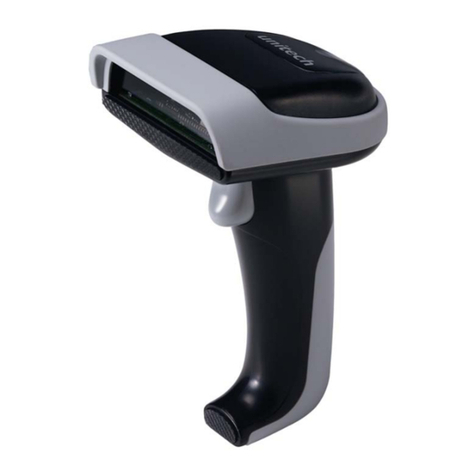
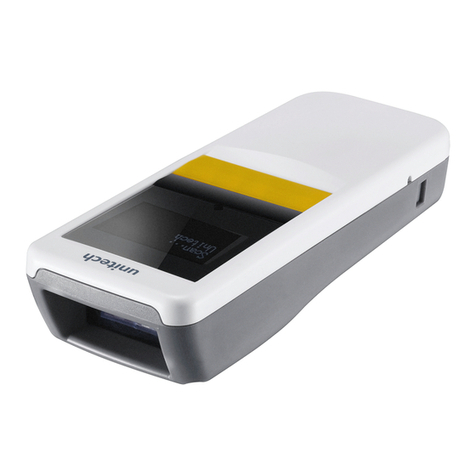
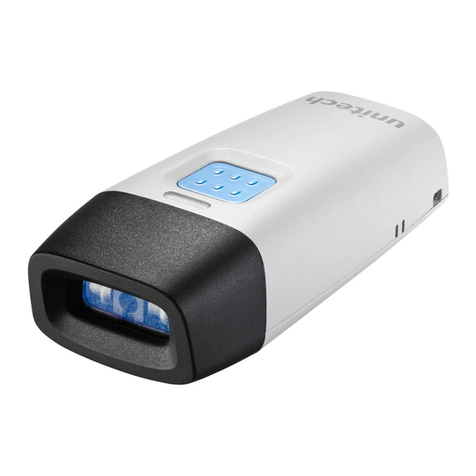
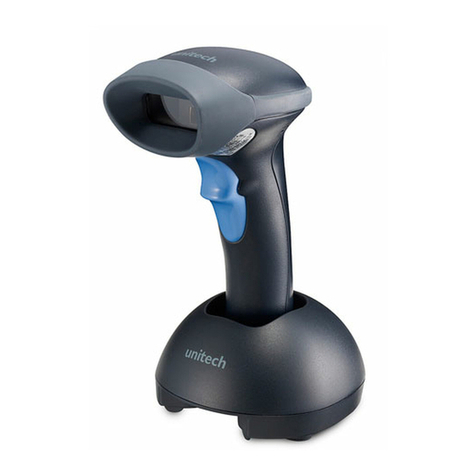
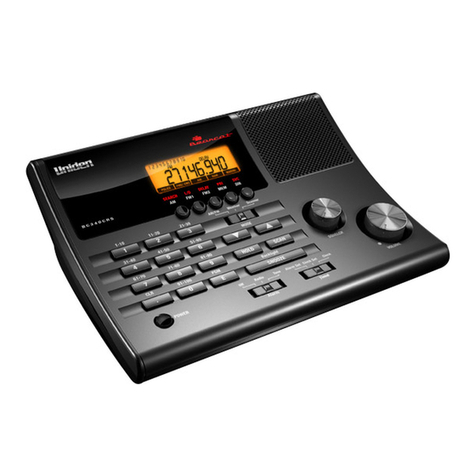
Unitech Hamster User manual

Hand Held Scanner
User’s Manual
Date : January, 2000
Version : 3.0

CHAPTER 1 OVERVIEW............................................................... 3
CHAPTER 2 KEYBOARD INTERFACE....................................... 4
2.1 INSTALLATION ................................................................................... 4
2.2 INSTALLED ON PC/AT WITHOUT KEYBOARD........................................ 5
2.3 INSTALLED ON MACINTOSH ................................................................ 5
2.4 INSTALLED AS AN USB INTERFACE .................................................... 6
2.5 UNDERSTANDING THE OPERATING PARAMETERS.................................. 6
CHAPTER 3 RS232 SERIAL INTERFACE.................................... 8
3.1 INSTALLATION ................................................................................... 8
3.2 UNDERSTANDING THE OPERATING PARAMETERS.................................. 9
3.3 SERIAL TTL..................................................................................... 10
CHAPTER 4 TERMINAL INTERFACE ...................................... 11
4.1 INSTALLATION ................................................................................. 11
4.2 UNDERSTANDING THE OPERATING PARAMETERS................................ 12
CHAPTER 5 WAND EMULATION.............................................. 13
5.1 INSTALLATION ................................................................................. 13
5.2 UNDERSTANDING THE OPERATING PARAMETERS................................ 13
CHAPTER 6 SETUP ...................................................................... 15
6.1 BAR CODE MENU SETUP................................................................... 15
6.1.1 Setup Procedures :.................................................................... 15
6.1.2 Bar Code Length Setting: ......................................................... 16
6.1.3 Code ID Setting:....................................................................... 16
6.1.4 Preamble and Postamble:......................................................... 17
6.1.5 Predefined Labels..................................................................... 17
6.2 QUICK SETUP ................................................................................... 18
6.3 BATCH SETUP................................................................................... 18
CHAPTER 7 OUTPUT DATA EDITING...................................... 21
7.1. GENERAL........................................................................................ 21
7.2. FORMULA........................................................................................ 21
7.2.1. Original Data Structure........................................................... 21
7.2.2. Formula Structure:.................................................................. 21
7.2.3. Execution Sequence................................................................. 21
7.3. PROGRAMMING ............................................................................... 22
7.3.1. Programming Sequence:.......................................................... 22
7.3.2. Preparation ............................................................................. 22

Page 2
7.3.3. Programming Sheet ................................................................. 23
7.3.4. Parameter Entry...................................................................... 23
7.4. QUALIFIER ...................................................................................... 24
7.4.1. Input ID................................................................................... 24
7.4.2. Length:.................................................................................... 25
7.4.3. Match...................................................................................... 25
7.5. MODIFIER ....................................................................................... 26
7.5.1. A-String................................................................................... 26
7.5.2. O-String................................................................................... 26
7.6. EXAMPLES ...................................................................................... 27
7.6.1. Example 1................................................................................ 27
7.6.2. Example 2................................................................................ 27
7.7. ADVANCED FEATURES..................................................................... 27
CHAPTER 8 PIN ASSIGNMENT AND SPECIFICATION ......... 29
8.1 PIN ASSIGNMENTS............................................................................ 29
8.1.1. Keyboard Interface.................................................................. 29
8.1.2. RS232 Interface....................................................................... 29
8.1.3. Terminal Interface................................................................... 31
8.1.4. Wand Emulation...................................................................... 32
8.2 SPECIFICATION................................................................................. 33
APPENDIX A. QUICK SETUP SHEET ......................................A.1
APPENDIX B. FUNCTION CODES FOR PC..............................B.1
APPENDIX C. FUNCTION CODES FOR IBM TERMINALS...C.1
APPENDIX D. SETUP MENU......................................................D.1
APPENDIX E. FULL ASCII CHART...........................................E.1
APPENDIX F. BAR CODE TEST CHART..................................F.1

Page 3
Chapter 1 Overview
First of all, thank you for choosing Unitech’s products. This decoder
build-in scanner comes in one model and supports interfaces such as
keyboard wedge, RS232 serial wedge, RS232 terminal wedge, wand
emulation, and the latest USB interface. In most of the cases, simply
selecting an appropriate cable with a device code will work for a
specific interface.
As a keyboard interface, the scanner supports most of the popular PCs
and IBM terminals. The installation of the wedge scanner is a fairly
simple process without any changes of software or hardware.
As a RS232 serial interface, the scanner sends data by using RS232
communication protocol. The communication speed (baud rate) ranges
from 300 bps to 38400 bps with both hardware and software
handshaking are implemented.
As a RS232 terminal interface, systems with ANSI ASCII
communication environment such as UNIX, XENIX are supported.
The scanner is installed between a host computer and a terminal and
supports full duplex, half duplex and block communication modes.
As a wand emulation scanner, the output of the scanner emulates a
wand scanner output. Two output formats are supported, Code 39
format and Native format. In Code 39 format, the scanner always
outputs the same data contents but with Code 39 symbology no matter
what symbology of the label is encoded. In Native format, the scanner
output the same contents and symbology as the scanned label.
The scanner supports the following bar code symbologies:
* Code 39 Standard and Full ASCII. * Codabar.
* UPC/EAN with supplement codes. * UCC/EAN128.
* Interleaved 2 of 5. * Code 32(Italian pharmacy).
* Standard 2 of 5. * Code 93.
* MSI code. * Code 128.
* Plessey code. * Label Code IV and V
* China Postal Code (Toshiba Code) * Delta Distance Code.

Page 4
Chapter 2 Keyboard Interface
As a keyboard Interface, the scanner is actually installed between PC
(or terminal) and keyboard. See Figure 1 for reference. The scanner
sends data to the host device by emulating the keyboard signals input
and acts like an extension of the keyboard.
2.1 Installation
This scanner can be installed easily by following the installation guide
illustrated below. Before you start the installation, locate a “Y” type
cable in the package.
Installation procedures:
1) Plug the modular (RJ45) connector of the “Y” cable into the bottom
of the scanner until you hear a click sound.
PC or Terminal
Keyboard
Figure 1. Installed as a Keyboard Interface
Interface Cable ("Y" Cable)
Modular Connector
SCANNER
2) Turn off your PC or terminal.
3) Unplug the keyboard from the PC or terminal.
4) Plug the keyboard into a connector of the Y cable that mates with it.
5) Plug the remaining connector of the “Y” cable into the keyboard
port of your PC or terminal.
6) Power up your PC or terminal you press the switch the beam should
be out from the scanner.

Page 5
7) If nothing happens at step 6, check all cable connections first and
make sure your PC or terminal has been powered. Contact technical
support if problem remains after these checking.
8) Unless the scanner has been prior installed for the PC/terminal, user
may have to select a proper device number from Group 1 of
Appendix D.
9) The Default setting of this scanner is IBM PC/AT and PS/2. If you
like to make sure that you have the right selection, you may scan the
following label,
PC AT[PS/2]
2.2 Installed on PC/AT without keyboard or laptop computer
The scanner has the capability to answer the keyboard inquiry made by
PC to avoid “Keyboard Error” message when keyboard is not present.
This implementation is useful to the applications where keyboard entry
is not necessary. You may scan the following label to enable this
feature. (Some of the laptop computers may not work properly with this
feature. Please contact your local vendor for further support.)
Keyboardless
2.3 Installed on Macintosh
You can install the scanner on a Macintosh ADB port similar to the
way shown in Figure 1. As an option, the scanner can be installed right
between keyboard and mouse too. You may scan the following label to
enable this feature.
Macintosh

Page 6
2.4 Installed as an USB Interface
You can install the scanner with the USB interface cable to work with
either PC or iMac USB port. See Figure 1.1 for reference. Your
operating system may require the original setup CD to install the driver
with initial setup.
PC or iMAC
Keyboard
Figure 1.1. Installed as an USB Interface
USB Interface Cable
Modular Connector
SCANNER
USB Connector
The factory default setting should work with either PC or iMac USB
Interface, you may also scan the following label to make sure you get
the right device setting.
USB
2.5 Understanding the Operating Parameters
There are some operating parameters that can be configured to work
for different applications. It will be described as follow;
Intercharacter Delay
Intercharacter delay is the time period that the scanner will wait before
transmitting the next character after the first character was sent. If data
sent by the scanner was incorrect or missing characters, a longer
intercharacter delay may solve the problem.
Interblock Delay
Interblock delay is the minimum time interval between two adjacent
scanning. If the processing speed of your host device is slower than

Page 7
your scanning speed, a longer interblock delay may ensure the data
integrity.
Function Code
The scanner can emulate function and other special keys on the
keyboard by scanning some pre-defined labels. Appendix B includes
those labels for special keys on PC, Macintosh, and IBM terminals. As
an option, you may also print these labels by printing their
corresponding Code 39 characters (in brackets) to work with scanner.
Caps-Lock
This parameter tells the scanner the current Caps-Lock status of the
keyboard so that the character transmitted by the scanner is in correct
case.
* Auto Trace (For PC AT/XT only):
In Auto Trace mode, the scanner will keep track of the Caps-Lock
status automatically. For some PCs, the scanning performance
may be compromised because of the auto tracing. If the scanning
performance is poor (or can not scan) or the scanner can not
output the upper/lower case characters correctly, try to select one
of the next two choices instead of auto tracing.
* Lower Case:
When the keyboard is in the unshifted state (CapLock is not
pressed), select "Lower Case".
* Upper Case:
When keyboard has the CapLock key on, select "Upper Case".
Alt Key Mode
“ALT Key Mode” is a choice in the language selection. Sending
characters by ALT key plus keys on the numeric keypad is a feature in
MS-DOS. When selecting "ALT Key Mode", the scanner sends out the
native ASCII combination codes to represent each character of the bar
code scanned. If your system accepts ALT key sending, you can enable
this mode and ignore selections of the "Upper/Lower Case" and
"Language".
You may find these settings on the Appendix D page D2 and D3.

Page 8
Chapter 3 RS232 Serial Interface
3.1 Installation
To use the scanner as a RS232 serial interface, a RS232 interface cable
and a power adapter are required. See Chapter 8 for cable pinout and
adapter specification. Figure 2 shows an installation diagram for your
reference.
Installation procedures:
1) Make sure the scanner’s cable has the right connector and pinout for
the RS232 port of the host device. If the pinout is different from
device, swapping pins is necessary to achieve proper communication.
2) If the host device has power output at RS232 interface port, the
scanner can be powered by connecting that power line to pin 9 of the
scanner connector. If there is no power at RS232 port, An AC
adapter is needed. Plug the adapter into the DB type connector at the
end of the interface cable.
Cash Register,
PC or other device.
Figure 2. Installed as a Serial Interface
AC adaptor
SCANNER
RS232 Connector
3) Plug the DB type connector of the interface cable into host’s RS232
port and power up the device.
4) When the scanner is powered, a long beep sound indicates the
scanner is ready to use.

Page 9
3.2 Understanding the Operating Parameters
Device Type
You will need to select the device type to “Serial Interface” from
Appendix A, Group 1 of Appendix D, or the following label.
Serial Interface
Baud Rate, Parity and Data Bit:
These parameters set the scanner’s communication protocol that must
be matched by the host. The default setting for the serial interface is
9600 baud rate, none parity, and 8 data bit.
* Baud Rate can be 300, 600, 1200, 2400, 4800, 9600, 19200, or 38400
bps.
* Parity can be even, odd, space, mark, or none.
* Data Bit can be 7 or 8 bit long.
The scanner may not support settings with Data Bit as 7 and Parity as
none combination. Such combination is treated as 7 data bits with
MARK parity.
Handshaking:
The scanner supports CTS/RTS handshaking as an option. The
hardware handshaking is supported on character-by-character basis.
During the communication, the scanner will stop sending data until the
CTS is valid within time specified by the Time Out parameter. During
this time-out waiting period:
-- If CTS is valid, communication resumes.
-- If CTS is not valid, the scanner sounds an error beep and discards
the current buffered data.
Table of contents
Other Unitech Scanner manuals
Unitech
Unitech MS351 User manual

Unitech
Unitech MS912 User manual
Unitech
Unitech MS925 User manual
Unitech
Unitech FC75 User manual
Unitech
Unitech MS846 User manual
Unitech
Unitech MS626 User manual
Unitech
Unitech MS852P User manual
Unitech
Unitech MS916 User manual

Unitech
Unitech MS916 User manual
Unitech
Unitech PT-500 User manual
Unitech
Unitech MS851 User manual
Unitech
Unitech MR550 User manual

Unitech
Unitech PS306 User manual
Unitech
Unitech MS838 User manual
Unitech
Unitech PS705 Instruction Manual
Unitech
Unitech MR550 User manual
Unitech
Unitech MS842DPM User manual
Unitech
Unitech MS336 User manual

Unitech
Unitech MR550 User manual
Unitech
Unitech MS910 User manual