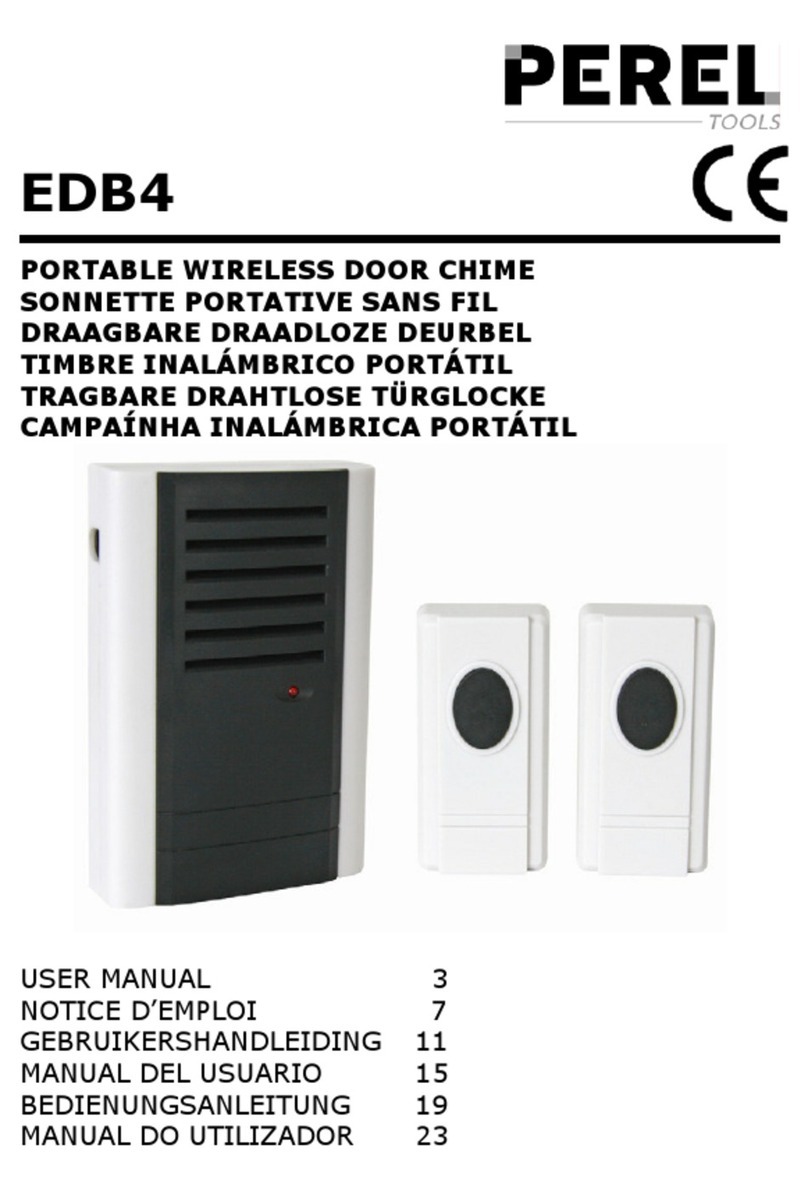
urmet domus 1722 User manual


Other manuals for 1722
14
Table of contents
Other urmet domus Intercom System manuals
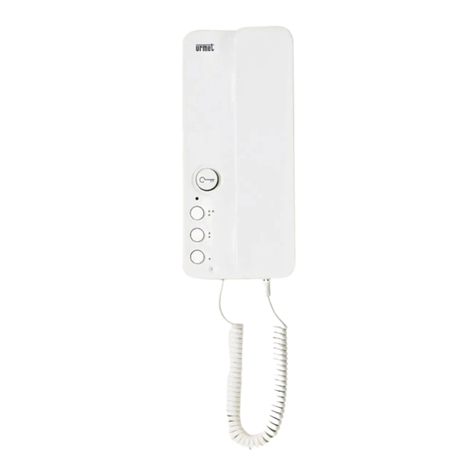
urmet domus
urmet domus 1183 User manual
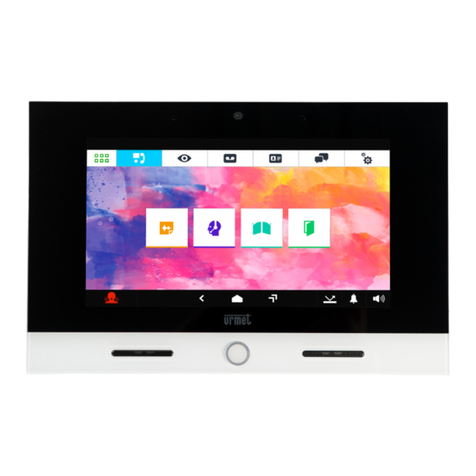
urmet domus
urmet domus VOG 7 Instruction manual

urmet domus
urmet domus 1138/18 User manual
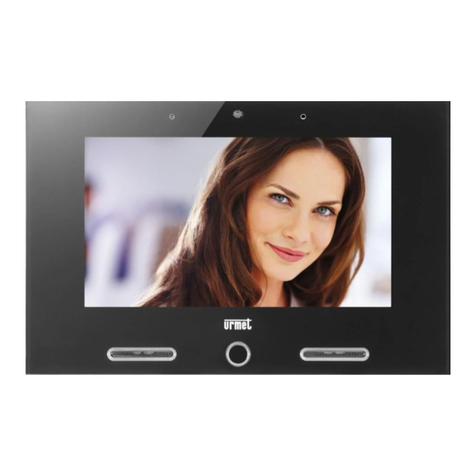
urmet domus
urmet domus IPerCom VOG 7 1761 Series Installation and operation manual

urmet domus
urmet domus 1708 User manual
urmet domus
urmet domus 1717 Installation and operation manual

urmet domus
urmet domus IPERVOICE SYSTEM User manual
urmet domus
urmet domus 2VOICE VOG7 1760 System manual
urmet domus
urmet domus 1150 User manual
urmet domus
urmet domus 956 Quick guide
urmet domus
urmet domus iPercom VOG 5+ 1761 System manual

urmet domus
urmet domus 1039/18 Quick guide

urmet domus
urmet domus 1760 User manual

urmet domus
urmet domus Alpha 1168 User manual

urmet domus
urmet domus 1155/22 User manual
urmet domus
urmet domus 1726 Quick guide
urmet domus
urmet domus 5150/500 User manual
urmet domus
urmet domus 1719/1 Guide
urmet domus
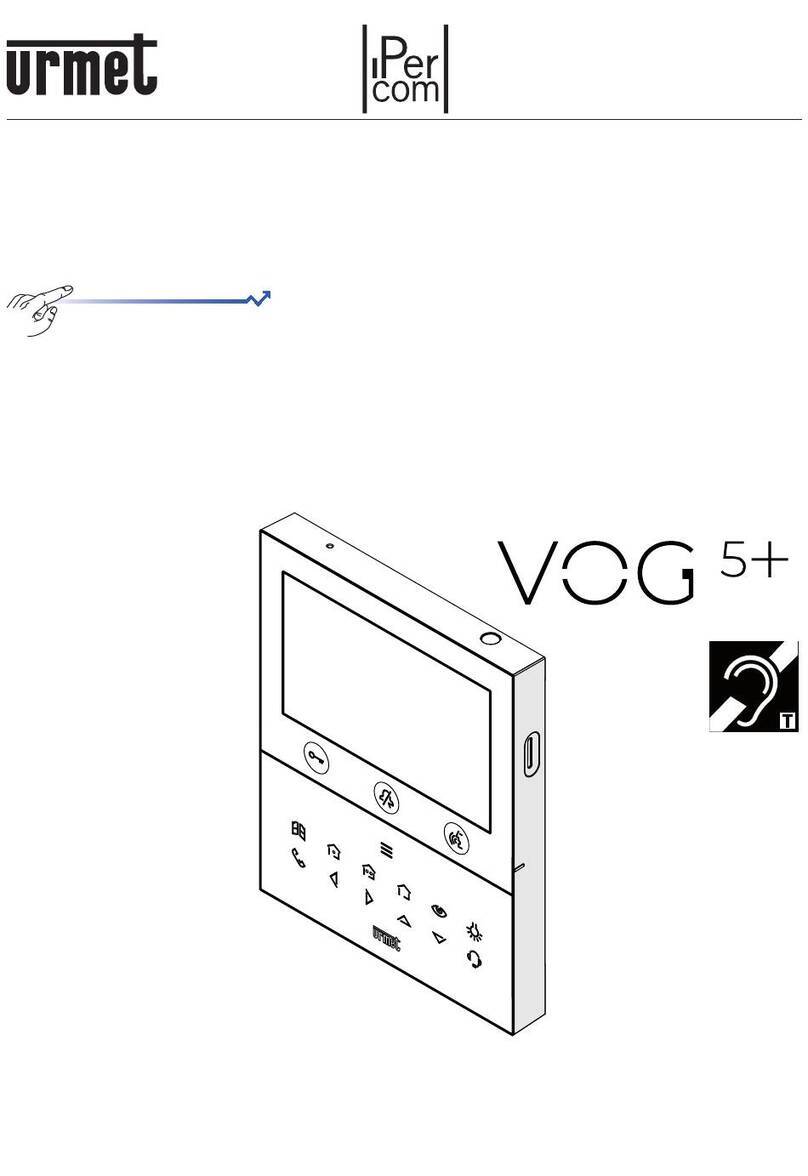
urmet domus iPercom VOG 5+ 1761 Installation and operation manual

urmet domus
urmet domus Alpha 1168 Installation and operation manual