manuals.online logo
Brands
  1. Home
  2. •
  3. Brands
  4. •
  5. Vertical
  6. •
  7. Telephone
  8. •
  9. Vertical SBX IP 320 User manual

Vertical SBX IP 320 User manual

Other manuals for SBX IP 320

9

Other Vertical Telephone manuals

Vertical Xcelerator IP IP2007 User manual

Vertical

Vertical Xcelerator IP IP2007 User manual

Vertical CONVERSip Edge 300 User manual

Vertical

Vertical CONVERSip Edge 300 User manual

Vertical Summit80 User manual

Vertical

Vertical Summit80 User manual

Vertical Wave User manual

Vertical

Vertical Wave User manual

Vertical Xcelerator IP IP2007 Instruction Manual

Vertical

Vertical Xcelerator IP IP2007 Instruction Manual

Vertical LDP-9008D User manual

Vertical

Vertical LDP-9008D User manual

Vertical Edge 100 User manual

Vertical

Vertical Edge 100 User manual

Vertical Edge 8000 User manual

Vertical

Vertical Edge 8000 User manual

Vertical Wave User manual

Vertical

Vertical Wave User manual

Vertical Edge IP 9820 User manual

Vertical

Vertical Edge IP 9820 User manual

Vertical Xcelerator IP IP2007 User manual

Vertical

Vertical Xcelerator IP IP2007 User manual

Vertical 9133i User manual

Vertical

Vertical 9133i User manual

Vertical SBX 320 IP User manual

Vertical

Vertical SBX 320 IP User manual

Vertical comdial DX-120 Manual

Vertical

Vertical comdial DX-120 Manual

Vertical SBX IP 320 User manual

Vertical

Vertical SBX IP 320 User manual

Vertical Xcelerator IP IP2007 User manual

Vertical

Vertical Xcelerator IP IP2007 User manual

Vertical Xcelerator IP IP2007 Installation and operating instructions

Vertical

Vertical Xcelerator IP IP2007 Installation and operating instructions

Vertical Edge 9200 8-button User manual

Vertical

Vertical Edge 9200 8-button User manual

Vertical Xcelerator IP IP2007 Manual

Vertical

Vertical Xcelerator IP IP2007 Manual

Vertical Edge 9200 Series User manual

Vertical

Vertical Edge 9200 Series User manual

Vertical SBX IP 320 User manual

Vertical

Vertical SBX IP 320 User manual

Vertical MXB IP Manual

Vertical

Vertical MXB IP Manual

Vertical summit User manual

Vertical

Vertical summit User manual

Vertical Comdial DX-80 User manual

Vertical

Vertical Comdial DX-80 User manual

Popular Telephone manuals by other brands

Philips BaseLine Pro manual

Philips

Philips BaseLine Pro manual

V-tech i6772 user guide

V-tech

V-tech i6772 user guide

BT FREELANCE XD 5100 quick start guide

BT

BT FREELANCE XD 5100 quick start guide

Uniden 1360 user guide

Uniden

Uniden 1360 user guide

Fanvil D800 user manual

Fanvil

Fanvil D800 user manual

Avaya IP500 user guide

Avaya

Avaya IP500 user guide

NEC Univerge SV9100 installation manual

NEC

NEC Univerge SV9100 installation manual

Amanda MiniSOHO Installation and programming manual

Amanda

Amanda MiniSOHO Installation and programming manual

Hitachi SelecSet 900 Series user guide

Hitachi

Hitachi SelecSet 900 Series user guide

mPTech HAMMER BS21 quick start guide

mPTech

mPTech HAMMER BS21 quick start guide

NEC 2000IVX user guide

NEC

NEC 2000IVX user guide

ooma Phone Genie quick start guide

ooma

ooma Phone Genie quick start guide

Siemens Gigaset S450 user guide

Siemens

Siemens Gigaset S450 user guide

Clarity RC100 operating instructions

Clarity

Clarity RC100 operating instructions

GE 2-9480 user guide

GE

GE 2-9480 user guide

Geemarc PHOTOPHONE 155 user guide

Geemarc

Geemarc PHOTOPHONE 155 user guide

Interquartz Gemini IQ333 operating instructions

Interquartz

Interquartz Gemini IQ333 operating instructions

SSS Siedle HT 840-0 operating instructions

SSS Siedle

SSS Siedle HT 840-0 operating instructions

manuals.online logo
manuals.online logoBrands
  • About & Mission
  • Contact us
  • Privacy Policy
  • Terms and Conditions

Copyright 2025 Manuals.Online. All Rights Reserved.

Voice Mail Features
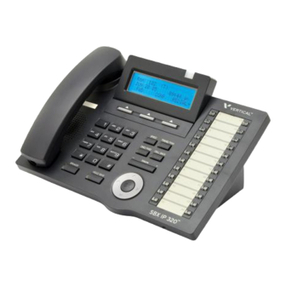
Phone Buttons & Features
Button/Feature Used to...
1 Headphone Jack speak to a caller when using a headset instead of
holding the handset.
2
Handset answer/make internal or external calls.
3
Speaker hear the other party during a call without using the
handset or headset (hands-free mode).
4
LCD Display display phone status information, dialing directories,
and test message information.
5
Soft Buttons (3) work in conjunction with fixed and flexible features
options that appear on the display.
6
Ring LED indicate when the phone is ringing.
7
Pre-Programmed/
Flexible Buttons
(24)
access external line calls, pre-assigned features, or
user defined feature code assignments.
8
Microphone (MIC) used to speak to a caller when in speaker mode.
9
SPEED Button access speed dialing, saved number redial, and last
number redial. Button is also used to access
flexible button programming.
DND Button activate a “do not ring this phone” mode. When DND
is active, this button is red.
Note: When you make a Forward call setting (other
than forwarding to voice mail), this light will
Flash. You can press it to easily cancel those
Forward settings.
TRANS/PGM Button set up a conference call or transfer a call.
CALL BACK Button initiate a call back request for another busy station.
10
Nav Button navigate through (and make selections on) the
display/menus.
11
VOLUME Button decrease (-) or increase (+) the volume level of the
speaker or handset while on a call.
12
HOLD/SAVE Button put a call on hold or save the current User
Programming setting.
13
Dialpad dial phone numbers and make entries on the display.
14
SPEAKER Button toggle between speaker (or headset) mode and
handset mode. You can also use this button to exit
any menu screen.
Note: The button LED is lit red when the
Speakerphone mode is active.
Quick Reference Guide
24-Button
Digital Phone
for SBX IP 320 Systems
2
1
34
5
6
7
8
9
10
11
12
1314
Issue 2.0 - September 2008
See back page for descriptions.
Basic Call Features Voice Mail Features
+This feature require specific pre-programming.
Contact your System Administrator for details.
Make
a Call
1. Pick up the handset or press SPEAKER.
2. Use the keypad to dial a station or external phone number.
Note: If you are dialing an external number, you may be
required to enter an authorization, account, and/or
access code.
3. Hang up the handset or press SPEAKER to send the
conversation.
Answer
a Call
When the phone is ringing:
1. Lift the handset or press SPEAKER.
2. Press the flashing green line (Flex) button.
Call Last
Number Dialed 1. Lift the handset or press SPEAKER.
2. Press the REDIAL soft button.
Put a
Call
on Hold
While on a call:
1. Press HOLD/SAVE to place the current call on hold.
2. Press the flashing red line (Flex) button to retrieve the call.
Transfer
a Call
While on a call:
1. Press the TRANS soft button or TRANS/PGM to put the current
call on hold.
2. Dial the destination target (station or hunt group).
When the destination target answers:
3. Announce to the destination target who is calling, then hang
up to complete the
(screened) transfer.
OR
While the destination target phone is ringing:
Hang up to complete the (unscreened) transfer without
announcing the caller to the destination.
Note: Press the TRANS soft button or TRANS/PGM to
reconnect to the caller, as needed.
Set Up a
Conference
Call+
1. Use the basic steps for placing a call to make the first call in
the conference.
2. Press the CONF to put the current call on hold while you add
another participant.
3. Dial the next participant.
•Repeat steps 2 and 3 to add more participants (up to the
maximum allowed by your system).
4. Press the CONF twice to connect all of the participants.
Mute a Call+During a conversation:
Press MUTE to prevent other party from hearing anything
from your end of the conversation.
Use 2.5mm
Headset Jack
1. Press TRANS/PGM, then one of the following:
•171 to enable the setting.
•75 to toggle between the speaker and the headset.
•76 to select whether to have calls ring to the speaker,
headset, or both.
2. Press HOLD/SAVE to store the setting.

Set/Change
Your Password
1. Dial TRANS/PGM, then enter 31 to set your password.
Note: To change your password press TRANS/PGM, then
enter 32.
2. Use the dialpad to enter a password (3 to 5 digits).
3. Press [#], and listen for a confirmation tone.
Record Your
Voice Mail
Greeting
1. Press TRANS/PGM.
2. Enter 61, then press #.
At the prompt:
3. Begin recording your greeting.
4. Press HOLD/SAVE or SPEAKER to end and save the recording.
•A confirmation tone sounds.
Check
Messages from
Your Office
Phone
1. Press CALL BACK.
At the prompt:
2. Enter your password, then # to play the first message.
3. Follow the prompts to listen to (and manage) your messages
(see below).
Check
Messages
from
Outside
the Office+
1. Call the main office number.
When you hear the Auto Attendant greeting:
2. Press the access digit.+
At the prompt:
3. Enter your station number.
4. Enter your password, then press #.
5. Follow the prompts to listen to (and manage) your messages
(see below).
Listen to
&
Manage
Messages
1. Dial into Voice Mail using either of the methods shown above
(that is, from inside or from outside the system).
•New messages will automatically be played first, then any
saved messages.
At the prompt:
2. Do one of the following:
•Press #1, or the DELETE soft button to delete the current
message.
•Press #2 or the NEXT soft button to play the next
message.
•Press the #3 or the REPEAT soft button to play the
message again.
•Press #5 to reply to the current message (see below).
•Press #6 to forward the current message (see below).
Reply to a
Message
While listening to a message:
1. Press #5 to dial the voice mailbox of the station that
left the message.
At the prompt:
2. Record your reply.
Forward a
Message
While listening to a message:
Enter the destination voice mailbox to forward the message.
Note: You will be prompted to add a comment. Once
forwarded, the message will be removed from your
mailbox.
Set Cell Phone
Notification
1. Press Trans/PGM.
2. Enter 68, then press 1 (to turn on notification).
3. Press HOLD/SAVE to store the setting, then press TRANS/PGM,
again.
4. Enter 69, then the number at which you want to be notified.
5. Press HOLD/SAVE to store the setting.