manuals.online logo
Brands
  1. Home
  2. •
  3. Brands
  4. •
  5. Watchguard
  6. •
  7. Security System
  8. •
  9. Watchguard CVRxE User manual

Watchguard CVRxE User manual

Other Watchguard Security System manuals
Watchguard DVR4ENTPACK2 User manual

Watchguard

Watchguard DVR4ENTPACK2 User manual

Watchguard Firebox T15 Installation instructions

Watchguard

Watchguard Firebox T15 Installation instructions

Watchguard WGAP864 User manual

Watchguard

Watchguard WGAP864 User manual

Watchguard 2BWIR User manual

Watchguard

Watchguard 2BWIR User manual

Watchguard DVR4ENTPACK User manual

Watchguard

Watchguard DVR4ENTPACK User manual

Watchguard WGWMSA User manual

Watchguard

Watchguard WGWMSA User manual

Watchguard WGSIR-900 User manual

Watchguard

Watchguard WGSIR-900 User manual

Watchguard Firebox III 700 Installation instructions

Watchguard

Watchguard Firebox III 700 Installation instructions

Watchguard Firebox T35-R Installation instructions

Watchguard

Watchguard Firebox T35-R Installation instructions

Watchguard DVR8ENTPACK3 User manual

Watchguard

Watchguard DVR8ENTPACK3 User manual

Watchguard ALL-SIR2 User manual

Watchguard

Watchguard ALL-SIR2 User manual

Watchguard ALL-PACK1 User manual

Watchguard

Watchguard ALL-PACK1 User manual
Watchguard DVR4EONPACK User manual

Watchguard

Watchguard DVR4EONPACK User manual

Watchguard DVR4ENTPACK4 User manual

Watchguard

Watchguard DVR4ENTPACK4 User manual

Watchguard WGAP864SMS Service manual

Watchguard

Watchguard WGAP864SMS Service manual

Watchguard DVR4ENTPACK7 User manual

Watchguard

Watchguard DVR4ENTPACK7 User manual

Watchguard Firebox T30 Installation instructions

Watchguard

Watchguard Firebox T30 Installation instructions

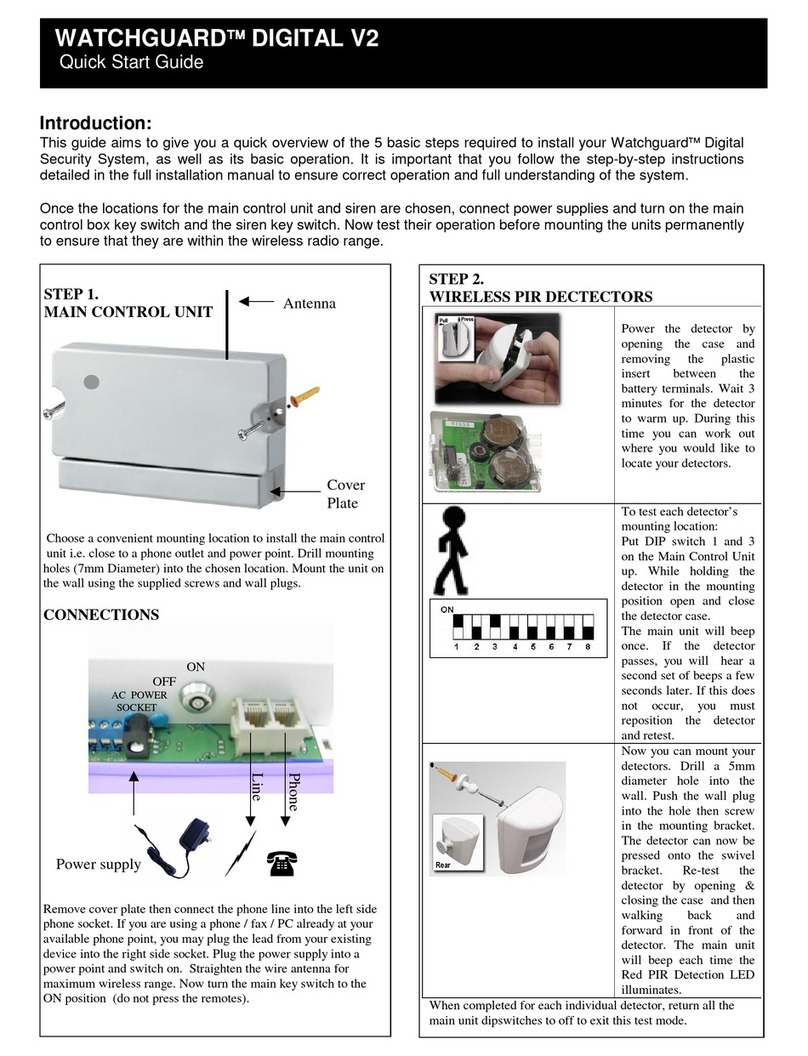
Watchguard DIGITAL V2 User manual

Watchguard

Watchguard DIGITAL V2 User manual
Watchguard WGSIR-500W User manual

Watchguard

Watchguard WGSIR-500W User manual

Watchguard WGSENTINEL User manual

Watchguard

Watchguard WGSENTINEL User manual

Watchguard WGSMSC User manual

Watchguard

Watchguard WGSMSC User manual

Watchguard DVR8E(PACK) User manual

Watchguard

Watchguard DVR8E(PACK) User manual

Watchguard DVR8ENTPACK4 User manual

Watchguard

Watchguard DVR8ENTPACK4 User manual

Watchguard DVR4ENTPACK3 User manual

Watchguard

Watchguard DVR4ENTPACK3 User manual

Popular Security System manuals by other brands

Polon-Alfa 4000 Installation and maintenance manual

Polon-Alfa

Polon-Alfa 4000 Installation and maintenance manual

Nexcom NViS 14162 Series user manual

Nexcom

Nexcom NViS 14162 Series user manual

Eminent EM8670 Quick install

Eminent

Eminent EM8670 Quick install

urmet domus alpha 1060 INSTALLATION AND USE BOOKLET

urmet domus

urmet domus alpha 1060 INSTALLATION AND USE BOOKLET

SmartPool YardGuard YG03 manual

SmartPool

SmartPool YardGuard YG03 manual

DSC PC5964 Mounting instructions

DSC

DSC PC5964 Mounting instructions

Secure USAB-1 operating instructions

Secure

Secure USAB-1 operating instructions

B&B 480 SERIES Operation & maintenance manual

B&B

B&B 480 SERIES Operation & maintenance manual

ADEMCO VISTA-20P Series Installation and setup guide

ADEMCO

ADEMCO VISTA-20P Series Installation and setup guide

Inner Range Concept 2000 user manual

Inner Range

Inner Range Concept 2000 user manual
Johnson Controls PENN Connected PC10 Install and Commissioning Guide

Johnson Controls

Johnson Controls PENN Connected PC10 Install and Commissioning Guide

Aeotec Siren Gen5 quick start guide

Aeotec

Aeotec Siren Gen5 quick start guide
Swann SW-P-MC2 Specifications

Swann

Swann SW-P-MC2 Specifications

Ecolink Siren+Chime user manual

Ecolink

Ecolink Siren+Chime user manual
EDM Solution 6+6 Wireless-AE installation manual

EDM

EDM Solution 6+6 Wireless-AE installation manual

Siren LED GSM operating manual

Siren

Siren LED GSM operating manual

Detection Systems 7090i Installation and programming manual
Detection Systems

Detection Systems 7090i Installation and programming manual
FRIEDLAND MA10 Installation and operating instructions

FRIEDLAND

FRIEDLAND MA10 Installation and operating instructions

manuals.online logo
manuals.online logoBrands
  • About & Mission
  • Contact us
  • Privacy Policy
  • Terms and Conditions

Copyright 2025 Manuals.Online. All Rights Reserved.

Professional Surveillance System
CVRxE SYSTEM GUIDE
This guide is intended as a quick setup and basic use manual only, please refer to the full user
manual on the included CD for all other details.
For the latest version of this manual please see http://www.rhinoco.com.au/support/downloads
V1.0
N517
www.watchguardalarms.com.au
1
HDD NOTE:
This recorder is designed to only work with 24hr rated Enterprise, NAS and Video Surveillance Hard
Drives. The use of any other model Hard Drive (including energy efficient drives) may cause your
system to fail and void Warranty. When purchased in a pack, the recorder comes with an approved
Hard Drive already installed.
We strongly recommend using the following Seagate Hard Drives:
Name: Model: Part Number:
Seagate 1TB Video HDD ST1000VM002 HD1TBSN
Seagate 2TB NAS HDD ST2000VN000 HD2TBSN
Seagate 3TB NAS HDD ST3000VN000 HD3TBSN
Seagate 4TB NAS HDD ST4000VN000 HD4TBSN
Seagate 1TB Surveillance HDD ST1000VX001 HD1TBSV
Seagate 2TB Surveillance HDD ST2000VX003 HD2TBSV
Seagate 4TB Surveillance HDD ST4000VX000 HD4TBSV
2
Installation
Before installing this unit, please read through the following points:
•Do not place any cables where they can be pinched or stepped on.
•Leave at least 50mm of space between the Recorder and other objects to allow air circulation.
•Do not expose the Recorder or Cameras to excessive heat, cold, or moisture.
•Never immerse any component in water, and do not spray cleaners of solvents on the unit. Unplug
units before cleaning. When cleaning, use a damp, lint-free cloth only.
•Do not place heavy objects on cords, or cover cords with rugs or carpet.
•Service should be handled only by qualified technicians.
Connection Guide
1. Mount the Cameras as required and connect them to them to the recorder using the required
cables.
2. Connect the 12V Power Supply to the Recorder.
3. Plug all power adaptors into a Power-point.
4. Switch Recorder on from back of device. If necessary hold Power button for 3 seconds.
5. The power LED at the front of the Recorder should now be illuminated and the unit will make a
loud beep sound to indicate it is powered.
6. Connect the included mouse to the USB port on the front or back.
7. Connecting your local network or modem to the LAN port of the Recorder (we recommend doing
this last step after all the cameras have been configured).
3
Main Screen
Once booted, you will be presented with the screen below (camera may only be black if not yet set up)..
Each camera view will have one or more symbols from below:
1 Currently Recording 3 Video Loss
2 Motion Detected 4 Camera Lock
System Menu
•Right Clicking will bring up the System Login screen and the onscreen keyboard.
•Once Logged In, right clicking again will bring up a menu.
•Selecting “MAIN MENU” will show the system menu.
•Right click or press the ESC button to return to previous menus, click on the icon to enter menus.
Channel View Menu
Moving the mouse to the top of each channel in the live view screen will show a menu.
From left to right:
•Playback: Show, in live view, the past few minutes of footage.
•Search tag: Turn on search tag.
•Save: Save the currently displayed file to USB device.
•Camera Source: Change the IP Device for this feed.
•Close: Close the channel view menu.
Default:
The default username is admin, the password is also admin.
On the Recorder physically, you may also use username of 888888, and the password 888888.
(Users can alter the password later. Please refer to the advanced set up guide CD)
4
Setting the Time and Date
When using your recorder for the first time, you will have to set the SYSTEM TIME.
•Right clicking anywhere on the screen will bring up the password menu.
Use the mouse to enter the NVR admin password with the on-screen keypad.
•Then Right click to open the menu and select “MAIN MENU”.
•Select “SETTING”
•Select “GENERAL”
•Set System Time, Date Format and DST (Daylight Saving Time) for your region.
•Click Save before clicking OK
Network Setup
Right click to open the menu and select MAIN MENU, then select SETTINGS followed by NETWORK.
The device comes pre-configured to DHCP (which means it will automatically receive an IP
Address). If you wish to manually give it an IP Address, un-tick DHCP and then enter the IP
Address, Subnet mask, and Gateway.
Important:
If you change the date or time on your system after the recording function is activated, the recorded data may
be deleted. After setting the date and time, it’s recommended to clear all HDD data, and start recording again.
To Set Up Recording Rates
Right click to open the menu and select MAIN MENU, then select SETTINGS followed by CAMERA and
finally ENCODE.
In this menu you may set individual encoding options for Regular, Motion Detect and Alarm Recording.
While any of the cameras may be set higher, please be aware that it will reduce the total recording time.
We suggest:
1MP cameras: Set to H.264 with a 1280x720 resolution, 10fps, Bit Rate CBR of 1536kbps.
2MP cameras: Set to H.264 with a 1920x1080 resolution, 10fps, Bit Rate CBR of 2048kbps.
Important: The EXTRA STREAM MUST be enabled if you wish to remotely access the recorder.
All cameras: Set to H.264 with a CIF resolution, 10fps, Bit Rate CBR of 320kbps.
Please note that not all recorders support IP cameras, and not all recorders support 2MP
cameras.
To Begin Recording
Once you have successfully set up the cameras, exit the Menu by right clicking or pressing the CLOSE
button. By default, the system will begin recording when it is properly connected to the cameras and has
an installed HDD. If it is recording, the recording icon “ ”
will be displayed on screen.
Automatic Overwriting:
When the system is in full, the oldest recorded data will be overwritten automatically. This NVR
System is set to Overwrite by factory default but can be changed in the “GENERAL” Menu.
6
Motion Detection
Should you wish to use Motion detect recording, it can be set per camera, per time period and
to detect in certain portions of the screen.
•Right click to open the menu and select “MAIN MENU”.
•Select “SETTING”
•Select “EVENT”
•Select “VIDEO DETECT”
•Select channel from Channel drop down
•Check the Enable box
•Ensure Record Channel is checked, and a Region has been selected.
•Click Save.
More Settings:
Latch Time to wait after motion is detected, before checking for motion again.
Region
Select
Select region of feed within which motion detection will occur.
Click and drag with the mouse to arm/disarm areas of the feed.
Motion detected in red areas will cause recording, motion will not be detected in
grey areas. Press “ENTER” to save.
Sensitivity
Select from 1 to 6 the sensitivity of the recording, 6 being the most sensitive to
movement.
•Right click to open the menu and select “MAIN MENU”.
•Select “SETTING”
•Select “SCHEDULE”
•Select a channel.
•Choose a period and set the time options to the period you wish to motion record, bearing in
mind system uses 24 hour time.
•Check MD for this period.
•Click OK to save.
7
Selecting Channel Types
If you have purchased a recorder capable of running Analogue/CVI & IP Cameras, you will need to select
which inputs you would like to use. (Please note that not all recorders feature this function.)
1. Right click to open the menu and select “MAIN MENU”.
2. Select “SETTINGS” followed by “CAMERA” and finally “CHANNEL TYPE”.
3. Select which channel types you would like to use.
4. Select “Save” to save your settings
5. Your recorder will restart, once restarted your settings will take effect.
8
How to Playback Video Footage
1. Right click anywhere on the screen to bring up the menu and log on. Use the mouse to enter the
NVRs admin password “888888” with the on-screen keypad.
2. Once logged in you can left click to open the menu and select SEARCH.
3. You will now see the NVR search screen. On the right hand side there is a calendar in which you can
select the month and day you wish to playback. Any date that is highlighted blue has video available
to playback.
4. Once you have selected the day, you can choose which cameras you wish to playback, and the
mode in which they will be displayed (1ch, 4ch, 8ch, 16ch at a time).
5. Finally you can select the time from the time bar at the bottom of the screen. You will notice that the
hours are listed from 00:00 to 24:00. Simply clicking on the bar will display the video footage from
that time. A green bar will indicate that there is video available at that time.
9
How to Backup Video Footage
1. Right click anywhere on the screen to bring up the menu and log on. Use the mouse to enter the
NVRs admin password “888888” with the on-screen keypad.
2. Once logged in, you can now left click to open the menu, select MAIN MENU then BACKUP.
3. You will now see the NVR Backup Devices where you can choose the device you wish to backup to.
Choose your device and click BACKUP to continue.
4. You will see the NVR Backup screen where you can choose the Camera Channel, followed by the
Start and End times for the section of video you wish to backup. Click ADD to save your selection,
and repeat process for any addition video footage you wish to back up.
5. Once you have selected all the video to be backed up, press Start to begin the transfer process.
In order to backup Video Footage from your NVR you will first require a USB Stick or USB Hard Drive (we strongly
recommend having a FAT32 file system).