manuals.online logo
Brands
  1. Home
  2. •
  3. Brands
  4. •
  5. Wildix
  6. •
  7. Gateway
  8. •
  9. Wildix BRI Series Manual

Wildix BRI Series Manual

This manual suits for next models

4

Other Wildix Gateway manuals

Wildix W04FXO User manual

Wildix

Wildix W04FXO User manual

Wildix W02BRI User manual

Wildix

Wildix W02BRI User manual

Wildix W24FXS User manual

Wildix

Wildix W24FXS User manual

Wildix W04FXS User manual

Wildix

Wildix W04FXS User manual

Wildix W01GSM User manual

Wildix

Wildix W01GSM User manual

Wildix W24FXS User manual

Wildix

Wildix W24FXS User manual

Wildix W04FXS User manual

Wildix

Wildix W04FXS User manual

Wildix W01PRI User manual

Wildix

Wildix W01PRI User manual

Wildix BRI User manual

Wildix

Wildix BRI User manual

Wildix W01GSM User manual

Wildix

Wildix W01GSM User manual

Wildix W04FXO User manual

Wildix

Wildix W04FXO User manual

Wildix W01GSM User manual

Wildix

Wildix W01GSM User manual

Wildix W04FXO User manual

Wildix

Wildix W04FXO User manual

Wildix DaySaver User manual

Wildix

Wildix DaySaver User manual

Wildix W01PRI Manual

Wildix

Wildix W01PRI Manual

Wildix W01 FXS User manual

Wildix

Wildix W01 FXS User manual

Wildix W01PRI User manual

Wildix

Wildix W01PRI User manual

Popular Gateway manuals by other brands

Telecom FM onestream gfx Programming guide

Telecom FM

Telecom FM onestream gfx Programming guide

UfiSpace LoRa GPE810U Quick setup guide

UfiSpace

UfiSpace LoRa GPE810U Quick setup guide

Merak MMk-736F Quick setup guide

Merak

Merak MMk-736F Quick setup guide

Robustel R3010 user guide

Robustel

Robustel R3010 user guide

turck BL20-PG-EN-V3 user manual

turck

turck BL20-PG-EN-V3 user manual

IBM Security Web Gateway Appliance quick start guide

IBM

IBM Security Web Gateway Appliance quick start guide

SSS Siedle Smart Gateway Commissioning instructions

SSS Siedle

SSS Siedle Smart Gateway Commissioning instructions

ADTRAN 424RG Installation

ADTRAN

ADTRAN 424RG Installation

Chorus Hyperfibre XGS-250WX-A user guide

Chorus

Chorus Hyperfibre XGS-250WX-A user guide

Dragino G308 user manual

Dragino

Dragino G308 user manual

Data Domain DD690g Installation and setup guide

Data Domain

Data Domain DD690g Installation and setup guide

Raritan Laptop Release notes

Raritan

Raritan Laptop Release notes

Haivision Torpedo quick start guide

Haivision

Haivision Torpedo quick start guide

ATCOM AG-268 user manual

ATCOM

ATCOM AG-268 user manual

LST M500RFE-AS Specification sheet

LST

LST M500RFE-AS Specification sheet

Vega VEGA BS-3 user manual

Vega

Vega VEGA BS-3 user manual

Kinnex Media Gateway quick start guide

Kinnex

Kinnex Media Gateway quick start guide

2N Telekomunikace 2N StarGate user manual

2N Telekomunikace

2N Telekomunikace 2N StarGate user manual

manuals.online logo
manuals.online logoBrands
  • About & Mission
  • Contact us
  • Privacy Policy
  • Terms and Conditions

Copyright 2025 Manuals.Online. All Rights Reserved.

Debugging and troubleshooting of Media Gateways
Debugging and troubleshooting of Media Gateways Page 1 of 14
Jun 10, 2020 22:20
Debugging and troubleshooting of Media Gateways
Introduction
Troubleshooting of BRI Gateways in case of provisioning or network issues
Troubleshooting of BRI/ PRI Gateways in case of call issues
Resolving issues with ISDN operator’s line connection
Resolving issues with PBX legacy/other devices connection
Debugging of BRI/ PRI Gateways using PCM trace
Step 1. Connect to BRI/ PRI Media Gateway
Step 2. Enable pcap trace on PBX
Step 3. Convert a pcap file using Wireshark packet analyzer
Step 4. Open a PCM file using Audacity program
Debugging of BRI/ PRI Gateways using PCAP trace
Debugging of ISDN Gateways using Syslog
Debugging of W04FXO Gateways
Troubleshooting of W01/ W02 FXS 2014
Introduction
This Guide provides information about various ways of solving Media Gateways issues and analyzes the most
typical problems with the help of examples.
Consult the Guide in case you have provisioning, network and call issues.
Some useful links
Refer to these Quick Installation Guides for reminding how to connect and configure Media Gateways:
W02/04BRI
W01/02PRI
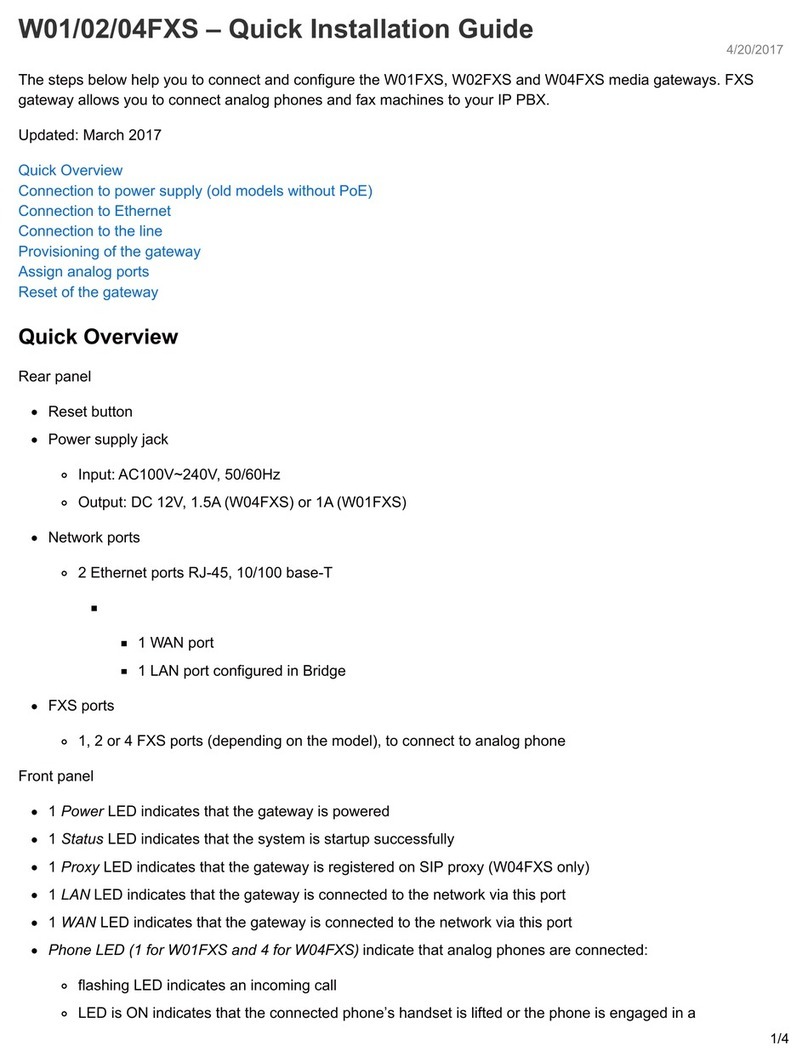
W01/02/04FXS
W24FXS 2015
W04FXO
SIP Trunk Settings Guide describes trunk settings and can be helpful in configuring various parameters of Media
: Gateways
This Admin Guide describes how to debug and troubleshoot various issues with Wildix Media Gateways.
Created: April 2018
Updated: August 2019
Permalink: https://confluence.wildix.com/x/ygBuAQ
Debugging and troubleshooting of Media Gateways
Debugging and troubleshooting of Media Gateways Page 2 of 14
ISDN - FXO - GSM - SIP Trunk Settings Guide
Troubleshooting of BRI Gateways in case of provisioning or
network issues
Issues:
The gateway is not identified by the network
The gateway appears to cause the calls’ interruption
The gateway appears to affect the quality of the conversation
The gateway is not available for provisioning on the WMS
The gateway appears not to work correctly (the ports are not functional, the signal lights blink in a strange
way)
Reason:
Provisioning, network or functioning of BRI devices is not correct
Solution:
The Reset procedure of the Gateway.
Reset operation resolves some problems related to the Gateway (strange blinking of LEDs, connectivity
problems) and some problems related to LAN connection, access to the configuration page via http etc. Follow
these steps to perform the correct operation procedure:
The Gateway should be connected only to the power :
Press the button signed as reset/default on the backside of the Gateway, using paperclip or the object of a
similar shape:
Debugging and troubleshooting of Media Gateways
Debugging and troubleshooting of Media Gateways Page 3 of 14
Hold the reset button. After a few moments the four LEDs of the display will start to blink. Only when all the
four LEDs stop blinking, release the reset button and wait for the light of the LEDs to go out. Then unplug
the power and retest the device.
In case the operation was not successful, repeat it again.
Test procedure (performed after the device is reset)
For the test performance you need:
1 PBX with a user (you can create a new user especially for the test or use an existing one)
1 provisioned phone associated to this user
1 Dialplan procedure
1 provisioned BRI device (which was previously reset and upgraded to the latest version of firmware)
1 network cable to connect the ports involved in the test
The test
The test consists of a call with two ports involved, one used as outgoing, another one – as incoming.
The PBX plays the audio file in loop to keep the call running and give the possibility to test the device.
It is recommended to perform this operation in a specifically designed test environment in order to exclude the
problems caused by some external factors, that could influence the result (the problems related to the operator,
lines, configuration etc).
The following logical scheme demonstrates the procedure. In this case W02BRI is used (in case W01BRI is
tested, you need another BRI device, to set up the second port):

Debugging and troubleshooting of Media Gateways
Debugging and troubleshooting of Media Gateways Page 4 of 14
To perform the test:
Create a user or use an existing one to perform the test. In this example the user “test2” with the extension
number 103 is used:
Connect the Gateway to the Wildix test PBX and make the provisioning (refer to the ifonline Guide
needed); connect the needed ports using the network cable RJ45:
Create a dialplan procedure to perform the test of the ports:
Debugging and troubleshooting of Media Gateways
Debugging and troubleshooting of Media Gateways Page 5 of 14
The procedure, while calling the number 9999, occupies the line corresponding to the predetermined BRI port
and calls the number 5555.
The number is checked by the same procedure, and the selected music file starts to play.
Due to the loop that is generated, it’s possible to check all the eventual lines interruptions and the conversation
quality, taking the necessary time to perform the test.
Once the procedure is entered into the Dialplan, it should be associated to the user:
Go to WMS -> -> select BRI device and click to configure. Set up TE as one port, NT as theTrunks Edit
second port (by choice) and associate " " Dialplan procedure with both of them. Here, in the example,testbri
W01BRI is tested and another BRI device is used to set up the second port:
Here is what we have after ports configuration:
Debugging and troubleshooting of Media Gateways
Debugging and troubleshooting of Media Gateways Page 6 of 14
The setting is ready for the test procedure. Dial the number 9999 and check the work of the BRI device by
listening to the sound file.
Troubleshooting of BRI/ PRI Gateways in case of call issues
Issue:
PRI or BRI Gateway fails to make/ receive calls.
Reason:
Connection of BRI/ PRI Gateway to the ISDN operator’s line or to the PBX Legacy/ other devices should be
checked.
Solution:
Access PRI/ BRI Gateway web interface
Go to menu. Now you can see the list of all the ISDN interfaces and the state of the physical linkISDN
“Up” indicates that the service works correctly, while “Down” indicates the problem on the line and/ or in the
Gateway configuration:
Resolving issues with ISDN operator’s line connection
Issue 1.1. The physical link is not active
How to solve:
Debugging and troubleshooting of Media Gateways
Debugging and troubleshooting of Media Gateways Page 7 of 14
Check/ substitute the wiring
Check that the following wiring scheme is used (“straight” wiring):
In case of the wiring to the network terminal Selta with DB9 connector, the correct scheme of the wiring is
the following one:
Issue 1.2. The signal is not active
How to solve:
Make sure that “ is set up to “ ” in WMS -> , under the configuration menuClock” Use provided clock Trunks
of BRI/ PRI trunk
Request an operator to check the line’s state
Resolving issues with PBX legacy/other devices connection
Issue 2.1. The physical link is not active
How to solve:
Check/ substitute the wiring
Check the mode in which the ISDN interface of the PBX Legacy operates:
If it operates in TE mode with " " , the Wildix PRI Gateway should operate as NTUse provided clock
with the clock set up to "Generate clock"
If it operates in NT mode with " ", the Wildix PRI Gateway should operate as TE withGenerate clock
the clock set up to "Use provided clock"
Debugging and troubleshooting of Media Gateways
Debugging and troubleshooting of Media Gateways Page 8 of 14
Issue 2.2. The signal is not active
How to solve:
Check the protocol type used by the legacy PBX (DSS1 or QSIG), align consequently the settings of the
Wildix PRI Gateway in WMS -> ->Trunks BRI/PRI trunks
Issue 3. In case of connection to Cisco router provided by Fastweb operator, the BRI Gateway has problems
both with incoming and outgoing calls
How to solve:
Make sure that the gateway ports are set up in TE mode. Connect Cisco device to the Media Gateway
ports using the crossover cables:
Debugging of BRI/ PRI Gateways using PCM trace
PCM traces record all analog signals sent or received on the side of the Wildix media gateway. The data will be
sent once a call is being established or is in progress. No data will be sent if the gateway if there are no calls in
progress.
This debugging tool helps you to identify the following problems:
Echo or noise in your network
Voice quality issues
Analog signals
Debugging and troubleshooting of Media Gateways
Debugging and troubleshooting of Media Gateways Page 9 of 14
Step 1. Connect to BRI/ PRI Media Gateway
Connect to BRI/ PRI via SSH using the following command:
ssh -l admin <DEVICE IP>
Where:
<DEVICE IP> is the IP adress of BRI/ PRI Media Gateway.
Launch the following commands :
Mipt.PcmCaptureEnable = "Enable"
Mipt.PcmCaptureEndpoint = "BRI/PRI port-channel"
Mipt.PcmCaptureIpAddr = "PBX IP"
Where:
"BRI/PRI port-channel" is BRI/ PRI port and channel from which the PCM trace will be taken. For example,
"BRI1-1" is BRI port 1, channel 1.
"PBX IP" is the IP address of your PBX where the PCM traffic will be sent.
Step 2. Enable pcap trace on PBX
Go to WMS Settings -> Tools and utilities -> Generate trace
Enable "Custom tcpdump" option and enter the following string:
Debugging and troubleshooting of Media Gateways
Debugging and troubleshooting of Media Gateways Page 10 of 14
-v -s0 -i any port "5001" or port "6001"
Where:
"5001" (incoming) and "6001" (outgoing) are ports and channels to be specified. For example:
5002, port 1 - channel 2
5003, port 2 - channel 1
5004, port 2 - channel 2
Click to generate a fileStart
When the file is generated, click Stop
Click on the file to download it
Step 3. Convert a pcap file using Wireshark packet analyzer
To convert a pcap file to a PCM file (*.au format), use Wireshark:
Select UDP packet -> Analyze -> Decode as RTP
After the decoding is completed, go to Telephony -> RTP -> RTP Analysis
Select Save Payload As
Name the file and select a folder to save it
Choose and (or ) Format : .au Channels : forward both
Click to save the fileOK
Note: Pcap trace can be enabled only for one particular channel.