Press the key to listen to the message
Quick Guide
WILDIX WP480
Basic Operations
Answer a call
Mute the microphone during a call
Adjust the volume of the speaker
Put a call on hold
Transfer a call
Make a call
Soft Keys
Navigation Keys
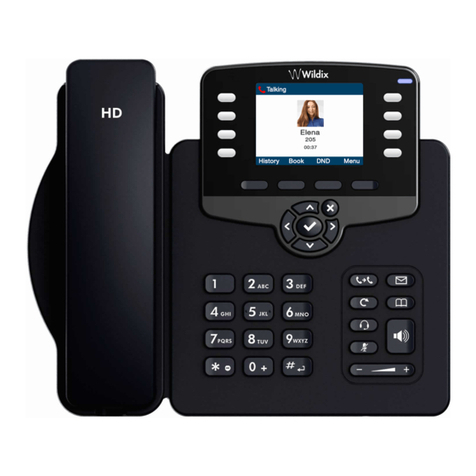
4 Soft Keys can be used for different operations. Available operations corresponding
to the buttons are always indicated in the lower part of the display. All the operations
relative to the Soft Keys are indicated in this guide with capital italic letters, i.e.: SEND
Use the Navigation Keys to select and confirm different options of the menus
* To search for a contact in the phonebook: press SEARCH in the menu PHONEB > enter the contact
using the keypad
- Redial the last called number: press twice the REDIAL button
To mute the microphone during a call, press the MUTE button
To adjust the volume of the speaker, use the Volume control buttons
Press the keys during a call to adjust the voice volume.
Press the keys when you are not talking on the phone, to adjust the ringer volume
To put a call on hold, press HOLD
To resume the call, press RESUME
Press SWAP to switch between an active call and a call on hold
If you have several calls on hold: use the Navigation Keys to select the needed call >
press RESUME
Blind transfer
- Press the BLF key configured as “Colleague” during a call
- The current call is put on hold, the number for a transfer appears on the screen
- Hang up or press TRAN to complete the transfer
Attended transfer
- Press TRAN or TRANSFER button during a call
- The current call is put on hold. Dial the number (internal or external) for the transfer
- Wait till the person answers. Now you can have a private conversation with him
- Hang up to complete the transfer
Listen to your Voicemail messages
If the LED of the MESSAGE key is on, it indicates the presence of a new voicemail
Conference
- Press CONF during a call
- The current call is put on hold. Dial the number of the person to add him to the
conference > press SEND
- When the third person responds, press CONF again
- Hang up to end the conference
Settings
Press MENU to enter the main menu and adjust your settings
STATUS: view IP address, MAC, FW version, select “More” for the information about
Network, Phone and Accounts
RING TONES: use the Navigation Keys to select and confirm the ring tone which you
want to use
PHONE VOLUME: use the Navigation Keys to select and confirm Handset, Speaker,
Headset, Ring volume
ADVANCED SETTINGS: enter the password set on the phone to access to the
advanced settings: Network settings, Reset to factory and Auto-Provisiong
Main menu
Call Features
- Do Not Disturb: if enabled you do not receive incoming calls.
- Busy call forward and Unavailable call forward: calls are forwarded to another number
when busy or unavailable. You can specify the number for the call forward.
- Force call forward: all incoming calls are forwarded to the specified number.
- Call waiting: if enabled, you can receive several calls at the same time.
- Mobility: if enabled, you can receive incoming calls also to the mobile number
(if indicated).
Note
Select the way to make a call:
- lift the receiver
- press the SPEAKER button
- press the Headset Key / LED to use the monaural headphones WHS32
(article on demand, not included)
- Lift the receiver to answer a call
- Press the SPEAKER button to answer a call in a speaker mode
- Press the HEADSET key / LED to answer using the monaural headphones WHS32
Dial the phone number:
- Manually: enter the phone number, using the DTMF keypad > press SEND or the key
situated in the center of the Navigation Keys
- From the call history: press HISTORY > use the Navigation Keys to select the contact
> press SEND
- From the phonebook*: press PHONEB > use the Navigation Keys to select the
contact > press DIAL or the key situated in the center of the Navigation Keys
Call transfer without notifying the person who receives the call
- Press TRAN or TRANSFER button during the call
- The current call is put on hold. Dial the number (internal or external) for the transfer
- Hang up to complete the transfer
Press FEATUR. to view and set up the call features.
Select the feature and press MODIFY to enable or disable the feature
- Press the BLF key configured as “Colleague” during a call
- The current call is put on hold, the number for a transfer appears on the screen
- Wait till the person answers. Now you can have a private conversation with him
before transferring the call
- Hang up or press TRAN to complete the transfer
Attended transfer via BLF keys
You have a private conversation with the person prior to transferring the call to him
Blind transfer via BLF keys
The guide describes the features of WP480 phone with firmware v.7.61.10.14.
Guide updates will be published on www.wildix.com
To switch between the handset and the speaker during a call, press the SPEAKER
button or lift the handset.
Press REJECT to deny an incoming call
Press SILENCE to mute the ringer without reply