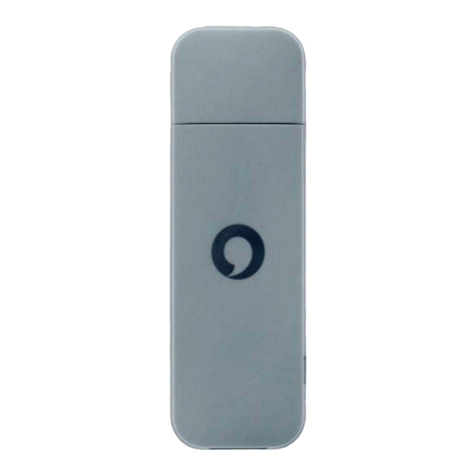
Zte MF60 User manual

ZTE MF60-62
Quick Guide
ZTE CORPORATION
NO. 55, Hi-tech Road South, ShenZhen, P.R.China
Postcode: 518057
Tel: +86-755-26779999
URL: http://www.zte.com.cn
E-mail: mobile@zte.com.cn

LEGAL INFORMATION
Copyright © 2010 ZTE CORPORATION.
All rights reserved.
No part of this publication may be excerpted, reproduced, translated or utilized in any form or by
any means, electronic or mechanical, including photocopying and microfilm, without the prior
written permission of ZTE Corporation.
The manual is published by ZTE Corporation. We reserve the right to make modifications on print
errors or update specifications without prior notice.
Version No. : R1.0

Quick Guide
Introduction
ZTE MF60 is a 3G/2G mobile hotspot device, working in GSM/GPRS/EDGE/WCDMA/HSPA/HSPA+
network. The client devices could connect to it via USB or Wi-Fi interface. The device supports data and
SMS services, enabling you to communicate anytime and anywhere.
This quick guide provides instructions on how to install and get started with the product. For information
about connection of services, please consult your service provider.
Specification
HSPA+: DL 21.6Mbps, UL 5.76MbpsData Service
WCDMA CS: 64kbps UL/DL
WCDMA PS: 384kbps UL/DL
Interface USB and Wi-Fi
Wi-Fi Standard 802.11b/g
Wi-Fi Security WEP/WPA/WPA2/WAPI
USB Version USB 2.0 HIGH SPEED
USB Interface Type Micro USB
Weight 77g
Dimensions (W×H×D): 99.7mm*53.7mm*13.9mm
microSD card Support up to 32GB microSD card
Power Adapter 5V/700mA
Battery 1500mAh
*Standby time 100hours
*Working time 4hours
Operate system Windows 7, Windows Vista(32bit or 64bit), Windows XP (SP2 or later), MAC (10.4 or
later)
Web Browser IE (6.0 or later), Firefox (2.0 or later), Opera (10.0 or later), Safari (4.0 or later), Chrome
(5.0 or later)
Operating temperature 0℃~ +35℃
Storage temperature -20℃~ +50℃
Charging temperature 0℃~ +45℃
Humidity 5%~ 95%
Confidential and Proprietary Information of ZTE CORPORATION 1
ZTE MF60 Quick Guide
Notes:
microSD is a trademark of SD Card Association.
The device’s standby and working time are only for your reference, and based on ideal working
environment.
Getting to Know Your Device
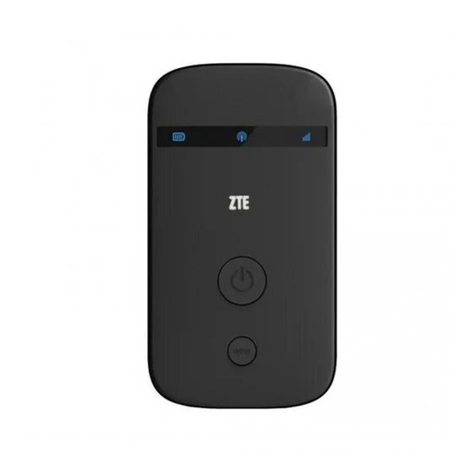
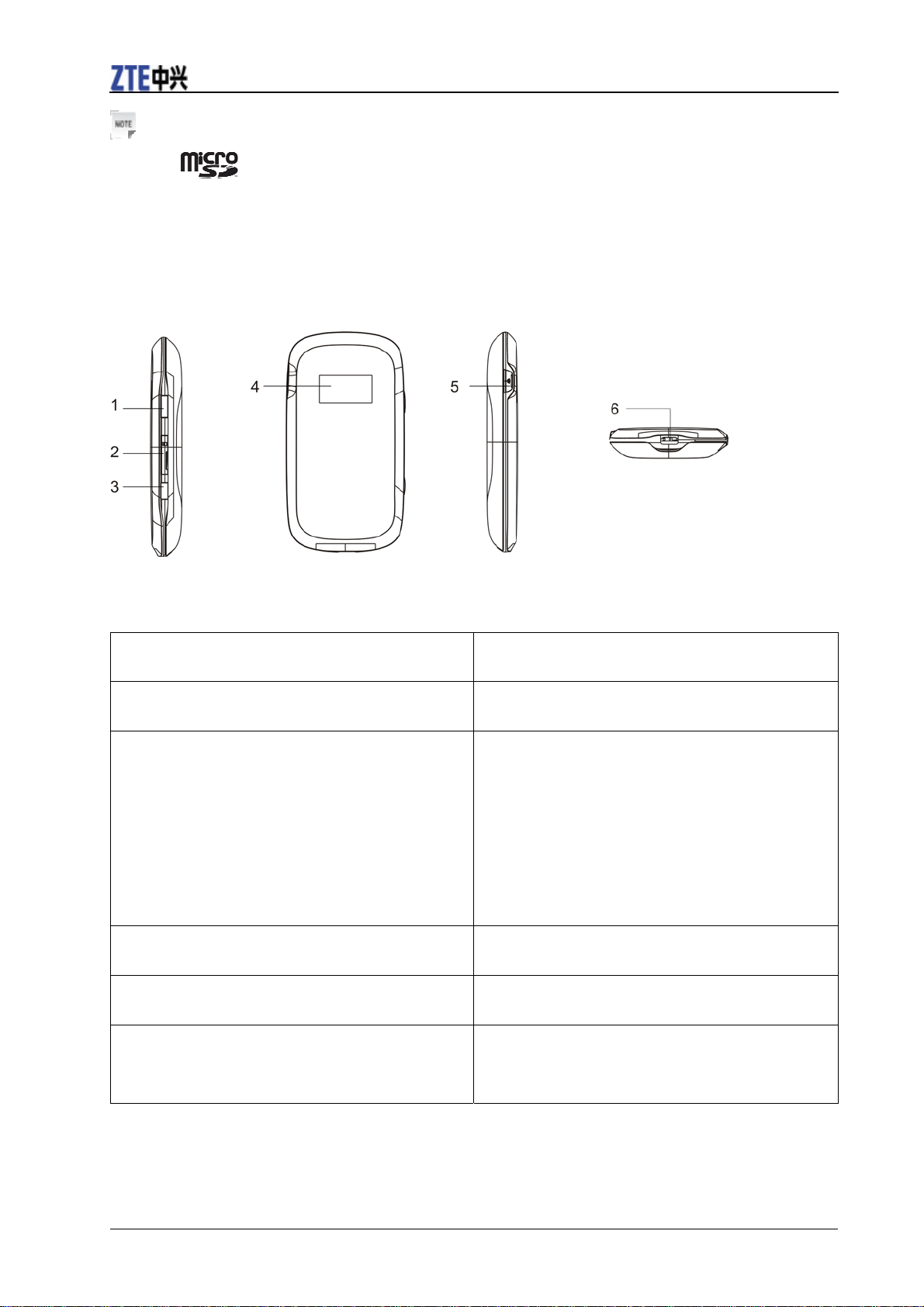
The following figure shows the appearance of the device, it is only for your reference. The actual device
may be different.
RightSide Front LeftSide Bottom
Interface and Buttons
1.Power Hold the Power button to switch on/off the
device.
2.Memory card slot (microSD card) It is where you insert the memory card (microSD
card).
3.WPS This button is used to start/end Wi-Fi Protected
Setup authentication process and enable/disable
the Wi-Fi function.
Hold it for 3 seconds to activate the WPS
function.
When the WPS function is available, press it to
deactivate the WPS function.
Press it to enable/disable Wi-Fi function.
4. LED Screen It indicates the signal type, signal strength,
battery, Wi-Fi, etc.
5. External Antenna Connector It is used to connect an external antenna to
enhance the signal strength.
6.Charger/USB port Charge your device.
Connect the client to your device via USB
cable.
2 Confidential and Proprietary Information of ZTE CORPORATION

ZTE MF60 Quick Guide
Notes:
Hold the WPS and Power buttons simultaneously until the LED screen turns off, and then release the
buttons. The device will restart automatically and restore to the factory default settings.
LED Indicator
When the device is powered on, the following icons will appear on the LED screen, with the
corresponding indicates listed in the table below:
Icon Indication
Network signal strength.
Network type. 2G or 3G icon will appear on the LED screen according to the network
being connected.
Connect to the Internet automatically.
Connect to the Internet manually.
Roaming network indication.
New message received.
Wi-Fi Status and number of the connecting users.
Battery power indication.
Hardware Installation
Inserting SIM Card and Battery
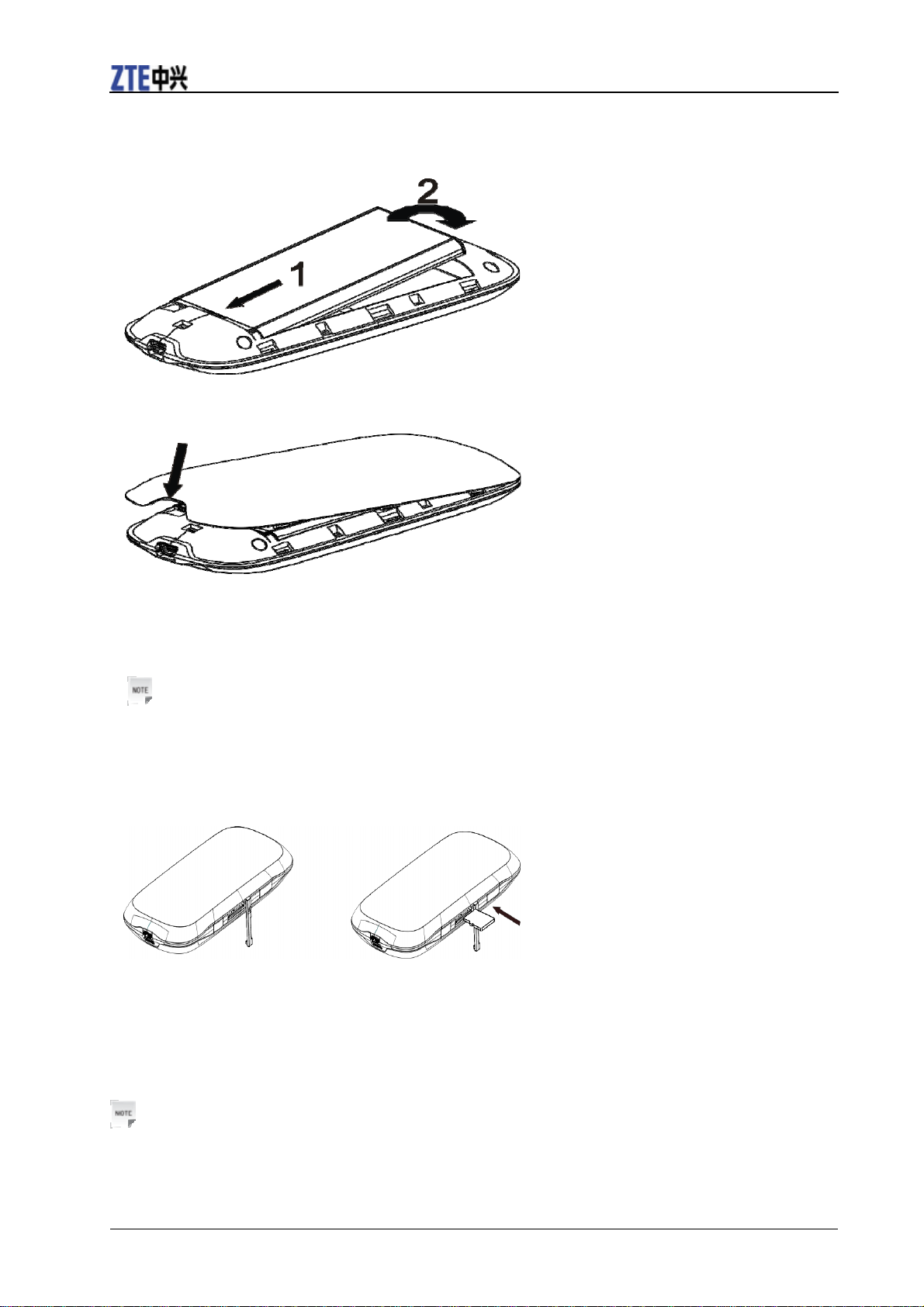
1. Use the thumb catch at the bottom of the device to open the battery cover.
2. Insert the SIM card into the SIM card holder.
Confidential and Proprietary Information of ZTE CORPORATION 3
ZTE MF60 Quick Guide
3. Insert the battery as shown with the contacts located against the metal springs, and press the battery
down into the case.
4. Line the battery cover up correctly and press gently to close the case.
Inserting microSD Card
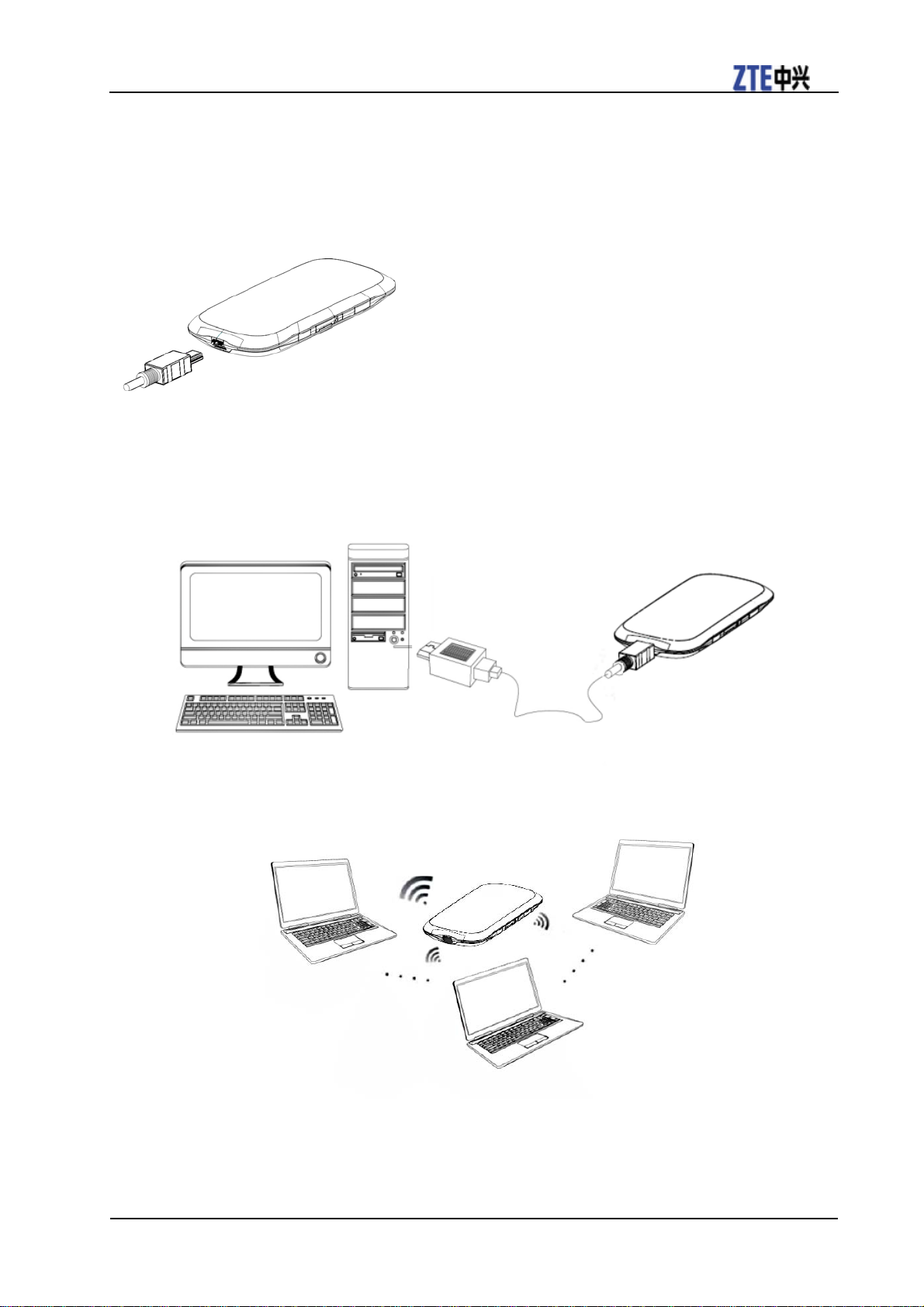
1. Pull the microSD cover out of the card slot.
Notes:
Do not pull the cover rudely, as it is connected with the device.
2. Insert the microSD card into the microSD slot. The following picture shows the correct inserting
direction. You will hear a click when the microSD card locks in place.
3. Close the microSD cover.
Switching On/Off Your Device
Hold the Power button to switch on/off the device.
Notes:
The device is powered on when the LED screen lights up.
4 Confidential and Proprietary Information of ZTE CORPORATION
ZTE MF60 Quick Guide
Charging Your Device
You can charge your device by using USB cable or adapter.
1. Insert the charger lead carefully with the plug arrow facing the bottom of the device.
2. The plug only fits one way. Do not use excessive force to insert the plug.
3. Make sure the plug is the right way round and lined up correctly and insert it gently.
Working Mode
Your device supports three working modes. For the client, we only use PC or laptop as the example in this
document.
USB Mode: Connect to the device with the USB cable.
Wi-Fi Mode: Connect to the device via Wi-Fi.
Mixed Mode: Connect to the device with the above two connection methods.
Confidential and Proprietary Information of ZTE CORPORATION 5

ZTE MF60 Quick Guide
Notes:
If you want to connect to the Internet by using Wi-Fi mode, make sure that the client supports the Wi-Fi
function.
The following picture is the application example. All of the client devices can surf on the Internet at the
same time.
Establish a connection between your device and the client
Via USB Cable
Connect your device and the client with the USB cable.
Power on your device.
Follow the system prompts to complete the software installation.
Notes:
•If the system does not launch installation automatically, you can run the installation program in path of
My Computer > Portable Hotspot.
•The driver of your device will be installed at the same time.
After the installation, the system will create a shortcut icon on your desktop and a ZTE USB Drivers
for MF60 program group in the Start→Programs menu. The connection between your device
and the client will be established successfully a moment later.
Via Wi-Fi
1. Power on your device directly. It will take 1~2 minutes to initialize.
2. Use your normal Wi-Fi application on the client to search the available wireless network.
Notes: You need to check your Wireless Network Connection. Set the client to obtain an IP
address automatically in the Internet protocol (TCP/IP) properties, and the client will get an IP
address like “192.168.0.100”.
3. Select the SSID of your device, and then click Connect.
6 Confidential and Proprietary Information of ZTE CORPORATION

ZTE MF60 Quick Guide
Notes:
There will be a pop-up window to require the password. Check the label on your device to gain the
SSID and preset password information. Please do remember the new password when you change the
password by selecting Settings > Wi-Fi Settings > Security after logging in the WebGUI Configuration
Page. You can restore the device to the factory default settings in case you forget it.
4. Wait a moment, the connection between your device and the client will be established successfully.
Access the Internet
1. Switch on the device.
2. Establish a connection between your device and the client.
3. After successfully establishing the connection, access the Internet in the Always On and
Manual mode. The default mode is Always On.
Notes:
You can browse the WebGUI Configuration page and click WAN Connection to set the WAN
connection mode.
Access the WebGUI Configuration Page
1. Make sure the connection between your device and the client is correct.
2. Launch the internet browser and enter http://192.168.0.1 or http://ufi.home in the address bar.
Notes:
It is recommended that you use IE (6.0 or later), Firefox (2.0 or later), Opera (10.0 or later), Safari (4.0 or
later), Chrome (5.0 or later).
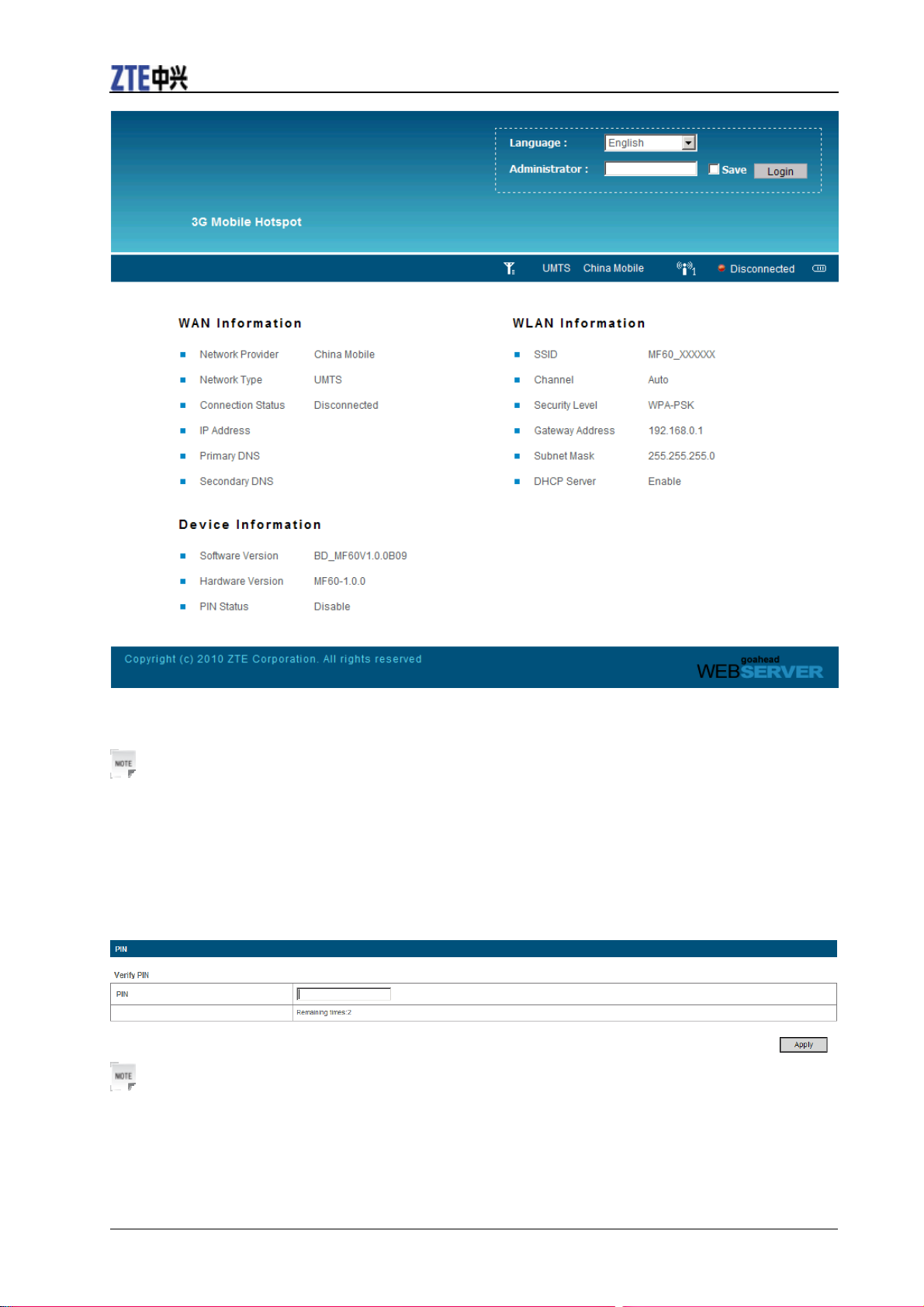
3.The login page appears as follows.
Confidential and Proprietary Information of ZTE CORPORATION 7
ZTE MF60 Quick Guide
View the information of WAN, WLAN and Device. Input the case-sensitive default password “admin”,
and then click Login to access the WebGUI Configuration page.
Notes:
•Do not put anything on the top of your device. Do not lay devices to overlap each other when using.
•The device takes 1~2 minutes to initialize, and attach to the network.
PIN Code Verification
If the PIN code of your SIM card is enabled, you will need to input the PIN code when you login at the
first time.
Notes:
The SIM card will be locked if you enter wrong PIN code consecutively for three times.
If you want to modify the PIN Status, please select Settings > Advanced > PIN Manage to do the
actions.
8 Confidential and Proprietary Information of ZTE CORPORATION
Other manuals for MF60
7
This manual suits for next models
1
Table of contents
Other Zte Modem manuals