manuals.online logo
Brands
  1. Home
  2. •
  3. Brands
  4. •
  5. ADTRAN
  6. •
  7. Switch
  8. •
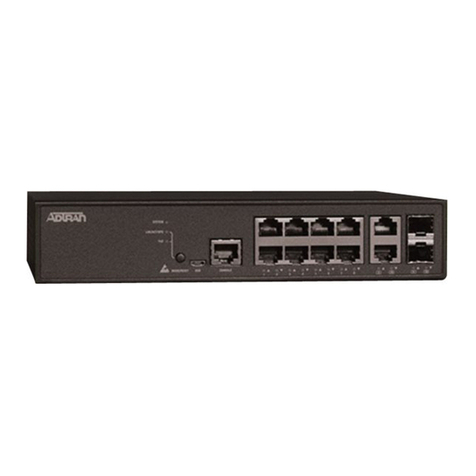
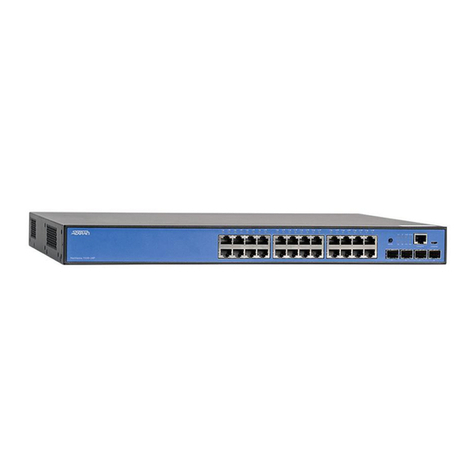
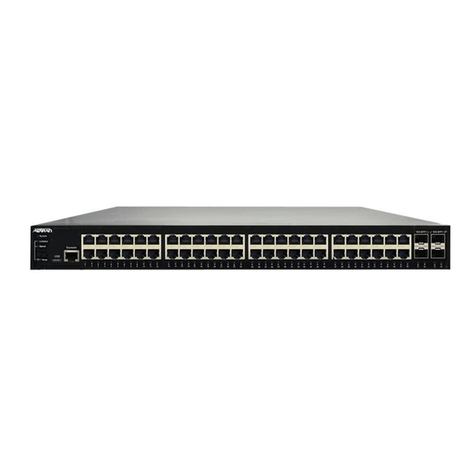
  9. ADTRAN NetVanta 1224R Installation instructions

ADTRAN NetVanta 1224R Installation instructions

Other manuals for NetVanta 1224R

1

This manual suits for next models

1

Other ADTRAN Switch manuals
ADTRAN NetVanta 1560-08-150W User manual

ADTRAN

ADTRAN NetVanta 1560-08-150W User manual

ADTRAN NetVanta 1748F Series Manual

ADTRAN

ADTRAN NetVanta 1748F Series Manual

ADTRAN NetVanta 7000 Series User manual

ADTRAN

ADTRAN NetVanta 7000 Series User manual

ADTRAN NetVanta 1224ST User manual

ADTRAN

ADTRAN NetVanta 1224ST User manual

ADTRAN NetVanta 1335 Series User manual

ADTRAN

ADTRAN NetVanta 1335 Series User manual

ADTRAN NetVanta 1224ST Manual

ADTRAN

ADTRAN NetVanta 1224ST Manual
ADTRAN NetVanta 1560-08-65W User manual

ADTRAN

ADTRAN NetVanta 1560-08-65W User manual

ADTRAN 1xN Instruction Manual

ADTRAN

ADTRAN 1xN Instruction Manual

ADTRAN 600 Series User manual

ADTRAN

ADTRAN 600 Series User manual

ADTRAN netvanta 1230 series User manual

ADTRAN

ADTRAN netvanta 1230 series User manual

ADTRAN NETVANTA 1224 POWER OVER ETHERNET Series User manual

ADTRAN

ADTRAN NETVANTA 1224 POWER OVER ETHERNET Series User manual

ADTRAN NetVanta 1224 User manual

ADTRAN

ADTRAN NetVanta 1224 User manual
ADTRAN 3192 H2TU-C User manual

ADTRAN

ADTRAN 3192 H2TU-C User manual

ADTRAN Total Access 1210 Installation guide

ADTRAN

ADTRAN Total Access 1210 Installation guide

ADTRAN T1 CSU ACE User manual

ADTRAN

ADTRAN T1 CSU ACE User manual

ADTRAN TRACER 1280050L1 User manual

ADTRAN

ADTRAN TRACER 1280050L1 User manual

ADTRAN HTU-C M User manual

ADTRAN

ADTRAN HTU-C M User manual

ADTRAN NetVanta 1550 Series User manual

ADTRAN

ADTRAN NetVanta 1550 Series User manual

ADTRAN D4 TRDDB User manual

ADTRAN

ADTRAN D4 TRDDB User manual

ADTRAN 1xN Instruction Manual

ADTRAN

ADTRAN 1xN Instruction Manual

ADTRAN NetVanta 1224STR PWR User manual
ADTRAN

ADTRAN NetVanta 1224STR PWR User manual

ADTRAN FT1 DP User manual

ADTRAN

ADTRAN FT1 DP User manual

ADTRAN D4 U-BR1TE V Product manual

ADTRAN

ADTRAN D4 U-BR1TE V Product manual

ADTRAN NetVanta 1224STR PWR User manual

ADTRAN

ADTRAN NetVanta 1224STR PWR User manual

Popular Switch manuals by other brands

SMC Networks SMC6224M Technical specifications

SMC Networks

SMC Networks SMC6224M Technical specifications

Aeotec ZWA003-S operating manual

Aeotec

Aeotec ZWA003-S operating manual

TRENDnet TK-209i Quick installation guide

TRENDnet

TRENDnet TK-209i Quick installation guide

Planet FGSW-2022VHP user manual

Planet

Planet FGSW-2022VHP user manual

Avocent AutoView 2000  AV2000BC AV2000BC Installer/user guide

Avocent

Avocent AutoView 2000 AV2000BC AV2000BC Installer/user guide

Moxa Technologies PT-7728 Series user manual

Moxa Technologies

Moxa Technologies PT-7728 Series user manual

Intos Electronic inLine 35392I operating instructions

Intos Electronic

Intos Electronic inLine 35392I operating instructions

Cisco Catalyst 3560-X-24T Technical specifications

Cisco

Cisco Catalyst 3560-X-24T Technical specifications

Asante IntraCore IC3648 Specifications

Asante

Asante IntraCore IC3648 Specifications

Siemens SIRIUS 3SE7310-1AE Series Original operating instructions

Siemens

Siemens SIRIUS 3SE7310-1AE Series Original operating instructions

Edge-Core DCS520 quick start guide

Edge-Core

Edge-Core DCS520 quick start guide

RGBLE S00203 user manual

RGBLE

RGBLE S00203 user manual

Thrustmaster FLIGHT SIMULATOR X quick guide

Thrustmaster

Thrustmaster FLIGHT SIMULATOR X quick guide

Southwire SURGE GUARD 41390 RVC troubleshooting guide

Southwire

Southwire SURGE GUARD 41390 RVC troubleshooting guide

Buhler Nivotemp NT 61 Brief instructions

Buhler

Buhler Nivotemp NT 61 Brief instructions

Kramer VS-41HDCP user manual

Kramer

Kramer VS-41HDCP user manual

Techly IDATA AU-270 user manual

Techly

Techly IDATA AU-270 user manual

Belkin F1U109 user manual

Belkin

Belkin F1U109 user manual

manuals.online logo
manuals.online logoBrands
  • About & Mission
  • Contact us
  • Privacy Policy
  • Terms and Conditions

Copyright 2025 Manuals.Online. All Rights Reserved.

TECHNICAL SUPPORT NOTE
Using the GUI to Configure a NetVanta 1224R/STR for Internet Access
using an Ethernet Port (Cable or DSL modem)
Featuring ADTRAN OS and the Web GUI
_____________________________________________________________________________________
Introduction
This Technical Support Note shows how to configure the NetVanta 1224R/STR for an Internet
connection using an ethernet port. In this scenario, you will usually have a separate cable or
DSL modem that will handle the WAN protocol and then provide ethernet to a port on the
NetVanta.
Overview
Configuring the NetVanta 1224R/STR requires an understanding of the VLAN interface model.
VLAN interfaces are used to create directly connected networks on the unit. Ports can then be
defined as members of those VLANs. We will utilize VLAN interfaces to create a WAN and
LAN segment for the 1224R. Next, we will add a default route and use the Firewall Wizard to
setup basic Internet connection sharing (NAPT).
Step 1 – Logging into the unit.
The unit will come from the factory with an IP address of 10.10.10.1 on the default VLAN 1
interface. Set the IP address on your workstation to 10.10.10.2 with a subnet mask of
255.255.255.0 and a default gateway of 10.10.10.1. In this example, we will use the first port as
our Internet access port. Make sure you have an ethernet cable attached from your workstation
to any other free port on the unit. Open a web browser such as Microsoft Internet Explorer and
type in 10.10.10.1 for the URL. You will be prompted for a username and password for which
you should enter “admin” and “password” respectively since this is the factory default. After
successfully entering the username and password, the main GUI page will be displayed.
Step 2 – Setting up the Private VLAN Interface
Click the “VLANs” link to setup the IP addresses for the unit. In the following diagrams, we
will change the default IP address to 192.168.1.254. Note: When you submit the default IP
address change, you will need to change your workstation IP address to match up with the new
subnet and reconnect to the NetVanta using the new IP address. For example, after making the
IP address change, set your workstation IP address to 192.168.1.1.
You will see the default VLAN listed with the 10.10.10.1 IP address. You can click this VLAN
and change the private IP address to the private IP address you have chosen.
Change the IP address to 192.168.1.254. After changing the default VLAN interface IP address,
be sure to change your workstation IP address to match this network. For example, you could
use 192.168.1.1 as your workstation IP address with a default gateway of 192.168.1.254.
Step 3 – Add a New VLAN for the Public Subnet (Port)
The public VLAN will be configured in one of three different modes, (A) IP Routing with a
Static IP, (B) IP Routing using DHCP, or (C) PPPoE. DHCP is normally used when connected
to a cable modem and PPPoE is often used when connected to a DSL modem set in pass-through
or bridge mode. The following pages will show an example of each different scenario. We will
use VLAN 100 for the public VLAN and 100.100.100.2/30 as the public IP address when a
static IP address is used. When a static IP address is used, we need to make sure that a static
default route is entered on the “Route Table” page. Add a new VLAN by clicking the “VLAN”
link and then clicking the “Add a New VLAN” button.
(Option A) – IP Routing with a Static IP Configuration. The IP address 100.100.100.2 is used
as an example. The IP address information should have been provided to you by your Internet
Service Provider (ISP).
(Option B) – IP Routing Using DHCP. This is a typical cable modem setup.
(Option C) – PPPoE (ADSL modem set to pass-through mode)
Set the Interface Mode to PPPoE and click “Apply”. Clicking “Apply” will open a new page to
set PPPoE specific settings.
(Option C) – PPPoE specific settings
A username and password are required for PPPoE. Service Name and AC Name are rarely used
but should be entered if provided by the ISP. Peer Authentication type should almost always be
set to “None”. Also, PPPoE should be set for “Negotiated” IP address unless the ISP has
specified a static IP address. Whenever a static IP address is used, you will need to complete the
optional step 4, which shows how to configure a static default route.
Step 4 – Adding a Default Route when using a Static IP Address
This step is not required when learning a default route dynamically as in step 3 (option B) when
we used DHCP. You need to add a static default route when using IP Routing with a static IP
address or PPPoE with a static IP address. Click the “Route Table” link and then add a static
default route by specifying the destination network and subnet mask as 0.0.0.0. In our example,
the static IP address assigned to us by our ISP is 100.100.100.2 and the default route gateway IP
address set below is 100.100.100.1.
Step 5 – Assign an Ethernet Port to be a member of the Public VLAN
In the example below, we are setting the first Ethernet port as a member of VLAN 100 and
setting it to “edgeport” mode to allow this port to come up immediately. This port should be
plugged into your Internet connection. Make sure your workstation is not plugged into this port
and remember to click the “Apply” button. Also, it is probably a good idea after making this
change to click the “Save” button to save the configuration in nonvolatile memory.
Step 6 – Using the Firewall Wizard to Setup Internet Connection
Sharing (NAPT)
We will use the Firewall Wizard to setup the “Security Zones” on the router. You can also
setup some basic port forwarding using this wizard. Note: You only want to use this wizard for
the initial configuration. All future firewall settings should be added using the “Security Zones”
link.