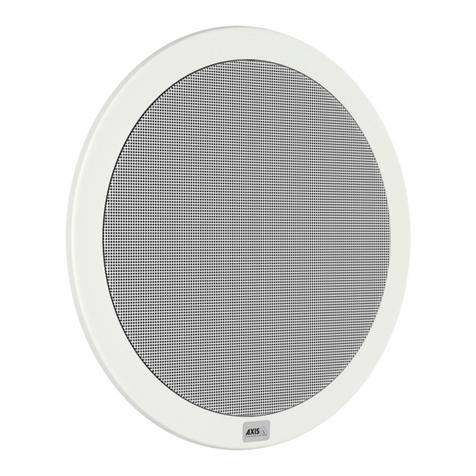
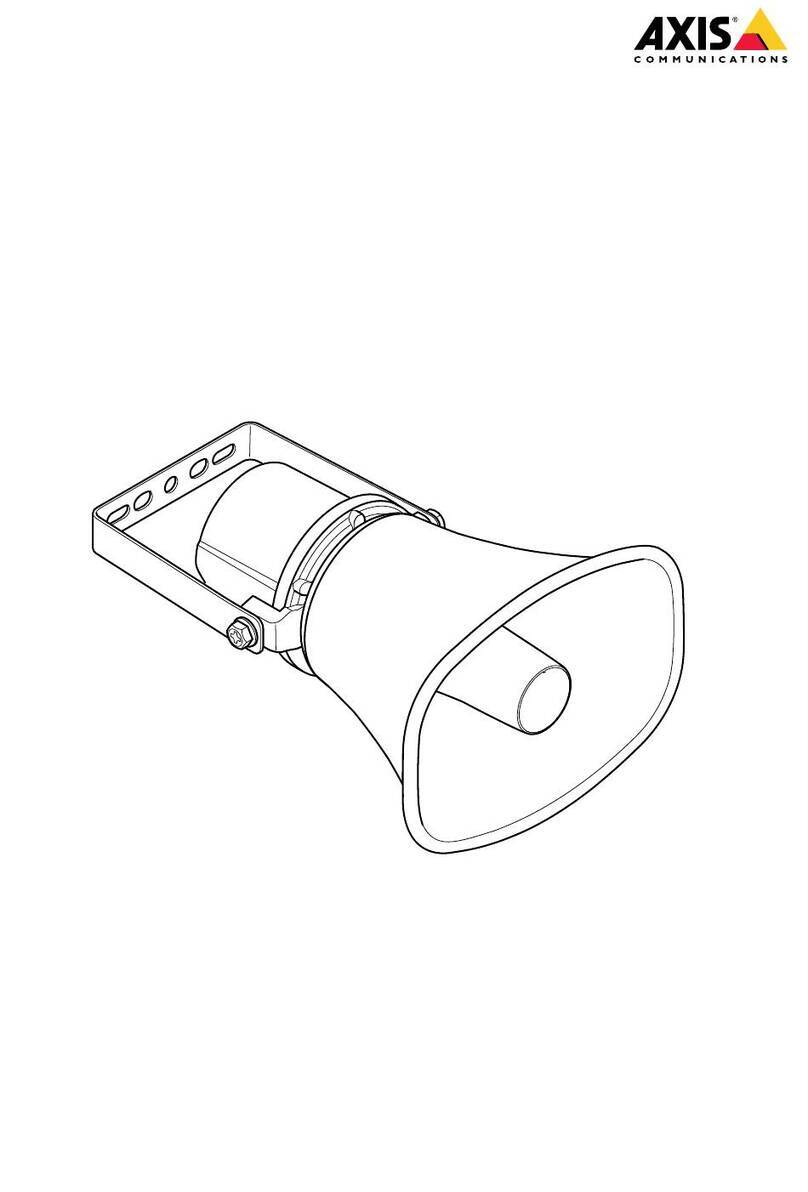
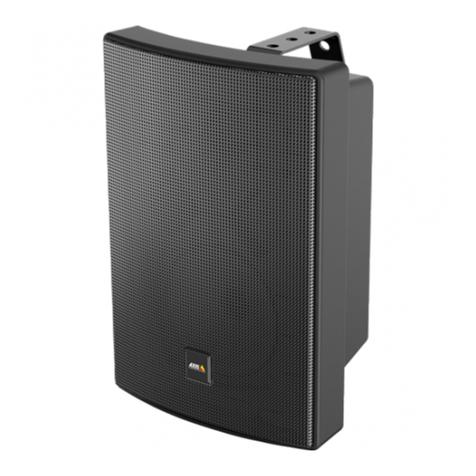
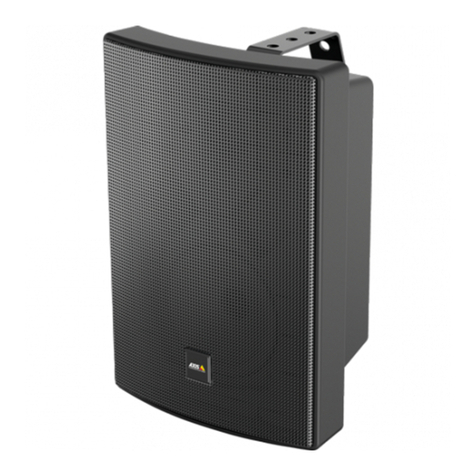
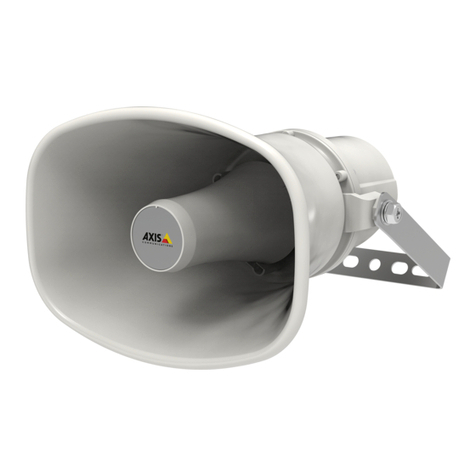
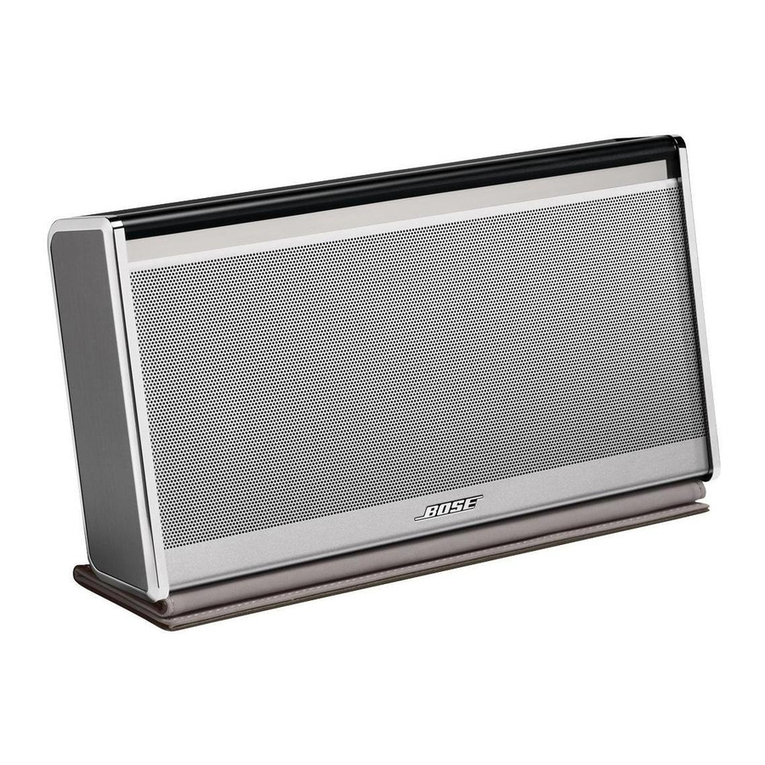
AXISC1310-ENetworkHornSpeaker
Integration
Integration
IntegrateaudiowithAXISCameraStation
Thisexampleexplainshowto:
•AddanAxisnetworkaudiodevicetoAXISCameraStationandassociateitwithanAxisnetworkcamera.
•Createabuttoninthecamera’sliveviewinAXISCameraStation,thatmakestheaudiodeviceplayanaudioclip.
NO NO
NOTICE TICE
TICE
Thissystemsetupissuitablefornon-lifecriticalsystems,forexampleintruderalarmsorstaffandcustomeraddress.
Specicguidelinesandstandards(localtotheinstallation)havetobemetforimplementationincriticalsystems,such
asreevacuation.
Limitations:
•AudiosentfromAXISCameraStationtoanAXISnetworkaudiodevicecannotberecorded.
•AnaudiodevicemustbeassociatedwithacamerainAXISCameraStation.
•Youcanonlyassociateoneaudiodevicepercamera.
•ThereisnovolumecontrolfortheaudiodeviceinAXISCameraStation.
1.AddanAXISnetworkaudiodevicetoAXISCameraStation:
1.1InAXISCameraStation,clickandselectConguration.
1.2GotoDevices>Adddevices.
1.3SelectthenetworkaudiodevicefromthelistandclickAdd.
1.4Gototherdevicestocheckthattheaudiodevicehasbeenaddedtothelist.
2.Associatetheaudiodevicewithacamera:
2.1InAXISCameraStation,gotoDevices>Streamingprolesandselectthecamerathatyouwanttoassociate
theaudiodevicewith.
2.2Inthedevice’sstreamingprole,selecttheaudiodevicefromtheSpeakerdrop-down.
2.3ClickApply.
2.4Totesttheassociation,gotothecamera’sLiveviewinAXISCameraStationandclicktheSpeakbutton.When
youspeakintothecomputer’smicrophone,theaudiodeviceplaystheaudio.
3.Prepareaudiocliplink:
3.1GotoAudio>Audioclips.
3.2Clickthelinkiconforanaudioclip.
3.3Setthevolumeandnumberoftimestorepeattheclip.
3.4Clickthecopyicontocopythelink.
4.Createabuttonthattriggerstheaudioclip:
4.1InAXISCameraStation,gotoConguration>Recordingandevents>ActionrulesandclickNew.
4.2ClickAddtoaddatrigger.
10