manuals.online logo
Brands
  1. Home
  2. •
  3. Brands
  4. •
  5. Contro l4
  6. •
  7. Touch Panel
  8. •
  9. Contro l4 C4-TSWMC5-EG-WH User manual

Contro l4 C4-TSWMC5-EG-WH User manual

Other manuals for C4-TSWMC5-EG-WH

2

This manual suits for next models

5

Other Contro l4 Touch Panel manuals

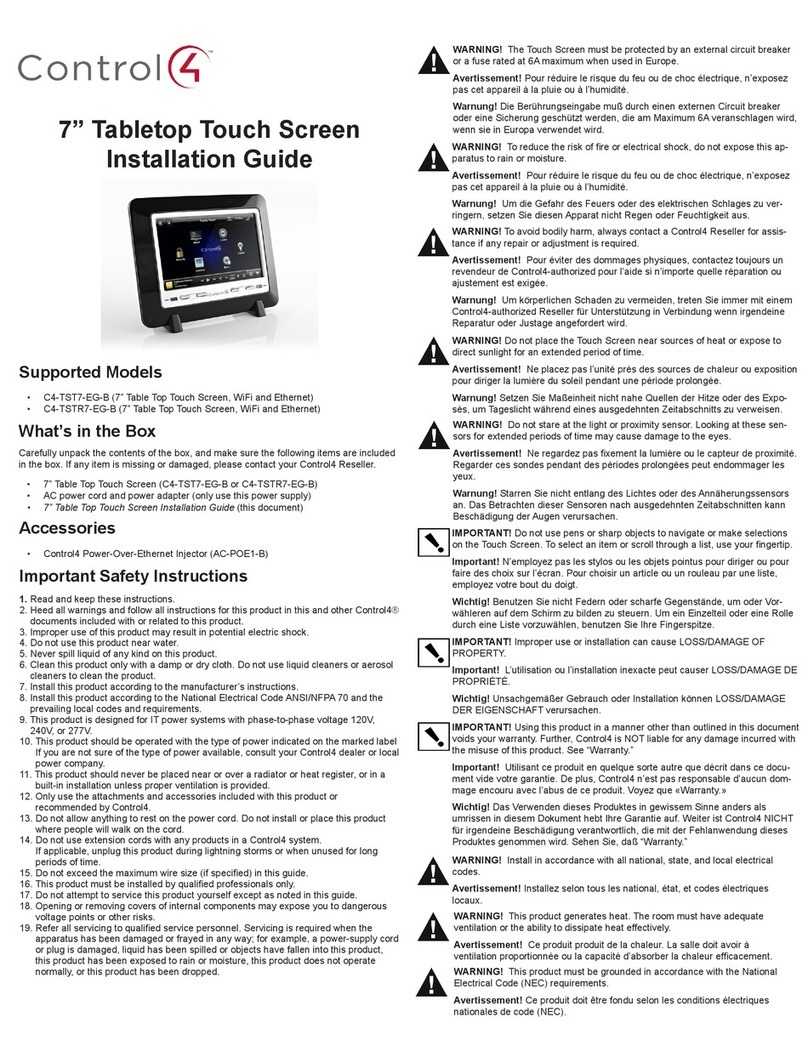
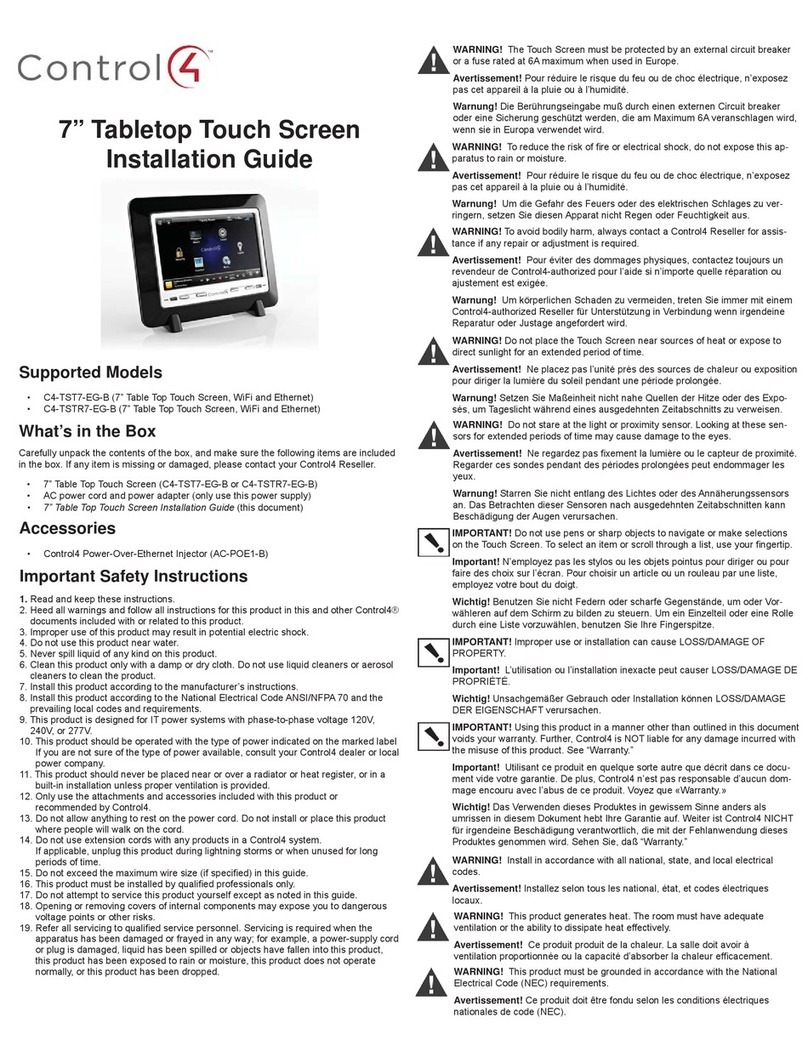
Contro l4 c4-tst7-eg-b User manual

Contro l4

Contro l4 c4-tst7-eg-b User manual

Contro l4 TSE-3.8C1-W User manual

Contro l4

Contro l4 TSE-3.8C1-W User manual

Contro l4 C4-TSWM10-E-A User manual

Contro l4

Contro l4 C4-TSWM10-E-A User manual

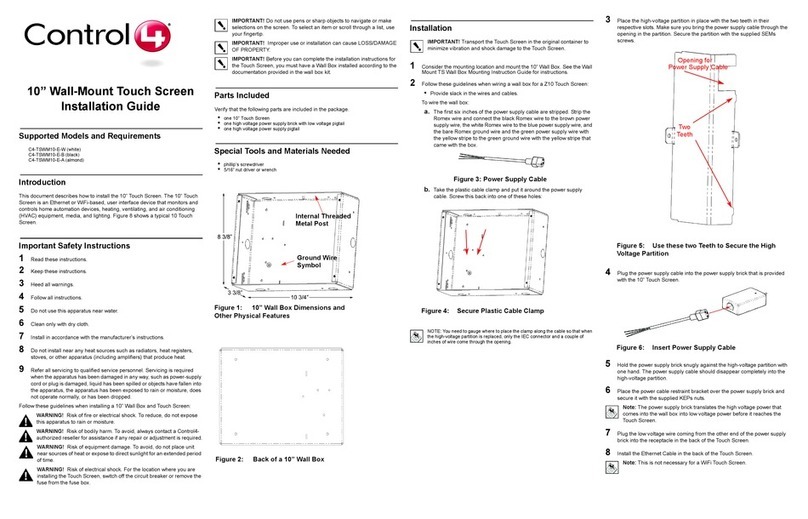
Contro l4 C4-TSWM10-E-W User manual

Contro l4

Contro l4 C4-TSWM10-E-W User manual

Contro l4 InfinityEdge User manual

Contro l4

Contro l4 InfinityEdge User manual

Contro l4 T3 Series User manual

Contro l4

Contro l4 T3 Series User manual

Contro l4 C4-TSWMC5-EG-WH User manual

Contro l4

Contro l4 C4-TSWMC5-EG-WH User manual

Contro l4 C4-MTSTOT3 Series User manual

Contro l4

Contro l4 C4-MTSTOT3 Series User manual

Contro l4 C4-TW7CO User manual

Contro l4

Contro l4 C4-TW7CO User manual

Contro l4 7 Series User manual

Contro l4

Contro l4 7 Series User manual

Contro l4 C4-WALL7-WH User manual

Contro l4

Contro l4 C4-WALL7-WH User manual

Contro l4 C4-TSWM7-E-B User manual

Contro l4

Contro l4 C4-TSWM7-E-B User manual

Contro l4 C4-TST7-EG-B User manual

Contro l4

Contro l4 C4-TST7-EG-B User manual

Popular Touch Panel manuals by other brands

Endress+Hauser ria45 operating instructions

Endress+Hauser

Endress+Hauser ria45 operating instructions

Wincomm WLP-7B20 Series user manual

Wincomm

Wincomm WLP-7B20 Series user manual

NEC ME Series user manual

NEC

NEC ME Series user manual

VIPA TP 606C CAN manual

VIPA

VIPA TP 606C CAN manual

Acnodes PC 1080 quick guide

Acnodes

Acnodes PC 1080 quick guide

Extron electronics TLP 700MV user guide

Extron electronics

Extron electronics TLP 700MV user guide

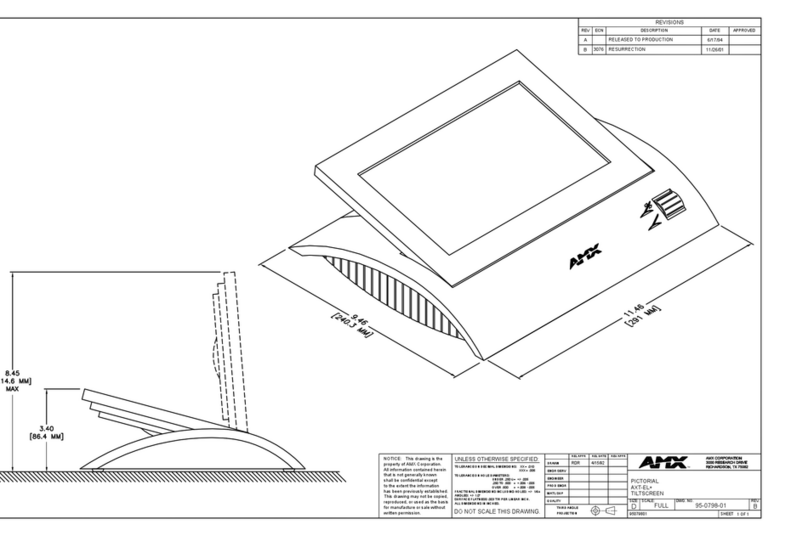
AMX AXT-EL Plus Dimensional drawing

AMX

AMX AXT-EL Plus Dimensional drawing

LEGRAND 67285 installation manual

LEGRAND

LEGRAND 67285 installation manual

FlowLine Data loop quick start

FlowLine

FlowLine Data loop quick start

ALPEX AEx-8 P Series user manual

ALPEX

ALPEX AEx-8 P Series user manual

Harman AMX MODERO S MSD-701-L2 quick start guide

Harman

Harman AMX MODERO S MSD-701-L2 quick start guide

ADT 6270ADT Installation and setup gude

ADT

ADT 6270ADT Installation and setup gude

Acnodes PC 1150 installation guide

Acnodes

Acnodes PC 1150 installation guide

AMX ViewPoint quick start guide

AMX

AMX ViewPoint quick start guide

AIS IP10IA99 series user guide

AIS

AIS IP10IA99 series user guide

IBASE Technology ASTUT-152-RE1S user manual

IBASE Technology

IBASE Technology ASTUT-152-RE1S user manual

YASKAWA TP 610C manual

YASKAWA

YASKAWA TP 610C manual

B&R Power Panel C Series user manual

B&R

B&R Power Panel C Series user manual

manuals.online logo
manuals.online logoBrands
  • About & Mission
  • Contact us
  • Privacy Policy
  • Terms and Conditions

Copyright 2025 Manuals.Online. All Rights Reserved.

™
(C4-NWB57C-P)
• 5”and7”In-WallTouchScreensWallBoxNewConstruction,Metal(C4-
NWB57C-M)
• 5”and7”In-WallTouchScreensWallBoxRetrot,Plastic(C4-RWB57C-P)
• 5”and7”In-WallTouchScreenWallBoxRetrot,Metal(C4-RWB57C-M)
Requirements for In-Wall Installations
Toinstallthe5”or7”TouchScreen,youneedthefollowing:
• AHomeControllerfullyinstalledandconguredwithaControl4®system.
• Control45”and7”TouchScreencustomwallboxinstalled.See“WallBoxKit
Options”inthisdocument.
• IfusingEthernetwithPoEpower:
-AnEthernetnetworkinstalledandavailablethatincludesagateway/router/
switch.
-Control4PoEInjector(model#AC-POE1-B)oranotherthird-partyPoE
Injectororswitch(whicharecertiedtoUL/ANSIstandards).
-Two(2)EthernetCAT5cablestosupportyourPoEInjector:(1)onethatruns
fromtheEthernetgateway/router/switchtothePoEInjector/switchand(2)
onethatrunsfromthePoEInjector/switchtotheEthernetTouchScreenwall
box.
• IfusingEthernetwithACpower:
-AnEthernetnetworkinstalledandavailablethatincludesagateway/router/
switch.
-Accesstoin-wallACpower(aneutralconnectionisrequired).
-One(1)EthernetCAT5cablethatrunsfromtheEthernetgateway/router/
switchtotheTouchScreen.
• IfusingwirelesswithACpower:
-Wirelessnetwork(WiFi802.11b/g)installedandavailablewithawireless
accesspoint(WAP).
-Accesstoin-wallACpower(aneutralconnectionisrequired).
-A14-gaugeelectricalwirelongenoughtopullbetweentheTouchScreen
andthepowersource.
Placement, Network Connection, and Power
Options
PlacetheTouchScreeninaconvenientlocationateyelevel,typicallynearthe
entranceoftheroom,approximately57to61inchesfromtheoor(seeFigure1).
Figure1.TouchScreenPlacement

New Device
AC Power (unless using PoE)
ThisdeviceusesanEthernetorWiFinetworkconnection,andcanbepowered
usingPoEorACpower.Note:DonotattempttousePoEandACatthesametime.
Option 1: Ethernet Connection with a PoE Injector or a
Third-Party Injector or Switch
PoEinjectselectricalcurrentintotheEthernetcableusingaPoEInjector(model
#AC-POE1-B)orathird-partyPoEsolutiontoprovidetheTouchScreenwithpower
andanetworkconnection.The5”and7”TouchScreensworkwiththeControl4
PoEInjectororathird-partyPoEInjector.TosetupyourPoEandEthernet
connectionwithaPoEInjector,seeFigure2.
Introduction
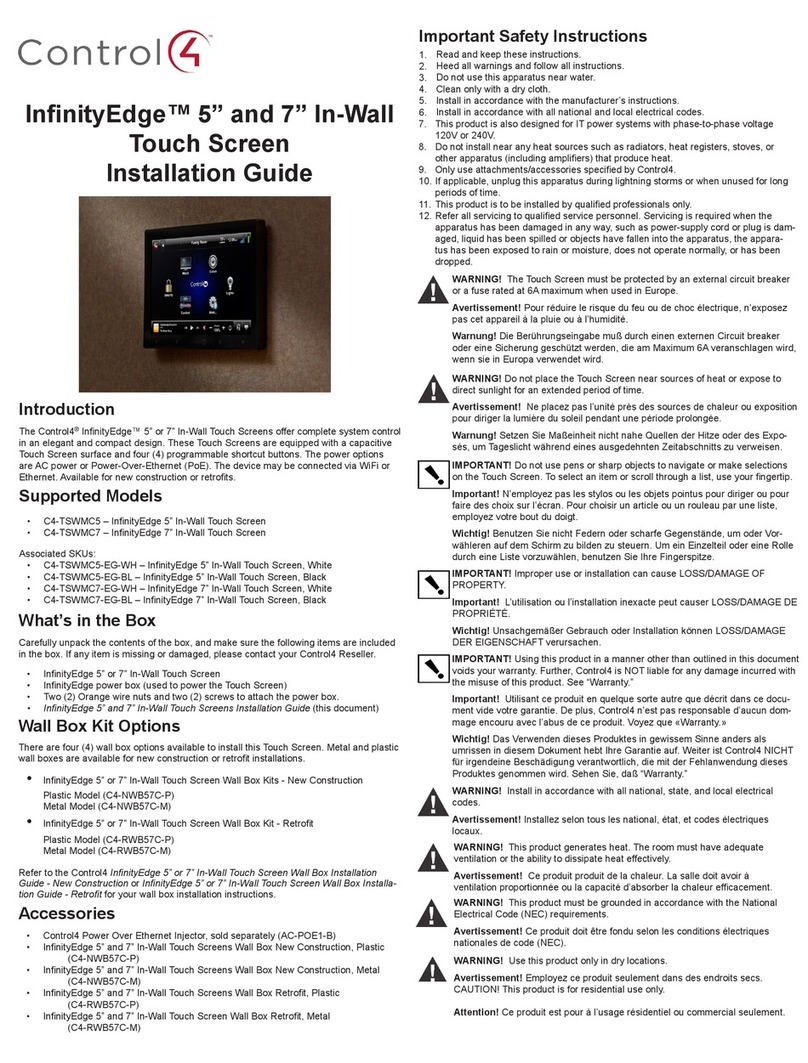
TheControl4®5”or7”In-WallTouchScreenoerscompletesystemcontrol
inanelegantandcompactdesign.TheseTouchScreensareequippedwitha
capacitiveTouchScreensurfaceandfour(4)programmableshortcutbuttons.The
poweroptionsareACpowerorPower-Over-Ethernet(PoE).Thedevicemaybe
connectedviaWiFiorEthernet.Availablefornewconstructionorretrots.
Supported Models
• C4-TSWMC5–5”In-WallTouchScreen
• C4-TSWMC7–7”In-WallTouchScreen
AssociatedSKUs:
• C4-TSWMC5-EG-WH–5”In-WallTouchScreen,White
• C4-TSWMC5-EG-BL–5”In-WallTouchScreen,Black
• C4-TSWMC7-EG-WH–7”In-WallTouchScreen,White
• C4-TSWMC7-EG-BL–7”In-WallTouchScreen,Black
Box Contents
Carefullyunpackthecontentsofthebox,andmakesurethefollowingitems
areincludedinthebox.Ifanyitemismissingordamaged,pleasecontactyour
Control4Reseller.
• 5”or7”In-WallTouchScreen
• Powerbox(usedtopowertheTouchScreen)
• Two(2)Phillipsheadscrewstoattachthepowerboxtothewall
• Warrantycard
Wallbox Kit Options
Therearefour(4)wallboxoptionsavailabletoinstallthisTouchScreen.Metaland
plasticwallboxesareavailablefornewconstructionorretrotinstallations.
• 5”or7”In-WallTouchScreenWallBoxKits-NewConstruction
PlasticModel(C4-NWB57C-P)
MetalModel(C4-NWB57C-M)
• 5”or7”In-WallTouchScreenWallBoxKit-Retrot
PlasticModel(C4-RWB57C-P)
MetalModel(C4-RWB57C-M)
RefertotheControl45” or 7” In-Wall Touch Screen Wall Box Installation Guide
- New Constructionor5” or 7” In-Wall Touch Screen Wall Box Installation Guide -
Retrofitforyourwallboxinstallationinstructions.
Accessories
• Control4PowerOverEthernetInjector,soldseparately(AC-POE1-B)
• 5”and7”In-WallTouchScreensWallBoxNewConstruction,Plastic
5”and7”In-Wall
TouchScreens
InstallationGuide
Figure2.EthernetModel-RequiresEthernetConnectiontoPoEInjector
PlacethePoEInjectornearyourgateway/router/switch.PulltheEthernetcable
fromthatlocationtowhereyouwanttoinstalltheTouchScreen.
Option 2: Ethernet Connection with AC
NoPoEInjectorisneededforEthernetwithACpower;theEthernetisconnected
directlytotheswitch.Thispowerconnectionrequiresbothneutralandhot
connections(seeFigure3).
Figure3.Ethernet-RequiresConnectiontoEthernetandACPower
Option 3: WiFi Connection with AC
WiFiplacement:PlacetheTouchScreenaboveapowersource,forexample,an
outlet.EnsurethatyouhaveWiFiinthehome(seeFigure4).
Figure4.WiFi-RequiresACPowerandWAP
Front and Rear Panel Description
Front View
Figure5.FrontView-5”or7”In-WallTouchScreen
1 Display:5”or7”viewingarea,TouchScreenwith800x480resolution.
2 Shortcut buttons (4):Forcustomprogramming;toinitiateanactionor
sequenceofactions.UseComposerProorComposerHEtocongurethese
buttons.
3 Touch Screen Removal:SmallholelocatedundertheTouchScreentoremove
theTouchScreenfromthewall.
-Front dimensions.5”TouchScreen(HxWxD):3.15”x4.8x0.9”(80mm
x122mmx23mm);7”TouchScreen(HxWxD):4.6”x6.9x0.9”(117mmx
175mm)x23mm)
-Wall box dimensions.5”or7”TouchScreens(HxWxD):2.7”x4.1”x2.4”
(68mmx104mmx61mm)
-Power box dimensions.5”or7”TouchScreens(HxWxD):2.8”x4.5”x1.8”
(71mmx114mmx46mm)
Back View
Figure6.BackView-5”or7”In-WallTouchScreenandPowerBox
1 Wire Connection:Hot(H)usesBlackwire;Return(R)usesWhitewire.
2 RJ-45 port for Ethernet Connection:Ethernetportavailableforeithera
standardEthernetsourcethatprovidesnetworkcommunicationonlyORa
PoEsourcethatprovidespowertothedeviceandnetworkcommunication.
Installation
WARNING!ForthelocationwhereyouareinstallingtheTouchScreen,
switchothecircuitbreakerorremovethefusefromthefusebox.
AVERTISSEMENT!Pourl’endroitoùvousinstallezl’écrantactile,coupezle
disjoncteurouenlevezlefusibledelaboîtedefusible.
WARNUNG!FürdiePosition,inderSiedieBerührungseingabeanbringen,
denCircuitbreakerausschaltenoderdieSicherungvomSicherungKasten
entfernen.
3
1
2
1
2
™
IMPORTANT!Whencuttingtheopeningforthewallbox,DONOTcutthe
openingtoolarge.Beconservativeandcautiouslyenlargeitasneeded.
IMPORTANT!Encoupantl’ouverturepourlaboîtedemur,necoupez
pasl’ouverturetropgrande.Soyezconservateuretagrandissez-avec
précautionlacommenécessaire.
WICHTIG!WennSiedieönungfürdenWandkastenschneiden,
schneidenSieNICHTdiegroßeönungzu.SeienSiekonservativund
vergrößernSieesvorsichtig,wiegebraucht.
IMPORTANT!Beforeyoucancompletetheseinstructionsbelow,youmust
haveaControl45”or7”TouchScreenwallboxinstalledaccordingtothe
documentationprovidedinthewallboxkit.See“Accessories”fordetails.
IMPORTANT!Encoupantl’ouverturepourlaboîtedemur,necoupez
pasl’ouverturetropgrande.Soyezconservateuretagrandissez-avec
précautionlacommenécessaire.Voyezque<<Accessories>>.
WICHTIG!BevorSiedieseAnweisungendurchführenkönnen,müssen
SieeinControl47haben“derBerührungseingaben-Wandkasten,
derentsprechenddenUnterlagenangebrachtwird,dieinden
Wandkasteninstallationssatzbereitgestelltwerden.SehenSiedaß
“Accessories.”
Network Options
• Power Over Ethernet (PoE):TheEthernetnetworkconnectionisprovided
throughthePoEInjector.Noadditionalwiringisneeded.
• Standard Ethernet Connection:ConnecttheTouchScreentooneoftheRJ-
45LANportsonthegateway/routerusingtheRJ-45Ethernetcable.
• WiFi Connection:TheinternalWiFiantennawillcommunicatewiththeLAN’s
WAP.IftheLANhasaWAPsetup,noadditionalwiringisneeded.
Power Configurations
• AC Power.ACpowerisusedtopowertheTouchScreenwhenusingan
EthernetorWiFinetworkconnection.
• PoE.PoEisusedtopowertheTouchScreenwhenusinganEthernetorWiFi
networkconnection.
Preparetheplasticpowerboxforinstallationintothewallboxbyinserting
eithertheEthernetcableortheACpowercableintothepowerbox(see
Figures7and8).
AC Power Connection.ThestepsbelowrepresentatypicalU.S.installation.
ConnectwirestotheACpowersourcefortheTouchScreenaccording
toyournationalandlocalelectricalcodes.Yourinstallationmayrequire
alternativewiresandaterminalblock.
• Threadthepowercablethroughthebottombackholeofthewallboxstraight
throughtotheterminal(Figure7).Removethetabcoveringtheholerst.
• Striptheblackandwhitepowerwireendsto1/4”ifnecessary.UsingaPhillips
headscrewdriver,loosenthescrewsonthepowerbox’sterminalblockand
connectthepowerwirestoeachterminal(seeFigure7).
• Capthegroundwirefromthewallifyouareusingaplasticwallbox.Attach
thegroundwiretothewallboxwhenusingametalwallbox.
Figure7.ACPowerConnection
• Alignandbendthewirescarefullytottheminsidethewallbox.
• Alignandcarefullyslidethepowerboxintothewallbox.
Power Over Ethernet (PoE) Connection.InstallaPoEInjector(sold
separately)orswitch,andthenconnectthePoEInjectortothepowerand
network.Connectittothepowerbox.Thestepsbelowdescribehowtoinstall
aControl4PoEInjector.
• ConnecttheControl4PoEInjectortoapowersource,forexample,anAC
outlet,usingthepowercord(providedwiththeunit).
• ConnectoneoftheRJ-45LANportsonthegateway/router/switchtothe
PoEInjector’sLANportusingtheRJ-45Ethernetcable.
• ConnectthePoEInjector’sPWRLAN-OUTporttotheRJ-45Ethernetcable
thatwillbeconnectedtotheTouchScreen.
• PulltheEthernetcablethroughthetopbackholeofthewallboxtothe
Ethernetconnectoronthetopbackofthepowerbox,andthenconnectit
(seeFigure8).
• Alignandcarefullyslidethepowerboxintothewallbox.UnlesstheTouch
Screenisinthepowerbox,itdoesn’tpullanypower.
Figure8.EthernetConnection
3 Securethepowerboxintothewallboxusingthescrewsprovided.Note:
Overtighteningpowerboxscrewscouldresultinapoorconnectionbetween
theTouchScreenandthepowerbox.
4 AlignandslidethebackoftheTouchScreenintothepowerbox.TheTouch
Screenismagneticandshouldsnaprightintoplace.
5 (Optional)TosecuretheTouchScreeninsidethepowerbox,removethetape
coveringthebottomsecuritypin(seeFigure9)beforeattachingtheTouch
Screentothepowerbox.
6 NotethepinholeonthebottomundersideoftheTouchScreen’sfaceplate.If
youeverneedtoremovetheTouchScreenfromthewall,dothefollowing:
• Locatethesmallpinholeonatab(rightside)underneaththeTouchScreen.
• Insertapaperclipintothehole(about1/4”).Withbothhands,lifttheTouch
Screenfromthebottomofthescreentowardyoutoremoveit(seeFigure9).
Figure9.TouchScreenPinandPinhole
7 Toprotectthescreen’sdisplay:Useoneofthescreen-saveroptionsavailable
fromtheMore>Settings>Screen Saverpage.
8 (WiFionly)ConnecttoaWAPontheTouchScreen(seeFigure10):
Figure10.WirelessConguration
• Afterinitialization,pressandholdthelargewhite4onthecenteroftheTouch
Screentoenterthecongurationscreen.
• PresstheNetworkbuttonontheTouchScreencongurationpage.The
networkcongurationscreendisplays.
• UnderWireless,selectEnable.Ifyoudon’tseethenetworkyouwant,select
Other.
• AtNetworkName,selecttoaddtheSSIDorwirelessnetworkwhenthe
keyboardappears.SelectDone.
• AtSecurity,selectNone,WEP 64,WEP 128,orWPA.AtPassword,typethe
passwordonthekeyboardthatappears.PressDone.
• SelectConnect.NoticethattheIPsettingschange.TheIPaddressissetto
DHCPbydefault.(Optional)IfyouneedtosetastaticIPaddressinstead,
completethefollowingsteps:
-OntheNetworkpage,pressStatic.
-Selecteachboxoneatatimeandtypetheaddress:IPAddress,Subnet
Mask,DefaultGateway,PreferredDNS,andAlternateDNS.Whenthe
keyboardappears,typetheaddress,andthenpressDone.
• PressOKtoreturntotheNetworkpage.YoucannowconnecttoaControl4
DirectorrunningonaControl4deviceonthenetwork.
• PressOK.
9 WhenyourTouchScreenisphysicallyinstalledandappearsonthehome
network,youcanaddandcongureittotheControl4Systemusingthe
ComposerProsoftware.SeetheComposer Pro User Guideforinformation
abouthowtoaddandidentifytheTouchScreentotheControl4System.
Restore to Factory Default
Pressandholdthered4 buttoninthetopleftcornerofthescreenuponstartup,
andfollowtheinstructionspresentedonthescreentoinitiatethefactoryrestore
processandtoresettheTouchScreentothefactorydefaultsettings.
Composer Driver Information
Chooseeitherthe5” Touch Screen(C4-TSWMC5)or7” Touch Screen(C4-
TSWMC7)driverinComposerProandaddittoyourproject.Ifthedriverdoesn’t
appearintheMyDriverslist,right-clickadriverandselecttheRestore Default List
menuoptiontorefreshthelist.
Tocheckifyouhavethecorrectdriver,afterit’sinstalledintheproject,hoverover
thedriverintheprojecttreeandtheSKUwillappear.SeetheComposer Pro User
Guideformoredetails.
WARNING!TheTouchScreenmustbeprotectedbyanexternalcircuit
breakerorafuseratedat6AmaximumwhenusedinEurope.
AVERTISSEMENT!Pourréduirelerisquedufeuoudechocélectrique,
n’exposezpascetappareilàlapluieouàl’humidité.
WARNUNG!DieBerührungseingabemußdurcheinenexternenCircuit
breakerodereineSicherunggeschütztwerden,dieamMaximum6A
veranschlagenwird,wennsieinEuropaverwendetwird.
WARNING!DonotplacetheTouchScreennearsourcesofheatorexpose
todirectsunlightforanextendedperiodoftime.

AVERTISSEMENT!Neplacezpasl’unitéprèsdessourcesdechaleurou
expositionpourdirigerlalumièredusoleilpendantunepériodeprolongée.
WARNUNG!SetzenSieMaßeinheitnichtnaheQuellenderHitzeoderdes
Exposés,umTageslichtwährendeinesausgedehntenZeitabschnittszu
verweisen.
IMPORTANT!Donotusepensorsharpobjectstonavigateormake
selectionsontheTouchScreen.Toselectanitemorscrollthroughalist,
useyourngertip.
IMPORTANT!N’employezpaslesstylosoulesobjetspointuspourdiriger
oupourfairedeschoixsurl’écran.Pourchoisirunarticleouunrouleau
paruneliste,employezvotreboutdudoigt.
WICHTIG!BenutzenSienichtFedernoderscharfeGegenstände,umoder
VorwählerenaufdemSchirmzubildenzusteuern.UmeinEinzelteiloder
eineRolledurcheineListevorzuwählen,benutzenSieIhreFingerspitze.
IMPORTANT!ImproperuseorinstallationcancauseLOSS/DAMAGEOF
PROPERTY.
IMPORTANT!L’utilisationoul’installationinexactepeutcauserLOSS/
DAMAGEDEPROPRIÉTÉ.
WICHTIG!UnsachgemäßerGebrauchoderInstallationkönnenLOSS/
DAMAGEDEREIGENSCHAFTverursachen.
IMPORTANT!Usingthisproductinamannerotherthanoutlinedinthis
documentvoidsyourwarranty.Further,Control4isNOTliableforany
damageincurredwiththemisuseofthisproduct.See“Warranty.”
IMPORTANT!Utilisantceproduitenquelquesorteautrequedécritdans
cedocumentvidevotregarantie.Deplus,Control4n’estpasresponsable
d’aucundommageencouruavecl’abusdeceproduit.Voyezque
«Warranty.»
WICHTIG!DasVerwendendiesesProduktesingewissemSinneanders
alsumrissenindiesemDokumenthebtIhreGarantieauf.Weiterist
Control4NICHTfürirgendeineBeschädigungverantwortlich,diemit
derFehlanwendungdiesesProduktesgenommenwird.SehenSie,daß
“Warranty.”
WARNING!Installinaccordancewithallnational,state,andlocalelectrical
CODES.
AVERTISSEMENT!Installezselontouslesnational,état,etcodes
électriqueslocaux.
WARNING!Thisproductgeneratesheat.Theroommusthaveadequate
VENTILATIONortheabilitytodissipateheateectively.
AVERTISSEMENT!Ceproduitproduitdelachaleur.Lasalledoitavoirà
VENTILATIONproportionnéeoulacapacitéd’absorberlachaleur
ecacement.
WARNING!Thisproductmustbegroundedinaccordancewiththe
NationalElectricalCode(NEC)requirements.
AVERTISSEMENT!Ceproduitdoitêtrefonduselonlesconditions
électriquesnationalesdecode(NEC).
WARNING!Usethisproductonlyindrylocations.
AVERTISSEMENT!Employezceproduitseulementdansdesendroitssecs.
CAUTION!Thisproductisforresidentialuseonly.
Ethernet
Connection
Speaker Insert paper clip here to
remove Touch Screen
Security pin
Power Box Wall Box
Power Cable
Terminal Block
Connect Wires
to Terminal Block

™
©2011Control4.Allrightsreserved.Control4,theControl4logo,theControl4iQlogoandtheControl4certiedlogoareregisteredtrademarksortrademarksof
Control4CorporationintheUnitedStatesand/orothercountries.Allothernamesandbrandsmaybeclaimedasthepropertyoftheirrespectiveowners.
ATTENTION!Ceproduitestpouràl’usagerésidentieloucommercial
seulement.
MAGNETWARNING!Locatedwithintheplasticenclosuresofthis
productarestrong(rareearth)magnetsthatareusedtoattachtheface
platetotheelectricalbox.Ifsomeonehandlingorusingtheproducthas
apacemaker,debrillator,orsimilarelectronicdeviceusedforhealth
purposes,avoidcloseproximity(closerthan20inches)totheproduct
untilyouconsultyourphysician.Magneticeldscancausedamageto
magneticstoragemedia(forexample,creditcards,videotapes,computer
harddrives,etc).Keepallmagnetsatleast20inchesawayfromalltypes
ofmagneticmedia.Certainelectronicdevicesaresensitivetomagnetic
FIELDSandmaybedamagedpermanentlyortemporarilydisabled
ifexposedtoamagneticeldthatistoostrong.Consulttheowner’s
manualsofyourelectronicdevicesforfurtherinformation.
INGESTEDmagnetscancauseseriousinjuriesandmayresultindeath.If
magnetshavebeeningested(oryoususpecttheymighthavebeen),seek
competentmedicalattentionimmediately.
AVERTISSEMENT!Aimants!Dansl’emballageenplastiquedeceproduit
sontinclusdesaimantstrèspuissantsutiliséspourattacherlesplaques
desurfaceauxboitesélectriques.Siquelqu’un,manipulantouutilisantce
produitestmunid’unpacemaker,débrillateurouautredispositifd’ordre
médical,ildoitéviterdesetrouveràproximité(moinsde20pouces)de
ceproduitavantd’avoirconsultésonmédecin.Leschampsmagnétiques
desaimantspeuventendommagerlestockaged’informationd’ordre
magnétique(ex:cartesdecrédit,bandesvidéo,disquesdursd’ordinateur,
etc.)Gardeztouslesaimantsaumoinsà20poucesdedistancedetout
typedestockaged’informationd’ordremagnétique.Certainsdispositifs
électroniquessontsensiblesauxchampsmagnétiquesetpeuventêtre
endommagésdefaçonpermanenteouêtredésactivéssiilssontexposés
àunchampsmagnétiquetroppuissant.Pourplusd’information,consultez
lemanueld’utilisateurpropreàvotrepièceélectronique.
SIavalés,lesaimantspeuventcauserdesblessuresgravesetaussicauser
lamort.Sidesaimantsontétéavalés(ouvousdoutezqu’ilsontpul’être)
obtenezlessoinsmédicauxdepersonnescompétentesimmédiatement.
Third-Party Trademarks
Libertas
LibertasFirmwarecopyrightstatementforTouchScreens6/26/09
Copyright(c)2006,OneLaptopperChildandMarvellCorporation.
Allrightsreserved.

Redistribution.Redistributionanduseinbinaryform,withoutmodication,arepermitted
providedthatthefollowingconditionsaremet:

*Redistributionsmustreproducetheabovecopyrightnoticeandthefollowingdisclaimerinthe
documentationand/orothermaterialsprovidedwiththedistribution.
*NeitherthenameofMarvellCorporationnorthenamesofitssuppliersmaybeusedtoendorse
orpromoteproductsderivedfromthissoftwarewithoutspecicpriorwrittenpermission.
*Noreverseengineering,decompilation,ordisassemblyofthissoftwareispermitted.
*Youmaynotuseorattempttousethissoftwareinconjunctionwithanyproductthatisoered
byathirdpartyasareplacement,substituteoralternativetoaMarvellProductwhereaMarvell
ProductisdenedasaproprietarywirelessLANembeddedclientsolutionofMarvelloraMarvell
Aliate.

DISCLAIMER.THISSOFTWAREISPROVIDEDBYTHECOPYRIGHTHOLDERSAND
CONTRIBUTORS“ASIS”ANDANYEXPRESSORIMPLIEDWARRANTIES,INCLUDING,BUTNOT
LIMITEDTO,THEIMPLIEDWARRANTIESOFMERCHANTABILITYAND
FITNESSFORAPARTICULARPURPOSEAREDISCLAIMED.INNOEVENTSHALLTHE
COPYRIGHTOWNERORCONTRIBUTORSBELIABLEFORANYDIRECT,INDIRECT,
INCIDENTAL,SPECIAL,EXEMPLARY,ORCONSEQUENTIALDAMAGES(INCLUDING,BUTNOT
LIMITEDTO,PROCUREMENTOFSUBSTITUTEGOODSORSERVICES;LOSSOFUSE,DATA,
ORPROFITS;ORBUSINESSINTERRUPTION)HOWEVERCAUSEDANDONANYTHEORYOF
LIABILITY,WHETHERINCONTRACT,STRICTLIABILITY,ORTORT(INCLUDINGNEGLIGENCE
OROTHERWISE)ARISINGINANYWAYOUTOFTHEUSEOFTHISSOFTWARE,EVENIF
ADVISEDOFTHEPOSSIBILITYOFSUCHDAMAGE.
GNU
GNUGENERALPUBLICLICENSETERMSANDCONDITIONSFORCOPYING,DISTRIBUTION
ANDMODIFICATION(Section3.b.)
YoumaycopyanddistributetheProgram(oraworkbasedonit,underSection2)inobjectcode
orexecutableformunderthetermsofSections1and2aboveprovidedthatyoualsodooneof
thefollowing:
Accompanyitwithawrittenoer,validforatleastthreeyears,togiveanythirdparty,fora
chargenomorethanyourcostofphysicallyperformingsourcedistribution,acompletemachine-
readablecopyofthecorrespondingsourcecode,tobedistributedunderthetermsofSections1
and2onamediumcustomarilyusedforsoftwareinterchange.
ThecompletetextforthislicenseisavailableontheControl4websiteat:http://www.control4.
com.
ProtectedunderU.S.Patents7,335,845,7,106,261andlicensedunderU.S.Patents5,905,442and
5,982,103
Regulatory/Safety Information
ToreviewregulatoryinformationforyourparticularControl4products,see
theinformationlocatedontheControl4websiteat:http://www.control4.com/
regulatory/
Warranty
Forcompletewarrantyinformation,includingdetailsonconsumerlegalrightsas
wellaswarrantyexclusions,visitwww.control4.com/warranty.
About this Document
PartNumber:200-00164RevJ11/09/2011