manuals.online logo
Brands
  1. Home
  2. •
  3. Brands
  4. •
  5. Crestron
  6. •
  7. Projector Accessories
  8. •
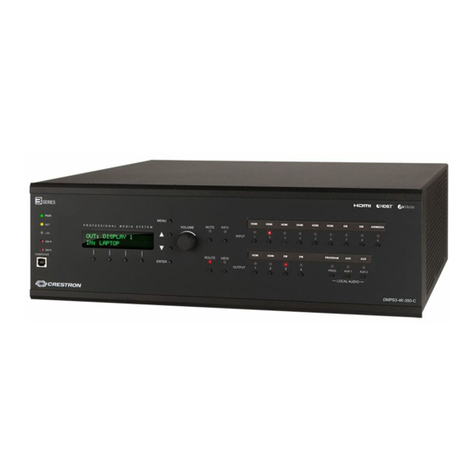
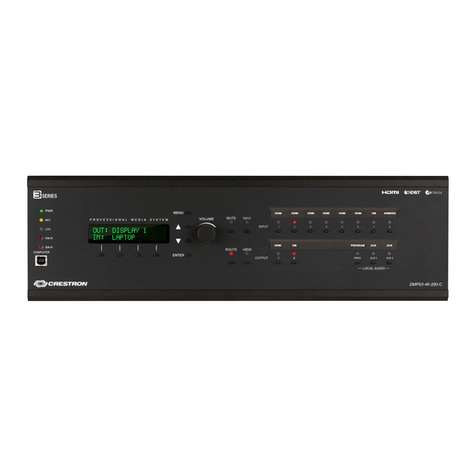
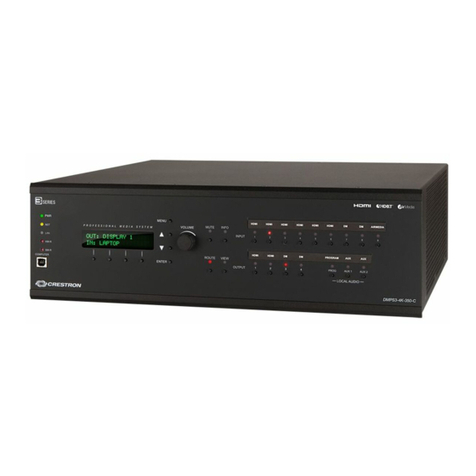
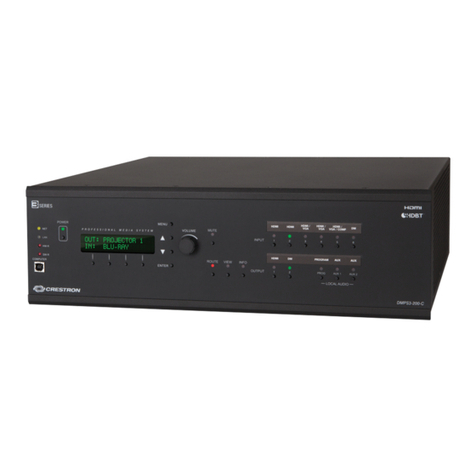
  9. Crestron 4K DigitalMedia DMPS3-4K-150-C User manual

Crestron 4K DigitalMedia DMPS3-4K-150-C User manual

Other manuals for 4K DigitalMedia DMPS3-4K-150-C

1

Other Crestron Projector Accessories manuals

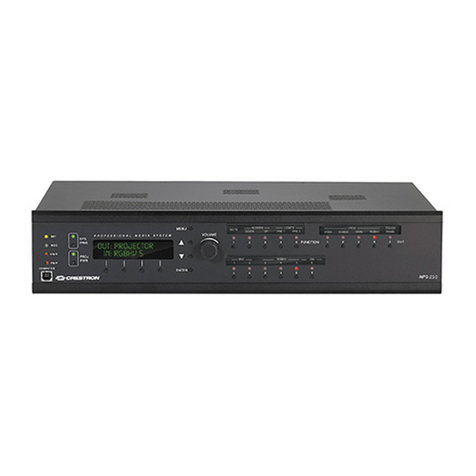
Crestron MPS-200 User manual

Crestron

Crestron MPS-200 User manual

Crestron DigitalMedia 3 Series Dimensional drawing

Crestron

Crestron DigitalMedia 3 Series Dimensional drawing

Crestron DigitalMedia 3 Series User manual

Crestron

Crestron DigitalMedia 3 Series User manual

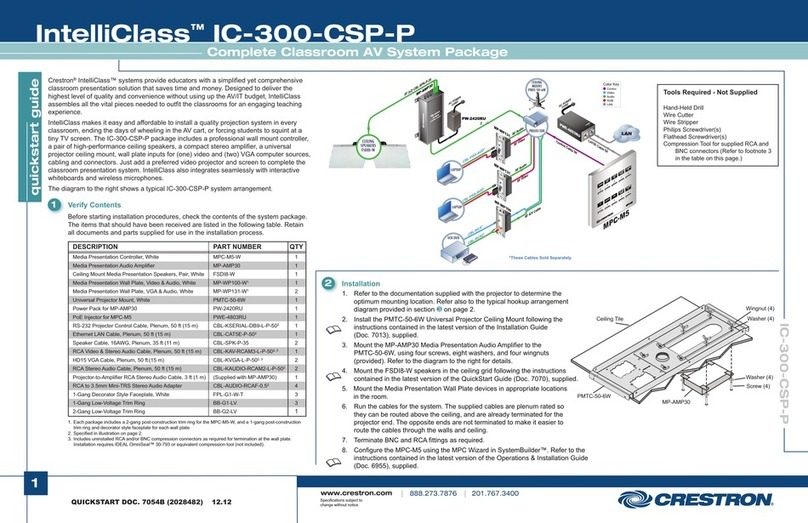
Crestron IntelliClass IC-300-CSP-P User manual

Crestron

Crestron IntelliClass IC-300-CSP-P User manual

Crestron 4K DigitalMedia 3-Series Dimensional drawing

Crestron

Crestron 4K DigitalMedia 3-Series Dimensional drawing

Crestron DMPS3-4K-200-C  Series Dimensional drawing

Crestron

Crestron DMPS3-4K-200-C Series Dimensional drawing

Crestron HD-PS622 User manual

Crestron

Crestron HD-PS622 User manual

Crestron DigitalMedia 3 Series User manual

Crestron

Crestron DigitalMedia 3 Series User manual

Crestron 4K DigitalMedia 3-Series User manual

Crestron

Crestron 4K DigitalMedia 3-Series User manual

Crestron AirMedia Presentation System 200 User manual

Crestron

Crestron AirMedia Presentation System 200 User manual

Crestron AirMedia Presentation System 200 Dimensional drawing

Crestron

Crestron AirMedia Presentation System 200 Dimensional drawing

Crestron Multimedia Presentation System 300 MPS-300 User manual

Crestron

Crestron Multimedia Presentation System 300 MPS-300 User manual

Crestron HD-PS401 User manual

Crestron

Crestron HD-PS401 User manual

Crestron DMPS3-4K-250-C Dimensional drawing

Crestron

Crestron DMPS3-4K-250-C Dimensional drawing

Crestron DMPS3-4K-200-C  Series Owner's manual

Crestron

Crestron DMPS3-4K-200-C Series Owner's manual

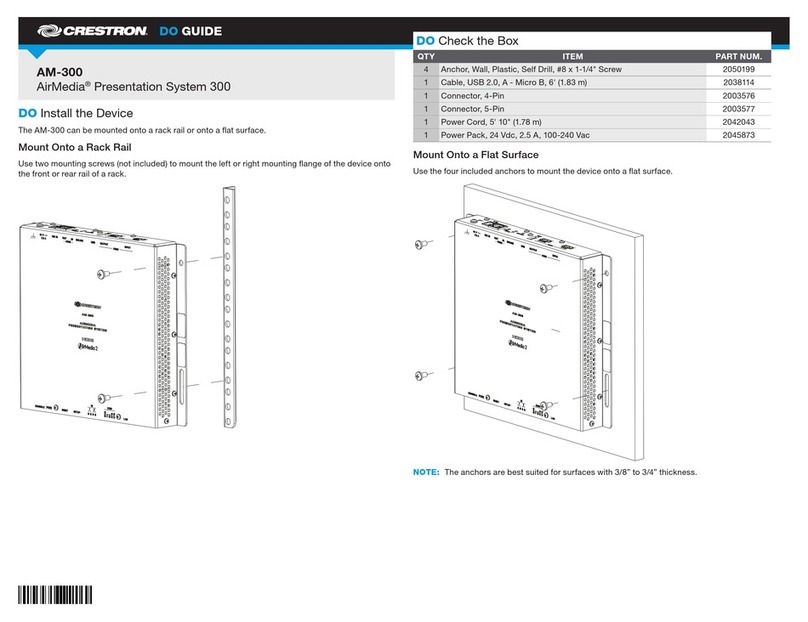
Crestron AM-300 Dimensional drawing

Crestron

Crestron AM-300 Dimensional drawing

Crestron 4K DigitalMedia 3-Series User manual

Crestron

Crestron 4K DigitalMedia 3-Series User manual

Crestron Multimedia Presentation System 250 MPS-250 User manual

Crestron

Crestron Multimedia Presentation System 250 MPS-250 User manual

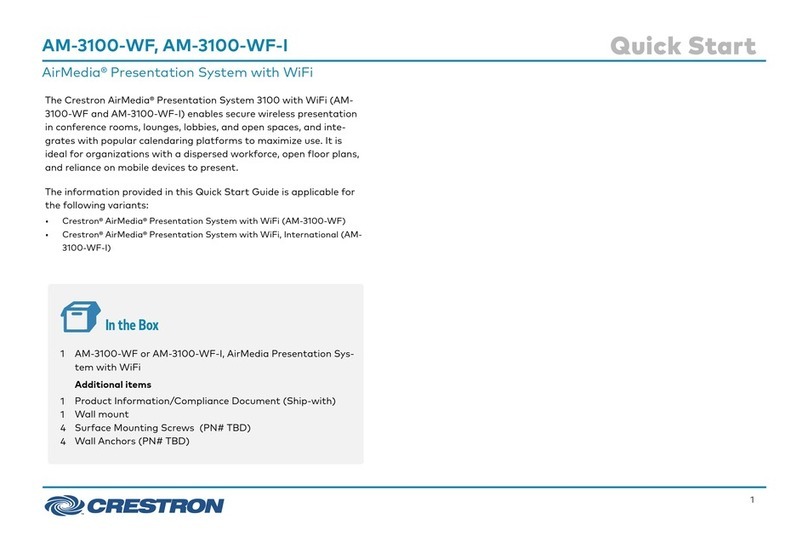
Crestron AM-3100-WF User manual

Crestron

Crestron AM-3100-WF User manual

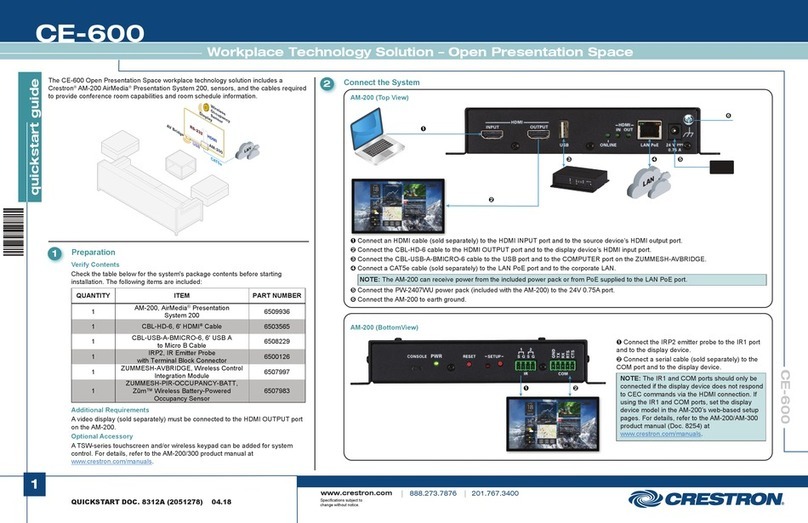
Crestron CE-600 User manual

Crestron

Crestron CE-600 User manual

Crestron AM-200 User manual

Crestron

Crestron AM-200 User manual

Crestron AM-300 User manual

Crestron

Crestron AM-300 User manual

Popular Projector Accessories manuals by other brands

Optoma BX-AL133B datasheet

Optoma

Optoma BX-AL133B datasheet

PEERLESS PE 1120 Installation and assembly

PEERLESS

PEERLESS PE 1120 Installation and assembly

Osram SIRIUS HRI Series Directions for use

Osram

Osram SIRIUS HRI Series Directions for use

Presentation Switchers PS111 quick start

Presentation Switchers

Presentation Switchers PS111 quick start

Kramer VIA GO user manual

Kramer

Kramer VIA GO user manual

Yamaha PJL-112 Replacement guide

Yamaha

Yamaha PJL-112 Replacement guide

Mitsubishi Electric 236CB Features

Mitsubishi Electric

Mitsubishi Electric 236CB Features

Epson BrightLink 475Wi user guide

Epson

Epson BrightLink 475Wi user guide

Acer WP100 quick guide

Acer

Acer WP100 quick guide

Biamp Modena Hub Network administrator's guide

Biamp

Biamp Modena Hub Network administrator's guide

Panamorph DCR-S3 installation guide

Panamorph

Panamorph DCR-S3 installation guide

Exact solutions FRAME-EVO-P10 manual

Exact solutions

Exact solutions FRAME-EVO-P10 manual

i3 i3board user manual

i3

i3 i3board user manual

CHIEF VCM103S installation instructions

CHIEF

CHIEF VCM103S installation instructions

InFocus LP70+ Replacement instructions

InFocus

InFocus LP70+ Replacement instructions

Sharp AN-PH20EZ Operation manual

Sharp

Sharp AN-PH20EZ Operation manual

PDR UPM51 product manual

PDR

PDR UPM51 product manual

CHIEF HB-43E installation instructions

CHIEF

CHIEF HB-43E installation instructions

manuals.online logo
manuals.online logoBrands
  • About & Mission
  • Contact us
  • Privacy Policy
  • Terms and Conditions

Copyright 2025 Manuals.Online. All Rights Reserved.

DO GUIDE
DMPS3-4K-150 -C
3-Series®DigitalMediaTM Presentation System 150
DO Mount the DMPS3-4K-150-C
Mount the DMPS3-4K-150-C into a standard 19-inch rack, onto a at surface, or under a table as appropriate for the installation.
Mounting into a Rack
The DMPS3-4K-150-C occupies 1U of rack space.
WARNING: To prevent bodily injury when mounting or servicing this unit in a rack, observe the following guidelines:
• When mounting this unit in a partially lled rack, load the rack from the bottom to the top with the heaviest component at the bottom of the rack.
• If the rack is provided with stabilizing devices, install the stabilizers before mounting or servicing the unit in the rack.
NOTE: Observe the following guidelines when installing equipment in a rack:
• Elevated Operating Ambient - If installed in a closed or multi-unit rack assembly, the operating ambient temperature of the rack environment may be
greater than room ambient temperature. Therefore, consideration should be given to installing the equipment in an environment compatible with the
maximum ambient temperature (Tma) specied by the manufacturer.
• Reduced Airow - Installation of the equipment in a rack should be such that the amount of airow required for safe operation of the equipment is not
compromised.
• Mechanical Loading - Mounting of the equipment in the rack should be such that a hazardous condition is not achieved due to uneven mechanical
loading.
• Circuit Overloading - Consideration should be given to the connection of the equipment to the supply circuit and the effect that overloading of the
circuits might have on overcurrent protection and supply wiring. Appropriate consideration of equipment nameplate ratings should be used when
addressing this concern.
• Reliable Earthing - Reliable earthing of rack-mounted equipment should be maintained. Particular attention should be given to supply connections other
than direct connections to the branch circuit (e.g., use of power strips).
To mount the unit into a rack, use the two included rack ears and do the following:
1. Using a #1 or #2 Phillips screwdriver, remove the three cover screws closest to the front panel on the left or right side of the unit.
2. Position a rack ear so that its mounting holes align with the holes vacated in step 1.
3. Secure the ear to the unit using the three screws removed in step 1.
4. Repeat steps 1 through 3 to attach the remaining ear to the other side of the unit.
5. Secure the unit to the rack using two rack mounting screws (not included) for each rack ear.
Mounting onto a Flat Surface
To mount the unit onto a at surface or to stack the unit on top of other equipment, use the four rubber feet included with the unit.
Mounting under a Table
To mount the unit under a table, use the four included table mount brackets and do the following:
1. Using a #1 or #2 Phillips screwdriver, remove the two cover screws closest to the front panel on the left or right side of the unit.
2. Position a table mount bracket so that its mounting holes align with the holes vacated in step 1.
3. Secure the bracket to the unit using the two screws removed in step 1.
4. Repeat steps 1 through 3 to attach a bracket to each of the three remaining positions as shown in the illustration below.
5. Attach the four table mount brackets to the underside of the table using four mounting screws (not included).
DO Make Connections to the DMPS3-4K-150-C
Make connections to the front and rear panels of the DMPS3-4K-150-C as required for the application.
Making Connections to the Front Panel
Connect the COMPUTER port (USB Type B) to a USB Type A port on a PC (USB 2.0 A/B cable not included).
DO Check the Box
QUANTITY PRODUCT PART NUMBER
4Rubber Feet 2002389
1 Power Cord, 3-Prong, 6 Feet 2001134
1Crestron®STIRP IR Emitter Probe 2001137
2Interface Connector, Plug, 3-Pin 2003575
2Interface Connector, Plug, 4-Pin 2003576
2Interface Connector, Plug, 5-Pin 2003577
2Rack Ear 2032122
4Bracket, Table Mount 2041951
1Important Safety Instructions 2018589
Not included: Cables, rack mount screws, and table mount screws
PC Running
Crestron Toolbox™
COMPUTER
HW-R SW-R
PWR
NET MSG
DM 4K PRESENTATION SYSTEM
DMPS3-4K-150-C
IR IN
VOLUME
VGAAUTO
1 2 3 4 1 2 3 4
INPUT SELECT
HDMI
1 2
DM
DO GUIDE DOC. 7654A (2042246) 10.14
Specications subject to change without notice.
Making Connections to the Rear Panel
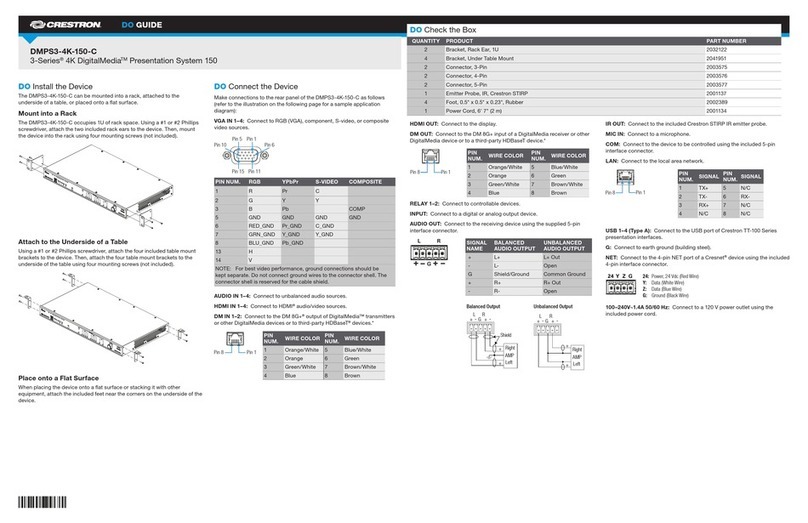
Make connections to the rear panel as follows:
VGA IN 1–4: Connect to RGB (VGA), component, S-video, or
composite video sources (VGA cables not included).
AUDIO IN 1–4: Connect to unbalanced audio sources
(unbalanced 3.5 mm TRS mini phone jack cables not included).
HDMI IN 1–4: Connect to HDMI®audio/video sources (HDMI
cables not included).
DM IN 1–2: Connect to the DM 8G+™ output of DigitalMedia™
transmitters or other DigitalMedia devices or to third-party
HDBaseT®devices (Crestron®DM-CBL-ULTRA, DM-CBL-8G,
DM-CBL, DM-CBL-D, or third-party CAT5e [or better] UTP or STP
cables not included).*
HDMI OUT: Connect to the receiving device (HDMI cable not
included).
DM OUT: Connect to the DM 8G+ input of a DigitalMedia receiver
or other DigitalMedia device or to a third-party HDBaseT device
(Crestron DM-CBL-ULTRA, DM-CBL-8G, DM-CBL, DM-CBL-D, or
third-party CAT5e [or better] UTP or STP cable not included).*
RELAY 1–2: Connect to controllable devices (cables not
included).
INPUT: Connect to a digital input, digital output, or analog output
device (cable not included).
AUDIO OUT: Connect to the receiving device using the supplied
5-pin interface connector (cable not included).
IR OUT: Connect to the included Crestron STIRP IR emitter
probe.
MIC IN: Connect to a microphone.
COM: Connect to the device to be controlled using the included
5-pin interface connector (RS-232 data communications cable
not included).
LAN: Connect to the local area network (Ethernet cable not
included).
USB 1–4 (Type A): Connect to the USB port of TT-100 Series
presentation interfaces (USB cable included with presentation
interfaces).
G: Connect to earth ground (building steel).
NET: Connect to the 4-pin NET port of a Cresnet®device using
the included 4-pin interface connector (Cresnet control cable not
included).
100–240V~1.4A 50/60 Hz: Connect to a 120 V power outlet using the
included power cord.
DO Allow DHCP Mode or Set a Static IP Address
DHCP is enabled by default. Via the USB connection between the
COMPUTER port of the DMPS3-4K-150-C and a PC running Crestron
Toolbox™, use the Device Discovery Tool in Crestron Toolbox to nd the IP
address of the DMPS3-4K-150-C. If desired, set a static IP address using
Crestron Toolbox or the web-based conguration interface of the
DMPS3-4K-150-C.
DO Commission the DMPS3-4K-150-C System
Using the web-based conguration interface, commission the
DMPS3-4K-150-C system by conguring EDID, audio, video, and
DigitalMedia endpoints. In addition, use the web-based conguration
interface to update rmware.
DO Allow Automatic Switching or
Manually Select an Input
By default, automatic switching of inputs is enabled. Automatic switching
causes the last connected input to be routed to the output. The AUTO LED
lights to indicate that automatic switching is enabled.
To manually select and activate the desired input, press one of the VGA
(1–4), HDMI (1–4), or DM (1–2) INPUT SELECT buttons. Refer to the
following table for a summary of the LED behavior of selected and
nonselected inputs.
NOTE: Manual selection of an input disables automatic switching. When
automatic switching is disabled, the AUTO LED goes off.
DO Use the Built-In Control Program
The DMPS3-4K-150-C provides a built-in program that enables complete
system control without requiring additional programming. Control is
accomplished using the Crestron TSW-750-B PAK 7” tabletop touch
screen, the Crestron XPanel interface, or the Apple® iPad®app. Refer to the
operations guide (Doc. 7646) at www.crestron.com/manuals for additional
information about the built-in control program.
As of the date of manufacture, the product has been tested and found to comply with specications for CE marking.
Federal Communications Commission (FCC) Compliance Statement
This device complies with part 15 of the FCC Rules. Operation is subject to the following conditions:
(1) This device may not cause harmful interference and (2) this device must accept any interference received, including interference that may cause undesired operation.
Caution: Changes or modications not expressly approved by the manufacturer responsible for compliance could void the user’s authority to operate the equipment.
Note: This equipment has been tested and found to comply with the limits for a Class B digital device, pursuant to part 15 of the FCC Rules. These limits are designed to provide reasonable protection against harmful interference in a residential
installation. This equipment generates, uses and can radiate radio frequency energy and, if not installed and used in accordance with the instructions, may cause harmful interference to radio communications. However, there is no guarantee that
interference will not occur in a particular installation.
If this equipment does cause harmful interference to radio or television reception, which can be determined by turning the equipment off and on, the user is encouraged to try to correct the interference by one or more of the following measures:
•Reorient or relocate the receiving antenna
• Increase the separation between the equipment and receiver
• Connect the equipment into an outlet on a circuit different from that to which the receiver is connected
• Consult the dealer or an experienced radio/TV technician for help
Industry Canada (IC) Compliance Statement
CAN ICES-3(B)/NMB-3(B)
The specic patents that cover Crestron products are listed at www.patents.crestron.com. Product warranty can be found at www.crestron.com/warranty.
Crestron, the Crestron logo, 3-Series, Cresnet, Crestron Toolbox, DigitalMedia, and DM 8G+ are either trademarks or registered trademarks of Crestron Electronics, Inc., in the United States and/or other countries. Apple and iPad are either trademarks or registered trademarks of Apple Inc. in the United States
and/or other countries. HDBaseT and the HDBaseT Alliance logo are either trademarks or registered trademarks of the HDBaseT Alliance in the United States and/or other countries. HDMI and the HDMI logo are either trademarks or registered trademarks of HDMI Licensing LLC in the United States and/or other
countries. Other trademarks, registered trademarks, and trade names may be used in this document to refer to either the entities claiming the marks and names or their products. Crestron disclaims any proprietary interest in the marks and names of others. Crestron is not responsible for errors in typography
or photography.
This document was written by the Technical Publications department at Crestron.
©2014 Crestron Electronics, Inc.
DO Learn More
Check the website for the latest rmware updates.
Crestron Electronics 15 Volvo Drive, Rockleigh, NJ 07647
888.CRESTRON | www.crestron.com
* For all resolutions up to UHD and 4K, the maximum cable length is 330 feet (100 meters)
using DM-CBL-ULTRA cable. For resolutions up to 1080p60, UXGA, WUXGA, and 2K DCI, the
maximum cable length is 330 feet (100 meters) using DM-CBL-8G, DM-CBL, DM-CBL-D,
or third-party CAT5e [or better] cable. For higher resolutions up to 4K DCI and UHD, the
maximum cable length is 230 feet (70 meters) using DM-CBL-8G cable or 165 feet (50
meters) using DM-CBL, DM-CBL-D, or CAT5e cable. Shielded cable and connectors are
recommended to safeguard against unpredictable environmental electrical noise that may
impact performance at resolutions above 1080p.
AUDIOIN
VIDEOIN LAN
LRC
O
M
HDMIIN
DMOUT
DISPLAYPORT
VID
IR
S G
24V 0.75A
PC
G
TX
RX
RS
CS
G
CLASS1
LASER
PRODUCT
DM-TX-401-C
LAPTOP
DM-RMC-100-C
COM
HDMI OUT
GND
TX
RX
RTS
CTS
S
G
S
S
1
2
IR
LAN
DM IN
RESET
SETUP
24 V
0.75AMAX
DM-RMC-100-C
DM ROOM CONTROLLER
PROJECTOR
STEREO
SPEAKERS
LAPTOP
MONITOR
TT-100
TT-100
TT-100
TT-100
AMPLIFIER
DM-TX-201-C
USBHID HDMI RGB AUDIO SETUP
DM - T X - 2 0 1 - C
DM C O M P U T E R C E N T E R
RESET
IN
LAN DMOUT HDMIOUT
PWR
24VDC
0.75A
COMPUTER
LAPTOP
MICROPHONE
TSW-750
PROJECTION
SCREEN
LAN
2
3
4
Color Description
Solid green The input is the active selection, and an incoming signal
is detected.
Flashing green The input is the active selection, and an incoming signal is
not detected.

Solid amber The input is not the active selection, and an incoming
signal is detected.
Off The input is not the active selection, and an incoming
signal is not detected.