manuals.online logo
Brands
  1. Home
  2. •
  3. Brands
  4. •
  5. DMP Electronics
  6. •
  7. Control Unit
  8. •
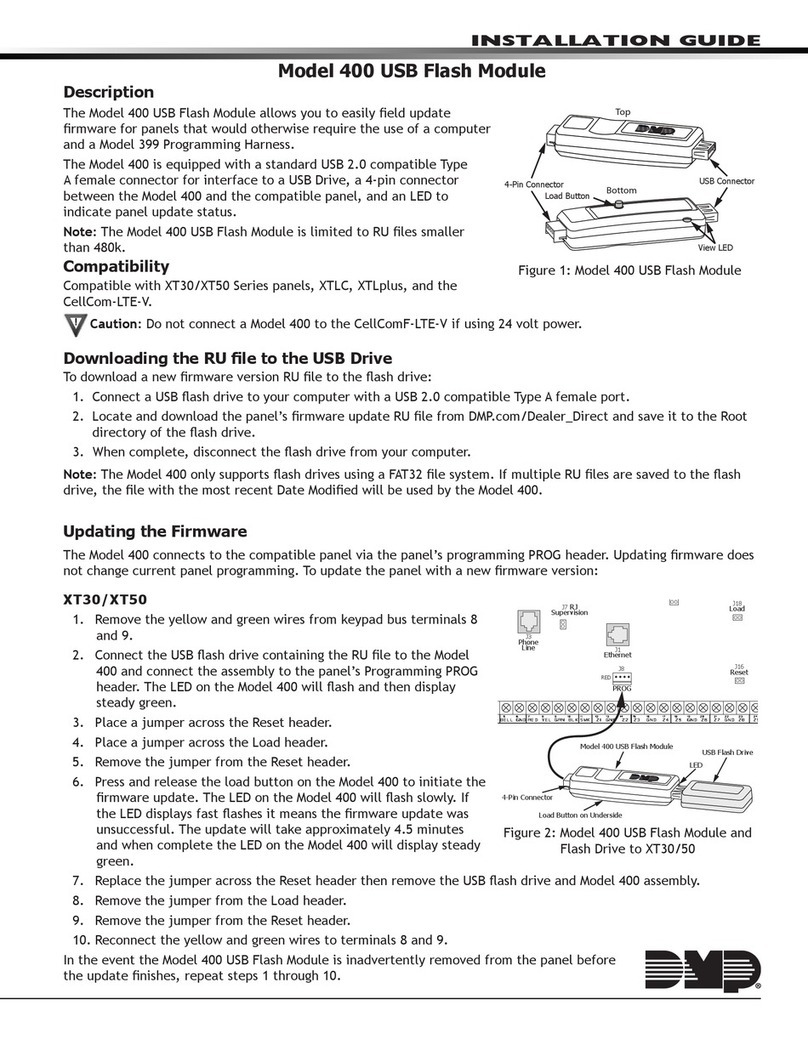
  9. DMP Electronics 263EXT User manual

DMP Electronics 263EXT User manual

This manual suits for next models

2

Other DMP Electronics Control Unit manuals
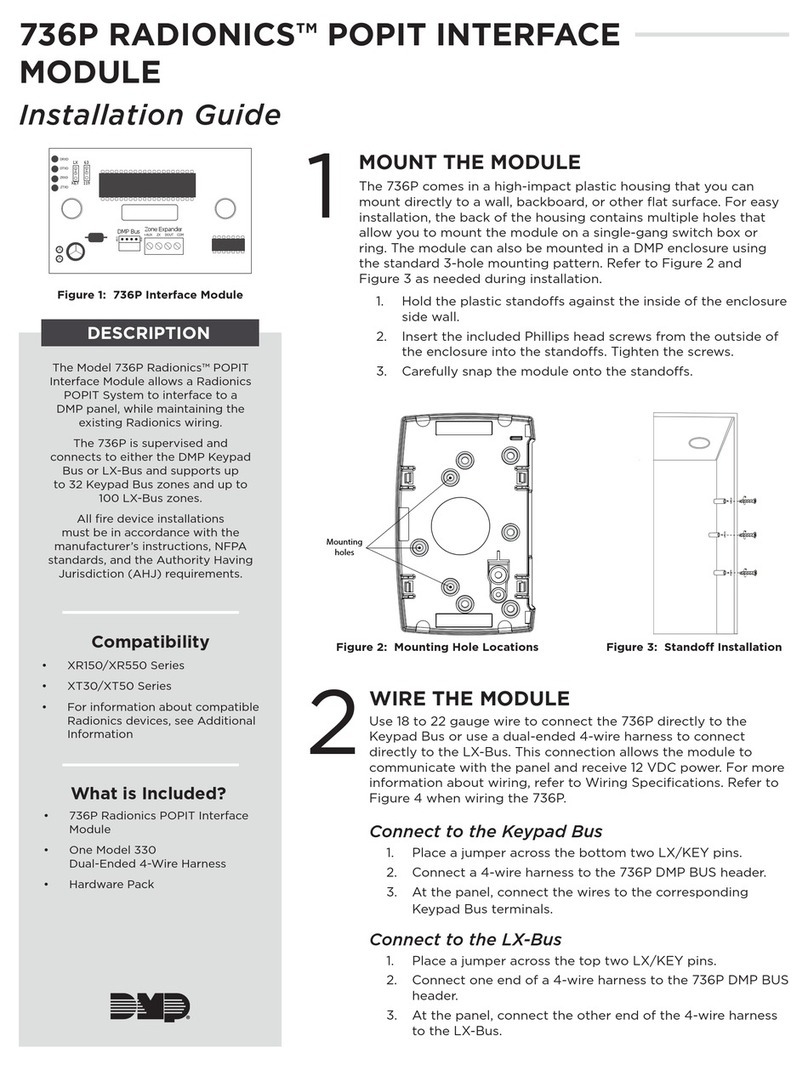
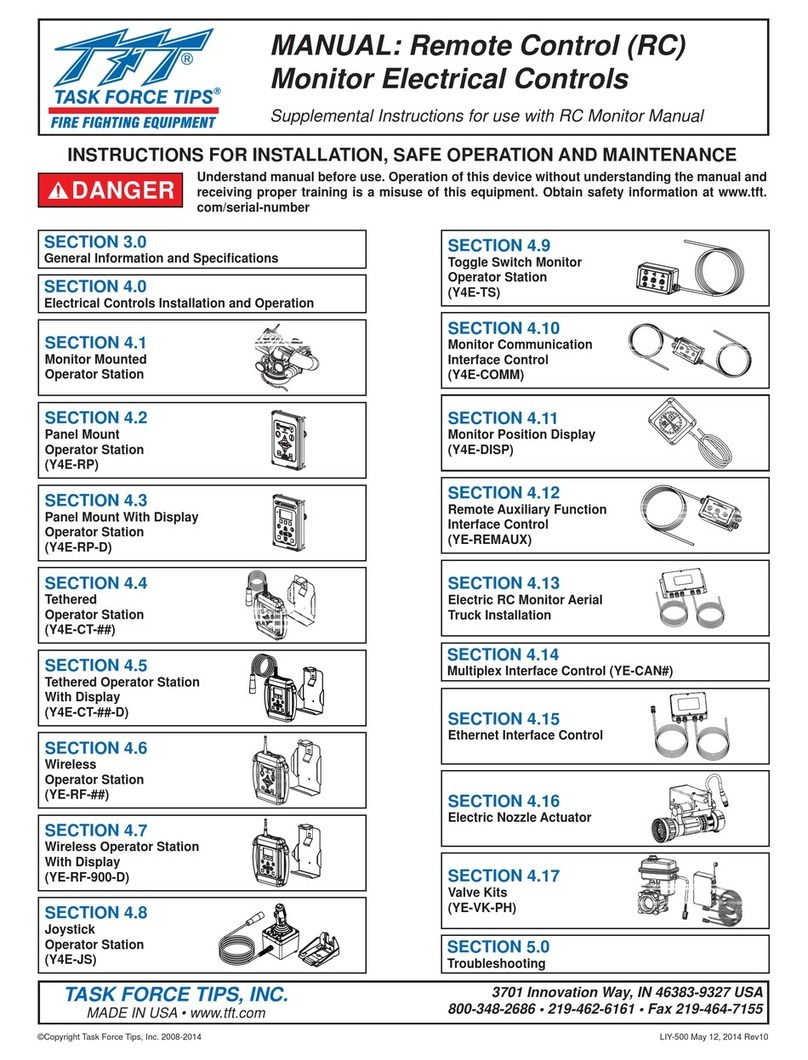
DMP Electronics 736P Radionics User manual

DMP Electronics

DMP Electronics 736P Radionics User manual

DMP Electronics 1134 Installation guide

DMP Electronics

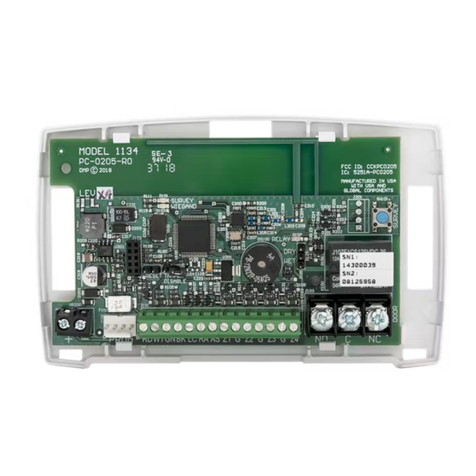
DMP Electronics 1134 Installation guide

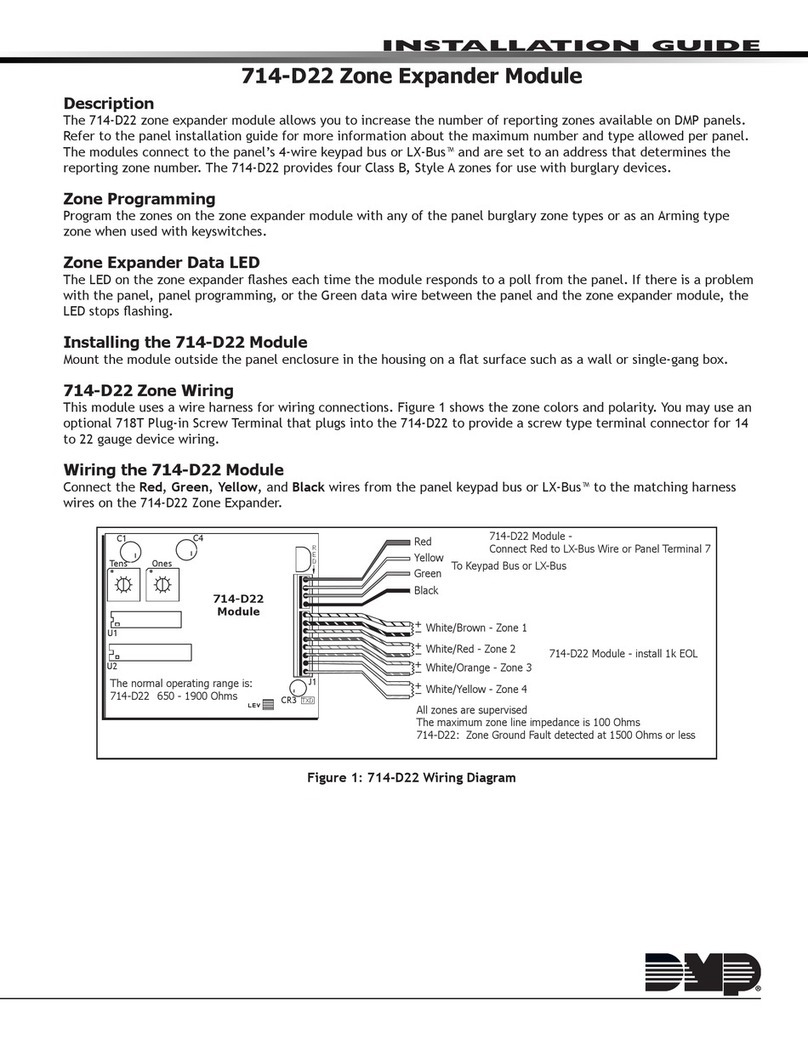
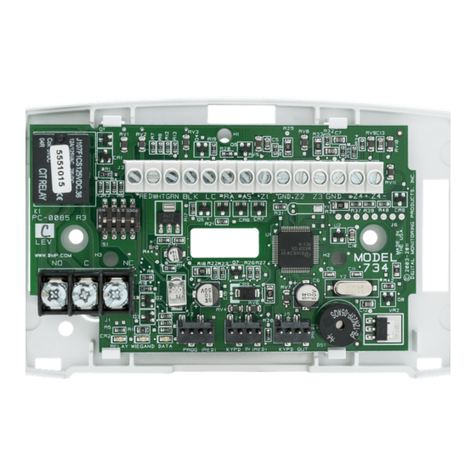
DMP Electronics 734 Installation guide

DMP Electronics

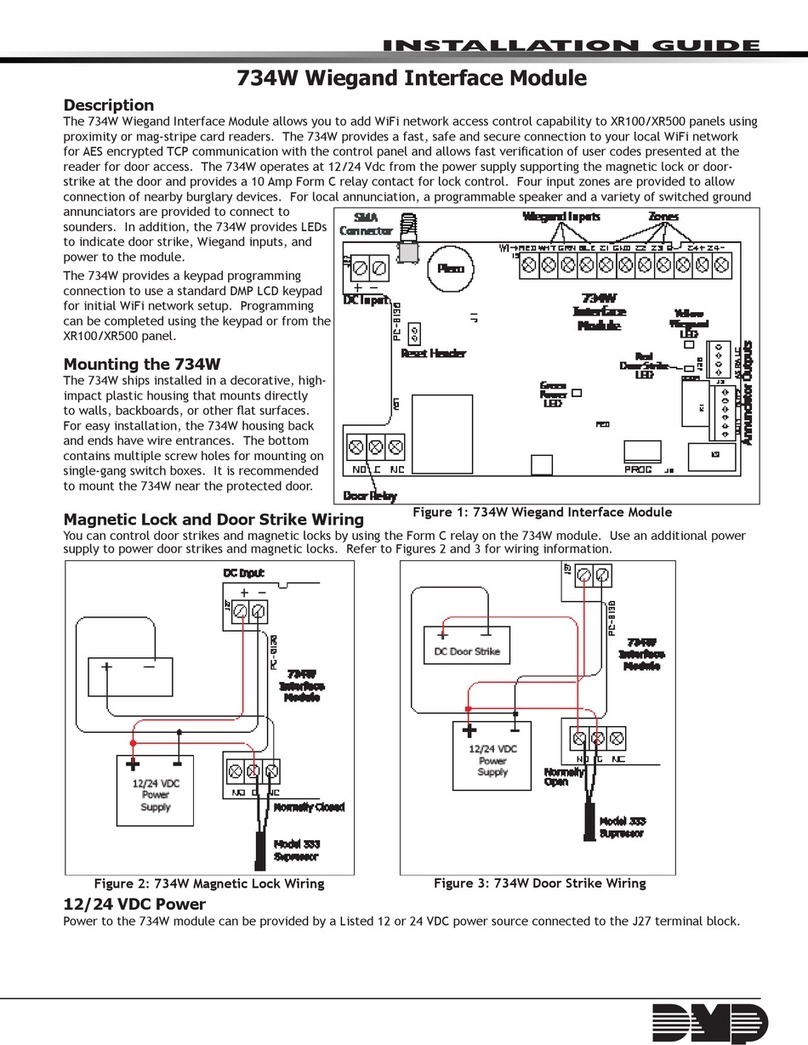
DMP Electronics 734 Installation guide

DMP Electronics 867 Style W User manual

DMP Electronics

DMP Electronics 867 Style W User manual

DMP Electronics RoBoard RM-G211 User manual

DMP Electronics

DMP Electronics RoBoard RM-G211 User manual

DMP Electronics 867 W LX-BUS User manual

DMP Electronics

DMP Electronics 867 W LX-BUS User manual

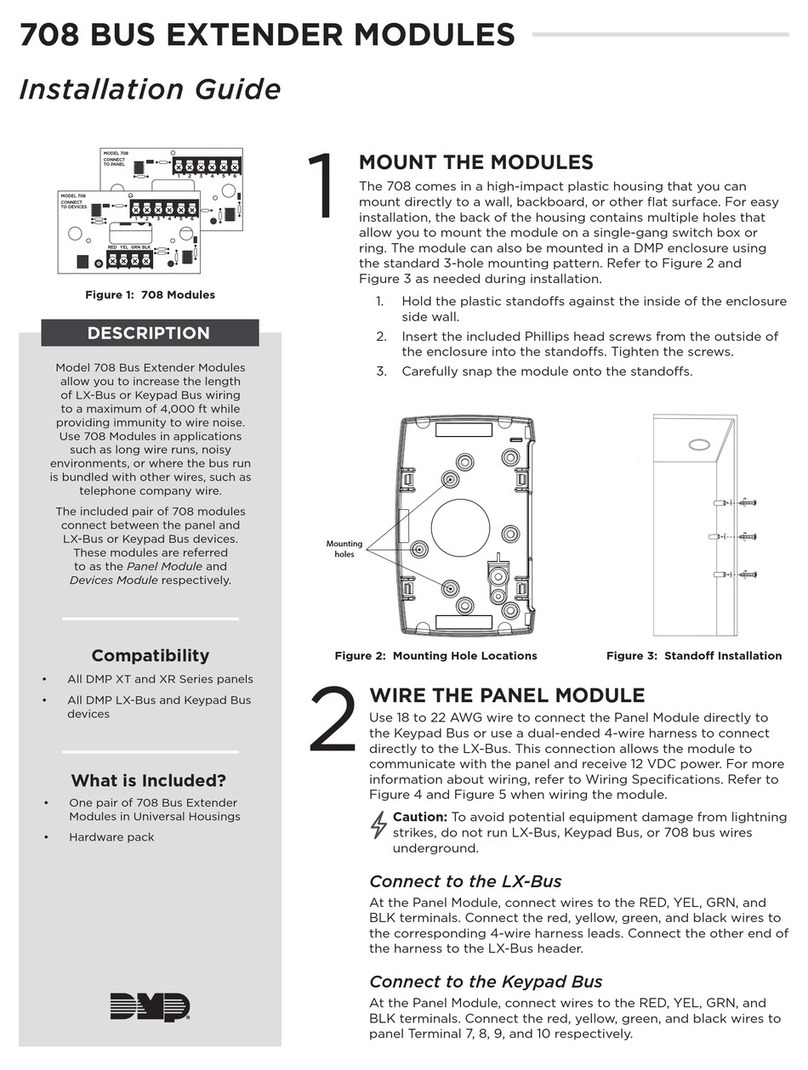
DMP Electronics 734N Series Installation guide

DMP Electronics

DMP Electronics 734N Series Installation guide

DMP Electronics 711S User manual

DMP Electronics

DMP Electronics 711S User manual

DMP Electronics 734N Series Installation guide

DMP Electronics

DMP Electronics 734N Series Installation guide

DMP Electronics RoBoard RM-G145 User manual

DMP Electronics

DMP Electronics RoBoard RM-G145 User manual

DMP Electronics RoBoard RM-G212 User manual

DMP Electronics

DMP Electronics RoBoard RM-G212 User manual

DMP Electronics 780 Installation guide

DMP Electronics

DMP Electronics 780 Installation guide

DMP Electronics Wiegand 734N Installation guide

DMP Electronics

DMP Electronics Wiegand 734N Installation guide

DMP Electronics 865 User manual

DMP Electronics

DMP Electronics 865 User manual

DMP Electronics 717 User manual

DMP Electronics

DMP Electronics 717 User manual

DMP Electronics 1134 Installation guide

DMP Electronics

DMP Electronics 1134 Installation guide

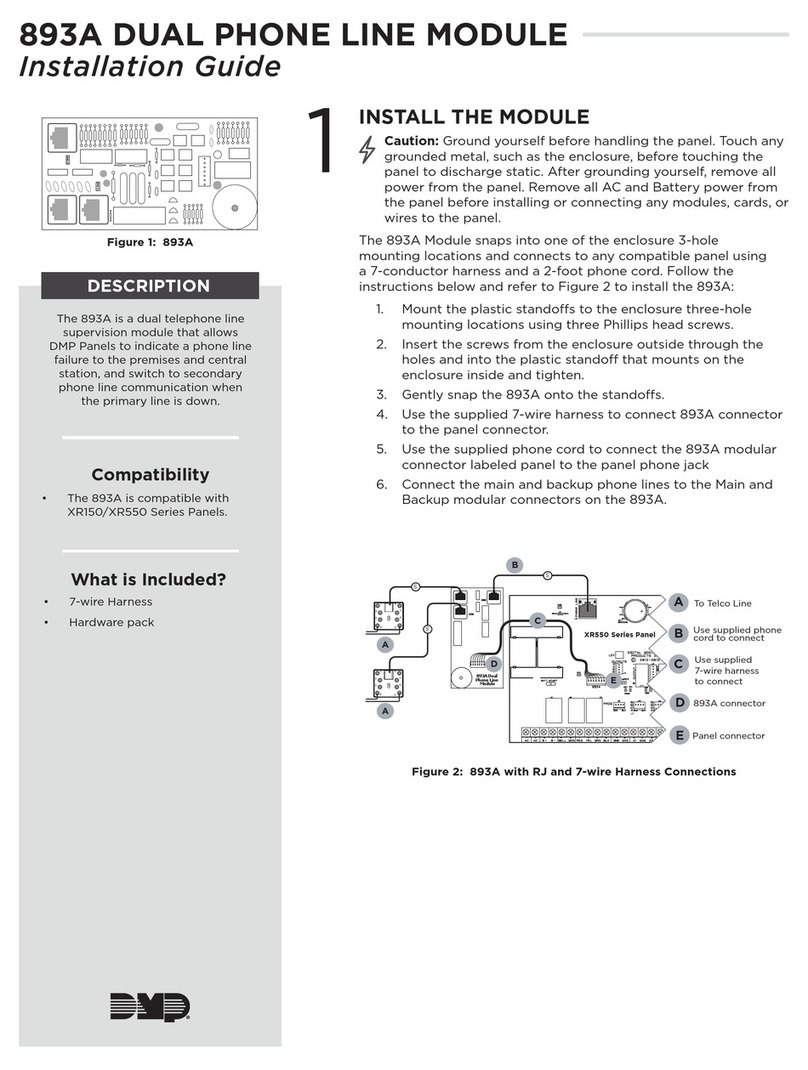
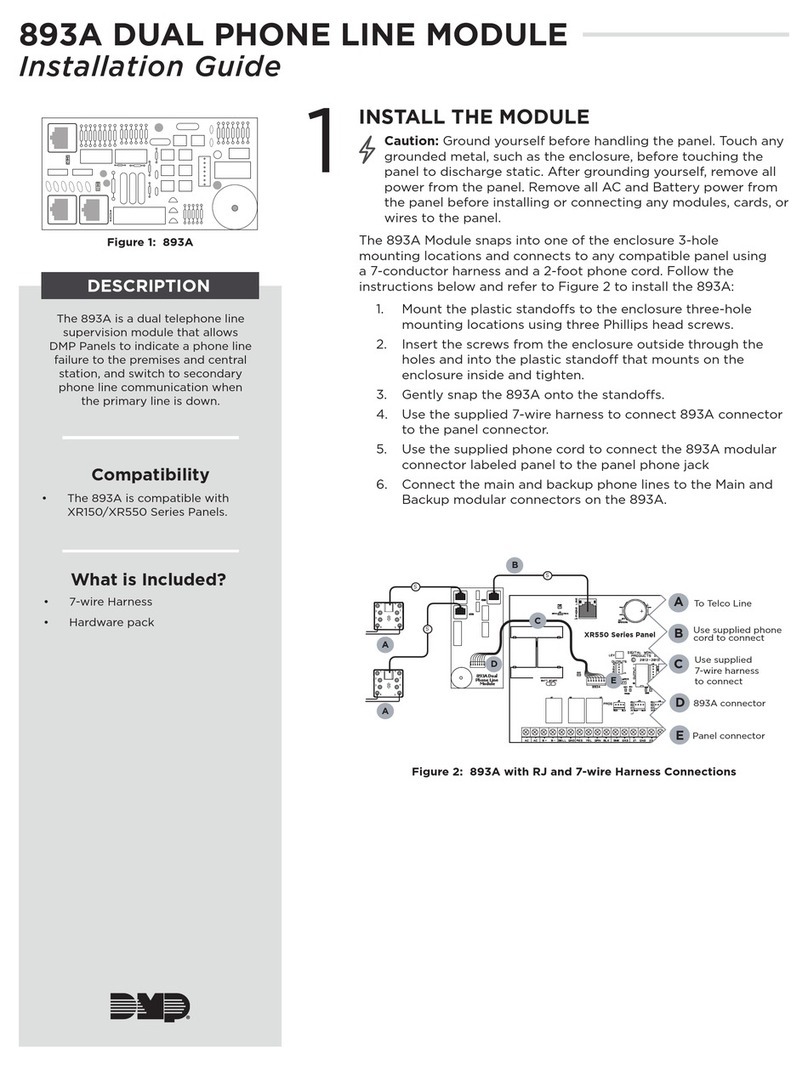
DMP Electronics 893A User manual

DMP Electronics

DMP Electronics 893A User manual

DMP Electronics 734INT Installation guide

DMP Electronics

DMP Electronics 734INT Installation guide

DMP Electronics 734N-WIFI Administrator Guide

DMP Electronics

DMP Electronics 734N-WIFI Administrator Guide

DMP Electronics 263EXT User manual

DMP Electronics

DMP Electronics 263EXT User manual

DMP Electronics 708 User manual

DMP Electronics

DMP Electronics 708 User manual
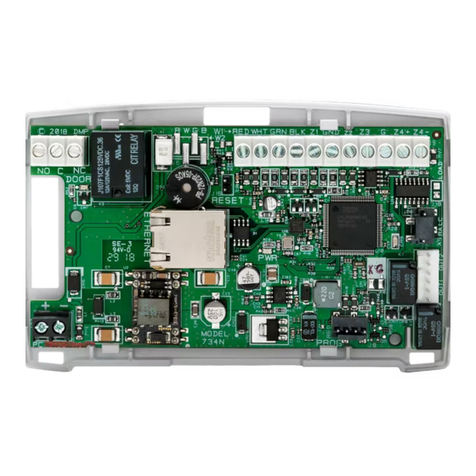
DMP Electronics 1116 User manual

DMP Electronics

DMP Electronics 1116 User manual

DMP Electronics SCS-104 User manual

DMP Electronics

DMP Electronics SCS-104 User manual

DMP Electronics 734 User manual

DMP Electronics

DMP Electronics 734 User manual

Popular Control Unit manuals by other brands
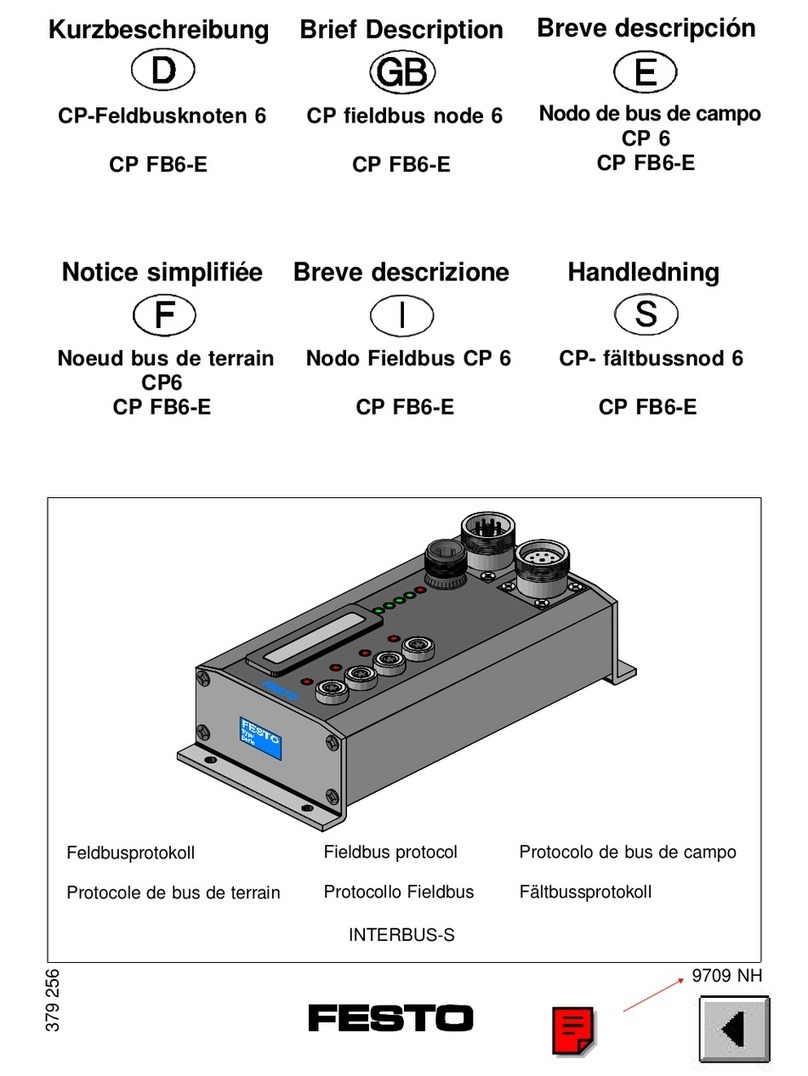
Seitz 14A80 user manual

Seitz

Seitz 14A80 user manual

Wilo RS485 Installation and operating instructions

Wilo

Wilo RS485 Installation and operating instructions

Becker CentralControl CC41 Commissioning Instruction

Becker

Becker CentralControl CC41 Commissioning Instruction

SICK CDB650 operating instructions

SICK

SICK CDB650 operating instructions

Panduit NetKey NKP5E88M Series installation instructions

Panduit

Panduit NetKey NKP5E88M Series installation instructions

MX Options Concentric Petite Fitting instructions

MX

MX Options Concentric Petite Fitting instructions

Clean Water Systems Fleck 2510 Installation & start?up guide

Clean Water Systems

Clean Water Systems Fleck 2510 Installation & start?up guide

Fairchild FSB44104A user guide

Fairchild

Fairchild FSB44104A user guide

LEGRAND Wattstopper LMIN-104 installation instructions

LEGRAND

LEGRAND Wattstopper LMIN-104 installation instructions

PMK ATT10BNCS instruction manual

PMK

PMK ATT10BNCS instruction manual

Tektronix TDS3FFT user manual

Tektronix

Tektronix TDS3FFT user manual

Woodward easYgen Technical manual

Woodward

Woodward easYgen Technical manual

Balluff BNI EIP-502-105-R015 user guide

Balluff

Balluff BNI EIP-502-105-R015 user guide

NXP Semiconductors TWR-LS1021A Getting started

NXP Semiconductors

NXP Semiconductors TWR-LS1021A Getting started

Advantech PCM-3117 Startup manual

Advantech

Advantech PCM-3117 Startup manual

Danfoss MCO 101 manual

Danfoss

Danfoss MCO 101 manual

Moons' Lin Engineering R701P user manual

Moons'

Moons' Lin Engineering R701P user manual

Aventics RV1 operating instructions

Aventics

Aventics RV1 operating instructions

manuals.online logo
manuals.online logoBrands
  • About & Mission
  • Contact us
  • Privacy Policy
  • Terms and Conditions

Copyright 2025 Manuals.Online. All Rights Reserved.

1
2
3
4
DESCRIPTION
1INSTALL THE PANEL MODULE
Caution: Touch grounded metal to discharge static before handling the
panel.
1. Open the panel enclosure and remove all power from the panel.
2. Insert the stando provided with the cell modem into the
XT30/XT50 or XR150/XR550 Series panel stando hole.
3. Align the 263EXT stando hole with the stando already placed
in the panel. Secure the 263EXT on the 12-pin cell module
header. See Figures 3 and 4.
4. Place the module on the panel.
With the 263EXT Cellular
Extension Modules, you can now
maintain dB signal over
greater distances. The 263EXT
comes with two modules. The
panel module (see Figure 1) installs
directly on the panel inside the
enclosure while the remote module
(see Figure 2) installs with the cell
modem at the remote location that
provides the best signal.
The modules communicate with
each other through a wired
connection, maintaining dB
signal even from higher or lower
locations. Use CAT5 wire with
T568B Wiring to connect the
two modules. If using anything
other than CAT5 wire, it should
be 22AWG shielded wire with the
shield connected to the ground
terminal on both the panel side
module and the remote side
module. The 263EXT has a reach
of up to 300feet.
Compatibility
The 263EXT is compatible with
panels that have a 12-pin cell
module header, such as the
following panels:
• XT30/XT50 Series panels
• XR150/XR550 Series panels
What is Included
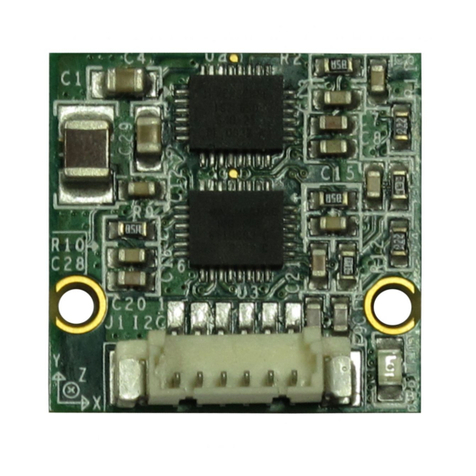
• 263EXT Panel Module
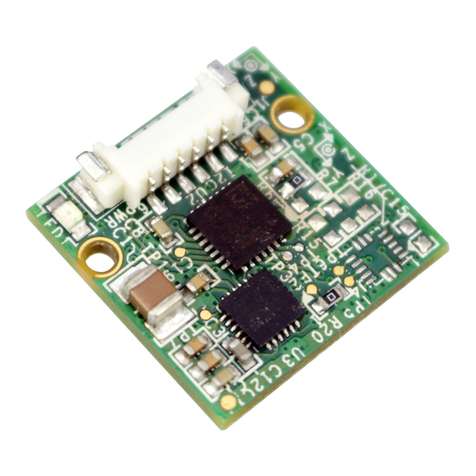
• 263EXT Remote Module
Stando and
Stando Hole
Back of the 263EXT
Figure 3: 263EXT Panel Module on an XT30/XT50 Panel
Figure 4: 263EXT Panel Module on an XR150/XR550 Panel
Back of the 263EXT
Stando and
Stando Hole
Figure 1: 263EXT Panel Module
Figure 2: 263EXT Remote Module
263EXT CELLULAR EXTENSION MODULES
Installation Guide
All manuals and user guides at all-guides.com
all-guides.com
263EXT INSTALLATION GUIDE | LT-1848 18402 | DIGITAL MONITORING PRODUCTS
Designed, engineered,
and manufactured in
Springfield, Missouri using U.S.
and global components.
INTRUSION • FIRE • ACCESS • NETWORKS
2500 North Partnership Boulevard
Springfield, Missouri 65803-8877
888.436.7832 | DMP.com
LT-1848 1.01 18461
Brown
Brown/White
Green
Blue/White
Blue
Green/White
Orange
Orange/White
1 2 3 4 5 6
+12V
GND
3INSTALL THE REMOTE MODULE
1. Install the cellular communicator on the cell module
header.
2. Place the cellular antenna onto the SMA connector,
then twist the antenna until it is securely tightened
on to the remote module. See Figure6.
Brown
Brown/White
Green
Blue/White
Blue
Green/White
Orange
Orange/White
1 2 3 4 5 6
+12V
GND
4CONNECT THE CABLE
You can use either a CAT5 cable or two shielded 22/4 cables for this installation. This guide uses a CAT5 cable. If
using shielded 22/4, you must connect the shield to the ground on each end.
The remote module can be installed up to 300feet away from the control panel.
1. Connect one end of the CAT5 cable to the terminal on the panel module. See Figure7.
Caution: Observe polarity and make sure wires are installed straight through.
2. Connect the other end of the CAT5 cable to the terminal on the remote module. See Figure8.
3. Apply power to the system to turn it back on.
Figure 6: Connecting the Cellular Antenna
Figure 7: CAT5 Cable on 263EXT Panel Module
Figure 8: CAT5 Cable on 263EXT Remote Module
1 2 3 4 5 6
+12V
GND
Plastic Housing
Terminal
Cell Module
Header
Connect the cellular
communicator here
SMA Connector
Cellular
Antenna
2MOUNT THE REMOTE MODULE
Mount the remote module on a flat surface.
1. Remove the circuit board from the plastic housing by
loosening the clips on one side and gently lifting it out of
the housing base.
2. Use the included screws in the desired mounting hole
locations to attach the remote module to the surface.
See the shaded mounting hole locations in Figure 5.
3. Reinstall the circuit board in the housing base.
Figure 5: Mounting Hole Locations
1 2 3 4 5 6
+12V
GND
Cellular
Communicator
All manuals and user guides at all-guides.com